Why Is My Laptop Fan Always on in Windows 11

A Windows 11 laptop fan that runs all the time usually means one of two things: the processor is working hard and running hot, or a background app is stuck in a loop. Fans spin up to push hot air out through the vents when internal temperatures rise above about 50°C (122°F). They should slow down or stop once things cool off.
The usual causes are hidden background tasks, a power setting that favors speed over quiet, and dust-clogged vents. These can keep the fan loud even when you are only looking at the desktop. The steps below go from the quickest checks to the more involved ones, so you can find the cause in a few minutes and know when to stop.
Your Windows 11 laptop fan runs constantly because the processor is running hot, usually from a hidden background app, a Power mode set to Best performance, or dust blocking the vents. Open Task Manager with Ctrl+Shift+Esc, sort by CPU, and end any unfamiliar heavy app. Then go to Settings System Power & battery and set Power mode to Balanced.
Understanding Why Laptop Fans Run Constantly
The fan runs constantly because sensors inside the laptop report that parts like the processor or graphics card are too warm. A few common problems cause this, including heavy background apps, pending updates, blocked vents, and power settings that push your hardware harder than it needs to go.
These are the usual culprits on a Windows 11 laptop:
- Background Apps: Programs you cannot see are running hidden tasks, keeping your processor busy and hot.
- Power Plans: Your laptop might be set to maximum performance, which keeps your processor running at top speed even when you do not need it.
- Windows Updates: Fresh updates often trigger background indexing and file checks that temporarily push your hardware to the limit.
- Dust and Blocked Vents: Dust clogs your laptop vents, trapping heat inside and forcing the fan to work overtime.
- Outdated Drivers: Old software can cause poor communication between your operating system and your hardware’s power management system.
Start with the two most common causes: hidden background apps and dusty vents. Background apps make the processor generate extra heat, and blocked vents trap that heat inside. Checking both protects your hardware from long-term heat damage and usually brings the noise down during everyday work.
Step 1Check What Is Making Your Processor Work So Hard
Task Manager shows which program or service is keeping your processor busy and your fan spinning. It is built into Windows, so there is nothing to install.
- Press Ctrl+Shift+Esc at the same time to open Task Manager.
- If Task Manager opens in a small view, click the More details button at the bottom. You should now see the full window with tabs and columns.

Task Manager - Make sure you are on the Processes page, then click the CPU column header at the top. The list now sorts with the heaviest processor users first.
- Watch the top few items for a minute. Usage jumps around, so look for a program that stays high, such as 30 percent or more while you are idle, and note its name.
- If it is an app you do not recognize or do not need, click it and select End task in the top right corner. The app stops immediately, and the fan often quiets down within a minute or so.
Step 2Adjust Your Power Mode for a Quieter Fan
The power mode setting controls how Windows balances speed, battery life, and cooling. Switching from Best performance to Balanced or Best power efficiency stops the processor from running flat out all the time, which keeps the fan quieter.
- Click the Start button and open the Settings app.
- Go to System Power & battery. The power settings page opens on the right.
- Find the Power mode section.
- Click the drop-down menu next to Power mode and change it from Best performance to Balanced or Best power efficiency. The change applies right away and no restart is needed.
On some versions of Windows 11, you get two drop-downs, one for when the laptop is plugged in and one for when it is on battery. Change both if you want the fan quiet in either case. To undo the change, set the mode back to Best performance.
Also check your laptop maker’s own software, such as the control app that ships with your brand of computer. These apps often have their own cooling or performance profiles, and they can override the Windows setting. A profile named something like “Performance” or “Turbo” will keep the fan loud no matter what Windows says.
Step 3Check for Stuck Windows Updates
A pending or stuck Windows update can keep the fan running for hours, because the system is setting up new files and indexing the drive in the background. The Settings app shows whether an update is the cause.
- Open the Settings app from your Start menu.

Settings - Click Windows Update in the left menu. The page shows your update status.

Settings › Windows Update - Check whether an update is downloading, installing, or waiting for a restart. If one is installing, give the laptop time to finish. Plug it into a wall charger, leave it on, and let the process complete.
- If an update seems stuck or keeps failing, click Check for updates to see whether a newer fix is available. If the page says Restart now, save your work and restart so the update can finish.
Once the update files are set up, processor load drops and the fan slows down. A big feature update can take a few hours of background work, so patience here is normal.
Step 4Clean Out Dust and Improve Airflow
Dust, pet hair, and lint build up over time and form a thick blanket over the internal cooling fins. Trapped heat cannot escape through the vents, so the sensors tell the fan to spin at maximum speed to keep the computer from overheating.
- Shut down your laptop completely and unplug the power cable. If the battery is removable, take it out.
- Look at the vents on the bottom and sides of the laptop. If you see dust or fuzz blocking the openings, use a can of compressed air and blow it out in short bursts. Keep the can upright and a few inches away.
- Do not use a vacuum cleaner directly on the vents. It can spin the fan too fast and ruin the bearings, and it can also create static electricity.
- Use your laptop on a hard, flat surface like a desk or table. Do not use it on a bed, couch, or your lap, because soft surfaces block the bottom air intakes and trap heat inside.
Step 5Control Startup Apps to Keep Boot Times Cool
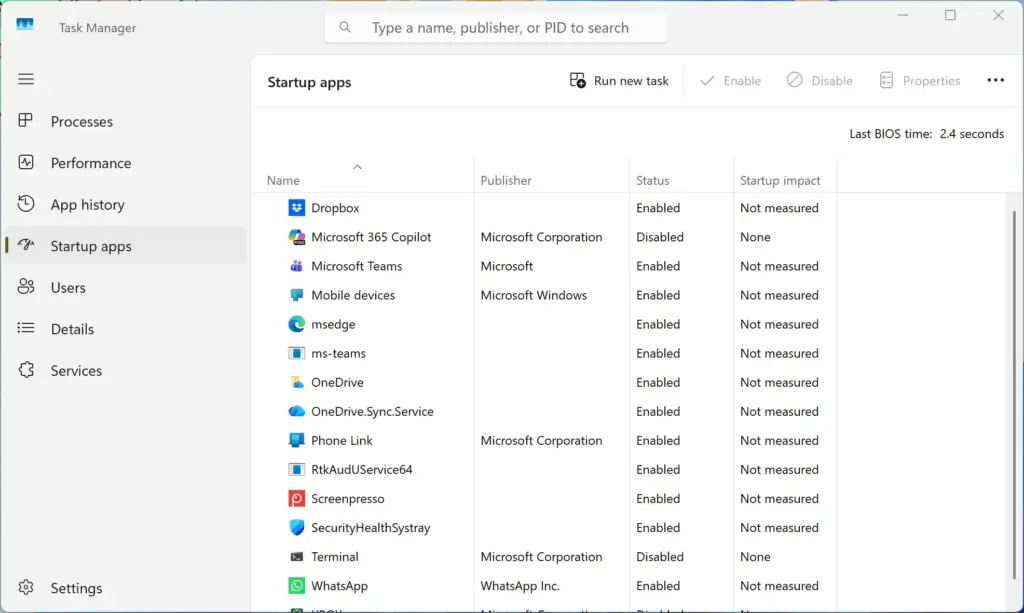
Apps that launch automatically when Windows starts often make the fan roar right after you sign in and never settle down. Task Manager lets you turn these off without uninstalling anything.
- Press Ctrl+Shift+Esc to open Task Manager.
- Click the Startup apps icon in the left menu. It looks like a speedometer. The page shows every app that can start with Windows.
- Review the list. The Status and Startup impact columns show which apps are enabled and how much they slow down startup.
- Find programs you do not need right away, like chat apps, game launchers, or music helpers.
- Right-click an unnecessary app and select Disable. Its status changes to Disabled.
Disabled apps no longer start on their own, so they stop using processor power the moment you sign in. The change takes effect at your next sign-in. To undo it, right-click the app again and select Enable. Leave your antivirus, drivers, and touchpad or hardware utilities enabled.
Advanced Tip: Update Your BIOS and Chipset Drivers
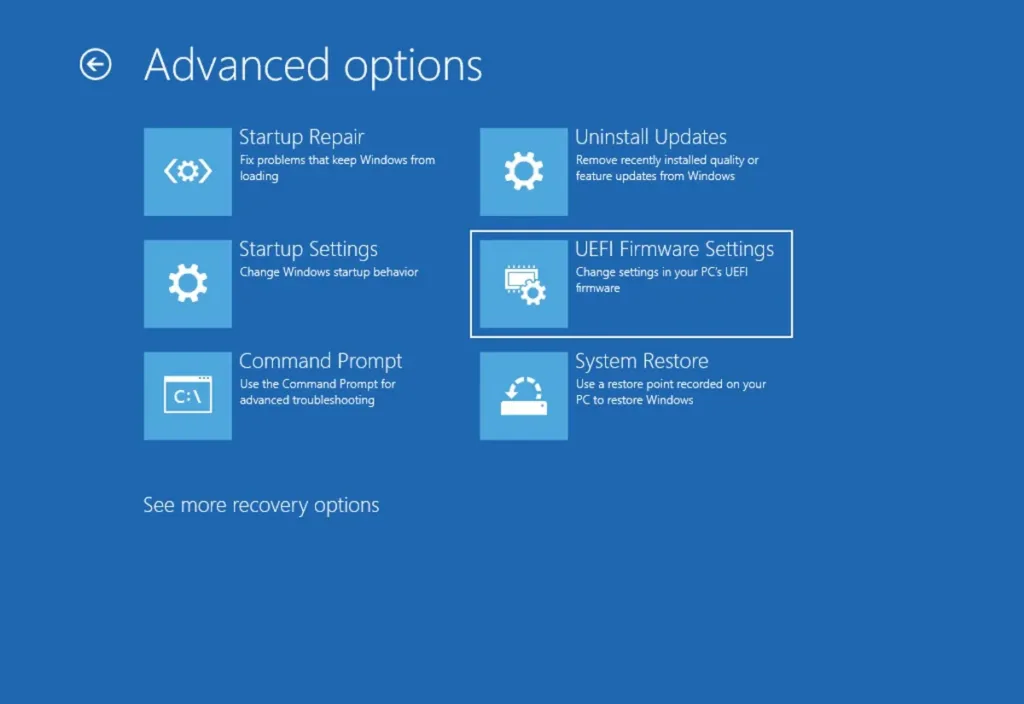
Sometimes the fan runs constantly because the firmware that controls the fan curves has a bug, such as wrong temperature readings. Laptop makers fix these problems with BIOS updates and chipset drivers.
To update your drivers and system software safely:
- Visit the official support website for your laptop brand.
- Enter your exact laptop model number or serial number.
- Open the Drivers & Downloads section and check for recent Chipset or BIOS updates. Read the release notes, because fan or thermal fixes are usually listed there.
- Download and run the official installer from your manufacturer. Follow the on-screen instructions carefully. Plug the laptop into power first, and do not turn it off while a BIOS update is running.
Only download from the manufacturer’s own site, never from third-party driver sites. These updates adjust how the computer handles temperature changes, and the result is often a much quieter fan. Many brands also have a support app that checks for these updates for you.
Unique Angle: Checking for Hidden Malware and Cryptominers
Hidden malware, including cryptominers, can push the processor to 100 percent and keep the fan at full speed. These programs use your hardware to mine digital currency for someone else, and they want to run as fast as they can.
If Task Manager shows high processor usage from an oddly named file you do not recognize, and ending it does not help, run a deep scan.
- Click Virus & threat protection.
- Click Scan options.
- Select Microsoft Defender Offline scan and click Scan now. On some builds this option is labeled Microsoft Defender Antivirus (offline scan).
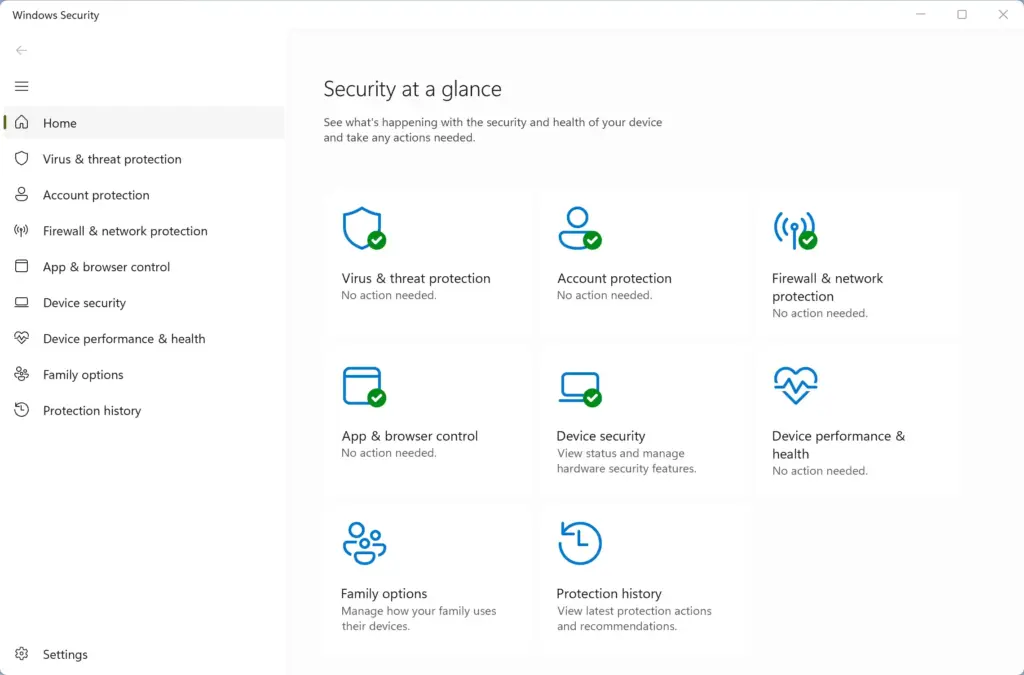
Save your work first. Windows restarts into a special offline mode to find and remove malware that normal quick scans can miss. The scan takes about 15 minutes, and the computer then restarts into Windows on its own. Removing hidden malware often quiets a screaming fan right away.
Unique Angle: The Impact of Ambient Room Temperature and Thermal Paste
Old thermal paste and a warm room can both cause constant fan noise, because heat no longer moves away from the processor efficiently. After several years, the gray paste between the processor and the metal heat sink dries out and cracks, and it cools your hardware less well.
Room temperature matters too. If you work in a very warm room or outdoors in direct sunlight, the laptop has a harder time shedding heat. Even a small rise in room temperature makes the fan spin much faster to get the same cooling.
- Move your work area to an air-conditioned or cooler room on hot summer days.
- Consider a laptop cooling pad with built-in fans, which pushes extra airflow against the bottom intake vents.
- If your laptop is more than three to four years old and you are comfortable doing so, take it to a repair shop to have the old thermal paste replaced with fresh compound. Check your warranty first, since opening the case can void it.
Summary
A constantly running fan in Windows 11 comes down to a few fixes: closing heavy background programs, relaxing an aggressive power setting, cleaning dust from the vents, and letting system updates finish. Most cases trace back to high processor load, blocked airflow, or outdated system software, and you can sort them out yourself with the steps above.
Frequently asked questions
How to stop laptop fan noise?
Close heavy apps in Task Manager, switch Power mode to Best power efficiency in Settings, and clear dust from the air vents with compressed air. Keep the laptop on a hard, flat surface so the vents stay open. If the noise continues after a restart, check Task Manager for an app using high CPU.
How to turn off fans on laptop 🪟 Windows 11?
You cannot fully turn off a laptop fan in Windows 11, and blocking it can overheat and damage the processor. Instead, reduce how hard the fan has to work. Open Settings, go to System, then Power & battery, and set Power mode to Best power efficiency. Some laptop makers also offer a quiet mode in their own app.
How to turn off loud fan sound for 🪟 Windows 11?
Windows 11 has no switch that silences a laptop fan. You can still lower the noise. Open Task Manager, select the Processes tab, and end apps that use high CPU. Then go to Settings System Power & battery and pick Best power efficiency. If the fan stays loud, check the laptop maker's app for a fan or performance profile.
Why does fan on laptop keep running?
The fan keeps running because the processor or graphics card stays warm. Common causes are a background app using heavy processing power, a Power mode set to Best performance, dust blocking the vents, and pending Windows Update downloads. Open Task Manager to see which app uses the most CPU. Fix that app or change Power mode, then check the vents.
Why is the fan going on my laptop?
Your fan turns on when sensors inside the laptop detect heat, usually above about 50°C (122°F). Heavy tasks such as video playback, many open browser tabs, or a Windows Update running in the background raise that heat. Dust in the vents can trap it too. Open Task Manager to see which app is using the most processor power.
Is it normal for new laptop to have fans blowing hard right after opening and running Windows updates?
Yes, this is normal on a new laptop. Windows Update, app installs, and file indexing run in the background, pushing the processor hard. The fan should slow down once those tasks finish, often within an hour or two. If it stays loud after that, open Task Manager and check which app is using the most CPU.
Still have a question?
Answered by AI from this guide. Good questions may be added to this page — please don't include personal details.
Did this guide fix your problem?

About the Author
Richard
Tech Writer, IT Professional
Richard is a writer at Geek Rewind who turns complex IT tasks into clear, step-by-step guides. He draws on years of hands-on experience in system administration and enterprise IT operations, focusing on Windows, Linux and WordPress: the problems people actually run into, and the fixes that work. His server and WordPress guides come from systems he runs himself. Richard builds and maintains the platform behind Geek Rewind, from its Ubuntu servers and Nginx configuration to its custom WordPress plugins. Many new tutorials start with readers' questions, and he's always glad to answer them in the comments.
No comments yet — be the first to share your thoughts!