How to Pin Apps to Windows 11 Taskbar

Here’s how to keep your favorite programs right on your Windows 11 Taskbar. This makes them easy to find and open.
Right-click an app in the Start menu and select Pin to taskbar. Alternatively, find the app’s executable file in File Explorer, right-click it, select More, then Pin to taskbar.
Why Pin Apps to Your Taskbar?
Pinning apps to the Windows 11 taskbar puts your most-used tools just one click away. This saves you time because you won’t need to search through menus anymore. The result? Your workflow becomes faster and more organized.
How to Add Program Icons to the Taskbar in 🪟 Windows 11
Managing your taskbar layout is easy. Follow these steps to pin apps.
Step 1Open the Start Menu
Press the Windows key or click the Start button. Find the app you want to pin.
Step 2Pin Recent Apps
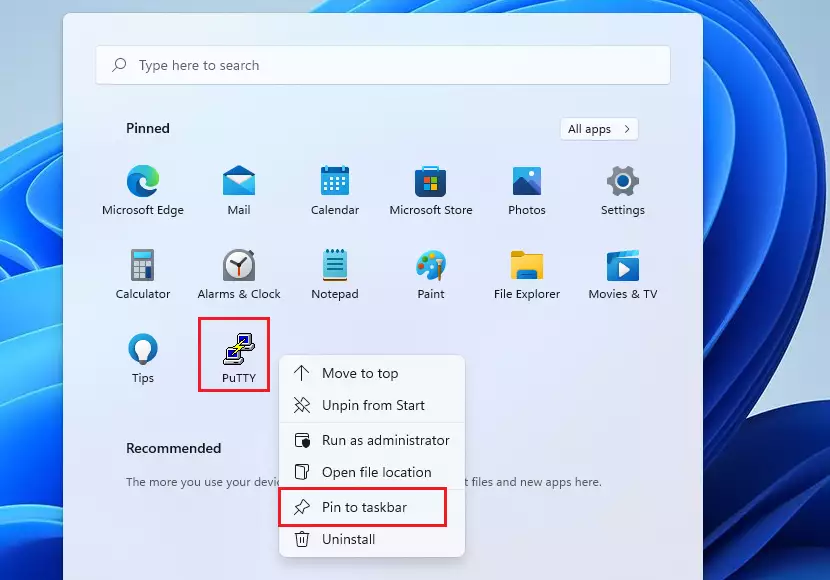
If you’ve used the app recently, it will show up under Recommended. Right-click its icon and select Pin to taskbar.
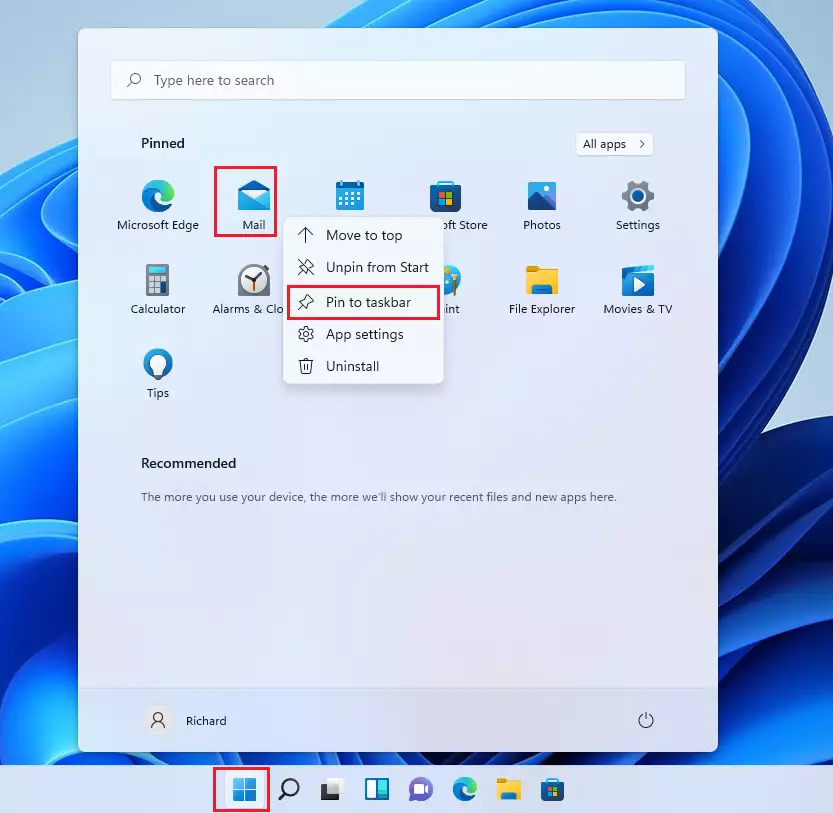
Step 3View All Apps
Click the All apps button to see every program installed on your computer.
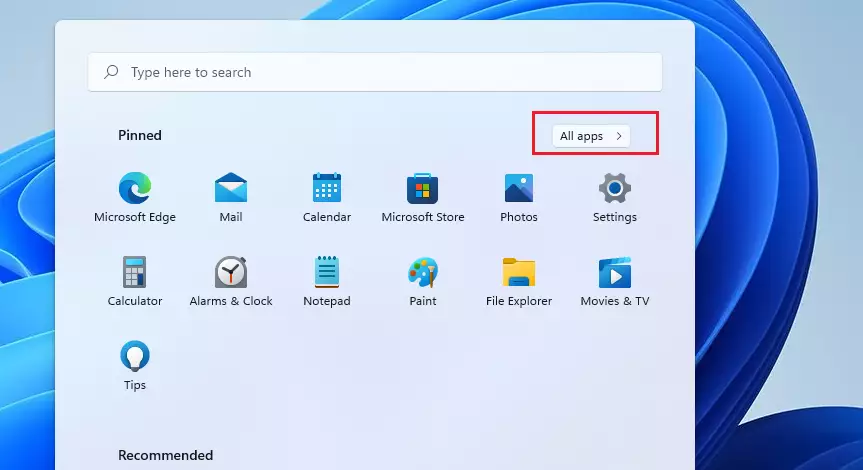
Scroll through this list to find the application you’re looking for.
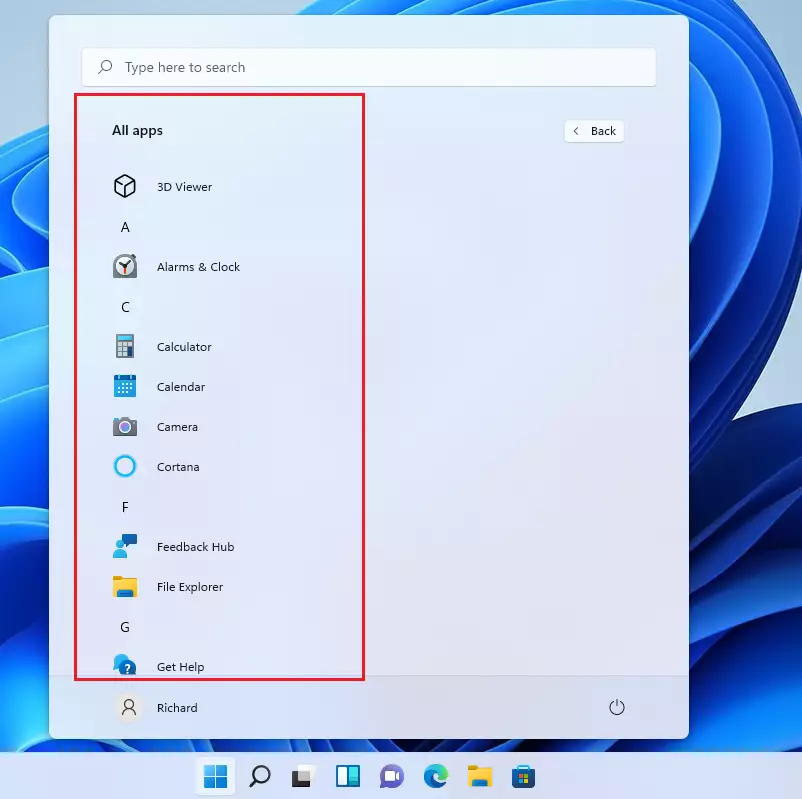
Step 4Pin Apps from the Full List
Right-click the app, select More, and then click Pin to taskbar.
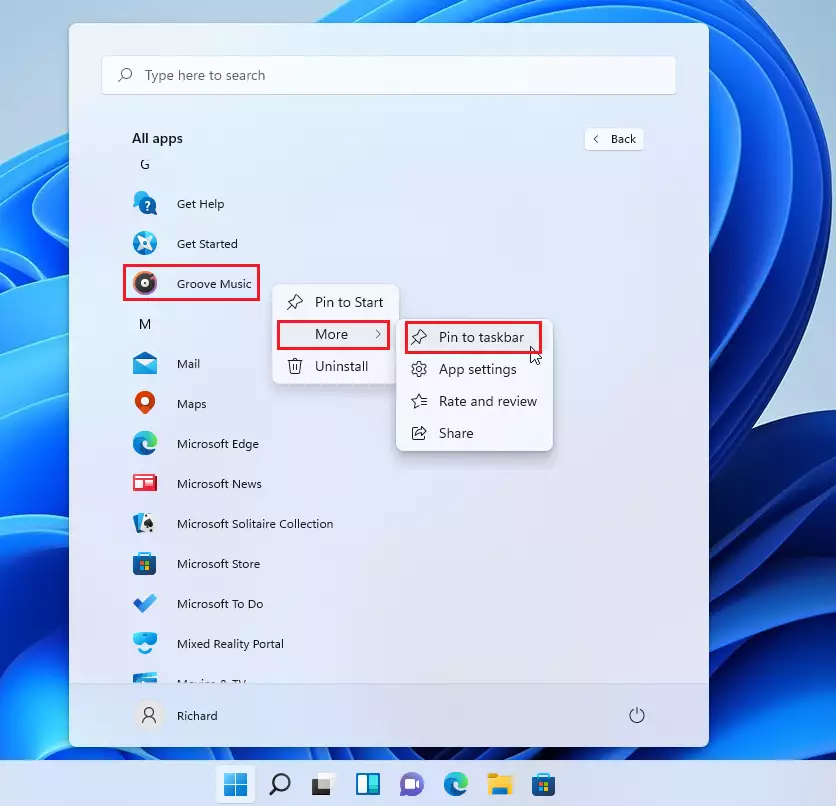
Step 5Check Your Taskbar
Your app icon will now appear on the taskbar.

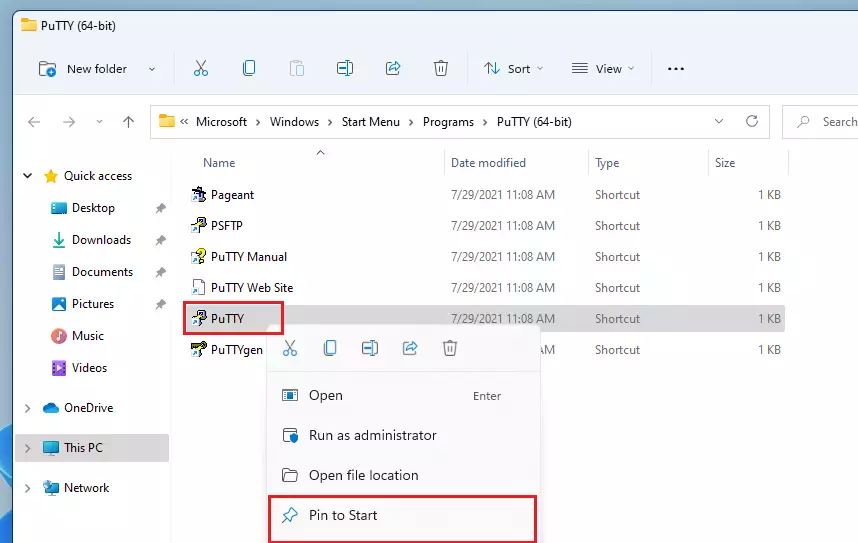
Step 6Pin Apps from File Folders
If you can’t find an app in the usual places, you can still pin apps to your Windows 11 taskbar directly from where they’re stored on your computer.
Advanced Taskbar Customization for IT Administrators
IT pros can set up the taskbar layout for many computers at once using special tools like Group Policy or an XML file, making sure everyone’s taskbar looks the same.
Note: Keep in mind, these advanced steps require administrator privileges.
You can export a custom taskbar layout with a PowerShell command. This XML file is then deployed via GPO to set specific app pins for everyone.
Troubleshooting Taskbar Issues
If you can’t find the ‘ Pin to taskbar’ option in Windows 11, it might be because a system policy is blocking it, and you can check the Registry Editor to see if it’s restricted.
Summary
Pinning apps to your Windows 11 taskbar makes them super easy to find and use, which really helps you get more done faster.- Pinning apps improves productivity by providing instant access.
- Use the Start menu or file folders to pin your favorite tools.
- IT admins can use XML files and GPO to manage taskbar layouts across an organization.
- If pinning is missing, check your registry or group policy settings.
- You can easily unpin apps by right-clicking the icon on the taskbar.
Can I pin folders to the 🪟 Windows 11 taskbar?
You cannot pin a folder directly to the taskbar. However, you can create a shortcut to the folder, change its icon, and then drag it onto the taskbar. Alternatively, pin the File Explorer app and right-click it to see your pinned folders.
Why are some apps missing the ‘ Pin to taskbar’ option?
Some apps, especially those running in the background or certain system tools, do not support pinning. Additionally, if your organization uses a Group Policy to lock the taskbar, the option to pin or unpin apps may be disabled for standard user accounts.
Was this guide helpful?

About the Author
Richard
Tech Writer, IT Professional
Richard, a writer for Geek Rewind, is a tech enthusiast who loves breaking down complex IT topics into simple, easy-to-understand ideas. With years of hands-on experience in system administration and enterprise IT operations, he’s developed a knack for offering practical tips and solutions. Richard aims to make technology more accessible and actionable. He's deeply committed to the Geek Rewind community, always ready to answer questions and engage in discussions.



[…] You can also launch the app from the Taskbar or Taskbar overflow. […]
[…] You can also launch the app from the Taskbar or Taskbar overflow. […]
[…] You can also launch the app from the Taskbar or Taskbar overflow. […]
[…] You can also launch the app from the Taskbar or Taskbar overflow. […]
[…] You can also launch the app from the Taskbar or Taskbar overflow. […]
[…] Windows builds, the Copilot app was redesigned to work like a regular Windows app that will be pinned to the taskbar with the benefits of a traditional app experience, including the ability to resize, move, and snap […]
[…] builds, the Copilot app was redesigned to work like a regular Windows app that will be pinned to the taskbar with the benefits of a traditional app experience, including the ability to resize, move, and […]
[…] the Copilot app was redesigned to work like a regular Windows app that will be pinned to the taskbar with the benefits of a traditional app experience, including the ability to resize, move, and snap […]
[…] the Copilot app was redesigned to work like a regular Windows app that will be pinned to the taskbar with the benefits of a traditional app experience, including the ability to resize, move, and snap […]
[…] the Copilot app was redesigned to work like a regular Windows app that will be pinned to the taskbar with the benefits of a traditional app experience, including the ability to resize, move, and […]
[…] Windows builds, the Copilot app was redesigned to work like a regular Windows app that will be pinned to the taskbar with the benefits of a traditional app experience, including the ability to resize, move, and snap […]
[…] You can also launch the app from the Taskbar or Taskbar overflow. […]
[…] You can also launch the app from the Taskbar or Taskbar overflow. […]
[…] You can also launch the app from the Taskbar or Taskbar overflow. […]
[…] You can also launch the app from the Taskbar or Taskbar overflow. […]
[…] You can also launch the app from the Taskbar or Taskbar overflow. […]
[…] You can also launch the app from the Taskbar or Taskbar overflow. […]
[…] You can also launch the app from the Taskbar or Taskbar overflow. […]
[…] When you install Windows, default application icons are pinned to the Taskbar. Users can also add app icons to the Taskbar by pinning them there. If you have app icons that you don’t want on the Taskbar, right-click the icon and select Unpin from the Taskbar. […]
[…] You can also launch the app from the Taskbar or Taskbar overflow. […]
[…] You can also launch the app from the Taskbar or Taskbar overflow. […]
[…] You can also launch the app from the Taskbar or Taskbar overflow. […]
[…] You can also launch the app from the Taskbar or Taskbar overflow. […]
[…] You can also launch it from the Taskbar or Taskbar overflow. […]