How to Show Desktop in Windows 11 Taskbar

The “Show desktop” button in Windows 11 minimizes all open windows with a single click on the far-right corner of the taskbar . You see your desktop background and icons without closing anything. Windows 11 keeps this tiny 1-pixel-wide button turned off by default on newer builds, but you can turn it back on in the taskbar settings.
With it enabled, you no longer need to press the Win plus D every time you want a clear screen. The change takes a few seconds and works on Windows 11 version 23H2 and later. It is the same on Home and Pro.
Open Settings , click Personalization Taskbar Taskbar behaviors, then check the box for “Select the far corner of the taskbar to show the desktop”. The button appears immediately in the taskbar’s bottom-right corner and minimizes all open windows when clicked.
Why Use This Feature?
The corner button hides all open windows at once, so you get a clear view of your desktop icons. Nothing is closed, and your apps and unsaved work stay exactly where they were.
If you often click near the bottom-right corner by accident, for example to reach the system tray , turning it off stops windows from vanishing in the middle of heavy multitasking.
Method 1Use Windows Settings (Easy)
The Settings app is the simplest way to turn on the taskbar desktop button. You change no system files and do not touch the registry, so the change stays local and is easy to undo. The setting restores the corner click that minimizes all open apps so you can see your wallpaper and shortcuts.
- Open the Settings app. Click the Start button and select Settings, or press
Windows key + Ion your keyboard. The Settings window opens. - Click Personalization in the left-hand list.
- On the right, click Taskbar. You now see the taskbar items and several collapsed sections below them.
- Scroll down and click Taskbar behaviors. The section expands and shows a list of options with checkboxes.
- Find the option “Select the far corner of the taskbar to show the desktop”.
- Tick the box to turn the feature on. Untick it to turn it off. The change takes effect immediately, with no restart.
- Close the Settings app.
To test it, open a couple of windows and click the very right edge of the taskbar , past the clock. The windows should minimize. Click the same spot again to bring them back.
If you cannot find the option, check that you are on Windows 11 23H2 or later. If it is greyed out, as it can be on a work PC managed by an administrator, use the Registry Editor method below. A managed PC may still block it.
These images show where to click:
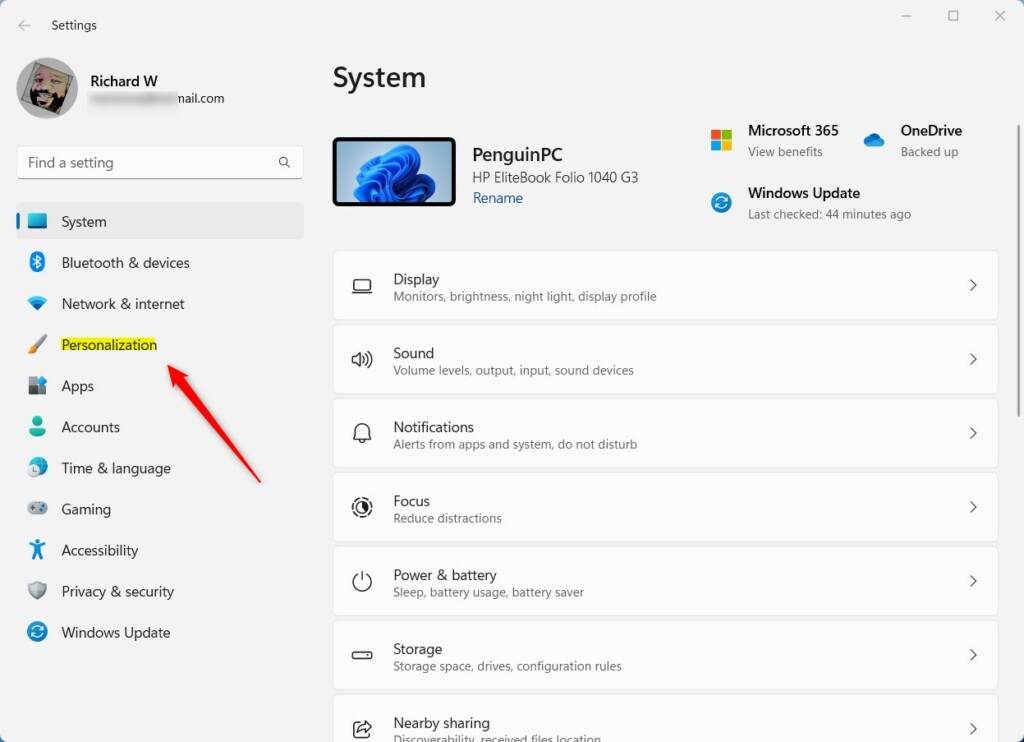
Click Personalization in Settings
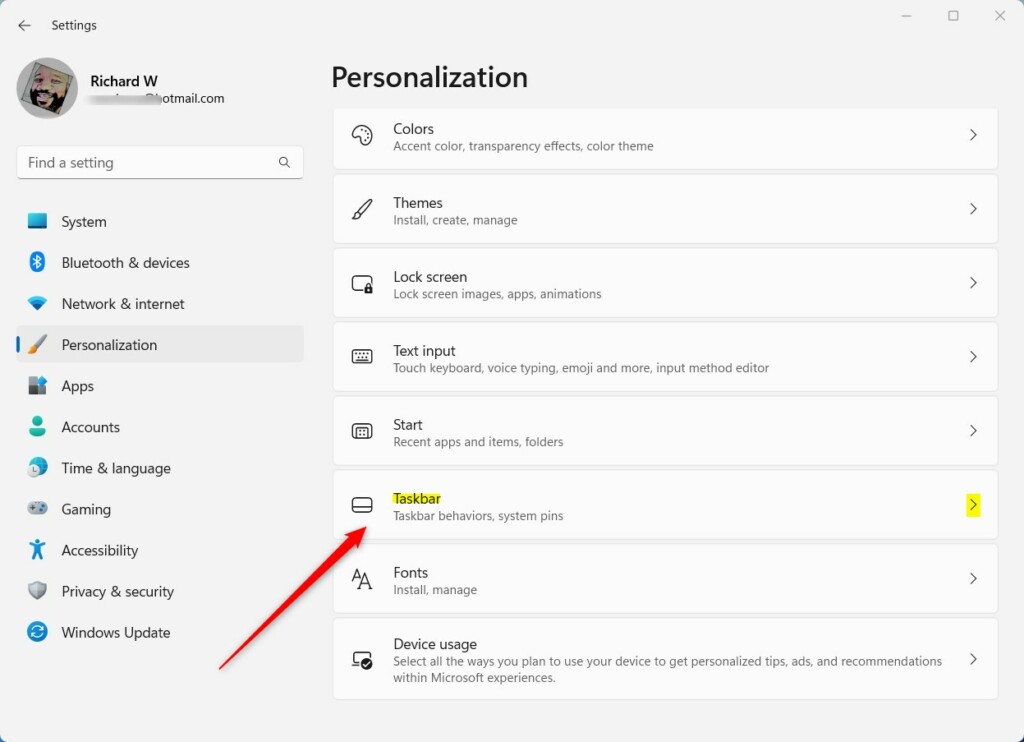
Click Taskbar in Personalization

Check or uncheck this box to turn the feature on or off
Method 2Use Registry Editor (Advanced)
You can use it to force the feature on if the switch in Settings is missing or greyed out. Mistakes in the registry can cause unexpected errors, so back it up first. In Registry Editor, click File Export and save a copy. To undo a bad change later, double-click that file and confirm the merge.
- Press
Windows key + Rto open the Run box. - Type
regeditand press Enter. If Windows shows a User Account Control prompt, click Yes. Registry Editor opens. - In the left pane, go to this path:
Computer\HKEY_CURRENT_USER\Software\Microsoft\Windows\CurrentVersion\Explorer\Advanced - In the right pane, look for a value named
TaskbarSd. - If you see it, double-click it to open it. If not, right-click a blank space in the right pane, choose New DWORD (32-bit) Value, and name it
TaskbarSd. Then double-click the new value to open it. - In the Value data box, enter:
1to turn the feature ON0to turn the feature OFF
- Click OK and close the Registry Editor.
- Restart your computer to apply the change. Save your work first.
After the restart, click the far-right corner of the taskbar to check that it behaves the way you set it. To reverse the change, set the value to the opposite number or import the backup you exported.
Review this example screenshot before modifying the registry:

Set TaskbarSd value to 1 or 0
Summary
The Windows 11 taskbar desktop shortcut is an invisible one-pixel-wide button in the bottom-right corner of your screen. Clicking this strip hides every open app window and shows your desktop files. Clicking it again brings your windows back.
What happens when you use it: Open windows minimize, revealing the background. A second click on the corner restores those windows.
You can toggle this setting in two ways. The first is Settings Personalization Taskbar Taskbar behaviors The second is the Registry Editor, where you change the TaskbarSd value: set it to 1 to turn the feature on, or 0 to turn it off.
Turn the feature on if you want quick access to the desktop. Turn it off if accidental clicks keep pulling focus away from the window you are working in. Try both settings for a few days and keep the one that suits your daily work.
Have a question about this guide?
Answered by AI from this guide. Good questions may be added to this page — please don't include personal details.
Did this guide fix your problem?

About the Author
Richard
Tech Writer, IT Professional
Richard is a writer at Geek Rewind who turns complex IT tasks into clear, step-by-step guides. He draws on years of hands-on experience in system administration and enterprise IT operations, focusing on Windows, Linux and WordPress: the problems people actually run into, and the fixes that work. His server and WordPress guides come from systems he runs himself. Richard builds and maintains the platform behind Geek Rewind, from its Ubuntu servers and Nginx configuration to its custom WordPress plugins. Many new tutorials start with readers' questions, and he's always glad to answer them in the comments.
No comments yet — be the first to share your thoughts!