Windows 11 WSL and Virtualization: Setup and Fixes

Windows 11 virtualization lets you run other operating systems and isolated Windows desktops on the same PC. The main tools are Windows Subsystem for Linux (WSL), which runs distributions such as Ubuntu, Windows Sandbox, and full virtual machines in VirtualBox or VMware Workstation Pro. Most setup failures trace back to one BIOS or UEFI setting, so the first guide covers that. The guides that follow take you from installation through daily use to repairs.
Turn on virtualization and install WSL
Start here if WSL won’t install or you are setting it up for the first time. These guides cover the firmware setting, installing WSL and a Linux distribution, checking the version, and choosing which distribution opens by default. The last guide shows how to shut a distribution down cleanly.
 How To Enable Or Disable Virtualization (SVM) In Windows 11 Complete guide to How To Enable Or Disable Virtualization (SVM) In Windows 11 — covering everything you need to know.
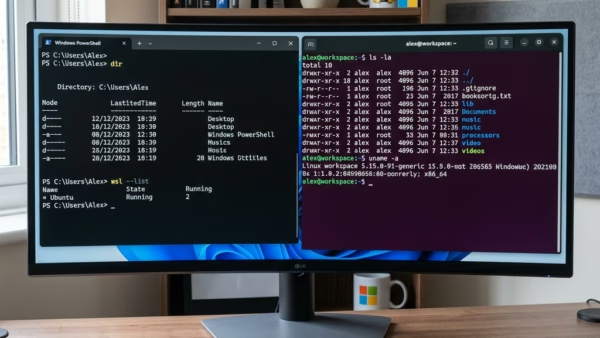 How to Install Windows Subsystem for Linux (WSL) on Windows 11 Install WSL on Windows 11 with our step-by-step guide. Run Linux tools and apps directly on your desktop using the Microsoft Store or terminal.
 How to Enable and Configure WSL (Windows Subsystem for Linux) on Windows 11 Complete guide to How to Enable and Configure WSL (Windows Subsystem for Linux) on Windows 11 — covering everything you need to know.
 How to Check Windows Subsystem for Linux Version Check WSL version on your Windows system with simple commands. Discover if you're using WSL1 or WSL2 and enhance your Linux experience!
 How to List Installed WSL Distros on Windows 11 List WSL distros on Windows 11 using File Explorer or commands. Discover how to manage your installed Linux environments.
 How to Change Default Distro in Windows Subsystem for Linux Change the default WSL distro in Windows 11 with simple commands. Customize your Linux environment to fit your development needs.
 How to Shut Down Ubuntu on Windows 11 Using WSL Shut down Ubuntu WSL on Windows 11 with simple commands. Terminate specific or all Linux systems to free up resources.
Open Linux files and drives from Windows
These guides connect your Linux environment to the rest of your storage. Use them when you need files on a network share or a USB drive to appear inside WSL, or when you want to reach the Linux file system from File Explorer.
 How to Mount Linux File System on Windows 11 via WSL Mount the Linux file system on Windows 11 using WSL. Follow our step-by-step guide to access your Linux drives directly from File Explorer.
 How to Mount Network Drives in Windows Subsystem for Linux Mount network drives WSL with simple commands. Access shared folders from Linux shell using UNC paths, handle password-protected shares, and manage mount… How to Mount USB Drives in WSL Mount USB drives in WSL with our step-by-step guide. Access your removable drives in the Windows Subsystem for Linux environment.
Test software in Windows Sandbox
Windows Sandbox runs a temporary Windows desktop that is wiped when you close it, which makes it useful for trying untrusted software. Most of these guides cover what to switch on or off in the sandbox, such as file sharing, networking, audio, and the clipboard. Sandbox requires a supported Windows 11 edition, and the first guide in this group explains how to turn it on.
 How to Share Host Folders with Windows Sandbox in Windows 11 Share host folders with Windows Sandbox in Windows 11 using the GUI or WSB files. Secure your system while testing untrusted applications safely.
 How to Enable or Disable Sharing Host Folders with Windows Sandbox in Windows 11 Enable or disable Windows Sandbox folder sharing in Windows 11 using Group Policy or Registry Editor. Complete step-by-step guide.
 How to Enable Audio and Video in Windows 11 Sandbox Unlock audio and video capabilities in Windows 11 Sandbox. Follow our step-by-step guide to enable microphone and camera input for a seamless experience.
 Enable Clipboard Sharing in Windows 11 Sandbox Unlock Windows 11 clipboard sharing with our step-by-step guide. Enable seamless copying and pasting between your host and Sandbox for enhanced…
 How to Enable Networking in Windows 11 Sandbox Enable networking in Windows Sandbox to access external networks. Follow these simple steps to configure your Windows 11 Sandbox environment safely. Enable Printer Sharing in Windows Sandbox Enable printer sharing in Windows Sandbox to print from your isolated environment. Follow these steps to connect your host printer in Windows 11.
Run a full virtual machine in VirtualBox or VMware
A full virtual machine runs a complete operating system in a window and keeps its contents between sessions. These guides cover installing Windows 11 in VirtualBox, adding Guest Additions for better integration, sharing folders with the host, and setting up VMware Workstation Pro. Install Guest Additions before you set up shared folders.
 How to Install Windows 11 on VirtualBox Install Windows 11 on VirtualBox with our step-by-step guide. Bypass TPM and RAM checks to run Windows 11 smoothly on your VM. Install VirtualBox Guest Additions on Windows 11 Enhance your Windows 11 VM experience by installing VirtualBox Guest Additions. Follow our step-by-step guide for improved graphics, file sharing, and… How to Map Shared Folders in VirtualBox on Windows 11 Map shared folders in VirtualBox on Windows 11 to transfer large files between your host and virtual machines. Install VMware Workstation Pro on Windows 11: A Step-by-Step Guide Install VMware Workstation Pro on Windows 11 with our step-by-step guide. Create multiple virtual machines and enhance your productivity.
Run web apps and remote desktops on Ubuntu
These guides turn an Ubuntu distribution in WSL into a small server. You install a web stack, then add applications such as WordPress, phpMyAdmin and ownCloud, or connect to the desktop remotely. Install the LEMP stack first, because the web applications depend on it.
How to Install the LEMP Stack on Windows WSL Master the LEMP stack on Windows WSL with this step-by-step guide. Install Linux, Nginx, MariaDB, and PHP on your Windows machine. How to Install phpMyAdmin on Windows 11 with WSL Install phpMyAdmin on Windows 11 using WSL. Follow our step-by-step guide to manage your MySQL databases from your desktop.  How to Install WordPress with WSL on Windows 11 Install WordPress on Windows 11 using WSL. Follow this step-by-step guide to set up a Linux environment and run WordPress. How to Install ownCloud with WSL on Windows 11 Install ownCloud on Windows 11 using WSL. Follow our step-by-step guide to set up your cloud storage without virtual machines.
 How to Connect Windows 11 to Ubuntu: A Guide to XRDP Connect Windows 11 to Ubuntu using XRDP. Follow our step-by-step guide to set up a Remote Desktop Connection and enhance your remote access experience.
Repair, reset or remove a broken install
Use these guides when something stops working or you want to clean up. They cover repairing or resetting a WSL Ubuntu install, reinstalling the Dev Home app, and removing WSL completely. Back up any work inside a distribution before you reset or uninstall it.
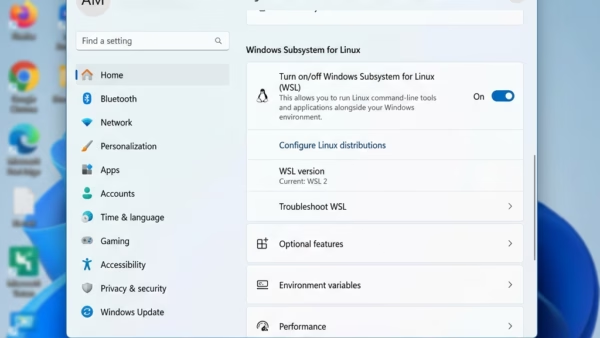 How to Uninstall Windows Subsystem for Linux (WSL) in Windows 11 Need to free up space? Follow our simple guide to uninstall WSL in Windows 11 completely. Remove Linux distributions and disable the feature today.
 How to Repair or Reset WSL Ubuntu on Windows 11 Fix WSL Ubuntu on Windows 11 with our repair and reset guide. Repair keeps your data safe, or reset for a fresh start. Step-by-step instructions included.
 How to Reinstall Dev Home App in Windows 11 Fix Dev Home issues on Windows 11 with our step-by-step guide. Reinstall Dev Home using PowerShell commands or the Microsoft Store.
Have a question about this guide?
Answered by AI from this guide. Good questions may be added to this page — please don't include personal details.

About the Author
Richard
Tech Writer, IT Professional
Richard is a writer at Geek Rewind who turns complex IT tasks into clear, step-by-step guides. He draws on years of hands-on experience in system administration and enterprise IT operations, focusing on Windows, Linux and WordPress: the problems people actually run into, and the fixes that work. His server and WordPress guides come from systems he runs himself. Richard builds and maintains the platform behind Geek Rewind, from its Ubuntu servers and Nginx configuration to its custom WordPress plugins. Many new tutorials start with readers' questions, and he's always glad to answer them in the comments.
No comments yet — be the first to share your thoughts!