Install VMware Workstation Pro on Windows 11: A Step-by-Step Guide


VMware Workstation Pro is software that lets you run several operating systems at the same time on a single Windows 11 PC. Each one runs in its own isolated virtual machine (VM), so you can run Linux or an older version of Windows in a window on your main desktop without touching your real system.
Each virtual machine handles up to 16 virtual CPUs and 8TB of virtual disk space. That gives you an easy way to test software, build apps, or try out a new operating system without buying extra computers. If something breaks inside a VM, your Windows 11 install is not affected.
To install VMware Workstation Pro on Windows 11, first turn on virtualization in your PC’s BIOS/UEFI settings if Task Manager shows it as Disabled under the Performance tab, then download the official installer from the Broadcom support site and run it. Accept the license agreement, keep the default 📁C:\
How to Install and enable VMware Workstation in 🪟 Windows 11
Installing VMware Workstation Pro on Windows 11 takes two things. First, turn on hardware virtualization in your computer’s BIOS/UEFI settings. Second, run the official installer file. Download the setup file from the Broadcom support site, open it, and follow the on-screen prompts.
Virtual machines need much more space later, so plan for that too.
Most modern PCs ship with virtualization turned off, or turned on only on some models. Check first, because you may not need to change anything.
- Press Ctrl+Shift+Esc to open Task Manager .
- Click the Performance tab, then click CPU.
- Look at the bottom right of the window for Virtualization. If it says Enabled, skip the BIOS steps and go on to the download.
If it says Disabled, turn it on in the firmware settings. The name of the option depends on your PC maker. On Intel systems look for Intel Virtualization Technology or VT-x. On AMD systems look for SVM Mode or AMD-V. Most PCs list it under an Advanced or CPU configuration page. Save your changes and exit so the PC restarts into Windows.
Once you enable hardware virtualization, log back into Windows and use the link below to download the latest VMware Workstation Pro for Windows. You may be asked to sign in with a free Broadcom account before the download starts.
https://www.vmware.com/go/getworkstation-win
Open the folder where the installer downloaded, usually Downloads, and start the installation.
- Double-click the downloaded installer file.
- If User Account Control asks whether to allow the app to make changes, click Yes.
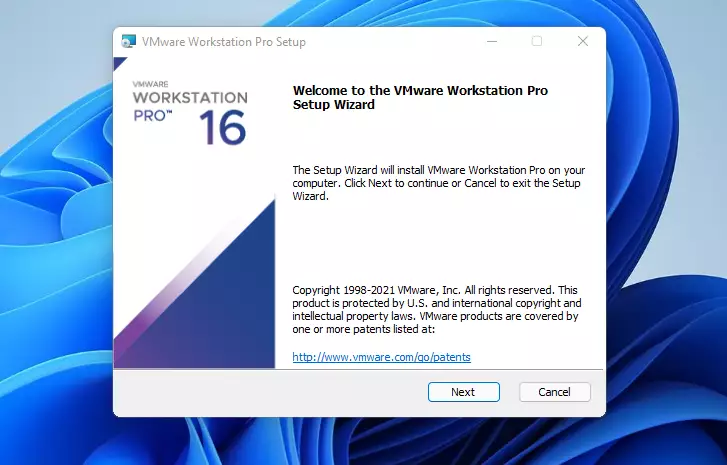
- Wait for the installation wizard's welcome screen to appear.
- Click Next to begin. The next screens cover the license agreement and your installation options.
If nothing happens after you double-click, wait a few seconds. The wizard can take a moment to unpack before it opens.
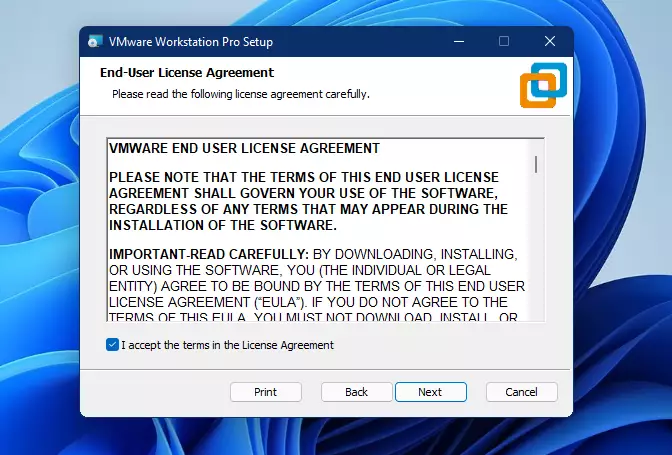
The End-User License Agreement appears on the next screen. You must accept its terms before the installation can continue.
- Read the agreement.
- Select the box labeled I accept the terms in the License Agreement.
The Next button stays greyed out until you tick this box.
Once you have accepted the terms, click Next to go to the next screen.
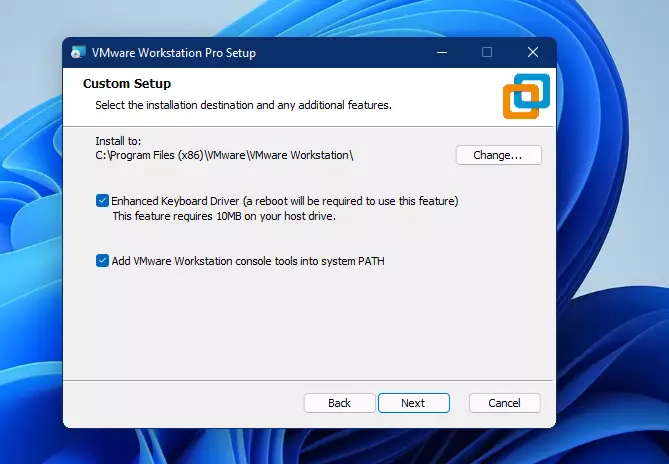
The next screen is where you choose the installation folder. You can accept the default path, typically C:\Program Files (x86)\VMware, or pick a custom location.
- To keep the default, leave the path as it is.
- To use a different folder, click Change and select it.
Your virtual machines are stored separately, and you choose that location when you create each VM.
On the same screen, there are two options worth enabling:
- Check the box for Enhanced Keyboard Driver to ensure proper keyboard integration.
- Select the option to install additional console tools into the system PATH. This lets you run VMware's command-line tools from any Command Prompt window.
If you ever need to change these later, you can run the installer again and choose to modify the installation.
Click Next to continue.
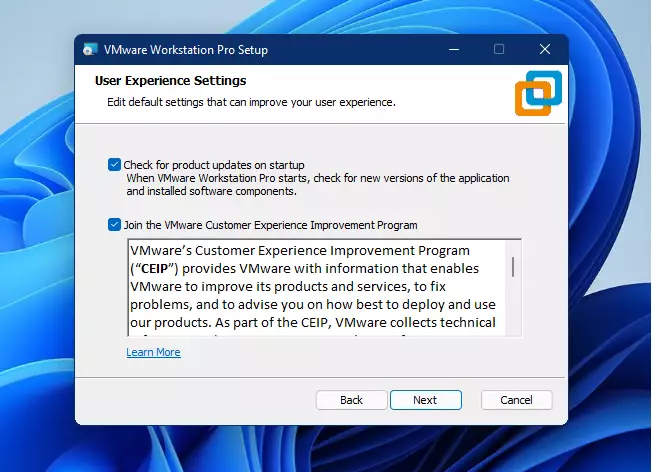
The next screen holds the user experience settings. Check both boxes to enable product updates on startup and the customer experience improvement program.
Product updates are the more useful of the two, since they bring in fixes for VMware Workstation. The customer experience program only sends anonymous usage data to VMware. It is optional, so you can leave that box clear if you prefer.
When you are done, click Next. Depending on the version, a shortcuts screen may follow. It lets you choose whether to create a Desktop shortcut and a Start menu entry. Leave the Desktop option ticked if you want to follow the last steps of this guide, then click Next again.
The wizard is now ready to install. On this screen, click the Install button to begin the installation. If you want to change anything first, click Back.
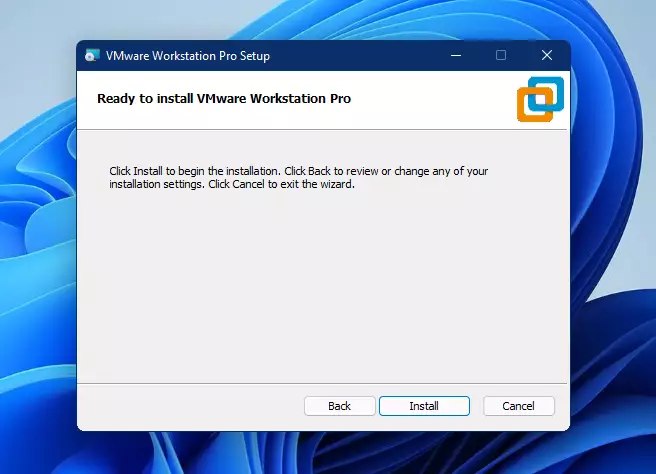
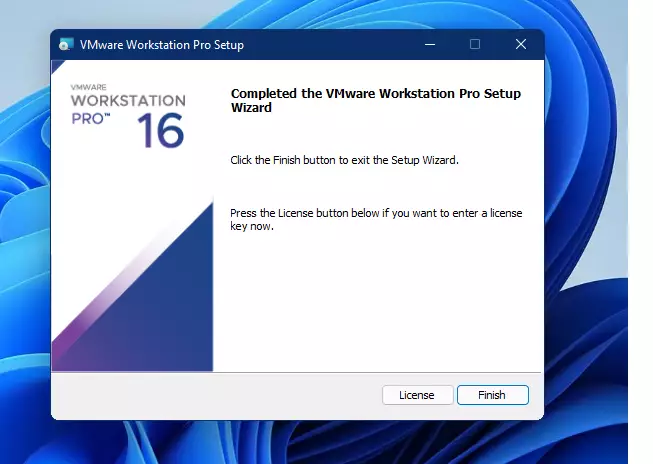
A progress bar shows while the files are copied. After a brief moment, the VMware Workstation Pro setup wizard should complete. Click the Finish button to finalize the setup.
If you have a license for your copy of VMware Workstation Pro, click the License button to add your license key. If you do not have a key, you can skip this step. Check the Broadcom download page for the current licensing terms for your type of use.
After installing VMware Workstation Pro, the installer may prompt you to reboot your Windows 11 machine to finalize the installation. Do the restart even if you are not prompted, since it makes sure all the new system components load correctly.
- Save your work and close your other apps.
- Click Yes or Restart Now if the installer asks, or restart from the Start menu.
- Log back in to Windows when the PC starts up again.
Once you log back in, find the VMware Workstation Pro icon on your desktop and double-click it. The software is now ready to create new virtual machines. If you did not create a desktop shortcut, search for VMware Workstation in the Start menu instead.
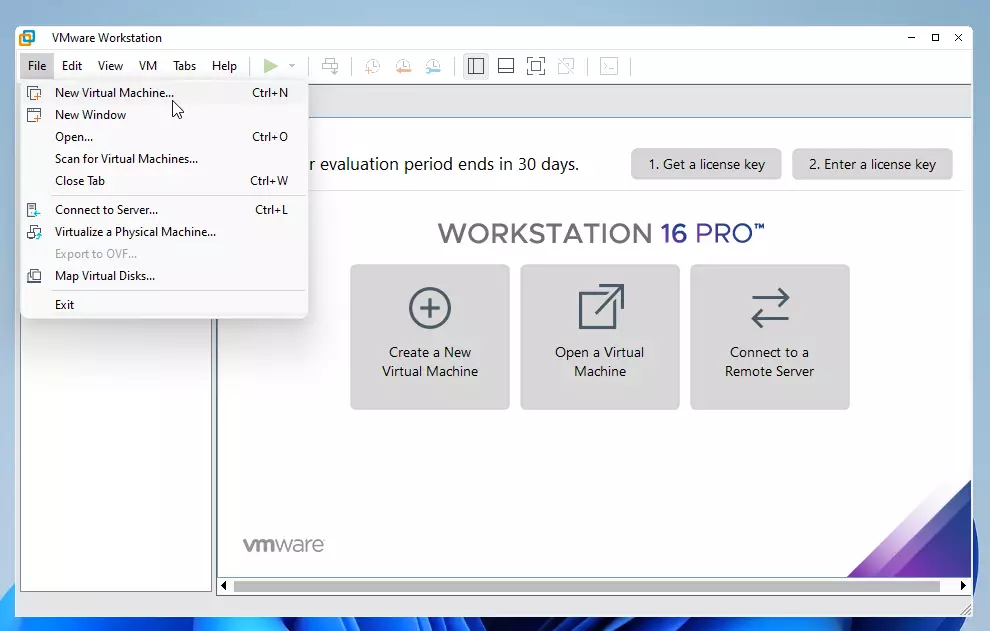
Open the VMware Workstation Pro shortcut on your desktop to start creating virtual machines. If Windows features such as Hyper-V or Windows Hypervisor Platform are turned on, Workstation can still run next to them, but VMs may run slower than they would on their own.
- VMware Workstation Pro is a powerful tool for running multiple operating systems on a single machine.
- It is user-friendly and suitable for both home and business environments.
- Installation is straightforward, but hardware virtualization must be enabled in the BIOS/UEFI first.
- You can easily create and manage virtual machines for various operating systems.
- Choosing the right options during setup, such as the Enhanced Keyboard Driver and the console tools in PATH, makes the virtual computing experience smoother.
- With VMware Workstation Pro, you can get more from your PC and work faster by running different operating systems side by side.
Have a question about this guide?
Answered by AI from this guide. Good questions may be added to this page — please don't include personal details.
Did this guide fix your problem?

About the Author
Richard
Tech Writer, IT Professional
Richard is a writer at Geek Rewind who turns complex IT tasks into clear, step-by-step guides. He draws on years of hands-on experience in system administration and enterprise IT operations, focusing on Windows, Linux and WordPress: the problems people actually run into, and the fixes that work. His server and WordPress guides come from systems he runs himself. Richard builds and maintains the platform behind Geek Rewind, from its Ubuntu servers and Nginx configuration to its custom WordPress plugins. Many new tutorials start with readers' questions, and he's always glad to answer them in the comments.
cannot install vmplayer workstation. install hangs up while Installing Virtual Network drivers. Is there any work around to fix this?
[…] previously discussed using VMware Workstation Pro and VirtualBox virtualization software to run multiple operating systems from a single computer and […]