How to Install VMware Tools Ubuntu for Faster VM Speed


VMware Tools for Ubuntu is a package of utility software that makes your virtual machine run faster and work smoothly with your host computer. Without these helper programs installed, you usually deal with a sluggish mouse, a fixed screen size that will not resize, and no way to drag and drop files between your main desktop and Ubuntu.
Most modern releases like Ubuntu 22.04 LTS include an open-source version of these tools by default, but manual setup is often necessary for full feature support. Getting them running takes just a few clicks or a quick terminal command to fix your screen resolution and speed up your virtual machine.
Install Open VM Tools using the Ubuntu terminal. For desktop environments, run ‘sudo apt update’ followed by ‘sudo apt install open-vm-tools-desktop’. For servers, use ‘sudo apt install open-vm-tools’. Reboot your system after installation.
How to install the Open VM Tools on Ubuntu guest machines
Ubuntu Linux installs Open VM Tools using terminal commands for essential drivers and utilities. Servers use the `open-vm-tools` package to help the Ubuntu system run smoothly within VMware, while Ubuntu desktop computers use the `open-vm-tools-desktop` package for the same purpose.
The tools are split into two packages: open-VM-tools for headless systems and open-vm-tools-desktop for desktop systems.
To install the open-source version, run the command below:
Servers:
sudo apt update
sudo apt install open-vm-tools
Desktops:
Reboot the virtual machine after installation so Ubuntu loads the new drivers and settings. This ensures the operating system properly loads the VMware-specific components, improving performance and enabling features like better mouse integration and shared folders.
How to install VMware Guest Tools from VMware Host
Installing VMware Guest Tools from your VMware Host (the computer running the VMware software) is a common way to set them up, especially on Ubuntu desktop. After starting your Ubuntu virtual machine, go to the VM menu and click 'Install VMware Tools'. This places the tools on a virtual CD drive inside Ubuntu, ready for installation.
To install, open the VMware host software. Start the guest machine and select VM --> Install VMware Tools from the guest machine menu.
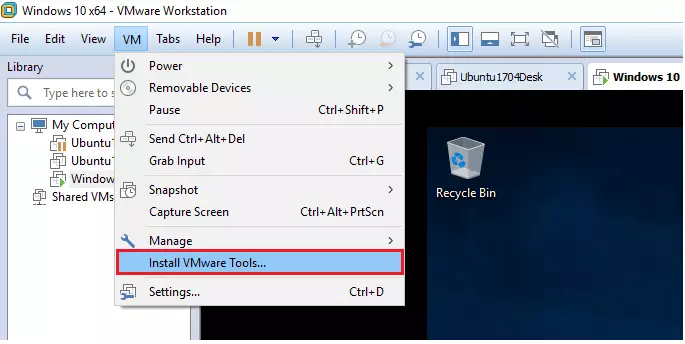
Mounting the virtual CD drive temporarily places the guest tools onto your Ubuntu machine. This virtual disk image contains the installation files.
While the virtual CD drive is mounted, open the Ubuntu terminal by pressing Ctrl + Alt + T keys on your keyboard.
To manually select installation options and configuration, run the VMware Guest Tools installer without the `-d` option, which is the default mode for automatic installation.
When the installation is complete, reboot your machine, and you're all set!
Conclusion:
We've covered how to install VMware Guest Tools on Ubuntu. If you find any errors or have anything to add, please use the comment form below.
How to make Ubuntu run faster on VMware?
Installing VMware Tools will improve performance in your virtualized Ubuntu instance. It also includes various utilities for administration of VMs. Open VM Tools is a version of VMware Tools built for open source use. To install Open VM Tools, run $ sudo apt-get update followed by $ sudo apt-get install open-vm-tools.
Was this guide helpful?

About the Author
Richard
Tech Writer, IT Professional
Richard, a writer for Geek Rewind, is a tech enthusiast who loves breaking down complex IT topics into simple, easy-to-understand ideas. With years of hands-on experience in system administration and enterprise IT operations, he’s developed a knack for offering practical tips and solutions. Richard aims to make technology more accessible and actionable. He's deeply committed to the Geek Rewind community, always ready to answer questions and engage in discussions.



Wow you guys (and gals 🙂 what a great job you did in this post. Very helpful, informative, and versatile. Appreciate your work.