Install VirtualBox Guest Additions on Windows 11


VirtualBox Guest Additions are a bundle of drivers and tools you install inside the guest, which here is your Windows 11 virtual machine (VM). Without them, the virtual screen is stuck at a small fixed resolution, the mouse can feel sluggish, and the shared clipboard doesn’t work. Once they are installed, the VM window can resize freely, the mouse moves smoothly between host and guest, and you can use full-screen mode, shared folders and drag-and-drop.
The setup takes a few clicks in VirtualBox 7.0 or newer and one restart of the VM. The steps are the same on Windows 11 Home and Pro, because you run them inside the guest and the edition doesn’t matter.
To install VirtualBox Guest Additions on Windows 11, start the VM, click Devices Insert Guest Additions CD Image in the VM window menu bar, open File Explorer and double-click the VirtualBox Guest Additions CD drive, then run VBoxWindowsAdditions (the 64-bit version) and restart when prompted.
How to add VirtualBox guest additions software to 🪟 Windows 11 VM
In short: start the VM, choose Devices Insert Guest Additions CD Image…, open File Explorer , click This PC, open the mounted CD drive, and run the VBoxWindowsAdditions setup file. That installs the drivers behind shared folders, screen resizing and the other integration features.
If you haven’t installed VirtualBox yet, this guide shows how to set it up on Windows.
How to install VirtualBox on Windows 11
Once VirtualBox is installed, you need a VM for Windows 11. If you haven’t created one, see the post below.
How to create a Windows 11 virtual machine with VirtualBox
After creating the VM, you can install Windows 11 on it. The post below walks through that.
How to install Windows 11 on VirtualBox VM
Do this before you start tweaking resolution or integration settings, because many of those options only work once the additions are in place.
- Launch VirtualBox on your host computer.
- Select your Windows 11 VM in the list and click Start.
- Sign in to Windows 11 inside the VM and wait for the desktop to finish loading.
- In the VM window's menu bar, click Devices Insert Guest Additions CD Image...
The menu is at the top of the VM window, not in the main VirtualBox Manager window. If you don't see it, the VM may be in full-screen or scaled mode. If the menu bar is hidden, move the pointer to the top edge of the screen. If the option is greyed out, check that the VM is running and not saved or powered off. Also check that the VM has an optical drive: with the VM shut down, open Settings Storage and look for an empty optical drive under the controller.

VirtualBox now attaches a virtual disc to the guest, and Windows should show an autoplay notification like the one below. You can click it to choose what to do with the disc.
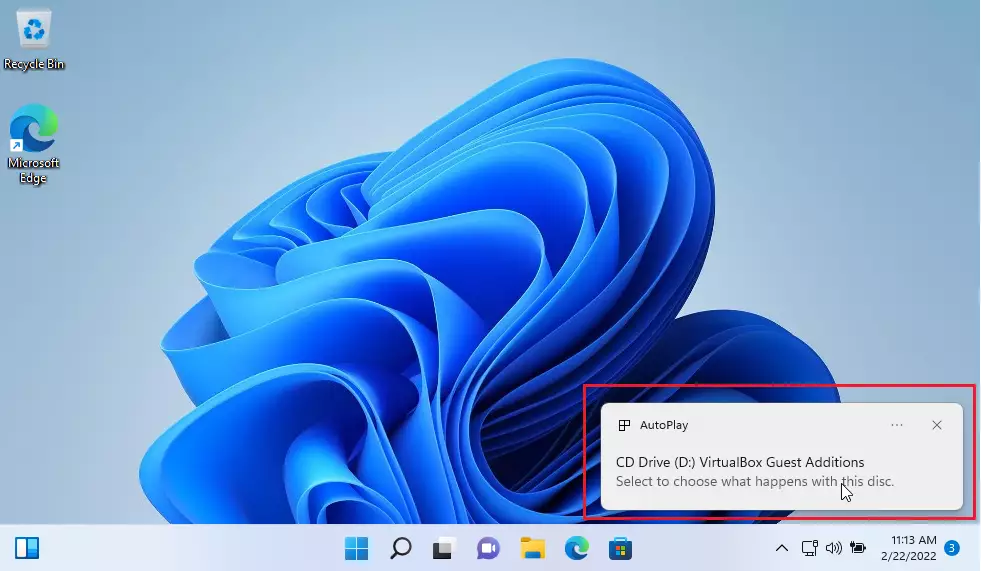
If the notification doesn't appear, or disappears before you can click it, open the disc yourself:
- Open File Explorer.
- Click This PC in the left-hand pane.
- Under Devices and drives, double-click the CD drive labeled VirtualBox Guest Additions software.
You should now see the contents of the disc, including several setup files that start with VBoxWindowsAdditions. Run VBoxWindowsAdditions. If you see separate 32-bit and 64-bit versions, pick the 64-bit one, since Windows 11 is 64-bit only.

Running the setup file starts the installer. If Windows asks whether to allow the app to make changes, click Yes. Then follow the wizard:
- Click Next on each page and accept the default settings and install location.
- Leave all the packages selected, so every driver and tool gets installed.
- Click Install and wait for the files to copy.
- If Windows asks whether you trust software from Oracle and want to install the device software, click Install. These are the display and mouse drivers, and the install doesn't work without them.
The screen may flicker briefly while the display driver is installed. That is normal.
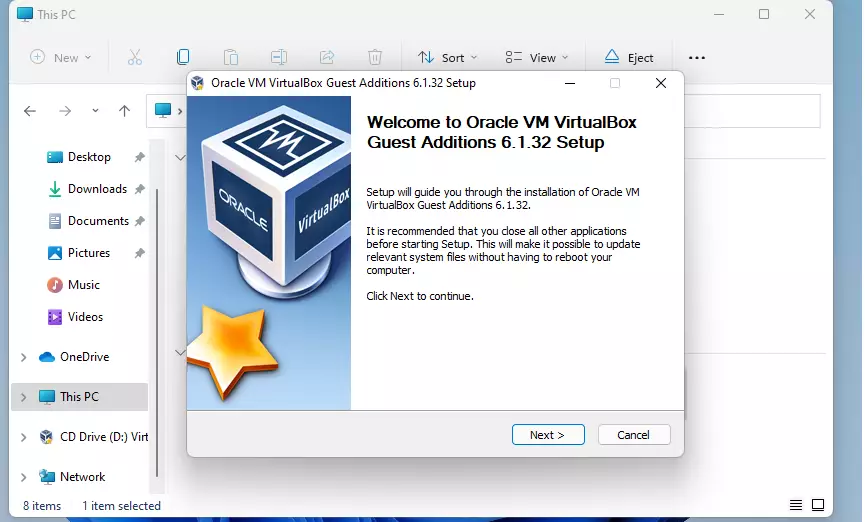
Choose to reboot now and click Finish. The restart is required, because the new drivers don't load until Windows starts again.
After the VM comes back up, you should be able to resize the VM window and have the Windows desktop resize with it. If it doesn't, click View Auto-resize Guest Display in the VM menu bar. You can also switch on the shared clipboard under Devices Shared Clipboard and drag-and-drop under Devices Drag and Drop. Both are off by default.
If you ever want to remove the additions, open Settings Apps Installed apps inside the VM, find the VirtualBox Guest Additions entry, and uninstall it. Restart the VM afterwards. After you update VirtualBox on the host, run this install again so the additions inside the VM match the new version.
That should do it!
Related:
- How to install VirtualBox on Windows 11
- How to create Windows 11 VirtualBox VM
- How to install Windows 11 on VirtualBox
If this didn't work:
Try these in order:
- Run the installer again and restart the VM when asked. A reinstall fixes most half-finished installs.
- Shut the VM down fully, not just saved, and open its Settings Display. Make sure Enable 3D Acceleration is ticked, then start the VM again. VirtualBox won't let you change this while the VM is running.
- If the screen still won't resize, check that the Graphics Controller in the same Display settings is set to a type that suits Windows guests. VBoxSVGA is the usual choice.
A quick recap:
- Guest Additions improve graphics performance and the integration between the host and guest operating systems.
- The install is simple: insert the Guest Additions CD image, run the setup file and follow the prompts.
- Restart the VM after the install to finish the process.
- Install Guest Additions in every VM you create in VirtualBox for the best results.
- See the related guides for installing VirtualBox and creating VMs on Windows 11.
Was this guide helpful?

About the Author
Richard
Tech Writer, IT Professional
Richard is a writer at Geek Rewind who turns complex IT tasks into clear, step-by-step guides. He draws on years of hands-on experience in system administration and enterprise IT operations, focusing on Windows, Linux and WordPress: the problems people actually run into, and the fixes that work. His server and WordPress guides come from systems he runs himself. Richard builds and maintains the platform behind Geek Rewind, from its Ubuntu servers and Nginx configuration to its custom WordPress plugins. Many new tutorials start with readers' questions, and he's always glad to answer them in the comments.



No comments yet — be the first to share your thoughts!