Reading Assist in Windows 11: Every Setting Explained

Reading Assist in Windows 11 is a set of tools that read text aloud, show captions, enlarge the screen and change how colours and the pointer look. The tools sit on different pages in Settings, so people often miss one they need. The guides below start with turning Reading Assist on and setting the Reading key, then cover each tool in turn. Work through the first section, then jump to the group that matches your problem.
Turn on Reading Assist and set how it starts
Start here if Reading Assist is off or you want to change how it is triggered. These guides cover the Reading key, how long it waits, and the sounds it makes. Read Aloud is also explained here, because it is the tool most people reach for first.
 How to Enable or Disable Reading Assist in Windows 11 Turn reading assist on or off in Windows 11 from Settings > Accessibility or the Registry. Missing? It's Insider-only, so ViVeTool is covered.
 How to Change Reading Key for Reading Assist in Windows 11 Change the reading assist reading key to Ctrl, Alt, or Shift in Windows 11. Pick it from a drop-down in Settings, or set it in Registry Editor.
 How to Change Reading Key Activation Method for Reading Assist in Windows 11 Reading assist activation method: choose Hold to read, Press to turn on or off, or Left click + hold in Windows 11 Accessibility settings, or change it in…
 How to Change Reading Key Wait Time for Reading Assist in Windows 11 Reading assist wait time: pick 0.5 to 3 seconds under Settings > Accessibility > Reading assist, or in Registry Editor. Default is 0.8. Insider builds only.
 How to Enable or Disable Reading Assist Activation Sounds in Windows 11 Turn reading assist sounds on or off in Windows 11 from Settings > Accessibility > Reading assist, or in Registry Editor. Sounds are on by default.
 What Is Read Aloud in Windows 11 Read Aloud is a text-to-speech reader built into Microsoft Edge and Word, not a single Windows 11 switch. Here is where it lives, its shortcuts, and how it…
Read along with captions and transcripts
Use these guides if you need to see what is being said on screen or in audio. Live Captions shows speech as text, and the transcript settings control how much of it is kept. The styling and language guides change how the captions look and which speech models they use.
 How to Turn On Live Captions Screen Reader Audio in Windows 11 Include screen reader audio in Windows 11 Live Captions: turn on the setting under Settings > Accessibility > Captions, requires KB5127936 or later on 25H2.
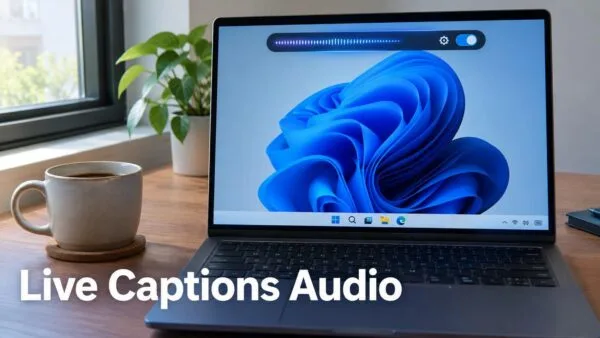 How to Turn On or Off Include System Audio in Live Captions in Windows 11 Live captions can transcribe system audio, your microphone, or both. Turn system audio on or off from the captions bar gear menu, or set AudioCaptureMode…
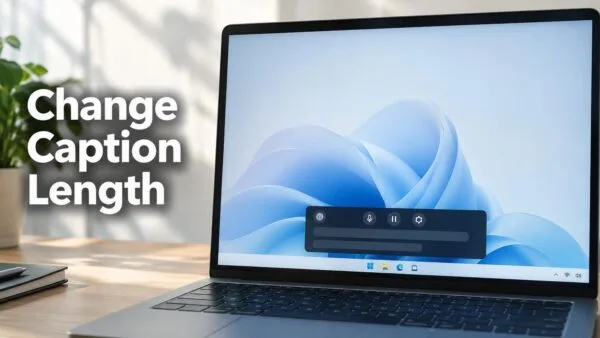 How to Change Live Captions Transcript Recording Length in Windows 11 Change the live captions transcript recording length to 1, 2, 4 or 8 hours in Windows 11 Settings, or in Registry Editor if the option is missing.
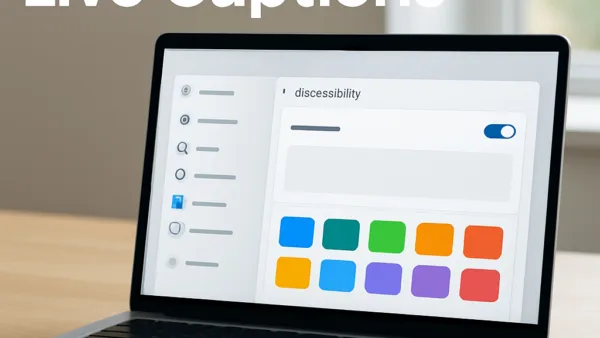 How to Configure Live Captions Styling in Windows 11 Accessibility Speech Settings Customize font size, text color, and window background in Windows 11 Accessibility settings to make live captions easier to read.
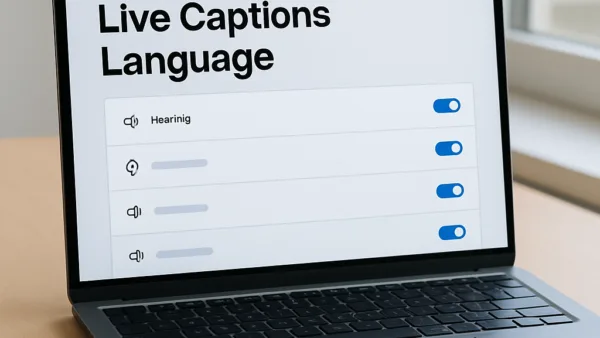 How to Manage Live Captions Language Models in Windows 11 Accessibility Captions Settings Download, update, and remove speech packages in Windows 11 accessibility captions settings to free storage space and add new languages.
Make text, colour and the pointer easier to see
These guides are for screen comfort: making things bigger, changing colours, and keeping the pointer in view. Choose the tool that matches your problem, such as Magnifier for enlarging the whole screen or Screen tint for reducing glare. Text scaling changes only the size of text and leaves the rest of the screen alone.
 How to Turn On the Magnifier Contrast Theme in Windows 11 Turn on the Magnifier contrast theme in Windows 11 from the Magnifier toolbar. It is in Insider preview builds only so far, so check your build first.
 How to Enable or Disable Magnifier Win + Plus Keyboard Shortcut in Windows 11 Stop Windows logo key + Plus from opening Magnifier by accident. In Windows 11 build 26340.9767 or later, turn off the shortcut under Settings >…
 Invert Colors on Windows 11 with Color Filters Invert colors on Windows 11 via Settings > Accessibility > Color filters, then turn on the Windows key + Ctrl + C shortcut to toggle it on and off in one…
 Turn On Screen Tint in Windows 11 Accessibility Settings Windows 11 has no Screen tint setting. Use Color filters (Settings > Accessibility) for grayscale or colour-blind modes, or Night light (Settings >…
 How to Change Text Scaling Independently of Display Resolution in Windows 11 Make words larger without lowering your screen resolution. Use the Accessibility menu in Windows 11 to keep text sharp and clear.
 Move the Pointer with Mouse Keys in Windows 11 Move the Pointer with Mouse Keys in Windows 11 from the numeric keypad. Turn it on in Settings > Accessibility > Mouse, then use keys 4, 6, 8 and 2 to…
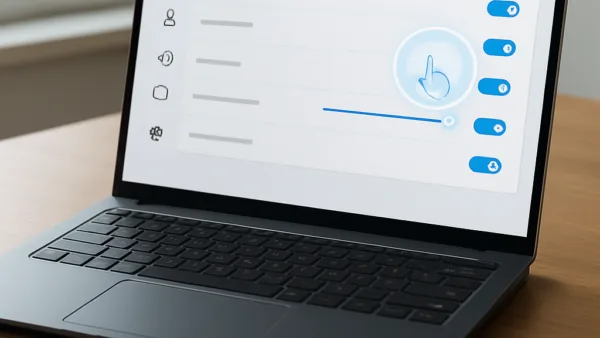 Customize Touch Cursor Feedback Bubbles in Windows 11 Accessibility Settings Tapping your touchscreen and wondering if Windows 11 noticed? Turn on visual touch indicator bubbles in Accessibility settings in three steps.
Hear maths, speech and dictation the way you want
Use these guides if you rely on Narrator for maths or want to speak instead of type. The Narrator math settings control whether and how equations are read, including the pause, detail and speech style. Dictation and speech recognition settings control how spoken words become text.
 How to Enable or Disable Math Reading for Narrator in Windows 11 Turn on narrator math reading windows 11 to hear equations and formulas read aloud in Word and PowerPoint. Use Settings or the registry.
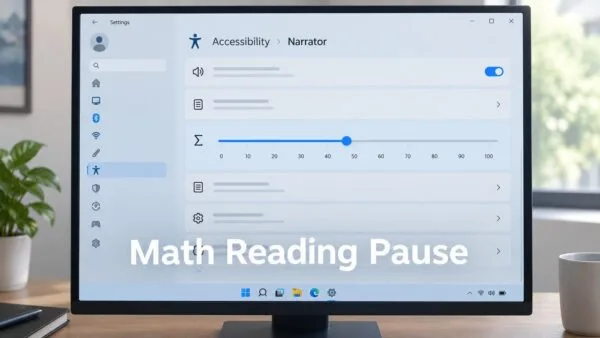 How to Change Narrator Math Reading Pause Factor in Windows 11 Adjust how long Narrator pauses between words when reading math equations in Windows 11. Set the pause factor from 0 to 100 in Settings or Registry Editor.
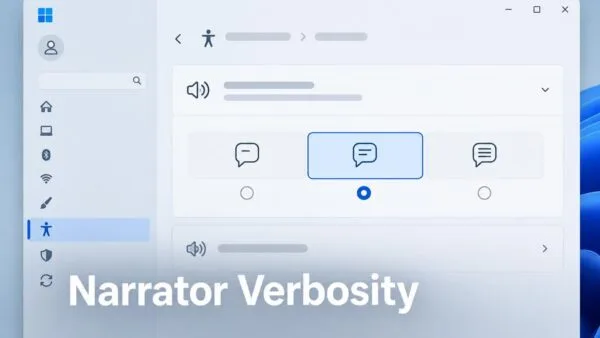 How to Change Narrator Math Reading Verbosity Level in Windows 11 Control how much detail Narrator reads when speaking equations aloud. Choose Terse, Medium, or Verbose in Accessibility > Narrator > Math reading settings.
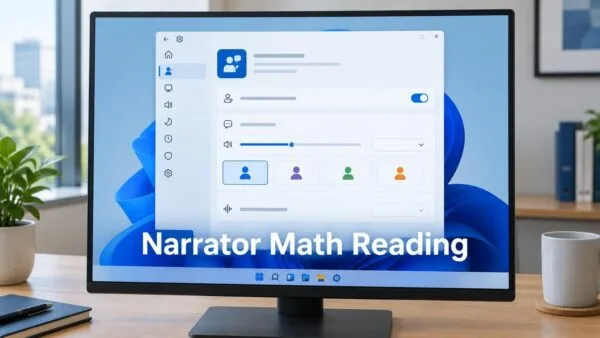 How to Change Narrator Math Reading Speech Style in Windows 11 Change how Narrator reads math equations in Windows 11. Choose between Clear speak, Simple speak, or Literal speak in Narrator settings under Accessibility.
 How to Configure Custom Speech Recognition Punctuation Rules in Windows 11 Speech Settings Stop automatic punctuation errors in Windows 11. Adjust Voice access settings in Accessibility to add custom rules for periods and commas.
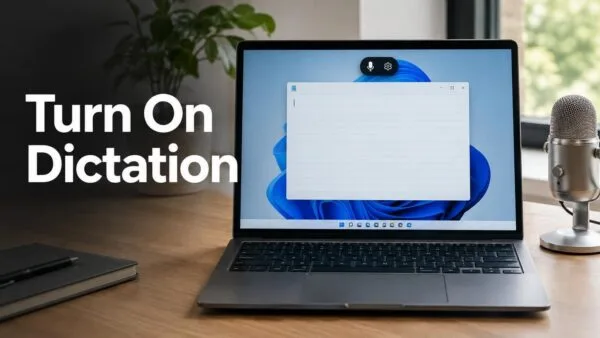 How to Turn On the Dictation Toolbar in Windows 11 Windows + H opens the dictation toolbar in any text field. Here's how to start voice typing, turn on auto punctuation, and fix it when the toolbar won't…
 How to Install Text-to-Speech Voices in Windows 11 Speech Settings Make Windows 11 read out loud with natural voices. Add new text-to-speech voices through Time & language settings in four steps.
Have a question about this guide?
Answered by AI from this guide. Good questions may be added to this page — please don't include personal details.

About the Author
Richard
Tech Writer, IT Professional
Richard is a writer at Geek Rewind who turns complex IT tasks into clear, step-by-step guides. He draws on years of hands-on experience in system administration and enterprise IT operations, focusing on Windows, Linux and WordPress: the problems people actually run into, and the fixes that work. His server and WordPress guides come from systems he runs himself. Richard builds and maintains the platform behind Geek Rewind, from its Ubuntu servers and Nginx configuration to its custom WordPress plugins. Many new tutorials start with readers' questions, and he's always glad to answer them in the comments.
No comments yet — be the first to share your thoughts!