How to Change Live Captions Transcript Recording Length in Windows 11

- 24 steps
- Needs administrator rights
Live captions can save a transcript for a fixed number of hours. This guide shows how to change that length in Windows 11. You choose 1, 2, 4, or 8 hours, and the setting applies to your own user account.
Live captions turns any audio playing on your PC into on-screen text, and Windows creates the captions on your device. You can change the caption positionn to the top or bottom of the screen, or use a floating window. You can also resize the caption window, change its look with a caption style, and include microphone audio for in-person conversations.
Windows 11 build 26340.9882 (Experimental 26H2) from the Windows Insider Program adds a hidden Transcript recording length setting. If your build does not show it yet and you want to test it, run the ViVeTool command below. ViVeTool is an open source tool that switches on hidden Windows features. This step needs administrator rights, so open a terminal as an administrator before you start.
vivetool.exe /enable /id:64630108
Open Settings (Win+I), select Accessibility, then click Captions under Hearing. Open the Transcript recording length drop-down and choose 1, 2 (default), 4, or 8 hours. The setting applies to your own user account and takes effect when you close Settings. If the option is missing, your build does not have it yet.
Enable or Disable Hidden Feature Flags in 🪟 Windows 11
This related tutorial covers hidden feature flags in Windows 11. ViVeTool is an open source tool that turns on hidden features, such as features Microsoft is still testing before a wider release, or A/B tests (showing different versions to different users) in Insider builds.
Option One
Turn On or Off Include Screen Reader Audio in Live Captions in Settings
This option sets the recording length from the Captions page in Settings.
- Open Settings (Win+I).
Windows 11 Start menu search panel for opening OpenSSH Client settings - Click Accessibility on the left side. On the right side, under Hearing, click Captions.
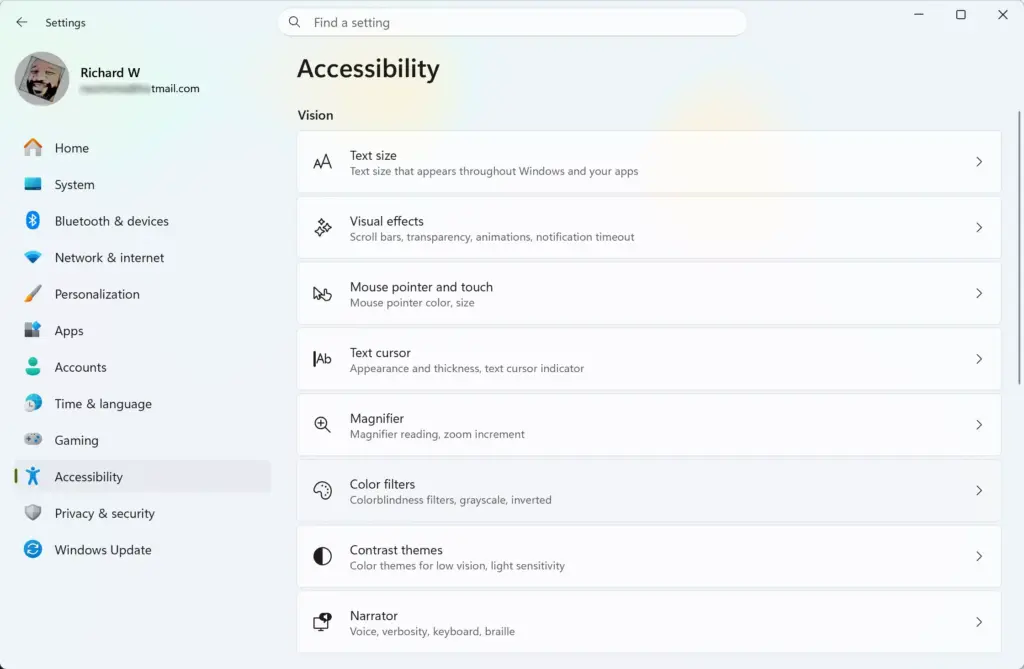
Settings › Accessibility - Open the Transcript recording length drop-down menu and select 1 hour, 2 hours (default), 4 hours, or 8 hours.
- Close Settings.
Option Two
Change Live Captions Transcript Recording Length using the Registry
This option sets the same recording length by editing the registry, Windows’ settings database, in Registry Editor. Follow the steps under the length you want. Each set of steps is the same except for the final value.
1 Hour Live Captions Transcript Recording Length
- Open Registry Editor: press Win+R, type
regedit, and press Enter. If the User Account Control prompt (the Windows box that asks you to approve changes) appears, select Yes. - Go to
HKEY_CURRENT_USER\Software\Microsoft\LiveCaptions\UI. Paste the path into the address bar at the top of Registry Editor, then press Enter. - If there is no UI key (a folder inside LiveCaptions in the registry), right-click LiveCaptions in the left pane, select New Key, name it UI, and select it. Create any other missing key in the path the same way. Keys work like folders, so create each one inside the last.
- Right-click an empty area of the right pane, select New DWORD (32-bit) Value (a small number setting), and name it TranscriptRecordingLengthHours. If TranscriptRecordingLengthHours is already there, skip this step.
- Double-click TranscriptRecordingLengthHours. Under Base, choose Hexadecimal. In the Value data box, type 1, and select OK.
2 Hours Live Captions Transcript Recording Length
2 hours is the default. Use these steps only to set it back after you have changed it.
- Open Registry Editor: press Win+R, type
regedit, and press Enter. If the User Account Control prompt (the Windows box that asks you to approve changes) appears, select Yes. - Go to
HKEY_CURRENT_USER\Software\Microsoft\LiveCaptions\UI. Paste the path into the address bar at the top of Registry Editor, then press Enter. - If there is no UI key (a folder inside LiveCaptions in the registry), right-click LiveCaptions in the left pane, select New Key, name it UI, and select it. Create any other missing key in the path the same way. Keys work like folders, so create each one inside the last.
- Right-click an empty area of the right pane, select New DWORD (32-bit) Value (a small number setting), and name it TranscriptRecordingLengthHours. If TranscriptRecordingLengthHours is already there, skip this step.
- Double-click TranscriptRecordingLengthHours. Under Base, choose Hexadecimal. In the Value data box, type 2, and select OK.
4 Hours Live Captions Transcript Recording Length
- Open Registry Editor: press Win+R, type
regedit, and press Enter. If the User Account Control prompt (the Windows box that asks you to approve changes) appears, select Yes. - Go to
HKEY_CURRENT_USER\Software\Microsoft\LiveCaptions\UI. Paste the path into the address bar at the top of Registry Editor, then press Enter. - If there is no UI key (a folder inside LiveCaptions in the registry), right-click LiveCaptions in the left pane, select New Key, name it UI, and select it. Create any other missing key in the path the same way. Keys work like folders, so create each one inside the last.
- Right-click an empty area of the right pane, select New DWORD (32-bit) Value (a small number setting), and name it TranscriptRecordingLengthHours. If TranscriptRecordingLengthHours is already there, skip this step.
- Double-click TranscriptRecordingLengthHours. Under Base, choose Hexadecimal. In the Value data box, type 4, and select OK.
8 Hours Live Captions Transcript Recording Length
- Open Registry Editor: press Win+R, type
regedit, and press Enter. If the User Account Control prompt (the Windows box that asks you to approve changes) appears, select Yes. - Go to
HKEY_CURRENT_USER\Software\Microsoft\LiveCaptions\UI. Paste the path into the address bar at the top of Registry Editor, then press Enter. - If there is no UI key (a folder inside LiveCaptions in the registry), right-click LiveCaptions in the left pane, select New Key, name it UI, and select it. Create any other missing key in the path the same way. Keys work like folders, so create each one inside the last.
- Right-click an empty area of the right pane, select New DWORD (32-bit) Value (a small number setting), and name it TranscriptRecordingLengthHours. If TranscriptRecordingLengthHours is already there, skip this step.
- Double-click TranscriptRecordingLengthHours. Under Base, choose Hexadecimal. In the Value data box, type 8, and select OK.
How to undo the change
Have a question about this guide?
Answered by AI from this guide. Good questions may be added to this page — please don't include personal details.
Did this guide fix your problem?

About the Author
Richard
Tech Writer, IT Professional
Richard is a writer at Geek Rewind who turns complex IT tasks into clear, step-by-step guides. He draws on years of hands-on experience in system administration and enterprise IT operations, focusing on Windows, Linux and WordPress: the problems people actually run into, and the fixes that work. His server and WordPress guides come from systems he runs himself. Richard builds and maintains the platform behind Geek Rewind, from its Ubuntu servers and Nginx configuration to its custom WordPress plugins. Many new tutorials start with readers' questions, and he's always glad to answer them in the comments.
No comments yet — be the first to share your thoughts!