How to Enable or Disable Reading Assist Activation Sounds in Windows 11

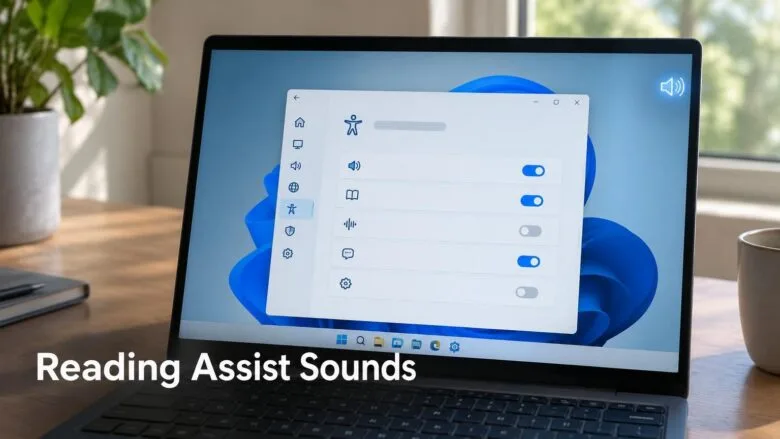
Reading assist plays a sound when it turns on and when it turns off. You can switch these activation sounds on or off for your account in Windows 11. Two methods follow: Settings, or Registry Editor (the Windows tool for changing the registry, a database of system settings).
Reading assist makes the text and buttons under your pointer larger and clearer. Before you change the sounds, here is what the feature does and how you trigger it. Right now this only reaches Windows Insiders, people who test preview versions of Windows, on the Experimental (26H2) channel. If you are not on that channel, you may not have this option yet.
With Reading assist on, you press the reading key (the key Reading assist uses, for example Ctrl) to magnify the text or UI under your pointer. You choose how the key works: Hold to read, Press to turn on or off (each press switches it between on and off), or Left click + hold. You can also set a wait time of 0.5 to 3 seconds before Reading assist responds to the key press.
The activation sounds are on by default. Choose Settings or Registry Editor below.
Open Settings (Win+I), select Accessibility, then Reading assist, and switch Play activation sounds on or off. The sounds are on by default. This option is available only to Windows Insiders on the Experimental (26H2) channel, so if you are not on that channel, you may not see it yet.
Option One
Turn On or Off Reading Assist Activation Sounds in Settings
- Open Settings (Win+I).
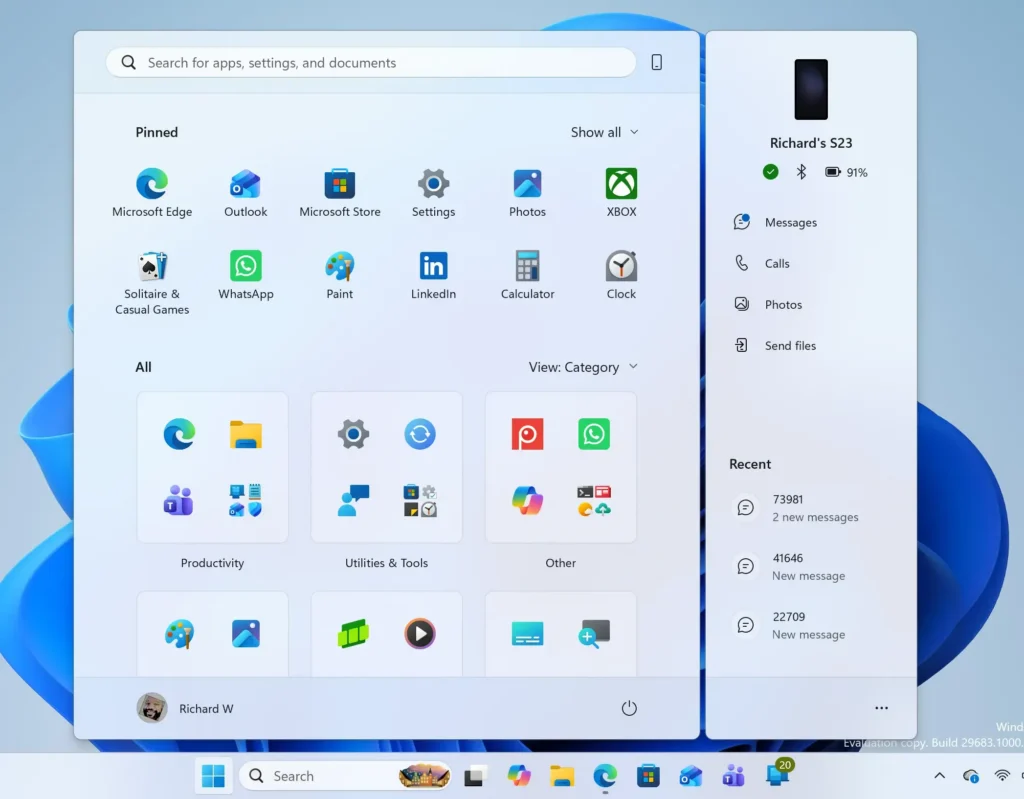
Windows 11 Start menu search panel for opening OpenSSH Client settings - Click Accessibility on the left side, then click Reading assist on the right side. Open Reading assist settings
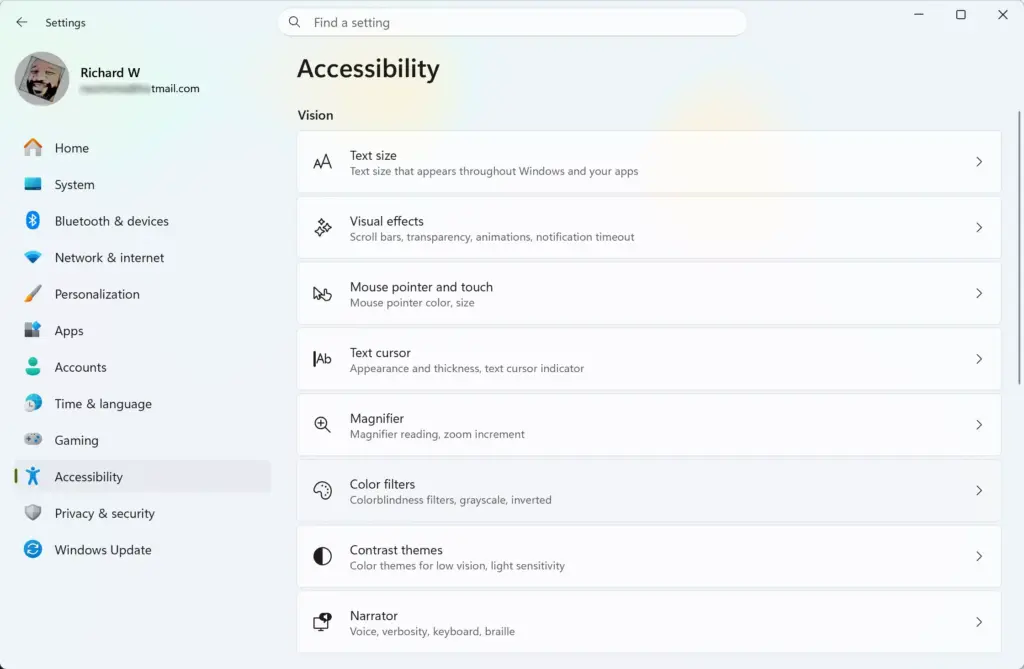
Settings › Accessibility - Turn Play activation sounds on (default) or off.
- Close Settings.
Option Two
Turn On or Off Reading Assist Activation Sounds using Registry
Turn On Reading Assist Activation Sounds
Registry Editor edits settings directly, and a wrong change can cause problems with Windows. Only follow these steps if the Settings method is not available to you. Use the following steps in Registry Editor to turn the sounds on. This needs administrator approval, so you may see a User Account Control prompt.
- Open Registry Editor: press Win+R, type regedit, and press Enter. If the User Account Control prompt (the Windows window that asks you to approve changes) appears, select Yes.
- Go to
HKEY_CURRENT_USER\Software\Microsoft\ReadingAssist: paste the path into the address bar at the top of Registry Editor and press Enter. - If there is no ReadingAssist key, right-click Microsoft in the left pane, select New Key, name it ReadingAssist, and select it. Create any other missing key in the path the same way.
Turn Off Reading Assist Activation Sounds
Use the following steps in Registry Editor to turn the sounds off. [Add the value name and the data to enter for Off here, copied exactly from the source; the draft does not give them.]
- Open Registry Editor: press Win+R, type regedit, and press Enter. Select Yes if the User Account Control prompt appears.
- Go to
HKEY_CURRENT_USER\Software\Microsoft\ReadingAssist: paste the path into the address bar at the top of Registry Editor and press Enter. - If there is no ReadingAssist key, right-click Microsoft in the left pane, select New Key, name it ReadingAssist, and select it. Create any other missing key in the path the same way.
What to do next
To reverse either option, return to Accessibility Reading assist in Settings and switch Play activation sounds back, or repeat the Registry Editor steps for the other setting. You can use either option to undo the other.
Have a question about this guide?
Answered by AI from this guide. Good questions may be added to this page — please don't include personal details.
Did this guide fix your problem?

About the Author
Richard
Tech Writer, IT Professional
Richard is a writer at Geek Rewind who turns complex IT tasks into clear, step-by-step guides. He draws on years of hands-on experience in system administration and enterprise IT operations, focusing on Windows, Linux and WordPress: the problems people actually run into, and the fixes that work. His server and WordPress guides come from systems he runs himself. Richard builds and maintains the platform behind Geek Rewind, from its Ubuntu servers and Nginx configuration to its custom WordPress plugins. Many new tutorials start with readers' questions, and he's always glad to answer them in the comments.
No comments yet — be the first to share your thoughts!