How to Access Control Panel in Windows 11

The Control Panel is a central hub for managing your computer’s system configuration. While Microsoft is slowly moving features to the modern Windows Settings app, the classic Control Panel remains the go-to place for advanced administrative tools.
Why use it? It offers granular control over legacy settings that the new app sometimes hides.
What happens when you use it? You gain deeper access to system-level adjustments that keep your computer running exactly how you want.
Control Panel vs. Windows Settings App
You might wonder why there are two places to change settings. The Windows Settings app is designed for touchscreens and everyday users. The classic Control Panel is built for deep system management. Some tasks, like managing advanced network adapters or specific user account permissions, are still easier to handle in the legacy interface.
How to Access Control Panel in Windows 11
Method 1: The Start Menu
Click the Start button and type Control Panel. Select the app from the results. Why do this? It is the fastest way to launch the tool for most users.
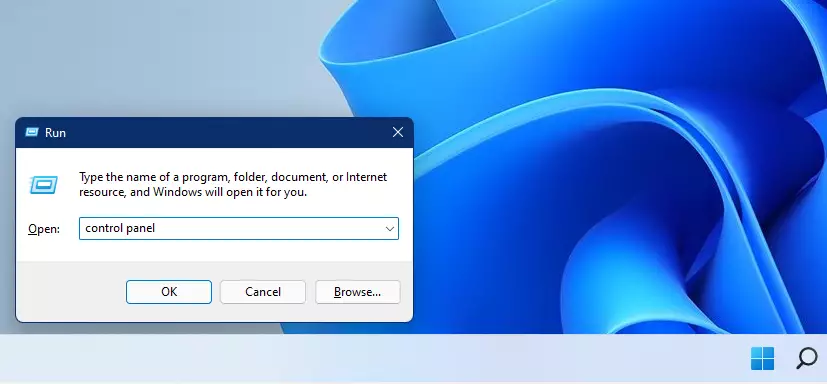
Method 2: The Run Command (Quickest Way)
Press Windows Key + R on your keyboard. Type control and press Enter. This bypasses the menu entirely.
Method 3: Command Prompt or PowerShell
Open Command Prompt or PowerShell. Type control.exe and hit Enter. This is useful for IT professionals or when troubleshooting system errors.
Pro Tip: Pinning to Taskbar
To keep the Control Panel handy, open it using the Start menu. Right-click the icon in your taskbar and select Pin to taskbar. Now, it is only one click away whenever you need it.
How to Create a Desktop Shortcut
Right-click on your desktop and select New > Shortcut. In the box, type control.exe. Click Next, name it Control Panel, and click Finish. You now have a permanent icon on your desktop.
Advanced Troubleshooting and Administrative Tools
The Control Panel is essential for fixing system issues. You can access System Properties to change computer names or Programs and Features to uninstall stubborn software. Note: Some of these actions, such as modifying system-wide security settings, require admin privileges. If you are not logged in as an administrator, Windows will prompt you for a password.
Summary
The Control Panel is a powerful tool for managing your Windows 11 system. While the modern Settings app is great for daily tasks, the Control Panel provides the depth needed for advanced troubleshooting. By using the Run command or pinning it to your taskbar, you can access these classic tools quickly. Remember that some deep system changes require admin privileges to function correctly.

Is the Control Panel being removed in Windows 11?
Microsoft is gradually migrating features from the classic Control Panel to the modern Windows Settings app. While it is not being removed immediately, its importance is decreasing over time. For now, it remains a vital tool for advanced users who need access to legacy system configuration options.
Why can’t I find Control Panel in the Start menu?
If you cannot find it, ensure you are typing the full name correctly. Sometimes, Windows search results prioritize the newer Settings app. If it still does not appear, you can always use the Run command by pressing Windows Key + R and typing control to launch it manually.
Was this guide helpful?

About the Author
Richard
Tech Writer, IT Professional
Richard, a writer for Geek Rewind, is a tech enthusiast who loves breaking down complex IT topics into simple, easy-to-understand ideas. With years of hands-on experience in system administration and enterprise IT operations, he’s developed a knack for offering practical tips and solutions. Richard aims to make technology more accessible and actionable. He's deeply committed to the Geek Rewind community, always ready to answer questions and engage in discussions.



[…] how to change the power button behavior settings in Windows 11. Then, one had to use the classic Control Panel app. Now, users can use the Windows Settings app to change what happens when the power button is […]
[…] you try to open Devices and Printers from the Control Panel in Windows 11, it will open to Settings > Bluetooth & […]
[…] open the Control Panel app. In the Control Panel app, select Hardware and Sound group and go […]
[…] Open the Control Panel in Windows 11 to turn wake timers on or off. […]
[…] can also reset apps and programs from the Control Panel. In the search box on the taskbar, type Control Panel and select Control Panel from the […]
[…] can also use the Control Panel to turn on or off a network adapter in Windows 11. Go to the Start button to use the Control Panel, […]
[…] how the power button works in Windows 11 requires you to log in as an administrator and open the Control Panel app in Windows […]
[…] First, open the classic Control Panel in Windows 11. […]
[…] To change your device power plan, first, open the classic Control Panel in Windows 11. […]
[…] To change your device power plan, first, open the classic Control Panel in Windows 11. […]
[…] open the Control Panel in Windows […]
[…] There’s yet another location to turn on filter keys: the classic Control Panel app. […]
[…] BitLocker enabled on your OS drive, open the Control Panel and browse to the BitLocker […]
[…] First, open the Control Panel app. […]
[…] or slower to make it easier to locate. Windows allows users to change the cursor blink rate via the Control Panel or Windows Registry […]
[…] First, launch the Control Panel app in Windows 11. […]
[…] First, launch the Control Panel app in Windows 11. […]
[…] First, launch the Control Panel app in Windows 11. […]
[…] If it is confirmed your device supports it, open the Control Panel app. […]
[…] open the Control Panel and select System and Security -> BitLocker Drive […]
[…] we showed you how to change the lid close settings in Windows 11. Then, one had to use the classic Control Panel app. Now, users can use the Windows Settings app to change what happens when the lid on the laptop is […]
[…] Another way to adjust the text cursor thickness in Windows is from the Control Panel app. To do that, first, open the Control Panel app. […]
[…] or disable AutoPlay play in Windows is from the Control Panel app. To do that, first, open the Control Panel […]
[…] First, open the Control Panel app. […]
[…] the mouse wheel scroll in Windows. For example, one can use the Windows Settings app, the classic Control Panel mouse applet, or the Windows registry […]
[…] Another way to remove or uninstall Windows updates is to use the Control Panel app. […]
[…] BitLocker enabled on your OS drive, open the Control Panel and browse to the BitLocker […]
[…] are many ways to get to these tools. For example, one can use the Start menu, Control Panel, and File Explorer. Below, we’ll show you how to find and open Windows 11 […]
[…] First, open the Control Panel app. […]
[…] First, open the Control Panel app. […]
[…] students and new users steps to open Windows Tools in Windows 11. Windows Tools is a Windows 11 Control Panel folder containing tools for administrators and advanced […]
[…] many advanced settings can still be done in the old Control Panel. Changing lid open actions is one of the changes you’ll need to go to the Control Panel […]
[…] First, open the Control Panel app. […]
[…] open the Control Panel […]
[…] While BitLocker is enabled on your machine, open the Control Panel. […]
[…] Alternatively, the classic Control Panel app could add or remove Remote Desktop users. To do that, first, open the Control Panel app. […]
[…] First, open the Control Panel app. […]
[…] sharing the folder on the NFS server, open the Windows machine and navigate to Control Panel > Programs > Programs and […]
[…] commenter mentioned below to enable SMB 1.0 / CIFS File Sharing support in the Control Panel, under Programs and Features ==> Turn Windows features on or […]
[…] many advanced settings can still be done in the old Control Panel. Changing the lid open actions is one of the changes you’ll need to go to the Control Panel […]
[…] commenter mentioned below to enable SMB 1.0 / CIFS File Sharing support in the Control Panel, under Programs and Features ==> Turn Windows features on or […]
[…] open the Control Panel. You can do that by clicking the Start button and searching for Control Panel. Under Best match, […]
[…] Windows allows users to change or reset passwords from the Windows Settings app or Control Panel. […]
[…] Open the Control Panel on your Windows 11 PC. […]
[…] the Control Panel on your Windows 11 […]
[…] Open the Control Panel on your Windows 11 PC. […]
[…] Open Control Panel: Click the Start button, type Control Panel, and press Enter. Learn more about Control Panel […]
[…] Open Control Panel: Click the Start menu button, type Control Panel, and press Enter. Learn how to open Control Panel […]
[…] Open Control Panel: Click the Start menu, type Control Panel, and press Enter. Or learn more about opening Control Panel here: Open Control Panel in Windows 11. […]
[…] Control Panel. You can search for it in the Start […]
[…] Open Control Panel: Click the Start button, type Control Panel, and click it from the list. Learn more about opening Control Panel. […]
[…] Click the Start button and type Control Panel, then press Enter. Or you can follow this guide: How to Open Control Panel in Windows 11 […]
[…] the Control Panel. To do this, type Control Panel in the search box and click […]
[…] how the power button works in Windows 11 requires you to log in as an administrator and open the Control Panel app in Windows […]
[…] To delete a driver, open the Control Panel in Windows 11 […]
[…] to change the sleep button behavior settings in Windows 11. Then, one had to use the classic Control Panel app. Now, users can use the Windows Settings app to change what happens when the sleep button […]
[…] Open the Control Panel. You can do this by typing Control Panel in the search box on the taskbar. Control Panel […]
[…] Open the Control Panel app. If you need help opening Control Panel, check this guide: How to Open Control Panel in Windows 11. […]
[…] the Control Panel and select Network and Sharing […]
[…] the Control Panel on your Windows 11 […]
[…] Open the Control Panel on your PC. Learn how to open Control Panel […]
[…] the Control Panel and click the User Accounts […]
[…] for and open the Control Panel, then go to Hardware and Sound > Power Options. Click Change plan settings next to your active […]
[…] To get started, open the Control Panel app. […]
[…] 11 Control Panel Shortcuts […]
[…] launch the Control Panel app in Windows […]
[…] First, open the Control Panel app. […]