How to Enable or Disable Forced Shutdown in Windows 11

You can enable or disable forced shutdown in Windows 11 by changing a specific registry key related to power button actions.
A forced shutdown, sometimes called a hard shutdown, immediately powers off your PC without going through the usual Windows closing process. This bypasses data saving and application closing.
This is essential when your Windows 11 PC freezes completely and the normal shutdown options are unavailable. For instance, the `PowerButtonSuppression` registry value controls this behavior.
While it can save you from a frozen system, you must use forced shutdown cautiously. It risks data corruption and losing unsaved work.
To enable or disable forced shutdown in Windows 11, open Control Panel, navigate to Power Options, then Change advanced power settings. Expand “Power buttons and lid” and choose On or Off for “Enable forced button/lid shutdown” under battery and plugged-in options.
How to Force a Shutdown if the Screen is Frozen
If your screen is black or frozen, you cannot use the mouse. You must perform a hard reset. Press and hold the physical power button on your computer case or laptop for 10 seconds. The hardware will cut power. This is the most common way to handle a system hang.
Using the Command Line for Forced Shutdown
You can force a shutdown using the Command Prompt, which is a safer way than just pulling the plug.
shutdown /s /f /t 0
The /s tells the computer to shut down, /f forces running apps to close, and /t 0 sets the timer to zero seconds.
Disabling Fast Startup to Fix Battery Drain
Note: This requires administrator privileges.
- Open the Control Panel.
- Go to Hardware and Sound > Power Options.
- Click Choose what the power buttons do.
- Click Change settings that are currently unavailable.
- Uncheck Turn on fast startup (recommended).
- Click Save changes.
Steps to Enable or Disable Forced Button/Lid Shutdown
You can change how your Windows 11 laptop reacts when you press the power button or close the lid, but you’ll need administrator rights first.
- Launch the Control Panel app in Windows 11.
- In the Control Panel, go to Hardware and Sound > Power Options.
- Select your active power plan and click the Change plan settings link.
windows 11 change power plan settings link - Click the Change advanced power settings link.
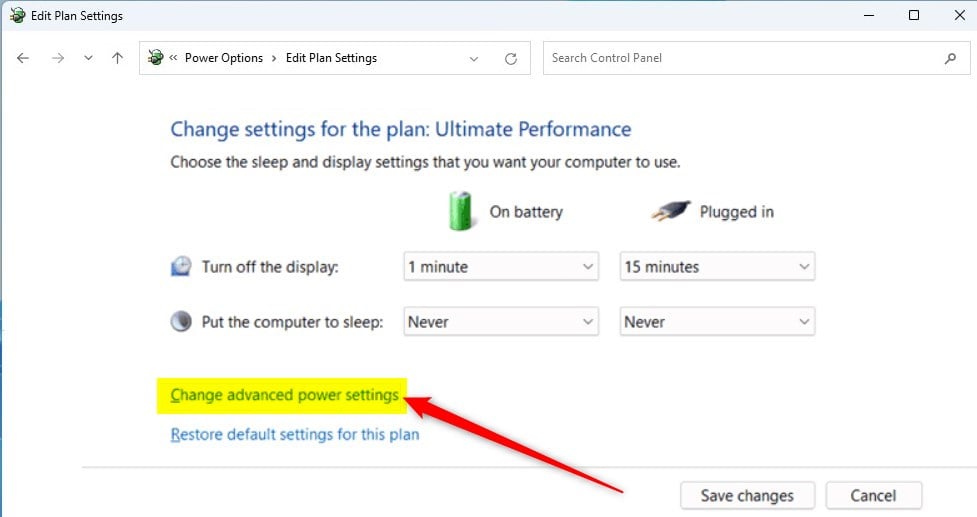
windows 11 change advanced power settings control panel - Find the Power buttons and lid section and expand it.
- Expand Enable forced button/lid shutdown.
- Choose On or Off for both “On battery” and “Plugged in” modes.
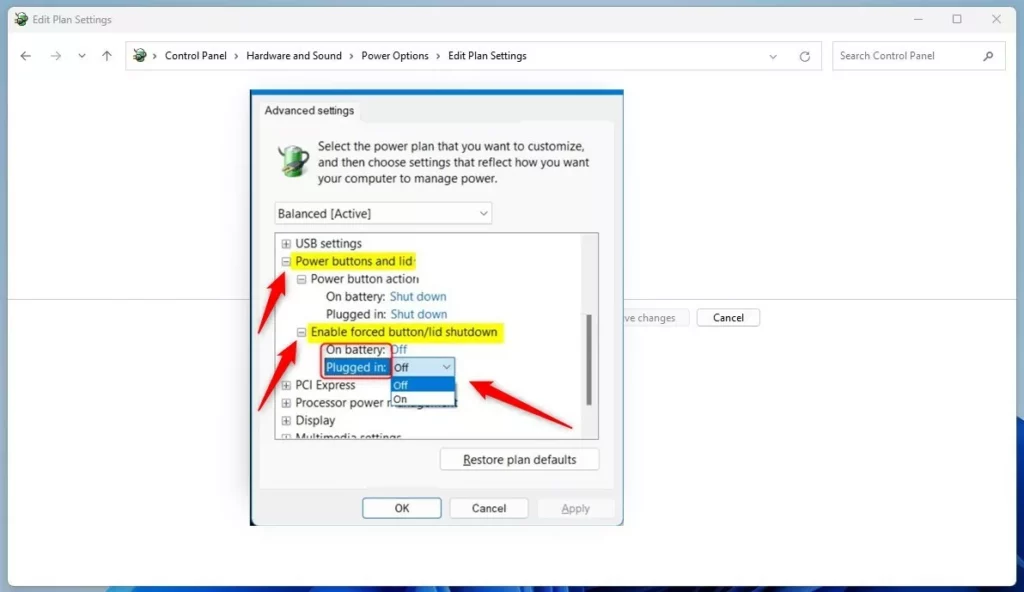
windows enable or disable force button lid shutdown - Click OK to save your changes.
Summary
- Forced shutdown cuts power instantly, which can cause data loss.
- Use the
shutdown /s /f /t 0command for a clean but forced exit. - Disable Fast Startup in the Control Panel to prevent battery drain.
- Always save your work before triggering a hard shutdown.
Reference: Microsoft.com
Why does my 🪟 Windows 11 laptop battery drain while shut down?
Your laptop battery may drain because of Fast Startup. This feature keeps the system in a hybrid state between shutdown and hibernation to speed up boot times. It keeps the kernel active, which consumes power. Disabling Fast Startup in your Power Options can help stop this drain.
What is the difference between a normal shutdown and a forced shutdown?
A normal shutdown allows Windows to save your files and close programs safely. A forced shutdown cuts power immediately without saving data. Normal shutdown protects your system files, while a forced shutdown is a last resort for an unresponsive system or a total system hang.
Was this guide helpful?

About the Author
Richard
Tech Writer, IT Professional
Richard, a writer for Geek Rewind, is a tech enthusiast who loves breaking down complex IT topics into simple, easy-to-understand ideas. With years of hands-on experience in system administration and enterprise IT operations, he’s developed a knack for offering practical tips and solutions. Richard aims to make technology more accessible and actionable. He's deeply committed to the Geek Rewind community, always ready to answer questions and engage in discussions.



No comments yet — be the first to share your thoughts!