How to Delete Services in Windows 11

You delete Windows 11 services to remove unwanted background processes or troubleshoot system issues.
Think of Windows services as hidden apps running in the background. They handle important tasks like your network connection, security, and system updates. Sometimes, when you uninstall software, a ‘service’—a background process—doesn’t get fully removed. These leftover ‘orphaned services’ can hog your computer’s resources and cause problems.
This guide shows you how to safely remove these services using the command prompt. This process requires administrative privileges and careful execution to avoid destabilizing your system. For example, trying to delete a critical service like the ‘Windows Update’ service could prevent your PC from getting important security patches.
You can delete Windows 11 services using Command Prompt or Registry Editor. Open Command Prompt as administrator and type `sc delete “ServiceName”`. Alternatively, open Registry Editor, navigate to 🗝️HKEY_LOCAL_MACHINESYSTEMCurrentControlSetServices, find the service folder, and delete it.
Safety and Precautions
WARNING: Before making any changes, create a System Restore point. Modifying the registry or deleting services can cause system instability or prevent Windows from booting. Only remove services you are certain are no longer needed.
How to Identify Safe Services
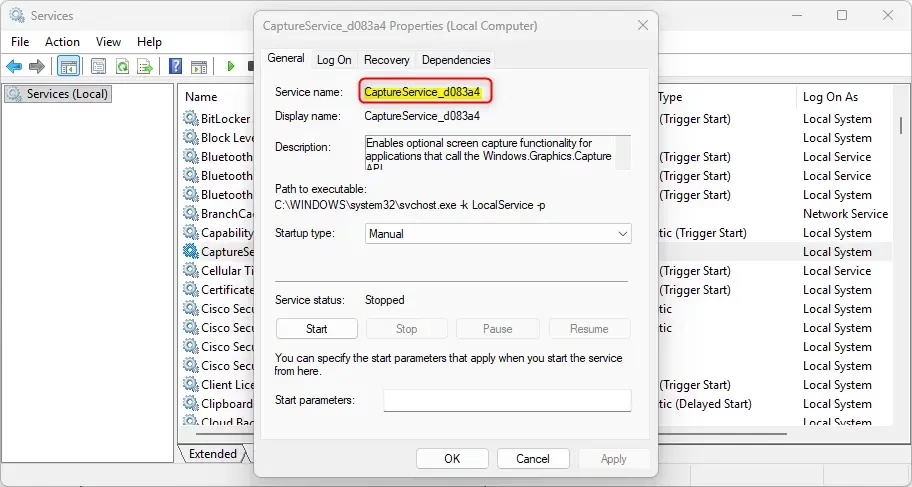
To identify a service, open the Services console. You can do this by pressing ⊞ Win+R, typing services.msc, and hitting Enter. Look at the Description and Path to executable columns. If the path points to a folder for a program you’ve already uninstalled, it’s likely safe to remove.
How to Delete Services via Command Prompt (Admin)
You can delete Windows services using the Command Prompt if you open it as an administrator, which lets you run commands to remove unwanted services.
- Click the Start button, type cmd, right-click Command Prompt, and select Run as administrator.
- Find the service name using the Services console as described earlier.
- Now, type the command to delete the service, then press Enter:
sc delete "ServiceName"
4. To confirm it’s gone, type sc query "ServiceName" and press Enter. If you see the message, ‘The specified service does not exist as an installed service,’ you’ve successfully removed it.

How to Delete Services via Registry Editor
You’ll need administrator privileges for this.
- Press ⊞ Win+R, type regedit, and press Enter.
- Navigate to:
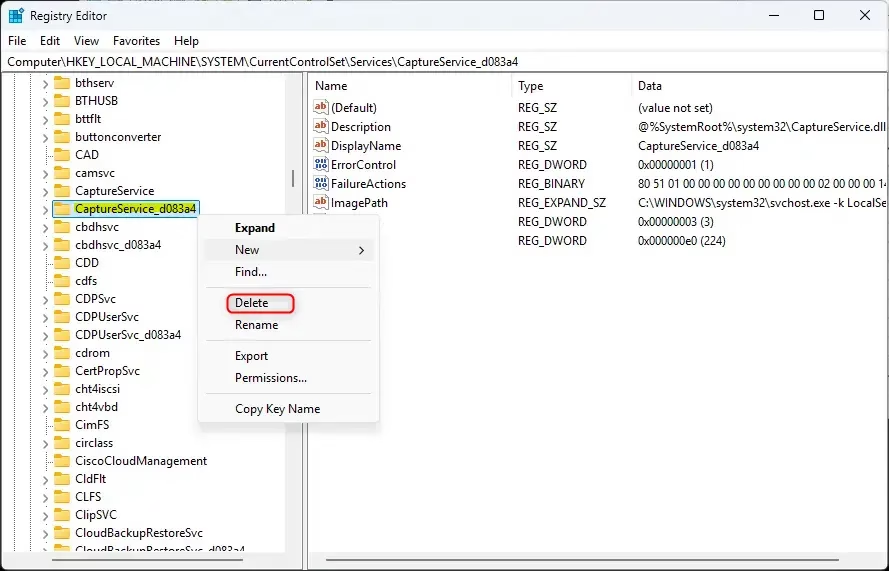
HKEY_LOCAL_MACHINE\SYSTEM\CurrentControlSet\Services
3. Locate the folder matching your service name in the left pane.
4. Right-click the folder and select Delete.
5. Confirm the action and restart your computer to apply changes.
Troubleshooting
If you’re having trouble deleting a Windows service, the first thing to check is if you’re running the Command Prompt as an administrator.
Summary
Deleting services helps clean up leftover entries from uninstalled software. Always back up your registry or create a restore point first. Use the Command Prompt for a quick removal or the Registry Editor for manual cleanup. Always verify the service name before deleting to keep your system stable.
Is it safe to delete Windows services?
Generally, it’s not a good idea to delete core Windows services. Stick to removing services that came with third-party apps you’ve already uninstalled. Deleting critical Windows components can lead to system crashes, errors, or prevent your operating system from booting entirely. Always verify the service origin first.
What happens if I delete a critical system service?
If you delete a critical service, your computer may experience immediate errors, lose functionality like internet or audio, or it might not start at all. Windows relies on these services for stability. If this happens, you’ll likely need to use System Restore or perform a Windows repair.
Was this guide helpful?

About the Author
Richard
Tech Writer, IT Professional
Richard, a writer for Geek Rewind, is a tech enthusiast who loves breaking down complex IT topics into simple, easy-to-understand ideas. With years of hands-on experience in system administration and enterprise IT operations, he’s developed a knack for offering practical tips and solutions. Richard aims to make technology more accessible and actionable. He's deeply committed to the Geek Rewind community, always ready to answer questions and engage in discussions.


No comments yet — be the first to share your thoughts!