How to Change Keyboard Repeat Rate in Windows 11

You change your keyboard repeat rate in Windows 11 by adjusting settings within the Control Panel or the Settings app.
The keyboard repeat rate determines how quickly a character appears on your screen when you hold down a key. This rate, along with the repeat delay (the pause before repeating begins), directly impacts your typing speed and comfort.
For instance, if you find yourself waiting too long for keys to start repeating, or if they repeat too slowly for fast typists, you can easily fine-tune these Windows 11 keyboard settings. Adjusting these can make a noticeable difference in your daily PC use.
Adjust your keyboard repeat rate in Windows 11 via the Control Panel or Settings app. Open Control Panel, select Keyboard, and use the Speed tab’s Repeat rate slider. You can also adjust the Repeat delay to change how long you hold a key before it starts repeating.
Why Change Your Keyboard Repeat Rate?
If you type a lot, you might want the repeat rate to be faster. If you accidentally hold keys too long, you might want it slower. Finding the right speed makes typing more comfortable for you.
Change Keyboard Repeat Rate Using Control Panel
You can easily change your keyboard repeat rate in Windows 11 using the Control Panel. This setting controls how quickly a key repeats when you hold it down, helping you find a comfortable typing speed.
- Open Control Panel Open the Control Panel on your Windows 11 PC.
- Set View by: to Icons (not Category).
- Find and click on Keyboard.
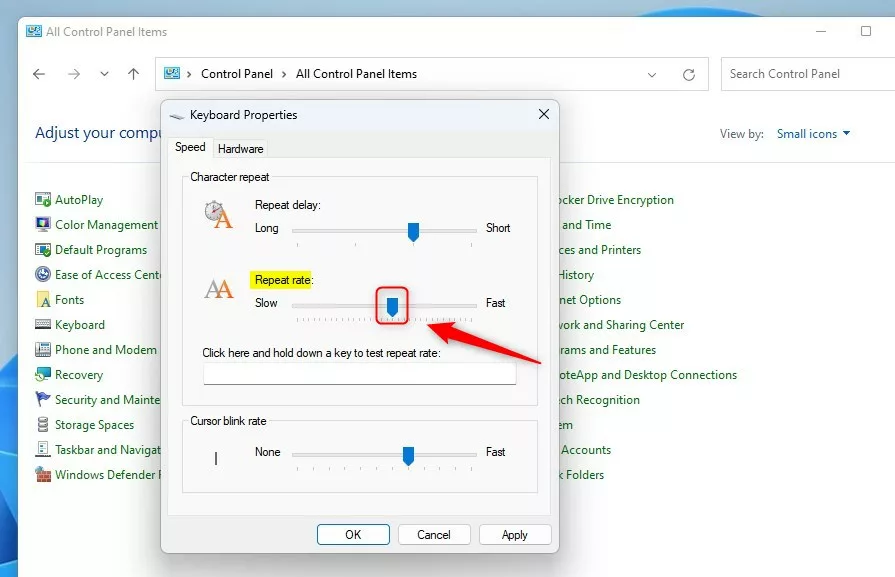
- In the Keyboard Properties window, go to the Speed tab.
- Under Character repeat, move the Repeat rate slider to the left for slower repeat or to the right for faster repeat.
- You can also adjust the Repeat delay slider. This sets how long you hold a key before it starts repeating.
- Click OK to save your changes.
Change Keyboard Repeat Rate Using Windows Registry (Advanced Users)
For advanced users, changing the keyboard repeat rate in Windows 11 can also be done through the Registry Editor. This method offers more control but requires caution, as incorrect changes can affect your PC’s performance.
Warning: Be careful when editing the registry. Making wrong changes can cause problems with your PC. It’s a good idea to back up your registry before you start.
- [ADMIN REQUIRED] Open Registry Editor Open the Windows Registry Editor.
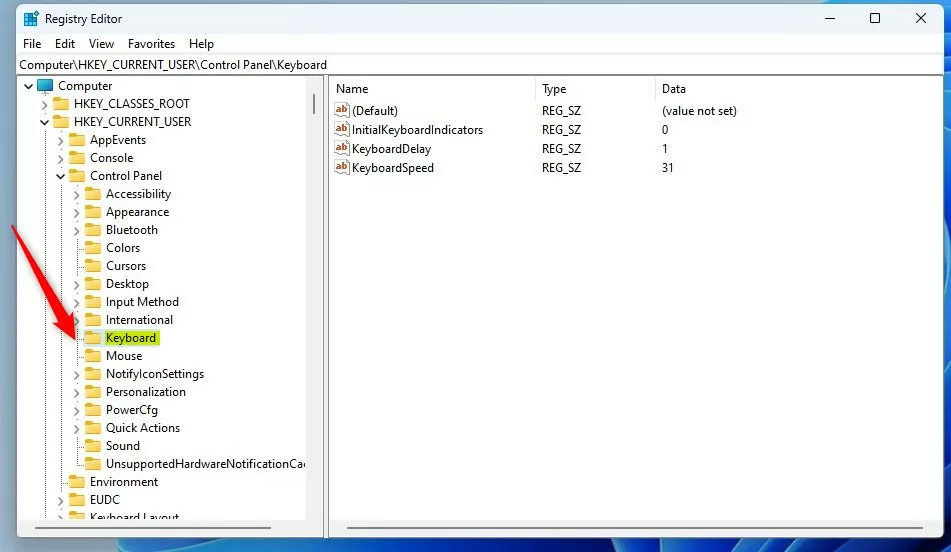
- Go to this folder path:
HKEY_CURRENT_USER\Control Panel\Keyboard - If you don’t see the Keyboard folder, right-click the Control Panel folder, choose New > Key, and name it Keyboard.
- In the right pane, right-click and select New > String Value.
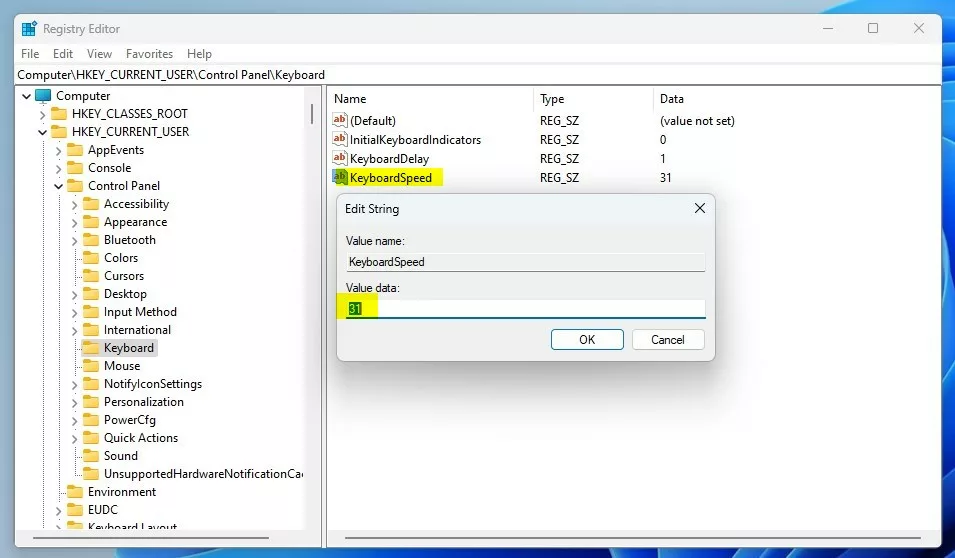
- Name the new value KeyboardSpeed.
- Double-click KeyboardSpeed and enter a number between 0 (slow) and 31 (fast) to set your repeat rate speed.
- Close the Registry Editor and restart your computer to apply the changes.
What Happens When You Change These Settings?
Once you save your changes, your keyboard will repeat at the new speed you set. The repeat delay will also change. You’ll notice the difference right away when you hold down a key.
Summary
Adjusting your keyboard repeat rate in Windows 11 lets you set a typing speed that feels just right for you. You can quickly change this in the Control Panel, or for more detailed control, use the Registry Editor.
What does keyboard character repeat rate do?
The key repeat rate controls how quickly a key press on the keyboard will repeat if the key is pressed and held for a period of time. This time delay value is adjusted differently depending on the environment in which the keyboard is providing input.
Was this guide helpful?

About the Author
Richard
Tech Writer, IT Professional
Richard, a writer for Geek Rewind, is a tech enthusiast who loves breaking down complex IT topics into simple, easy-to-understand ideas. With years of hands-on experience in system administration and enterprise IT operations, he’s developed a knack for offering practical tips and solutions. Richard aims to make technology more accessible and actionable. He's deeply committed to the Geek Rewind community, always ready to answer questions and engage in discussions.




No comments yet — be the first to share your thoughts!