How to Reset AutoPlay Settings in Windows 11

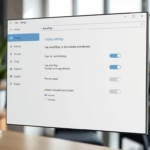
You reset your AutoPlay settings in Windows 11 by going to Settings > Bluetooth & devices > AutoPlay and clicking “Reset all AutoPlay settings to default.” AutoPlay is a Windows feature that automatically determines what happens when you connect a storage device like a USB drive or SD card to your PC.
This setting lets you decide whether your PC should open a folder, import photos, play media, or do nothing at all when you plug something in. It’s particularly useful for managing how your computer interacts with removable media.
Resetting AutoPlay to its original defaults can resolve issues where devices aren’t recognized correctly or when unwanted applications launch unexpectedly. This quick process ensures your AutoPlay functions as intended.
Open Control Panel, go to Hardware and Sound, then click AutoPlay. Select “Reset all defaults” at the bottom and click Save. This restores AutoPlay to its original settings.
Why reset AutoPlay?
You might need to reset AutoPlay settings in Windows 11 if devices aren’t behaving as expected or if you want to change which app opens automatically. Resetting clears out old choices, letting you start fresh with how Windows handles USB drives, cameras, or other media.
What happens when done?
When you reset AutoPlay settings in Windows 11, your computer will stop using your saved preferences for devices. Instead of opening a specific app automatically, Windows will ask you what you want to do each time you connect something new, like a USB stick or memory card.
How to reset AutoPlay in 🪟 Windows 11
To reset AutoPlay settings in Windows 11 and go back to the default options, you’ll need to open the Control Panel. Look for the ‘Hardware and Sound’ section, then click on ‘AutoPlay’ to find the option to reset all your preferences to their original state.
- Open the Control Panel by searching for it in the Start menu.
- Select the Hardware and Sound group.
- Click on AutoPlay.
- At the bottom of the window, click the Reset all defaults button.
Click the Save button to finish. Your settings are now reset.
Troubleshooting AutoPlay failures
If AutoPlay isn’t working correctly for a specific USB drive or device, try a few simple fixes before diving into complex solutions. Sometimes, just unplugging the device and plugging it into a different USB port can solve the problem, or you may need to check your device drivers.
Checking Shell Hardware Detection
The Shell Hardware Detection service is crucial for AutoPlay to function correctly in Windows 11, as it’s responsible for showing notifications when you connect devices. If this service isn’t running or set to start automatically, AutoPlay might not work, so it’s important to check its status in the Services window.
- Press ⊞ Win+R, type services.msc, and hit Enter.
- Scroll down to find Shell Hardware Detection.
- Right-click it and select Properties.
- Ensure the Startup type is set to Automatic.
- If the service is stopped, click Start.
Advanced Registry and Policy Fixes
For more advanced troubleshooting, you can reset AutoPlay settings using the Registry Editor or Group Policy Editor in Windows 11. These methods involve making direct changes to system settings, so it’s important to proceed with caution and ensure you’re following the correct steps to avoid unintended consequences.
reg delete "HKEY_CURRENT_USER\Software\Microsoft\Windows\CurrentVersion\Explorer\AutoplayHandlers" /fYou can also check the registry path at 🗝️HKEY_CURRENT_USER\Software\Microsoft\Windows\CurrentVersion\Explorer\AutoplayHandlers to make sure no strict policies are blocking the feature.
Summary
To reset AutoPlay settings in Windows 11, you can access the Control Panel to revert to default choices, ensuring your devices behave as expected. If AutoPlay fails, check that the Shell Hardware Detection service is running and consider updating drivers via Device Manager for a quick fix.- Access Control Panel: Navigate to the Control Panel to find your AutoPlay settings.
- Reset to Defaults: Click the “Reset all defaults” button to clear your custom choices.
- Check Services: Ensure the Shell Hardware Detection service is running if AutoPlay fails.
- Update Drivers: Reinstall USB drivers via Device Manager to fix connection issues.
- Immediate Effect: Your computer will now prompt you for actions when you connect new devices, just like when it was new.
Why is my AutoPlay option missing in 🪟 Windows 11 settings?
The AutoPlay option may be missing due to a corrupted system file or a disabled Shell Hardware Detection service. You can often restore it by running the System File Checker tool or by ensuring the required background services are enabled in the Windows Services console.
Was this guide helpful?

About the Author
Richard
Tech Writer, IT Professional
Richard, a writer for Geek Rewind, is a tech enthusiast who loves breaking down complex IT topics into simple, easy-to-understand ideas. With years of hands-on experience in system administration and enterprise IT operations, he’s developed a knack for offering practical tips and solutions. Richard aims to make technology more accessible and actionable. He's deeply committed to the Geek Rewind community, always ready to answer questions and engage in discussions.



No comments yet — be the first to share your thoughts!