How to Pause and Restart BitLocker on Windows 11

You can pause and restart BitLocker on Windows 11 to temporarily disable encryption for system updates or hardware modifications.
BitLocker is a full-disk encryption feature built into Windows, designed to protect your data from unauthorized access. Suspending BitLocker stops its encryption process without removing the recovery keys.
This allows you to safely make significant system changes, such as BIOS/UEFI updates or installing new hardware, which might otherwise trigger BitLocker recovery prompts. Once your changes are complete, you simply resume BitLocker to re-enable encryption.
For example, performing a major Windows 11 update often requires suspending BitLocker first. This prevents interruptions and potential data access issues during the update process.
You can pause BitLocker by going to Control Panel, then System and Security, and selecting BitLocker Drive Encryption. Click “Suspend protection” for the desired drive. To resume, return to the same menu and click “Resume protection.
What is BitLocker?
BitLocker is a built-in Windows tool that locks your computer’s drives to keep your files safe from unauthorized access.
You can use BitLocker to protect:
- Your main computer drive where Windows is installed (called the OS drive)
- Other internal drives inside your PC
- External drives like USB sticks or external hard drives
For your main Windows drive, BitLocker usually unlocks automatically when you start your PC using a special security chip called TPM.
Why Pause (Suspend) BitLocker?
You might need to pause BitLocker temporarily when making changes to your computer’s hardware or updating Windows.
- When you change computer hardware
- When you update Windows or the operating system
Pausing BitLocker lets these changes happen without problems. But remember, while BitLocker is paused, your data isn’t fully protected. Make sure to turn it back on (resume) when you’re done.
How to Pause and Resume BitLocker Using Control Panel
- Open the Control Panel on your PC. Learn how to open Control Panel
- Click on System and Security, then choose BitLocker Drive Encryption.
- Find the drive you want to pause BitLocker on under Operating system drive or other drives.
- Click Suspend protection.
Suspend BitLocker link in Control Panel - When a pop-up appears, click Yes to confirm.
To pause BitLocker using the Control Panel, first open it, then go to System and Security, and select BitLocker Drive Encryption.
To Resume (Turn Back On) BitLocker Protection:
- Go back to Control Panel > System and Security > BitLocker Drive Encryption.
- Click Resume protection for the paused drive.
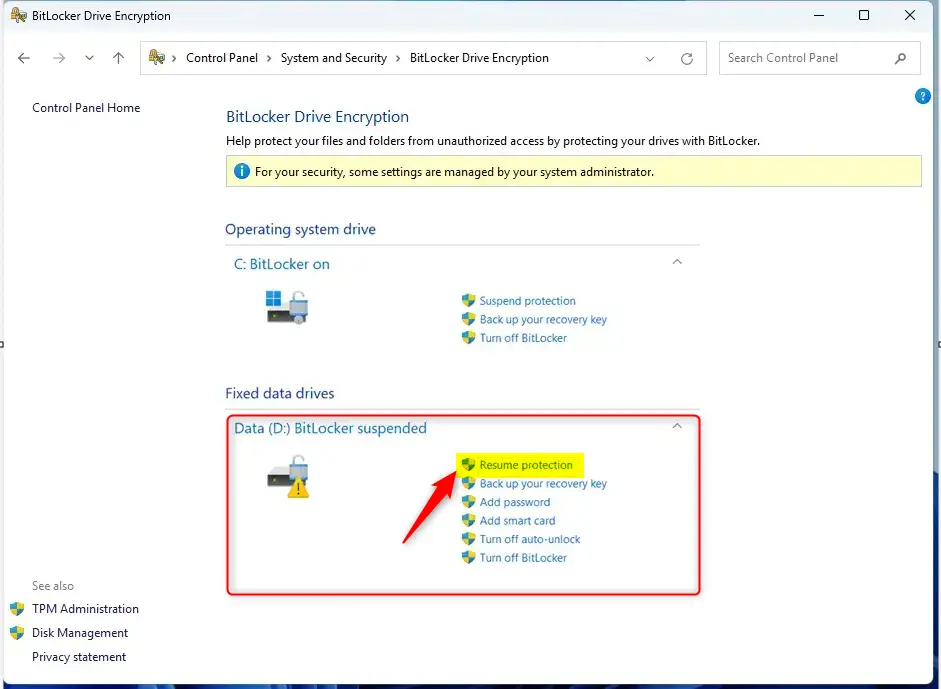
Resume BitLocker protection in Control Panel
How to Resume BitLocker Using File Explorer
- Open File Explorer.
- Right-click on the drive that has BitLocker paused.
- Click Show more options (or press Shift+F10), then select Resume BitLocker protection.
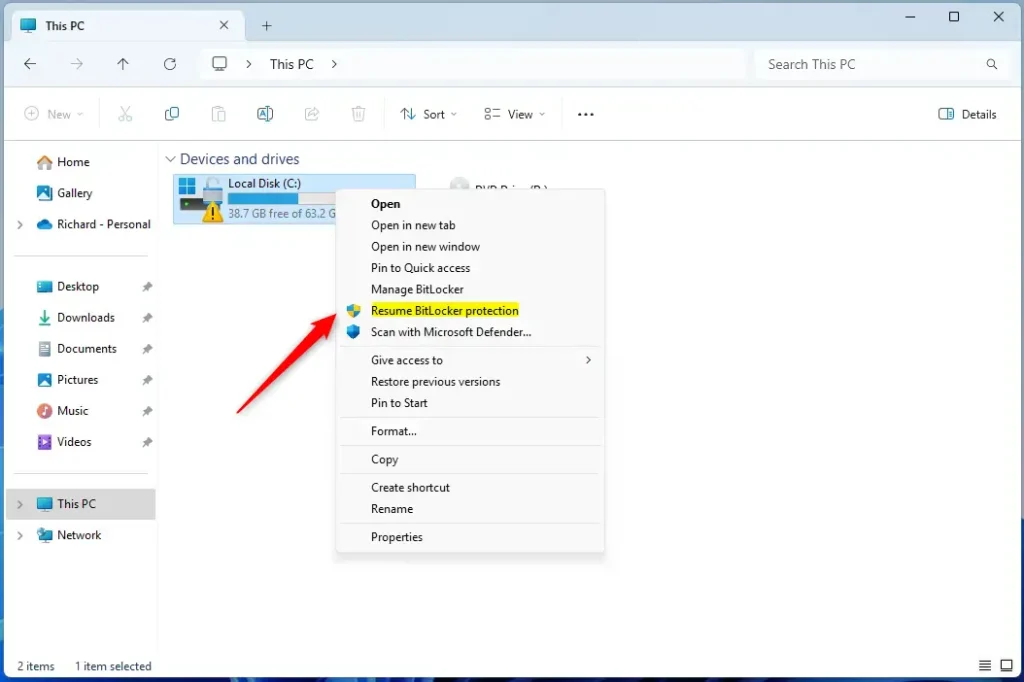
Resume BitLocker protection from context menu
Pause and Resume BitLocker Using PowerShell (Advanced)
For those comfortable with commands, you can pause BitLocker using PowerShell by opening it as an administrator and using the ‘manage-bde -protectors -disable’ command.
- FLAG: Admin privileges required — Open Windows Terminal as administrator, then choose the PowerShell tab.
To pause BitLocker on a drive, type:
manage-bde -protectors -disable <drive letter>:Replace <drive letter> with the letter of your drive. For example:
manage-bde -protectors -disable C:To turn BitLocker back on, type:
manage-bde -protectors -enable C:You can also pause or resume BitLocker for all drives with these commands:
Get-BitLockerVolume | Suspend-BitLocker
Get-BitLockerVolume | Resume-BitLocker
Pause BitLocker for OS Drive with Automatic Resume After Restarts
When pausing BitLocker on your main Windows drive, you can control how many restarts occur before it automatically resumes protection.
Suspend-BitLocker -MountPoint "C:" -RebootCount <number_of_restarts>Replace <number_of_restarts> with a number from 0 to 15. For example, to pause until you manually resume, use:
Suspend-BitLocker -MountPoint "C:" -RebootCount 0Summary
- BitLocker keeps your files safe by locking your drives.
- You can pause BitLocker when making system changes to avoid problems.
- Remember to resume BitLocker as soon as possible to keep your data protected.
- You can pause or resume BitLocker using Control Panel, File Explorer, or PowerShell.
- For the main Windows drive, you can control how many restarts before BitLocker turns back on automatically.
BitLocker protects your files by locking drives, and you can pause this protection temporarily for system changes, remembering to resume it afterward for security.
Is it safe to pause BitLocker encryption?
Yes, it’s safe to pause BitLocker because even when suspended, the keys used for encryption remain protected within the drive itself, never stored unencrypted.
How to force disable BitLocker in 🪟 Windows 11?
Type and search [Manage BitLocker] in the Windows search bar①, then click [Open]②. Click [Turn off BitLocker]③ on the drive that you want to decrypt.
Was this guide helpful?

About the Author
Richard
Tech Writer, IT Professional
Richard, a writer for Geek Rewind, is a tech enthusiast who loves breaking down complex IT topics into simple, easy-to-understand ideas. With years of hands-on experience in system administration and enterprise IT operations, he’s developed a knack for offering practical tips and solutions. Richard aims to make technology more accessible and actionable. He's deeply committed to the Geek Rewind community, always ready to answer questions and engage in discussions.




No comments yet — be the first to share your thoughts!