How to Rename Physical Disks in Windows 11 Storage Pool

You can rename physical disks within a Windows 11 storage pool by accessing the Storage Spaces settings.
A storage pool in Windows 11 is a feature that combines multiple physical drives into a single logical storage space, offering flexibility and capacity expansion. Renaming these underlying physical disks helps you easily identify and manage them, especially when dealing with several drives.
This process allows you to assign custom names to each disk contributing to your storage pool, improving organization within the Storage Spaces interface. For instance, you might label a drive “Backup Drive 1” or “Media Storage” to quickly distinguish its purpose.
Open Control Panel, navigate to System and Security > Storage Spaces. Click “Change settings,” expand your storage pool, and click “Rename” next to the desired physical disk. Enter a new name and click “Rename drive.
Why Rename Your Disks?
- Make it easier to find a specific disk.
- Helps when you need to replace or fix a disk.
- Prevents confusion between disks from different brands or sizes.
How to Rename Physical Disks Using Control Panel
You can easily rename physical disks in your Windows 11 Storage Pool using the Control Panel, making it simpler to keep track of your drives.
- Open the Control Panel on your Windows 11 computer.
- Go to: Control Panel > System and Security > Storage Spaces.
- Click the Change settings button at the top of the Storage Spaces page.
- Find your Storage pool and click to expand it.
- Under Physical drives, click the Rename link next to the disk you want to rename.
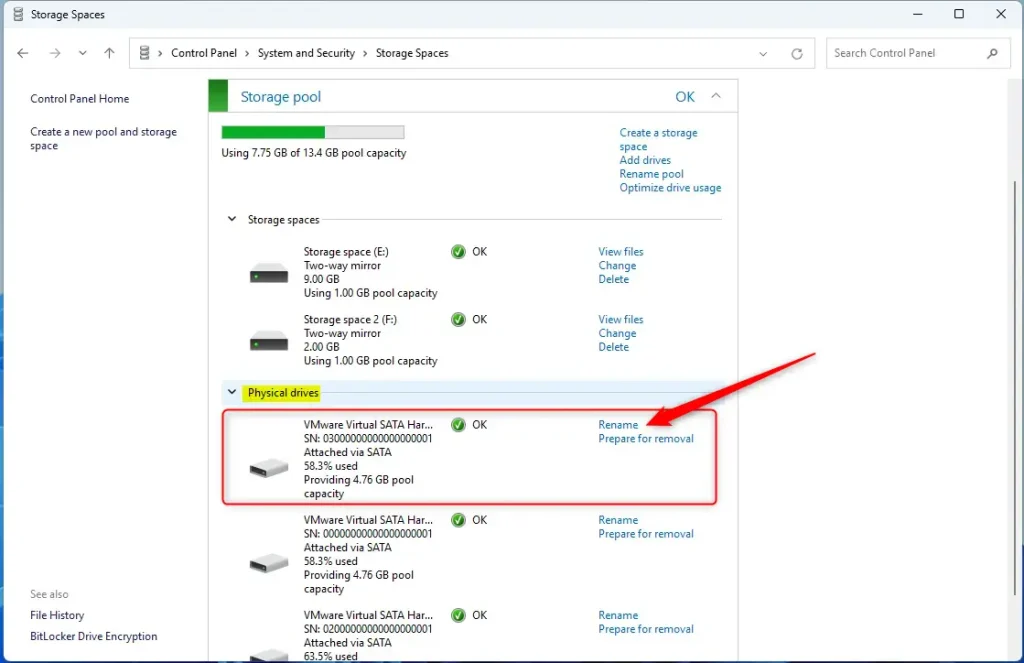
- A box will pop up asking for a new name. Type a unique name for your disk and click Rename drive.
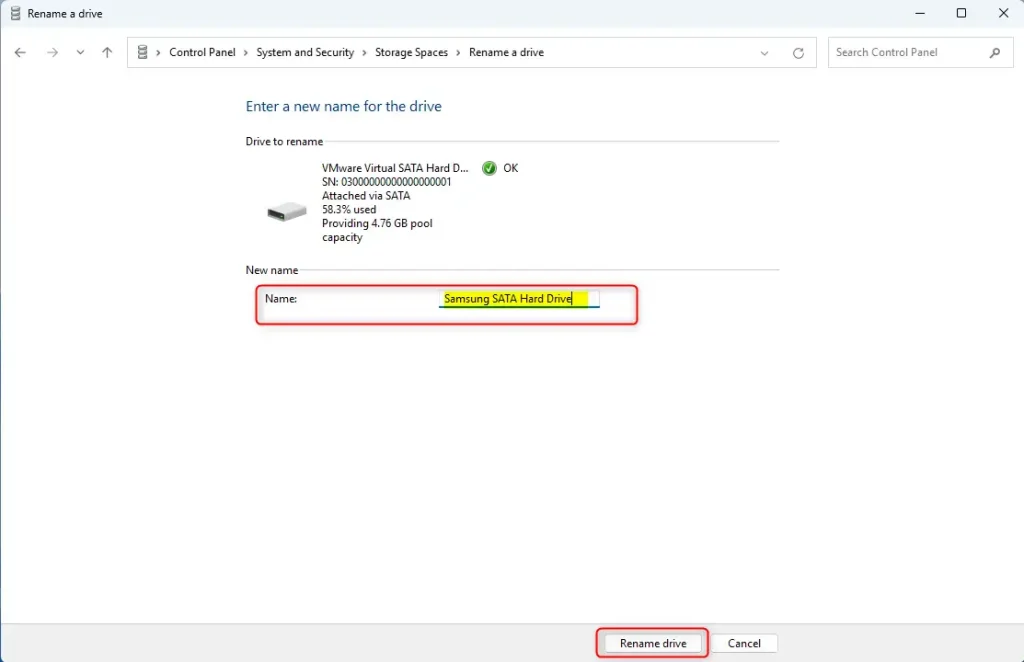
When done, close the Control Panel. Your disk will now show the new name.
How to Rename Physical Disks Using PowerShell
For those who prefer commands, renaming physical disks in a Windows 11 Storage Pool is also possible using PowerShell, offering a quick way to manage your drives.
- Open PowerShell as Administrator (search for PowerShell, right-click, and choose “Run as administrator”). ⚠️ Requires admin privileges
- Type this command to see all your physical disks:PowerShell
Get-PhysicalDisk | Select-Object FriendlyName, SerialNumber, UniqueID - Look for the disk you want to rename by its name or ID.
- Use one of these commands to rename the disk (replace the names and IDs with your own):PowerShell
Set-PhysicalDisk -FriendlyName "OldDiskName" -NewFriendlyName "NewDiskName"OR
PowerShellSet-PhysicalDisk -UniqueId "DiskUniqueID" -NewFriendlyName "NewDiskName" - Example: If your disk is named SAMSUNG HD5555 or its unique ID is 1234567890, and you want to rename it to SAMSUNG HD1, you would type:PowerShell
Set-PhysicalDisk -FriendlyName "SAMSUNG HD5555" -NewFriendlyName "SAMSUNG HD1"OR
PowerShellSet-PhysicalDisk -UniqueId "1234567890" -NewFriendlyName "SAMSUNG HD1" - Press Enter, and your disk will be renamed.
Summary
Renaming physical disks in your Windows 11 Storage Pool is a smart way to keep your drives organised and easily identifiable, especially when you need to manage or replace them.
How do you do it? You can rename disks in two ways: through the easy-to-use Control Panel or by using PowerShell commands.
What should you remember? Always use unique names for your disks to avoid confusion.
That’s it! Now you know how to rename your physical disks in a Storage pool on Windows 11.
How do you rename a local disk in 🪟 Windows 11?
Step 1: Open File Explorer by pressing the ⊞ Win+E keys. Step 3: Locate the drive that you want to rename, and right-click on it or select the drive then use shortcut F2. then click on Rename icon. Step 4: Type the new name for the drive.
How to rename hard drive C to D?
Now now you can also change the path uh letter as well. So let's go to search type in disk. Management or create and format hard disk partition.
Was this guide helpful?

About the Author
Richard
Tech Writer, IT Professional
Richard, a writer for Geek Rewind, is a tech enthusiast who loves breaking down complex IT topics into simple, easy-to-understand ideas. With years of hands-on experience in system administration and enterprise IT operations, he’s developed a knack for offering practical tips and solutions. Richard aims to make technology more accessible and actionable. He's deeply committed to the Geek Rewind community, always ready to answer questions and engage in discussions.


No comments yet — be the first to share your thoughts!