How to Open Devices and Printers in Windows 11

You can open Devices and Printers in Windows 11 to view and manage all your connected hardware, like printers, scanners, and other peripherals.
This handy Control Panel window acts as a central place for managing your devices. You can check their status, add new hardware, fix problems, and change settings all from here.
While Windows 11 buries this useful tool, accessing it can be done quickly with a few methods. For instance, you can type `control printers` into the Run dialog box (Windows Key + R) to launch it instantly.
Knowing how to access Devices and Printers is essential for efficiently managing your PC’s hardware. This guide shows you exactly how.
Open Devices and Printers in Windows 11 via Settings by navigating to Bluetooth & devices, then Devices, and finally More devices and printers settings. Alternatively, press Windows key + R, type control printers, and press Enter.
Open Devices and Printers Using the Settings App
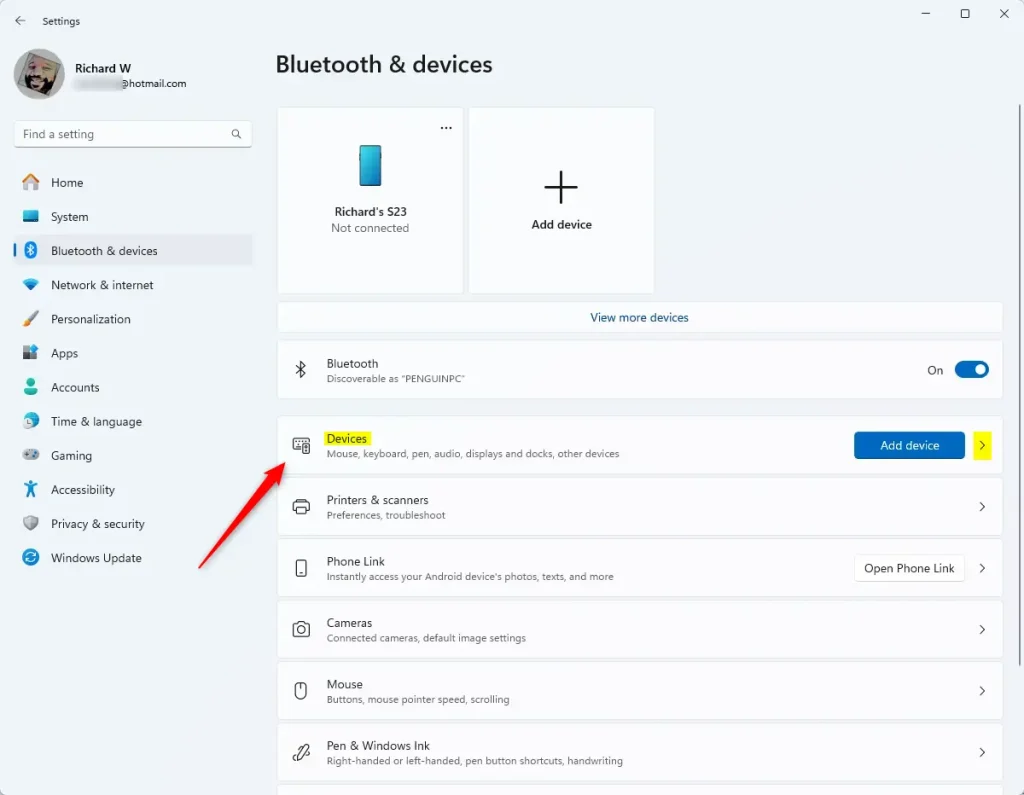
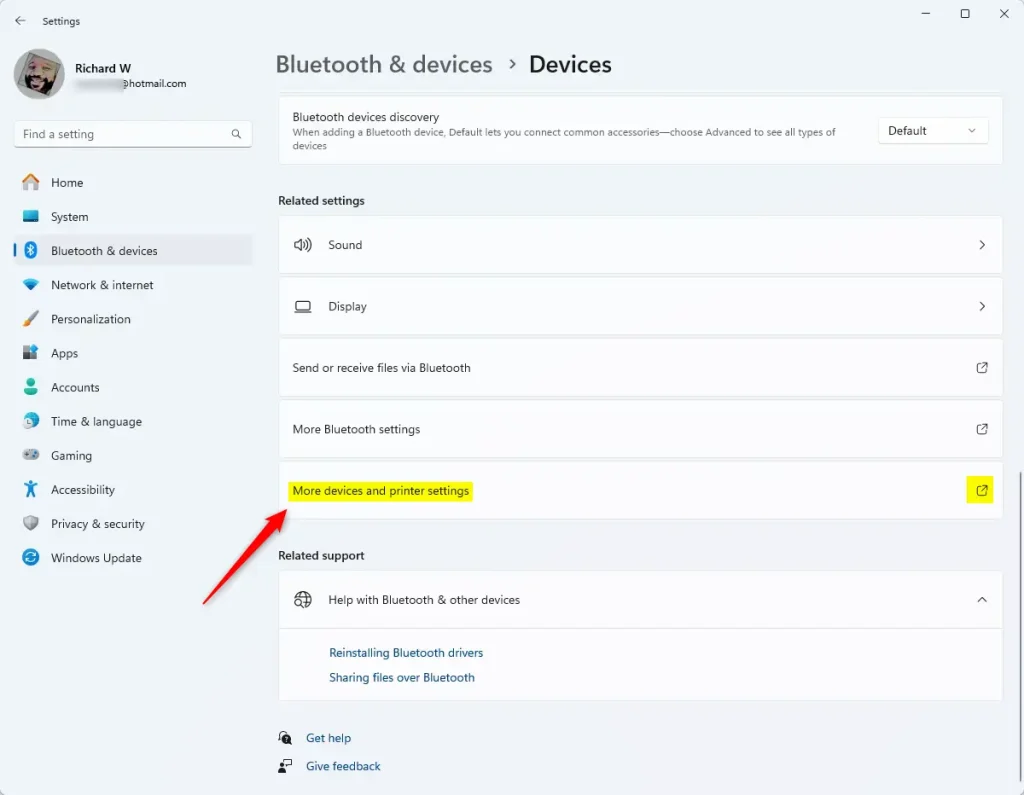
You can open Devices and Printers in Windows 11 through the Settings app by going to Bluetooth & devices, then clicking Devices, and finally selecting More devices and printers settings.
- Open the Settings app:
- Click the Start button, then click Settings.
- Or press Windows key + I on your keyboard to open Settings quickly.
- In Settings, click Bluetooth & devices on the left side.
- On the right side, find and click the Devices section to open it.
- Next, click More devices and printers settings.
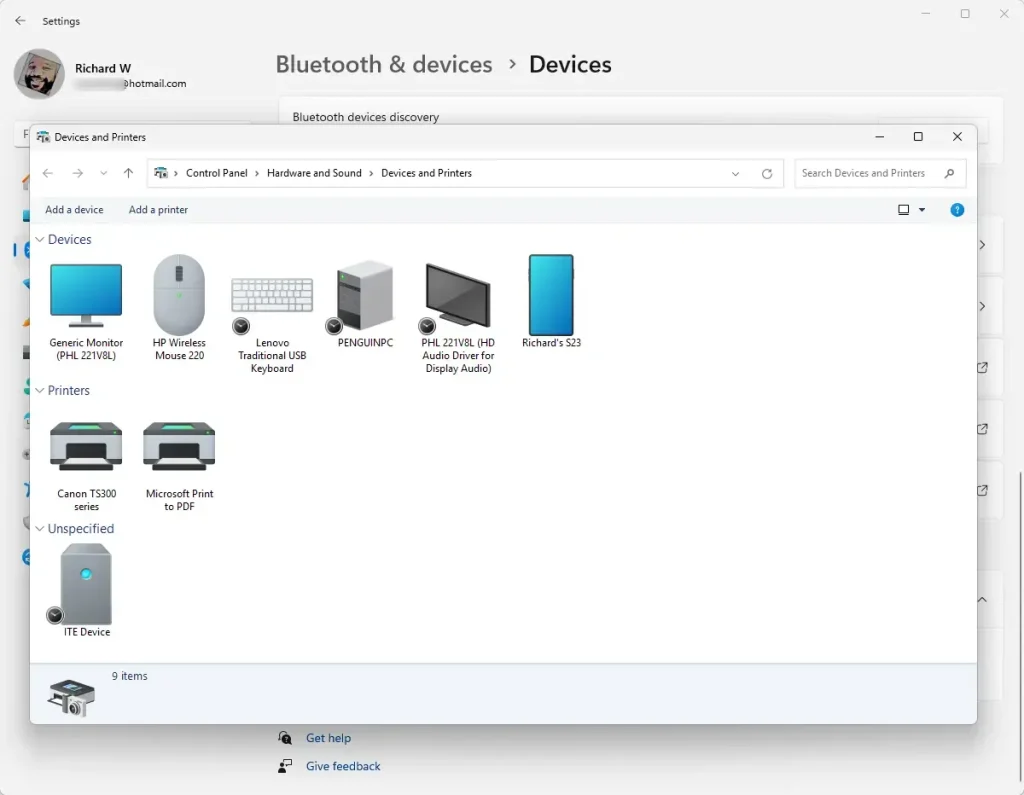
The Devices and Printers folder will now open. You’ll see all your connected devices and printers listed here.
Open Devices and Printers Using the Run Box
Opening Devices and Printers in Windows 11 using the Run box is a quick shortcut that bypasses the Settings app entirely.
- Press Windows key + R on your keyboard to open the Run box.
- Copy and paste this command into the box:
shell:::{A8A91A66-3A7D-4424-8D24-04E180695C7A} - Press Enter or click OK.
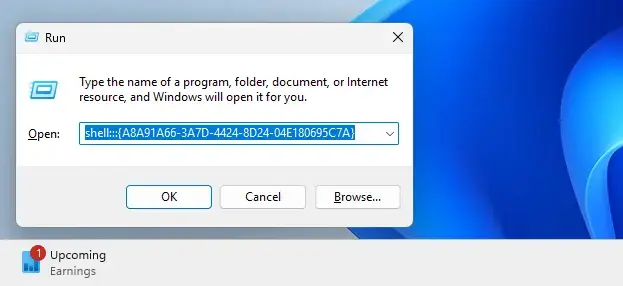
That’s it! The Devices and Printers folder will open right away.
Summary
The Devices and Printers folder in Windows 11 is where you can view and manage all your connected devices and printers.- The Devices and Printers folder lets you see and manage all devices and printers connected to your PC.
- You can open it from the Windows Settings app by going to Bluetooth & devices > Devices > More devices and printers settings.
- Or open it faster using the Run box with this command:
shell:::{A8A91A66-3A7D-4424-8D24-04E180695C7A} - Try both ways and use whichever one is easier for you!
Where can I find devices and Printers?
Click the Start menu. Click [Devices and Printers]. If [Devices and Printers] is not displayed, click [Control Panel] – [View devices and printers].
How do I fix devices and Printers not showing?
Select the Start button, then select Settings > Devices > Printers & scanners . Under Printers & scanners, look for your printer. If you see your printer listed, you'll know it's installed. If you don't see your printer listed, select Add a printer or scanner.
Was this guide helpful?

About the Author
Richard
Tech Writer, IT Professional
Richard, a writer for Geek Rewind, is a tech enthusiast who loves breaking down complex IT topics into simple, easy-to-understand ideas. With years of hands-on experience in system administration and enterprise IT operations, he’s developed a knack for offering practical tips and solutions. Richard aims to make technology more accessible and actionable. He's deeply committed to the Geek Rewind community, always ready to answer questions and engage in discussions.



No comments yet — be the first to share your thoughts!