How to Open Devices and Printers in Windows 11

Want to see and manage all the devices-and-printers-in-windows-11/" class="sal-link" rel="noopener" target="_blank" data-sal-id="22714">devices and printers connected to your Windows 11 computer? There’s a special folder called Devices and Printers that does exactly that. Why use it? Because it helps you check what devices are connected, add new ones, remove old ones, and change their settings all in one place.
Windows 11 doesn’t make this folder easy to find. But don’t worry! Here are simple ways to open it.
Open Devices and Printers Using the Settings App
Follow these easy steps to open Devices and Printers from Windows Settings:
- Open the Settings app:
- Click the Start button, then click Settings.
- Or press Windows key + I on your keyboard to open Settings quickly.
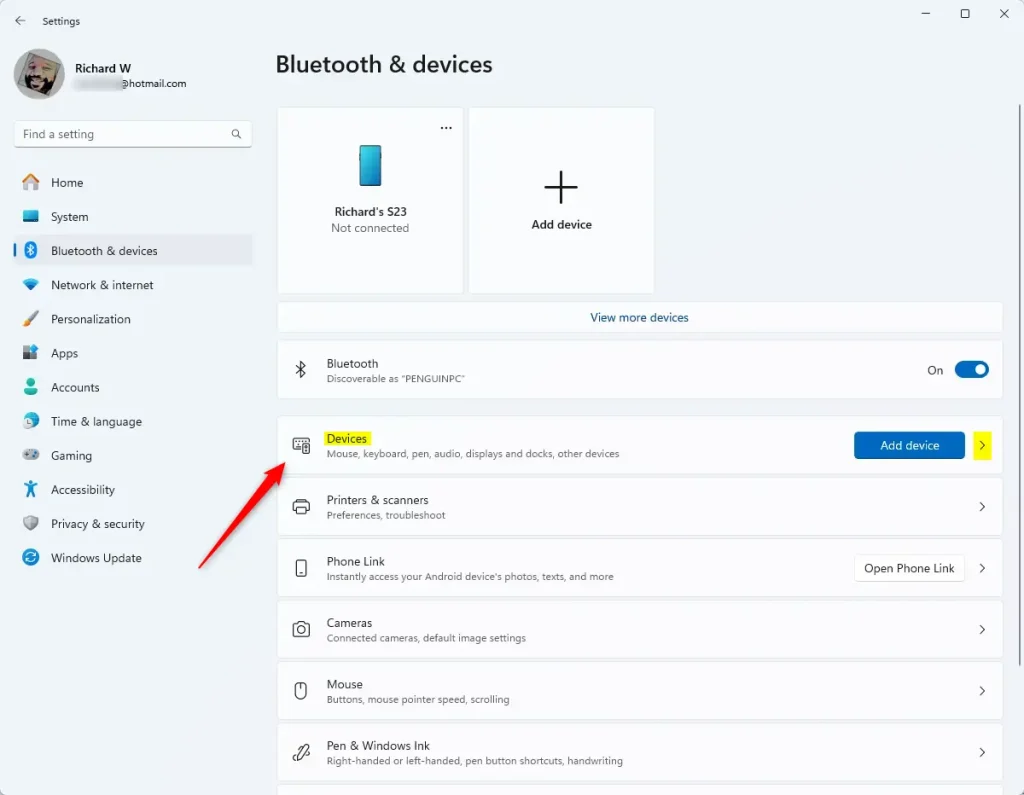
- In Settings, click Bluetooth & devices on the left side.
- On the right side, find and click the Devices section to open it.
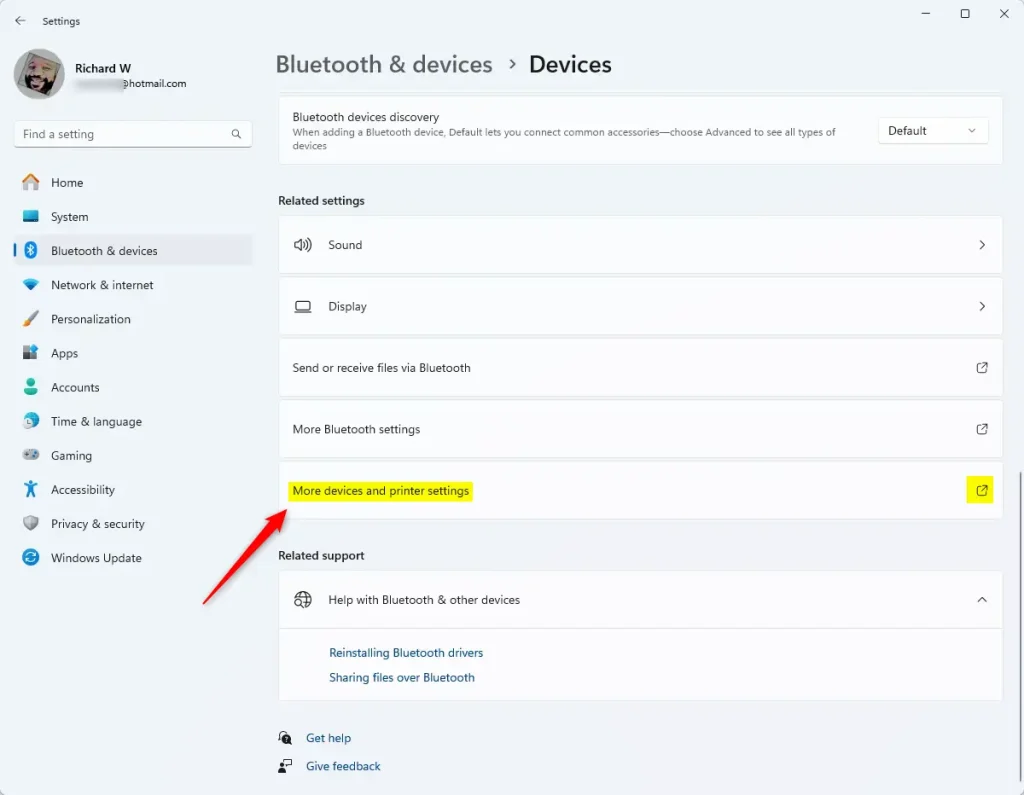
- Next, click More devices and printers settings.
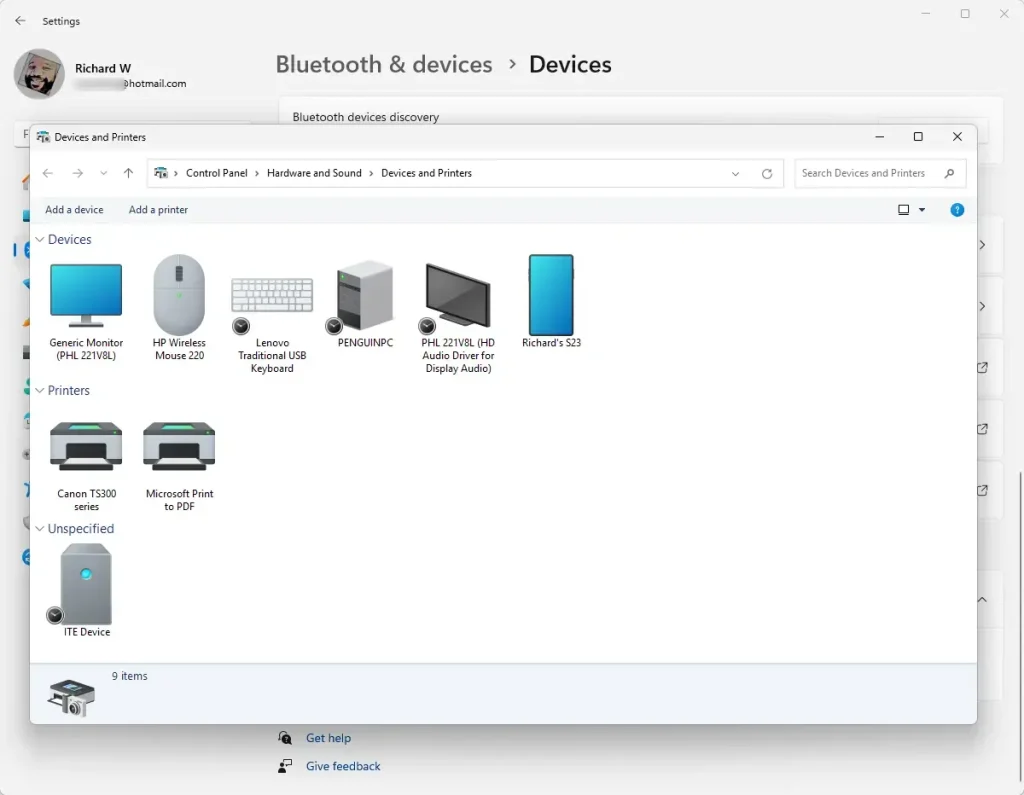
The Devices and Printers folder will now open. You’ll see all your connected devices and printers listed here.
Open Devices and Printers Using the Run Box
You can also open Devices and Printers faster using the Run box. What happens when you use this method? The folder opens immediately without going through the Settings app.
- Press Windows key + R on your keyboard to open the Run box.
- Copy and paste this command into the box:
shell:::{A8A91A66-3A7D-4424-8D24-04E180695C7A} - Press Enter or click OK.
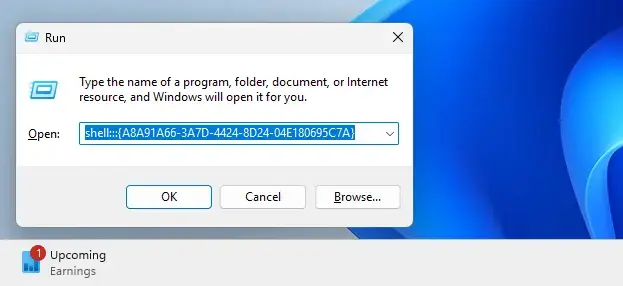
That’s it! The Devices and Printers folder will open right away.
Summary
- The Devices and Printers folder lets you see and manage all devices and printers connected to your PC.
- You can open it from the Windows Settings app by going to Bluetooth & devices > Devices > More devices and printers settings.
- Or open it faster using the Run box with this command:
shell:::{A8A91A66-3A7D-4424-8D24-04E180695C7A} - Try both ways and use whichever one is easier for you!
Was this guide helpful?

About the Author
Richard
Tech Writer, IT Professional
Richard, a writer for Geek Rewind, is a tech enthusiast who loves breaking down complex IT topics into simple, easy-to-understand ideas. With years of hands-on experience in system administration and enterprise IT operations, he’s developed a knack for offering practical tips and solutions. Richard aims to make technology more accessible and actionable. He's deeply committed to the Geek Rewind community, always ready to answer questions and engage in discussions.


No comments yet — be the first to share your thoughts!