How to Delete Folders in Windows 11

Want to get rid of folders you don’t need on your Windows 11 PC? This simple guide will show you how to delete folders safely and easily.
Select the folder, then press the Delete key or click the Delete button in File Explorer’s command bar. For permanent deletion, use Shift+Del or Shift + click the Delete button.
What is a Folder?
A folder is like a box on your computer. It holds files and sometimes other folders inside it. Folders help you keep your stuff organized so you can find things quickly.
Where Do Deleted Folders Go?
When you delete folders in Windows 11, they typically go to the Recycle Bin, acting like a temporary holding place before permanent deletion.
Note: If you delete folders from USB drives or memory cards, they don’t go to the Recycle Bin—they are permanently deleted right away.
You can turn on Recycle Bin for removable drives if you want to be safer when deleting files from those devices.
Why Learn to Delete Folders?
- Free up space on your computer.
- Keep your files tidy and organized.
- Protect your private information by deleting sensitive folders.
- Stop other users from messing with your important files.
How to Delete Folders in 🪟 Windows 11
1Using Keyboard Shortcuts
Using keyboard shortcuts is a quick way to delete folders in Windows 11, with options for sending them to the Recycle Bin or deleting them permanently.
- Select the folder you want to delete by clicking it once.
- Press one of the following keys on your keyboard:
| Shortcut Keys | What It Does |
|---|---|
| Delete | Deletes folder and sends it to Recycle Bin |
| Ctrl+D | Also deletes folder and sends it to Recycle Bin |
| Shift+Del | Permanently deletes folder (no Recycle Bin) |
2Using File Explorer Command Bar
- Open Open File Explorer (the folder icon on your taskbar or press ⊞ Win+E).
- Find and click the folder you want to delete.
- At the top, click the Delete button (trash can icon).
You can delete folders in Windows 11 directly from File Explorer using the command bar, offering a simple click-based method.
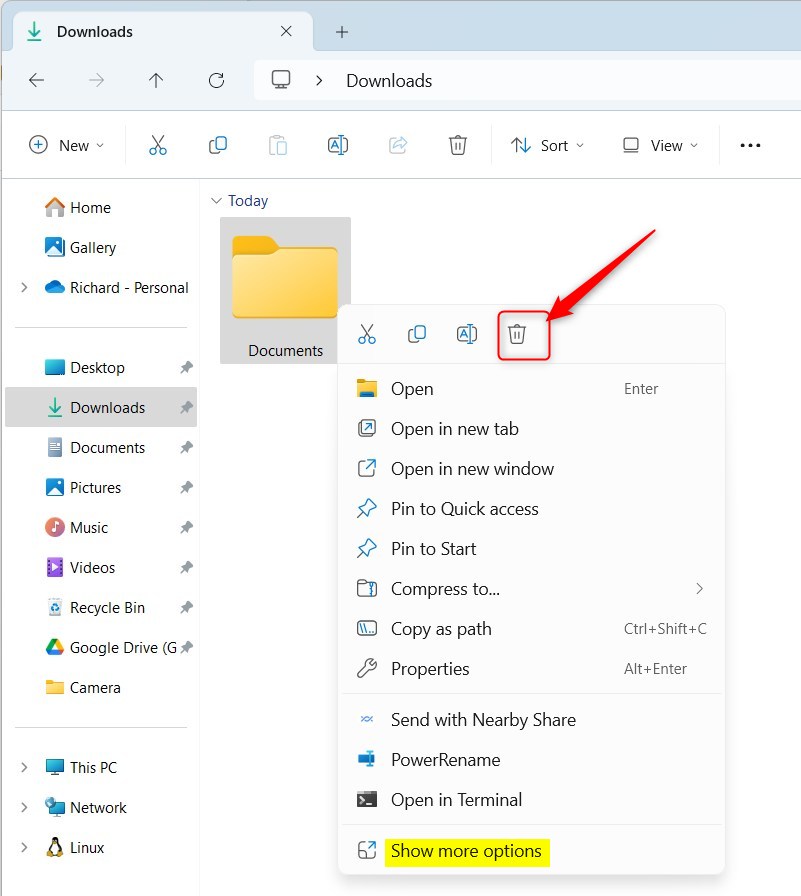
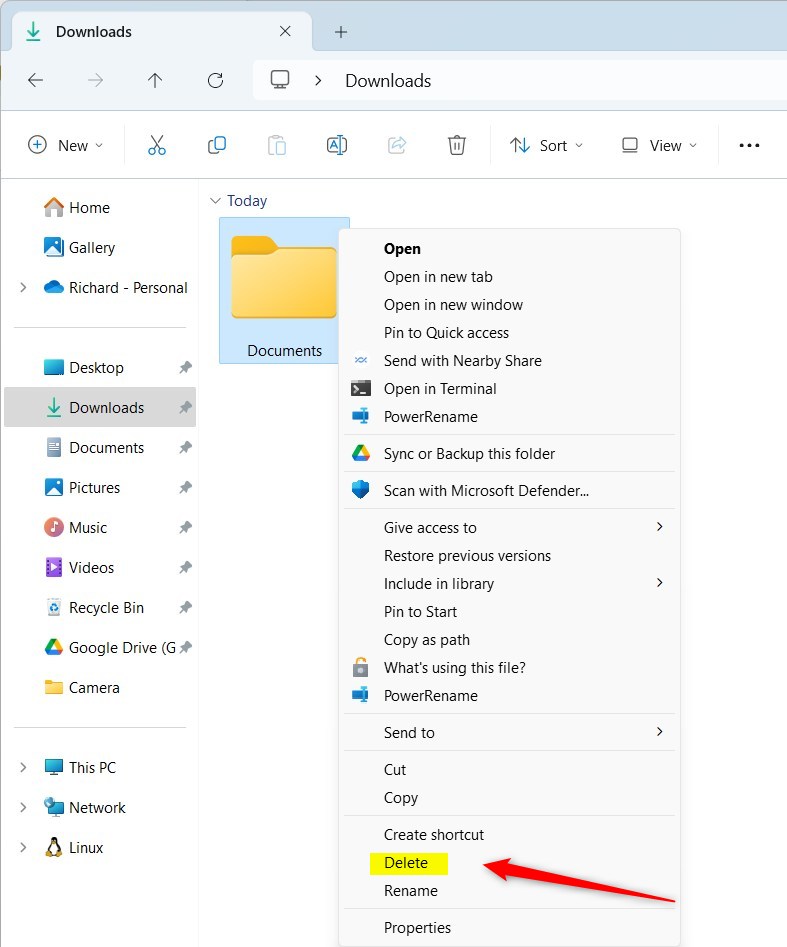
3Using Right-Click ( Context Menu)
- Open File Explorer.
- Right-click on the folder you want to delete.
- Click Del from the menu that appears.
Extra tip: Hold the Shift key while right-clicking to get a full menu where you can also find the Delete option.
4Deleting Folders Using PowerShell (Advanced)
For those comfortable with commands, PowerShell provides an advanced method to delete folders in Windows 11, allowing for precise control over the deletion process.
- Open Windows Terminal and choose the PowerShell tab. [Admin privileges required]
- Type the command below to permanently delete a folder (replace the path with your folder’s location):
Remove-Item -Path "C:\Users\User\Downloads\MyFolder" -Recurse -ForceExample:
Remove-Item -Path "C:\Users\User\Downloads\MyFolder" -Recurse -ForceTo delete a folder to the Recycle Bin using PowerShell, use this command:
(New-Object -ComObject "Shell.Application").Namespace(0).ParseName("C:\Users\User\Downloads\MyFolder").InvokeVerb("delete")5Deleting Folders Using Command Prompt
- Open Windows Terminal and choose the Command Prompt tab. [Admin privileges required]
- Type this command to permanently delete a folder (change the path):
The Command Prompt in Windows 11 offers another way to delete folders using simple commands, which can be useful for quick, permanent removals.rd /s /q "C:\Users\User\Downloads\MyFolder"
To delete a folder to the Recycle Bin using Command Prompt, run this PowerShell command inside it:
PowerShell (New-Object -ComObject "Shell.Application").Namespace(0).ParseName("C:\Users\User\Downloads\MyFolder").InvokeVerb("delete")Summary
- Deleting folders helps keep your computer clean and organized.
- Folders you delete usually go to the Recycle Bin, so you can recover them if needed.
- You can delete folders permanently by using the Shift key or command-line tools.
- There are many ways to delete folders—choose the one you feel most comfortable with!
Deleting folders in Windows 11 is a straightforward process that helps keep your system organized, with various methods available from simple clicks to command-line tools.
Which 🪟 Windows 11 folders can be deleted?
Check the Location: Files in your Downloads, Videos, Desktop, or personal folders are generally safe to review and delete if unneeded. Be very cautious with files inside C:\Windows, C:\Program Files, or C:\Program Files (x86).
Was this guide helpful?

About the Author
Richard
Tech Writer, IT Professional
Richard, a writer for Geek Rewind, is a tech enthusiast who loves breaking down complex IT topics into simple, easy-to-understand ideas. With years of hands-on experience in system administration and enterprise IT operations, he’s developed a knack for offering practical tips and solutions. Richard aims to make technology more accessible and actionable. He's deeply committed to the Geek Rewind community, always ready to answer questions and engage in discussions.




No comments yet — be the first to share your thoughts!