How to Refresh Wi-Fi Networks in Windows 11

Is your Wi-Fi acting up in Windows 11? Sometimes, refreshing your network list can fix connection issues or help you find networks that seem to have disappeared.
This is important if your computer isn’t showing all the Wi-Fi networks it should, or if a network you know is available isn’t appearing on the list. A typical Wi-Fi scan updates the list. This lets you see new networks or reconnect to ones you already use.
You can refresh your Wi-Fi networks using the built-in Windows 11 tools. No need to install any extra software.
Refresh your Wi-Fi networks in Windows 11 by opening Quick Settings (⊞ Win+A), clicking the arrow next to Wi-Fi, and then clicking Refresh. Alternatively, use Windows Terminal commands like Restart-Service -Force -Name “wlansvc” to restart the Wi-Fi service.
What is Wi-Fi?
Wi-Fi lets your computer connect to the internet without wires – no cables needed! You can see a list of Wi-Fi networks nearby and connect to any you have the password for.
Why Refresh Your Wi-Fi List?
Sometimes, your computer might not show all Wi-Fi networks right away. Instead of waiting, you can refresh the list to see if new networks appear. This is helpful if you just turned on a Wi-Fi hotspot or moved to a new location.
How to Refresh Wi-Fi Networks Using Quick Settings
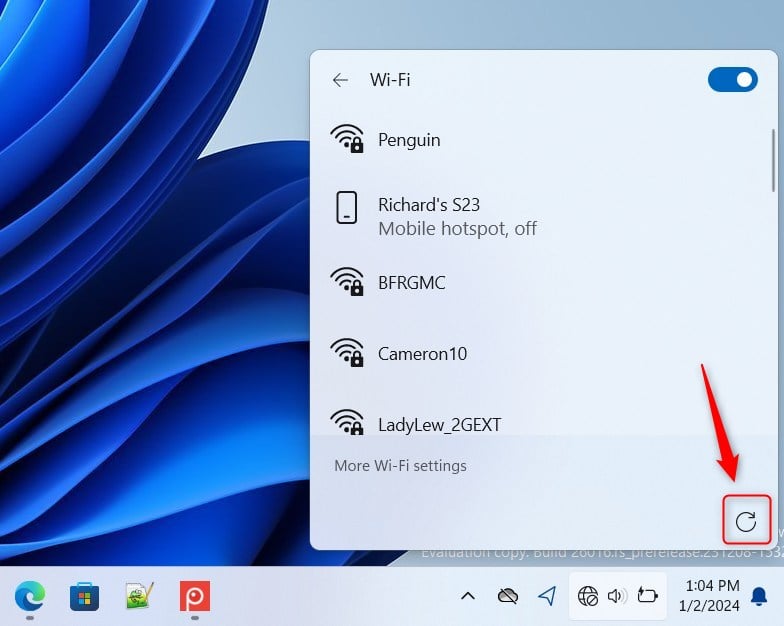
Refreshing your Wi-Fi networks in Windows 11 using Quick Settings is simple and quick; just press the Windows key and A together to open the panel, then click the arrow next to Wi-Fi to manage your connections and find the refresh button.- Open Quick Settings: Press
Win + Aon your keyboard. This opens a small panel with quick access buttons. - Find the Wi-Fi Section: Look for the Wi-Fi icon in Quick Settings. Click the arrow next to it labeled Manage Wi-Fi connections.
- Click the Refresh Button: In the Wi-Fi list that opens, click the Refresh button to rescan for available networks.
How to Refresh Wi-Fi Networks Using Windows Terminal
If you’re comfortable with commands, you can refresh Wi-Fi networks in Windows 11 using the Windows Terminal by opening PowerShell and running a simple command to restart the Wi-Fi service.
- Open Open Windows Terminal by searching for it in the Start menu.
- Choose the PowerShell tab (usually the default).
- Type or copy-paste one of these commands and press
Enter:
Get-Service wlansvc | Restart-ServiceOR
Restart-Service -Force -Name "wlansvc"If you want to use the Command Prompt tab inside Windows Terminal, try this:
PowerShell "Get-Service wlansvc | Restart-Service"OR
PowerShell Restart-Service -Force -Name "wlansvc"This will restart the Wi-Fi service and refresh the list of available networks.
Summary
- Refreshing the Wi-Fi list helps you find networks that might not show up right away.
- Windows 11’s Quick Settings now has a simple refresh button to scan for networks again.
- You can also refresh Wi-Fi networks by restarting the Wi-Fi service using Windows Terminal commands.
- Try these steps whenever you want to see the latest Wi-Fi networks around you!
Refreshing your Wi-Fi networks in Windows 11 is a handy trick to make sure you see all available connections, and you can easily do this using the Quick Settings panel or by restarting the Wi-Fi service through Windows Terminal.
How do I refresh Wi-Fi on 🪟 Windows 11?
Click on the “Start” menu and go into “Settings”. Click on “Network & Internet” and then on “Advanced network settings”. Select “Network reset”, and then click on the “Reset now” button. Click “Yes” to confirm, and after a restart of your system, test your Wi-Fi connection.
How do I refresh my Wi-Fi?
And then, or if you’re already connected to a Wi-Fi that you want to reset – maybe this one, maybe it’s not connecting you – you’re going to click on that gear icon here. And then click on “Forget”.
Was this guide helpful?

About the Author
Richard
Tech Writer, IT Professional
Richard, a writer for Geek Rewind, is a tech enthusiast who loves breaking down complex IT topics into simple, easy-to-understand ideas. With years of hands-on experience in system administration and enterprise IT operations, he’s developed a knack for offering practical tips and solutions. Richard aims to make technology more accessible and actionable. He's deeply committed to the Geek Rewind community, always ready to answer questions and engage in discussions.


No comments yet — be the first to share your thoughts!