How to Refresh Wi-Fi Networks in Windows 11

Is your computer not showing all the Wi-Fi networks around you? Don’t worry! This guide will show you simple ways to refresh (or rescan) the list of Wi-Fi networks on your Windows 11 PC.
What is Wi-Fi?
Wi-Fi lets your computer connect to the internet wirelessly — no cables needed! You can see a list of Wi-Fi networks nearby and connect to any you have the password for.
Why Refresh Your Wi-Fi List?
Sometimes, your computer might not show all Wi-Fi networks right away. Instead of waiting, you can refresh the list to see if new networks appear. This is helpful if you just turned on a Wi-Fi hotspot or moved to a new location.
How to Refresh Wi-Fi Networks Using settings-in-windows-11/" class="sal-link" rel="noopener" target="_blank" data-sal-id="5871">Quick Settings
- Open Quick Settings: Press
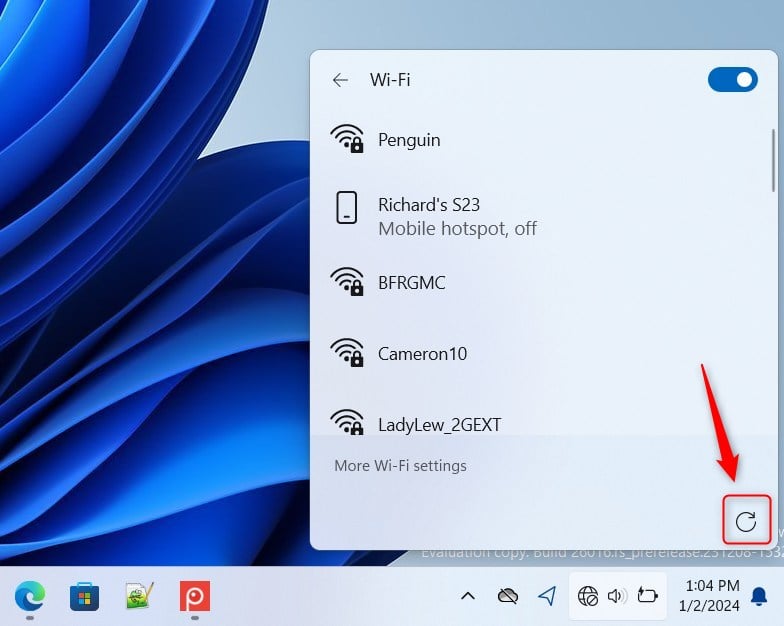
Win + Aon your keyboard. This opens a small panel with quick access buttons. - Find the Wi-Fi Section: Look for the Wi-Fi icon in Quick Settings. Click the arrow next to it labeled Manage Wi-Fi connections.
- Click the Refresh Button: In the Wi-Fi list that opens, click the Refresh button to rescan for available networks.
How to Refresh Wi-Fi Networks Using Windows Terminal
If you like using commands, here’s another way to refresh your Wi-Fi list:
- Open Open Windows Terminal by searching for it in the Start menu.
- Choose the PowerShell tab (usually the default).
- Type or copy-paste one of these commands and press
Enter:
Get-Service wlansvc | Restart-ServiceOR
Restart-Service -Force -Name "wlansvc"If you want to use the Command Prompt tab inside Windows Terminal, try this:
PowerShell "Get-Service wlansvc | Restart-Service"OR
PowerShell Restart-Service -Force -Name "wlansvc"This will restart the Wi-Fi service and refresh the list of available networks.
Summary
- Refreshing the Wi-Fi list helps you find networks that might not show up right away.
- Windows 11’s Quick Settings now has a simple refresh button to scan for networks again.
- You can also refresh Wi-Fi networks by restarting the Wi-Fi service using Windows Terminal commands.
- Try these steps whenever you want to see the latest Wi-Fi networks around you!
If this guide helped you, or if you have other tips, please share your thoughts in the comments below!
Frequently Asked Questions
What is Wi-Fi?
Why Refresh Your Wi-Fi List?
Was this guide helpful?

About the Author
Richard
Tech Writer, IT Professional
Richard, a writer for Geek Rewind, is a tech enthusiast who loves breaking down complex IT topics into simple, easy-to-understand ideas. With years of hands-on experience in system administration and enterprise IT operations, he’s developed a knack for offering practical tips and solutions. Richard aims to make technology more accessible and actionable. He's deeply committed to the Geek Rewind community, always ready to answer questions and engage in discussions.




No comments yet — be the first to share your thoughts!