How to Enable Wake Timers in Windows 11

Let’s get your PC waking up on schedule! This guide shows you how to enable or disable wake timers in Windows 11.
Enable wake timers by opening Control Panel, navigating to Hardware and Sound > Power Options, changing plan settings, and setting “Allow wake timers” to Enable under Sleep. If this doesn’t work, use Task Scheduler to ensure your tasks can wake the computer.
Understanding Wake Timers in 🪟 Windows 11
Wake timers in Windows 11 act like alarms for your PC, waking it up from sleep or hibernation to perform scheduled tasks automatically.
Why do this? Maybe you need your PC to automatically run maintenance, install updates, or do backups while you’re not around.
What happens when done? Your computer will leave its power-saving mode to finish those tasks, and then go back to sleep if you’ve set it up that way.
Modern Standby vs. S3 Sleep: Why Wake Timers Fail
Wake timers sometimes don’t work in Windows 11 because your computer might be using Modern Standby instead of traditional S3 Sleep.
How to Check Wake Timers via Command Line
Checking for wake timers in Windows 11 using the command line is simple; just open Command Prompt and type ‘powercfg /waketimers’.
powercfg /waketimers
If the list is empty, no tasks are currently set to wake your PC. To see which devices are allowed to wake your computer, use this command:
powercfg /devicequery wake_armed
How to Enable Wake Timers in 🪟 Windows 11
To enable wake timers in Windows 11, you’ll adjust your power settings in the Control Panel by going to Power Options and changing advanced settings.
1. Open the Control Panel.
2. Go to Hardware and Sound > Power Options.
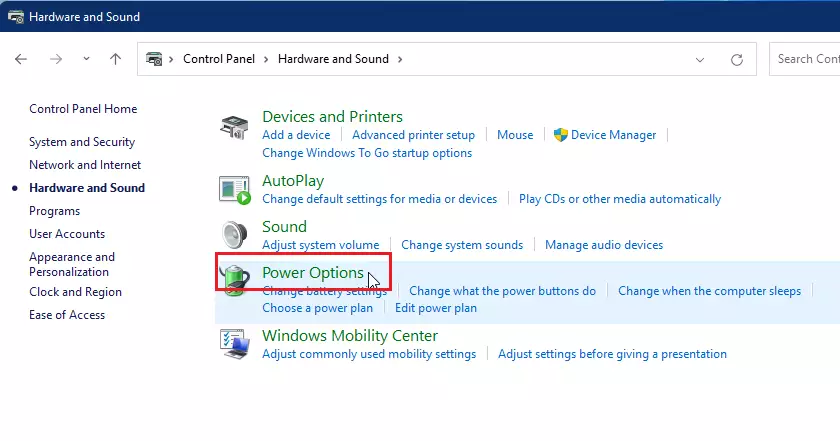
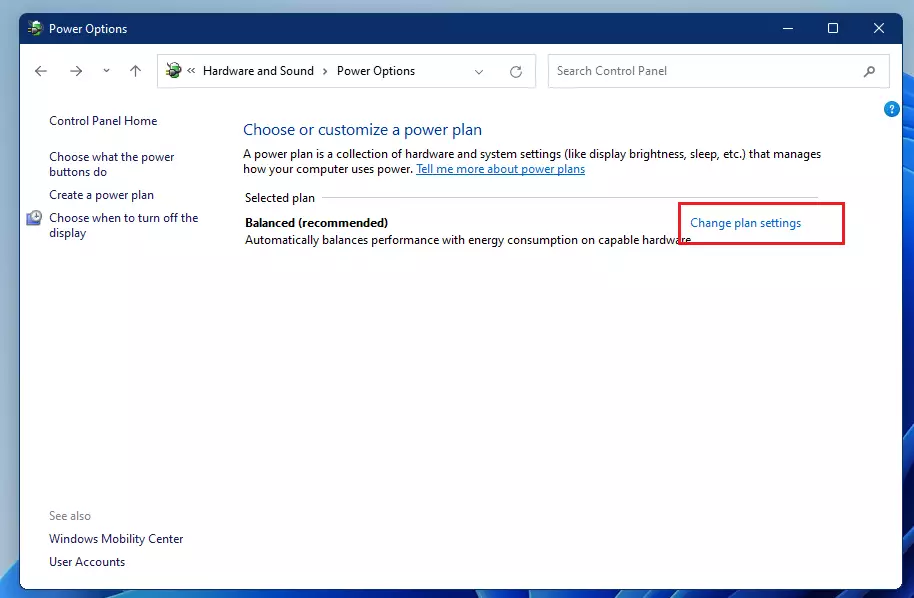
3. Click Change plan settings next to your active plan, then select Change advanced power settings.
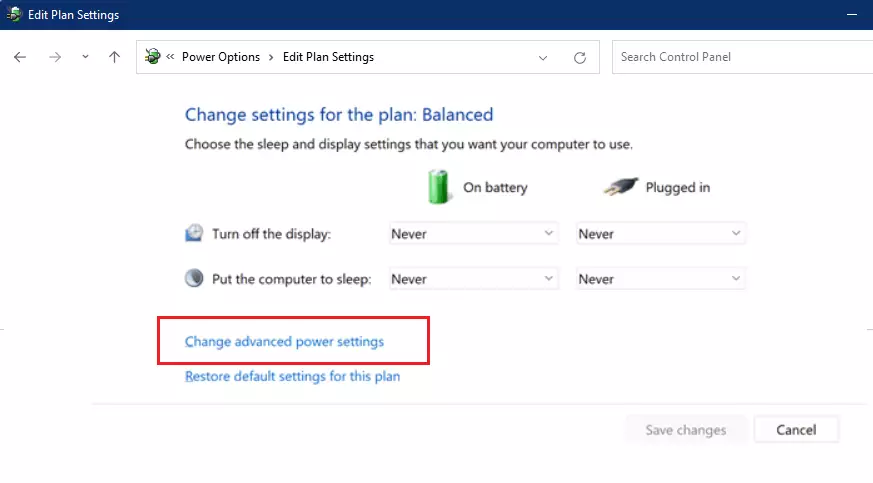
4. Expand Sleep, then Allow wake timers.
5. Set both ‘On battery’ and ‘Plugged in’ to ‘Enable’.
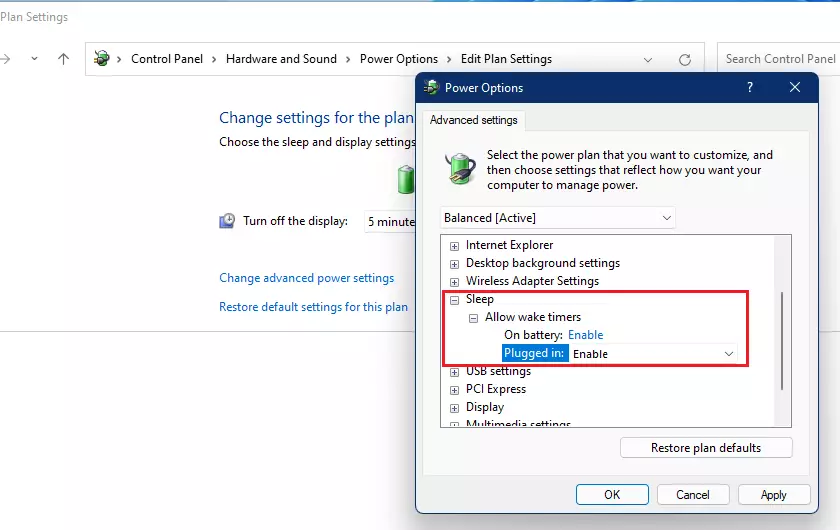
6. Click OK to save.
Using Task Scheduler for Automated Backups
To make sure a task can wake your computer, you need to set it up in the Windows 11 Task Scheduler and check a specific box.
Summary
Wake timers in Windows 11 let your computer wake up automatically for tasks like updates or backups, but Modern Standby might affect them.- Wake timers allow your PC to wake from sleep for scheduled tasks.
- Modern Standby may prevent traditional wake timers from functioning.
- Use
powercfg /waketimersto verify active schedules. - Configure tasks in Task Scheduler to ensure they have permission to wake the system.
- Always check your power plan settings in the Control Panel to ensure wake timers are enabled.
Why do my wake timers not work in 🪟 Windows 11?
Wake timers often fail because your computer is using Modern Standby instead of traditional S3 sleep. Additionally, individual device power management settings or group policies may override your settings. Always check if your specific hardware supports wake timers by running the powercfg command in your terminal.
How do I check what device woke my computer last?
You can identify the last wake source by opening the Command Prompt as an administrator and typing: powercfg /lastwake. This command will display the specific device or process that triggered the most recent wake event, helping you troubleshoot unexpected wake-ups.
Was this guide helpful?

About the Author
Richard
Tech Writer, IT Professional
Richard, a writer for Geek Rewind, is a tech enthusiast who loves breaking down complex IT topics into simple, easy-to-understand ideas. With years of hands-on experience in system administration and enterprise IT operations, he’s developed a knack for offering practical tips and solutions. Richard aims to make technology more accessible and actionable. He's deeply committed to the Geek Rewind community, always ready to answer questions and engage in discussions.




No comments yet — be the first to share your thoughts!