How to Delete Printer Drivers in Windows 11

You delete printer drivers in Windows 11 to remove obsolete or corrupted files left behind after uninstalling a printer.
These leftover driver files can consume valuable disk space and potentially cause conflicts or errors with new printer installations or other system functions.
For example, a common issue is a corrupted driver from a printer you no longer use preventing a new printer from being recognized by Windows 11. Removing the old driver ensures a cleaner system.
Delete printer drivers in Windows 11 by first removing the printer in Settings. Then, open Print Server Properties by typing printui /s /t2, select the driver, and click Remove. Choose “Remove driver and driver package” for a complete deletion.
Why delete printer drivers?
When you uninstall a printer, Windows often leaves the driver files behind. These files take up space and can cause conflicts if they are corrupted. You should delete them to stop ‘ghost printers’ from appearing in apps like Word or Photoshop.
What happens when done?
Once finished, the driver package is completely removed from your system. You will need to download and install the driver again if you decide to use that printer in the future. This ensures a clean install without old, broken files interfering with your new setup.
Step 1Remove the printer
Before you delete the driver, you must remove the printer from your settings.
- Open Settings by pressing Windows key + I.
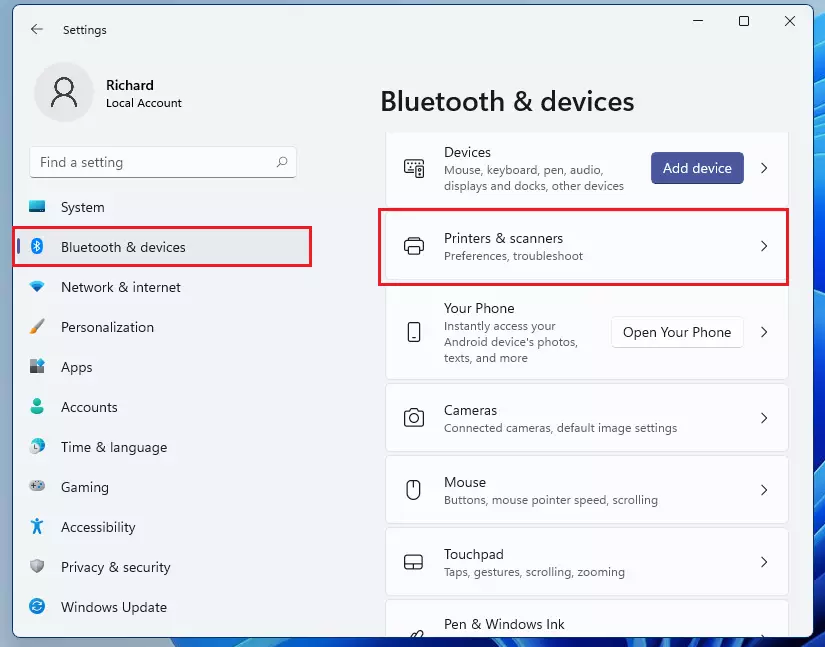
windows 11 settings button - Click Bluetooth & devices on the left.
- Select Printers & scanners on the right.
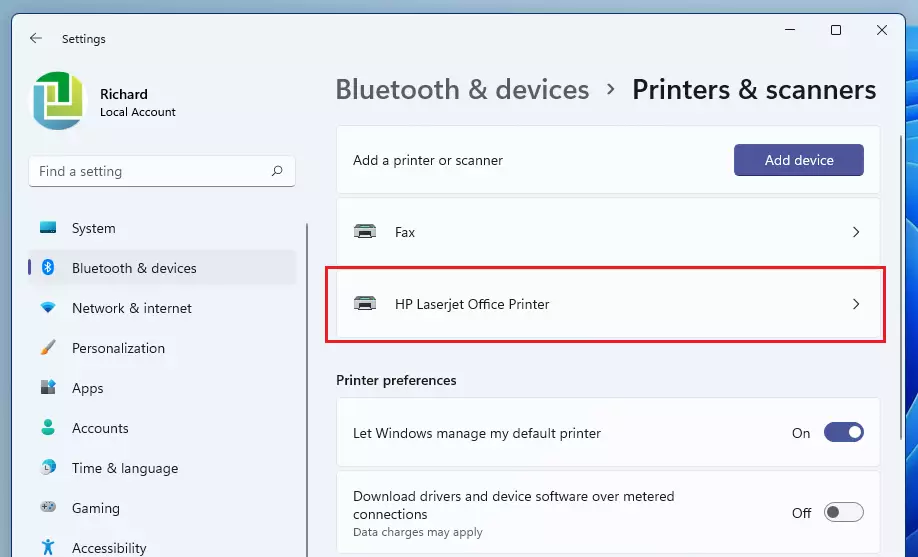
windows 11 add new scanners - Click on the name of the printer you want to delete.
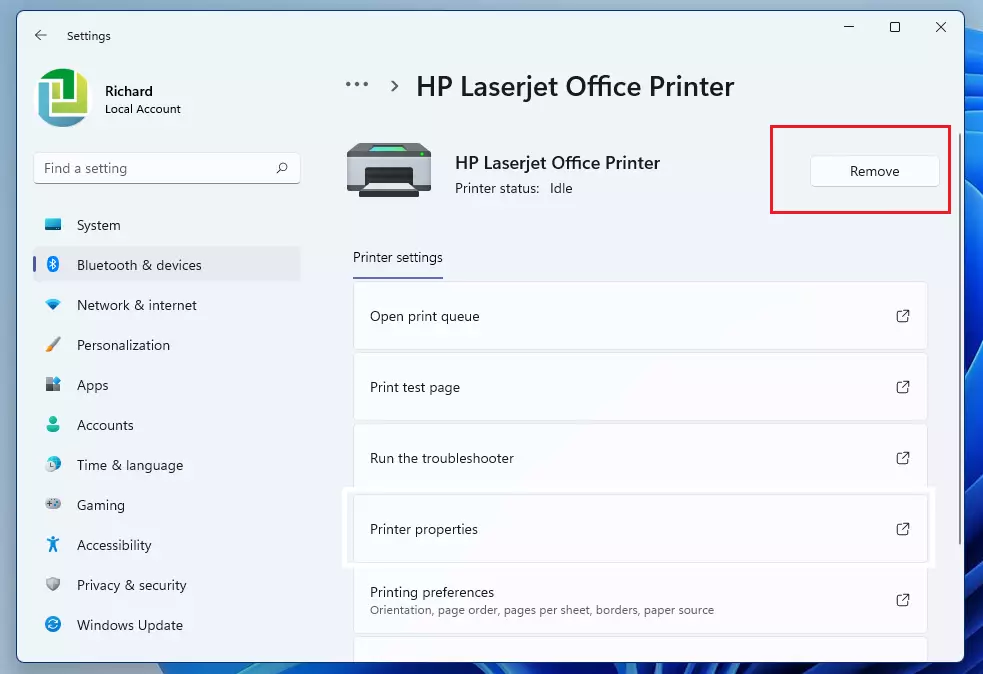
windows 11 share a printer with others - Click the Remove button.
windows 11 share printer properties remove
Step 2 Restart the Print Spooler Service
Note: This step requires administrator privileges. If you get a ‘printer driver is in use’ error, the Print Spooler service is likely holding the file open.
- Press Windows key + R, type services.msc, and press Enter.
- Scroll down to find Print Spooler.
- Right-click it and select Restart.
Step 3Delete the driver using Print Server Properties
If you cannot find Print Management, use this quick shortcut.
- Press Windows key + R, type printui /s /t2, and press Enter.
- A list of installed drivers will appear.
- Select the driver you want to remove and click Remove.
- Choose Remove driver and driver package to fully wipe it from 📁C:\Windows\System32\DriverStore.
Step 4Advanced Cleanup with Command Line
Note: This step requires administrator privileges. For stubborn drivers, use the pnputil.exe tool.
- Open Command Prompt as Administrator.
- Type pnputil /enum-drivers to see all installed drivers.
- Identify the Published Name (e.g., oem12.inf).
- Type pnputil /delete-driver oem12.inf /uninstall and press Enter.
Step 5Registry Cleanup
Note: This step requires administrator privileges. Sometimes registry keys keep printers alive.
- Press Windows key + R, type regedit, and press Enter.
- Navigate to 🗝️HKEY_LOCAL_MACHINE\SYSTEM\CurrentControlSet\Control\Print\Printers.
- Delete the folder corresponding to your old printer.
Summary
Removing old printer drivers is a great way to maintain your PC. By following these steps, you remove the printer from your device list and then wipe the leftover driver files from your system using the Print Management tool or command line. This helps keep your computer running smoothly and saves disk space.
Why do printer drivers still appear in Word or Photoshop after removal?
This happens because the driver package remains in the Windows DriverStore even after the printer is removed from Settings. Windows keeps these files to make re-installation easier, but they often show up in application print dialogs until you manually remove the driver package using Print Management or the command line.
How to perform a clean install of printer drivers in 🪟 Windows 11?
To perform a clean install, first remove the printer in Settings, then delete the driver package using the printui /s /t2 command. Restart your computer to clear the Print Spooler, then download the latest driver directly from the manufacturer’s website and run the installer as an administrator.
Was this guide helpful?

About the Author
Richard
Tech Writer, IT Professional
Richard, a writer for Geek Rewind, is a tech enthusiast who loves breaking down complex IT topics into simple, easy-to-understand ideas. With years of hands-on experience in system administration and enterprise IT operations, he’s developed a knack for offering practical tips and solutions. Richard aims to make technology more accessible and actionable. He's deeply committed to the Geek Rewind community, always ready to answer questions and engage in discussions.


What does it mean if the “remove” button isn’t there when you open up the printer in settings?