How to Change Narrator Voice in Windows 11


You can change the Narrator voice in Windows 11 to a voice that better suits your preferences for naturalness and clarity.
Narrator is Windows’ built-in screen reader, designed to help users with visual impairments by reading on-screen elements aloud. Personalizing its voice and speed significantly enhances your PC navigation experience.
For example, Windows 11 offers several natural-sounding voices, including Microsoft Aria, which you can select and download directly from Narrator’s settings menu.
Once you’ve made your changes, your computer will speak using your chosen voice, at your preferred speed and volume, making your interaction with Windows 11 more comfortable and efficient.
How to Change Narrator Settings
You can use the Narrator’s natural voice to leverage state-of-the-art text-to-speech on your Windows device. Here is how to adjust the voice, speed, pitch, and volume.
First, open the Windows Settings app. You can do this by clicking the Start menu and selecting Settings, or by pressing the Windows key + I to launch the Settings app.
When the Settings app opens, click the Accessibility button on the left menu.

Select the Narrator tile on the right to see more options.

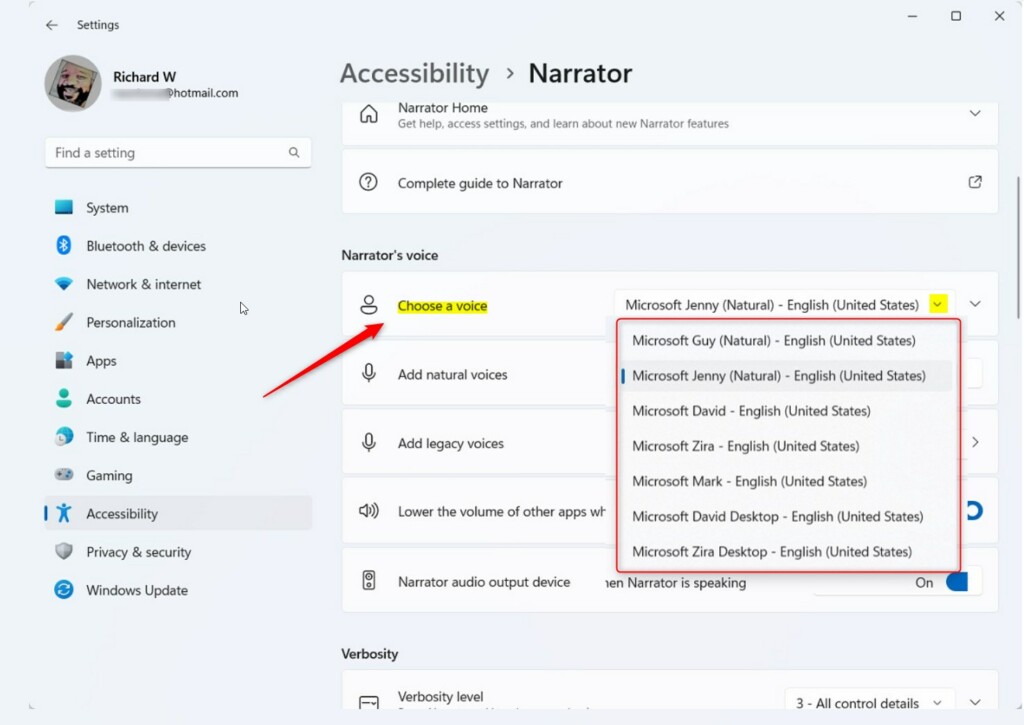
On the Accessibility -> Narrator page, look for the “Choose a voice” section. Click the drop-down menu to see the list of available voices and pick the one you like best.
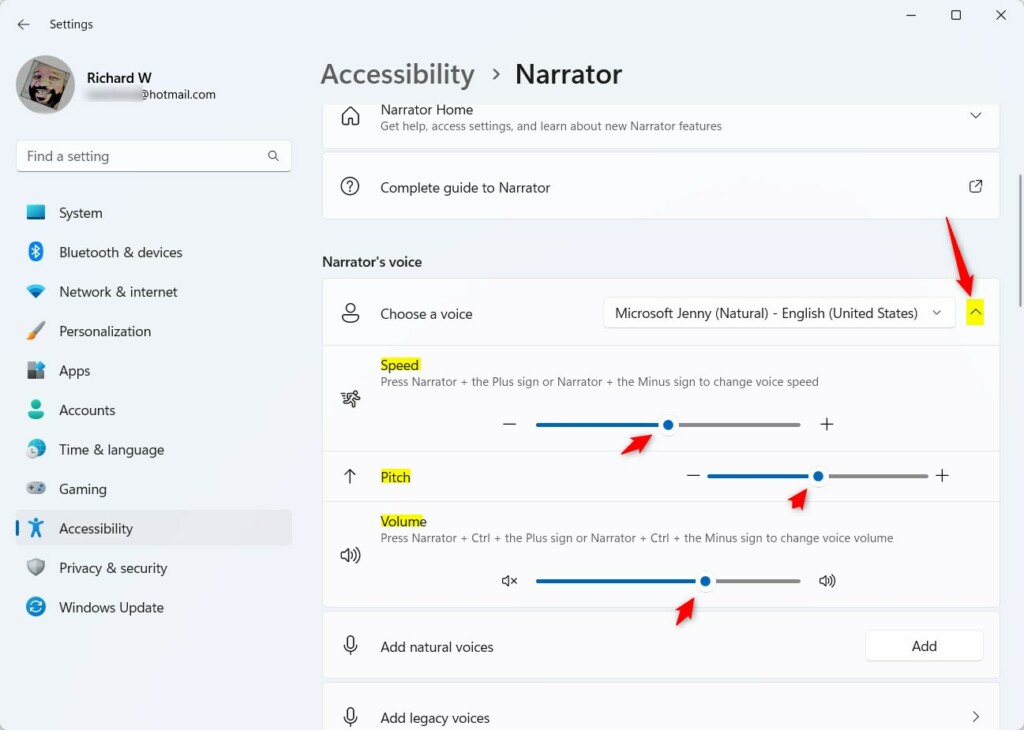
Click the arrow on the “Choose a voice” tile to see more options. You can now adjust these settings:
- Speed: Move the slider to make the voice faster or slower. You can also use the keyboard shortcut
Narrator + Plus signorNarrator + Minus sign. - Pitch: Move the slider to change how high or low the voice sounds.
- Volume: Move the slider to make the voice louder or quieter. You can also use the keyboard shortcut
Narrator + CTRL + Plus signorNarrator + CTRL + Minus sign.
Natural Voices and Language Packs
Windows 11 offers “Natural Voices” that sound more human than older robotic voices. To add these, go to Settings > Accessibility > Narrator > Choose a voice and click the Add button next to “Add natural voices.” This requires an internet connection to download the language pack. Once installed, these voices provide a much smoother experience for long-term use.
Windows Narrator vs. AI Voice Generators
While Windows Narrator is a screen reader designed for accessibility, AI voice generators are tools built for content creation. Narrator is optimized for real-time interaction with your desktop, whereas AI generators are designed to convert written scripts into high-quality audio files for videos or podcasts.
Troubleshooting Narrator Voice Issues
If Narrator is silent, check your audio output device. Go to Settings > System > Sound and ensure the correct speaker is selected. If the voice still does not play, you may need to reset the speech engine. Note: Some advanced audio driver changes may require admin privileges to modify system-wide settings.
Related Topics
Summary
You have successfully customized your Narrator voice settings. By adjusting the speed, pitch, and volume, you have made your Windows 11 experience more personal and accessible. These settings do not require admin privileges to change, so any user can adjust them to fit their personal preferences.
How do I change the Narrator voice speed in Windows 11?
Open Settings, navigate to Accessibility, and select Narrator. Under the Choose a voice section, locate the Speed slider. Drag it to the left to slow down the speech or to the right to speed it up. You can also use the Narrator + Plus or Minus keys on your keyboard.
Can I add new voices to Windows Narrator?
Yes. In the Narrator settings menu, click the Add button next to the natural voices option. This will open a list of available language packs. Select the voice you want, and Windows will download and install it automatically, making it available in your voice selection dropdown menu.
Was this guide helpful?

About the Author
Richard
Tech Writer, IT Professional
Richard, a writer for Geek Rewind, is a tech enthusiast who loves breaking down complex IT topics into simple, easy-to-understand ideas. With years of hands-on experience in system administration and enterprise IT operations, he’s developed a knack for offering practical tips and solutions. Richard aims to make technology more accessible and actionable. He's deeply committed to the Geek Rewind community, always ready to answer questions and engage in discussions.




[…] app, you can turn on or off its keyboard shortcuts, launch it automatically, adjust the voice, speed, and volume, manage natural voices, and […]
[…] use the Narrator app, you can turn on or off its keyboard shortcuts, launch it automatically, adjust the voice, speed, and volume, manage natural voices, lower other apps volume when Narrator is speaking, and […]
[…] use the Narrator app, you can turn on or off its keyboard shortcuts, launch it automatically, adjust the voice, speed, and volume, manage natural voices, lower other apps volume when Narrator is speaking, change Narrator audio […]
[…] use the Narrator app, you can turn on or off its keyboard shortcuts, launch it automatically, adjust the voice, speed, and volume, manage natural voices, lower other apps volume when Narrator is speaking, change Narrator audio […]
[…] use the Narrator app, you can turn on or off its keyboard shortcuts, launch it automatically, adjust the voice, speed, and volume, manage natural voices, lower other apps volume when Narrator is speaking, change Narrator audio […]
[…] use the Narrator app, you can turn on or off its keyboard shortcuts, launch it automatically, adjust the voice, speed, and volume, manage natural voices, lower other apps volume when Narrator is speaking, change Narrator audio […]
[…] use the Narrator app, you can turn on or off its keyboard shortcuts, launch it automatically, adjust the voice, speed, and volume, manage natural voices, lower other apps volume when Narrator is speaking, change Narrator audio […]
[…] use the Narrator app, you can turn on or off its keyboard shortcuts, launch it automatically, adjust the voice, speed, and volume, manage natural voices, lower other apps volume when Narrator is speaking, change Narrator audio […]
[…] use the Narrator app, you can turn on or off its keyboard shortcuts, launch it automatically, adjust the voice, speed, and volume, manage natural voices, lower other apps volume when Narrator is speaking, change Narrator audio […]
[…] use the Narrator app, you can turn on or off its keyboard shortcuts, launch it automatically, adjust the voice, speed, and volume, manage natural voices, lower other apps volume when Narrator is speaking, change Narrator audio […]
[…] use the Narrator app, you can turn on or off its keyboard shortcuts, launch it automatically, adjust the voice, speed, and volume, manage natural voices, lower other apps volume when Narrator is speaking, change Narrator audio […]
[…] use the Narrator app, you can turn on or off its keyboard shortcuts, launch it automatically, adjust the voice, speed, and volume, manage natural voices, lower other apps volume when Narrator is speaking, change Narrator audio […]
[…] app, you can turn on or off its keyboard shortcuts, launch it automatically, adjust the voice, speed, and volume, manage natural voices, lower other apps volume when Narrator is speaking, change […]
[…] Change the voice, speed, and volume […]
[…] Change the voice, speed, and volume […]
[…] Change the voice, speed, and volume […]
[…] Change the voice, speed, and volume […]
[…] Change voice, speed, and volume […]
[…] Change how fast or loud the Narrator’s voice sounds […]