How to Change the Volume for Narrator in Windows 11

Narrator volume in Windows 11 controls how loudly the built-in screen reader (a tool that reads onscreen text aloud) speaks over your games, videos, and music. You can adjust this sound level separately from your main system volume. That keeps the voice clear and easy to hear without turning down everything else playing through your speakers or headphones.
This guide shows where the setting is, how to turn it on or off, and how to undo it. The steps are written for Windows 11 and work the same on Home and Pro. Labels can differ slightly between builds, so I mention it where that is likely.
Open Settings Accessibility Narrator, scroll to Narrator’s voice, and use the volume slider to adjust how loud Narrator speaks. Toggle “Lower the volume of other apps when Narrator is speaking” on or off to control whether background sounds dim while Narrator talks.
What is Narrator?
Narrator is the built-in screen reader in Windows 11. It reads aloud text on your screen and describes buttons, menus, and other items, so you can use your computer without seeing the display. You can change its voice, its reading speed, and its volume to match how you like to listen. You can also set it to start automatically every time you turn on your PC.
Press the same keys again to stop it. Narrator’s own volume is relative to your system volume, so if the whole PC is turned down low, Narrator will be quiet too. Check the system volume first if the voice seems too soft.
Narrator has more options than volume. The guides below cover related settings you may want to change next:
Why Lower Other Apps’ Volume When Narrator Speaks?
Windows 11 can lower the sound of other applications whenever Narrator speaks. This volume reduction helps you hear the speech clearly over background noise. It is especially useful if you rely on Narrator every day, because music or a video never drowns out the voice.
The reduction is temporary. Once Narrator stops talking, the other apps return to their normal volume.
How to Turn On or Off the Volume Lowering Feature
Lowering background audio while Narrator speaks helps you hear the screen reader over music, videos, and game sounds. You manage this in Settings Accessibility Narrator The first three steps get you to the Narrator page. The remaining steps cover the volume options.
- Open the Windows Settings app. Click the Start button, then choose Settings. Or press Windows key + I on your keyboard. The Settings window should open.
- In the Settings window, click Accessibility on the left side menu. The accessibility options appear on the right.
- Click Narrator on the right side. You'll see its settings, starting with the switch that turns Narrator on or off.

The next steps are on this same page. You do not need to turn Narrator on to change these options, but it helps if you want to hear the result straight away.
- Scroll down to the section called "Narrator's voice". This is where the voice, speed, pitch, and volume controls live. Use the volume slider here if you want to make Narrator itself louder or quieter.
- Look for the option that says "Lower the volume of other apps when Narrator is speaking". If you cannot find it, scroll a little further. The exact position can shift between Windows 11 builds.
- Toggle the switch to On. This lowers other sounds when Narrator talks. Toggle it to Off to hear all sounds at the same volume. The change applies right away, and you do not need to restart your PC.
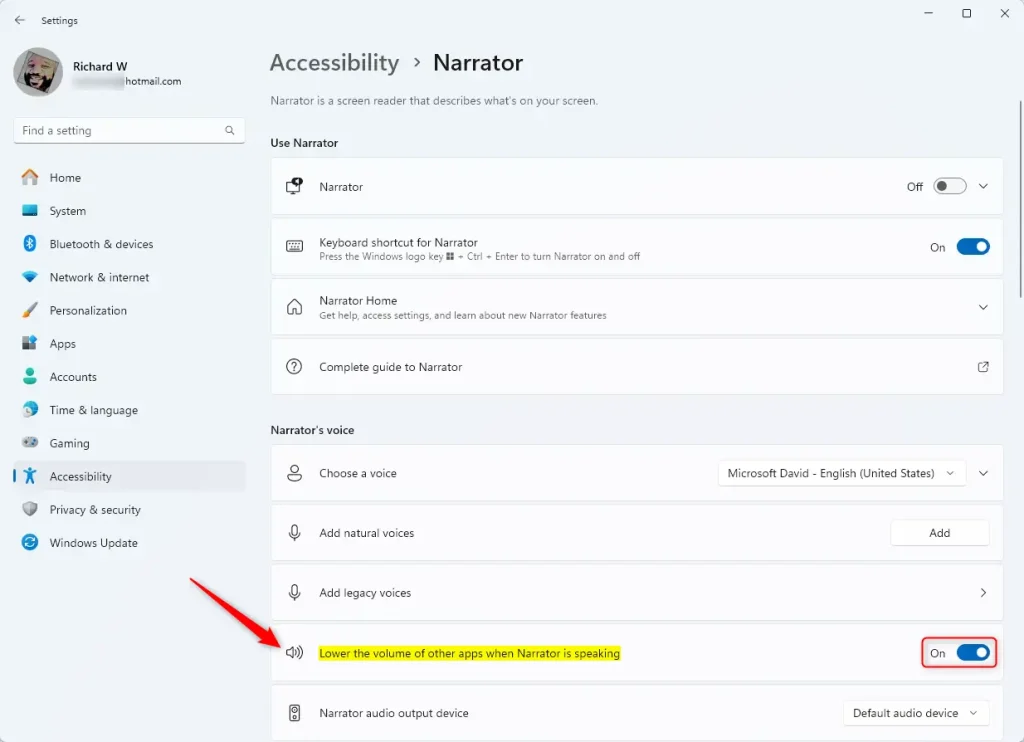
To test it, play some music or a video, then let Narrator read something. With the switch On, the music should dip while Narrator speaks and come back afterward. If nothing changes, check that Narrator is running and that the switch really shows On. To undo the change, go back to the same page and flip the switch the other way.
Audio behavior during speech stays fully customizable in Windows 11. You can let other sounds lower automatically while Narrator talks, or let all system audio keep its original volume. Switch between the two whenever your listening situation changes.
Summary
Adjusting Narrator's volume and the background audio behavior makes the built-in screen reader much easier to understand while you use your computer. With audio lowering on, music and other app sounds quiet down automatically whenever Narrator speaks. That gives you a clearer and more comfortable listening experience.
- Turning on this feature helps you hear Narrator better. Other app sounds get quieter while it speaks.
- It makes using your PC easier. This is true if you depend on Narrator for reading screen content.
- This setting helps people with vision problems or other disabilities.
- Want to learn more? Check out the other guides on Geek Rewind.
Was this guide helpful?

About the Author
Richard
Tech Writer, IT Professional
Richard is a writer at Geek Rewind who turns complex IT tasks into clear, step-by-step guides. He draws on years of hands-on experience in system administration and enterprise IT operations, focusing on Windows, Linux and WordPress: the problems people actually run into, and the fixes that work. His server and WordPress guides come from systems he runs himself. Richard builds and maintains the platform behind Geek Rewind, from its Ubuntu servers and Nginx configuration to its custom WordPress plugins. Many new tutorials start with readers' questions, and he's always glad to answer them in the comments.




No comments yet — be the first to share your thoughts!