Windows 11 Battery and Power Settings Explained

Windows 11 battery and power settings control how long a laptop runs, when the PC sleeps, and what happens when you close the lid. Most of them sit under Settings System Power & battery, but others live in the taskbar, Quick Settings and the older Control Panel. That spread is why people often cannot find the setting they need. This page groups the guides by what you are trying to do, so you can go straight to the right one. Start with the power settings page, then move to sleep and wake behaviour, lid and power button actions, or the options that stretch battery life. The last section covers the batteries in wireless devices, such as a Bluetooth mouse or keyboard, which Windows reports separately from the PC battery.
Find your power settings and see how much battery you have left
Start here if you do not know where the power controls are or want to check the charge at a glance. Windows 11 spreads battery information across Settings, the taskbar and Quick Settings, so each route is covered. Use these guides to find the right screen before you change anything.
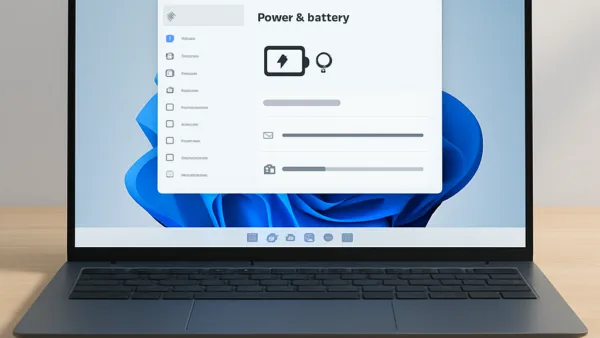 How to Adjust Power and Sleep Settings in Windows 11 Adjusting the Power and Sleep settings in Windows 11 allows you to manage how your computer uses energy, prolong battery life, and control when your device
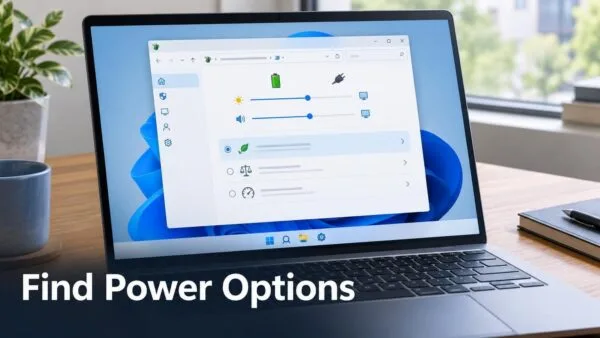 Find Power Options in Control Panel in Windows 11 Open the power options control panel in Windows 11 with Windows + R and powercfg.cpl, or through System and Security. Change power plans and sleep timers.
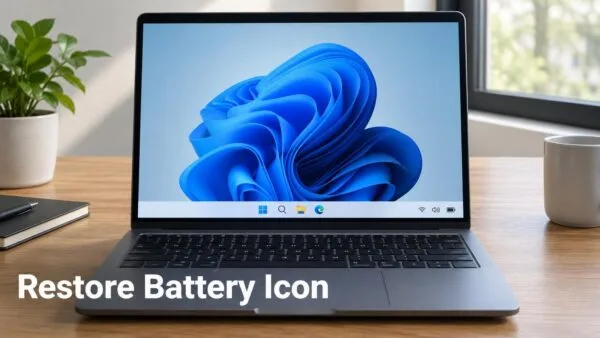 How to Add the Battery Icon to the Taskbar in Windows 11 Battery icon gone from the Windows 11 taskbar? Check Show hidden icons, Taskbar settings and Power & battery. Desktop PCs have no battery icon.
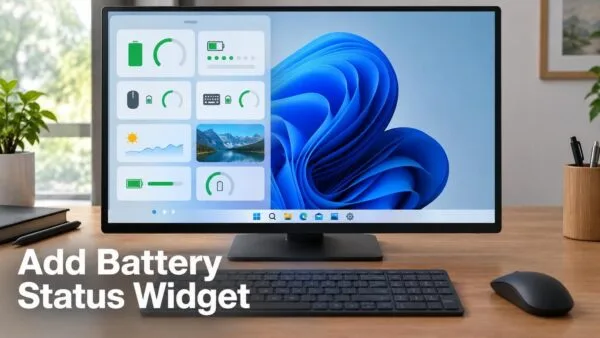 How to Add the Battery Status Widget in Windows 11 Windows 11 battery status widget not showing? It needs an Insider preview build. Check your build with winver, then add it from the Widgets board.
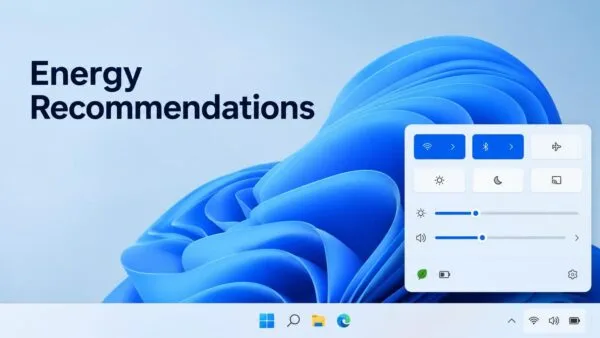 How to Use Energy Recommendations in Quick Settings in Windows 11 Windows 11 Energy Recommendations in Quick Settings appear only on the Experimental Insider channel. Here's how to enrol, then open them with Windows + A.
Set when your PC sleeps, shuts down and wakes up
These guides cover the timers and triggers that decide when your PC goes idle, turns off or comes back on. Sleep, hibernation and scheduled shutdown each save power in a different way, so pick the one that fits how you work. Presence sensing settings let the PC respond when you sit down or walk away.
 Stop Energy Saver from Turning On Automatically in Windows 11 How to block the auto energy saver in Windows 11: set its automatic trigger to Never under Settings > System > Power & battery. Works on Home and Pro.
 How to Set Up Hibernation to Save Battery Life on Windows 11 Set up hibernation on Windows 11 so a laptop stops draining its battery. Check support with powercfg /a, then turn on Hibernate in Power Options.
 Schedule Your PC to Shut Down Automatically in Windows 11 Power & sleep settings can't shut Windows 11 down at a set time. Use Task Scheduler for a daily shutdown, or shutdown /s /t 3600 for a one-off. Steps for…
 How to Automatically Wake PC with Presence Sensing in Windows 11 Unlock Windows 11 Presence Sensing to automatically wake your PC when you approach. Get back to work faster and save power with this smart feature.
 How to Automatically Turn Off Your Screen with Presence Sensing in Windows 11 Unlock Windows 11 presence sensing to automatically turn off your screen when you leave. Save power & boost security.
 Enable Modern Standby Network Connectivity in Windows 11 Enable or disable Modern Standby network connectivity in Windows 11. Control whether your PC stays connected during sleep for instant notifications or…
Choose what the lid and power button do
Closing the lid and pressing the power button can sleep, shut down or do nothing, depending on the settings you pick. Change these only after you check how your laptop is used on battery and on mains power. The power button guide also shows how to control what appears on the Start menu.
 How to Configure Lid Closed Settings in Windows 11 Power Options Stop your laptop from overheating in your bag or shutting off on external monitors by updating your lid closed setting in Control Panel.
 How to Add or Remove Power Button on Windows 11 Start Menu Customize your Windows 11 Start Menu by adding or removing the power button. Follow our step-by-step guide to control its visibility and streamline yo...
Stretch battery life and protect the battery
Use these guides when the battery drains faster than you expect or when you want the battery to last longer over time. Some options trade performance for power, so note what you lose before you turn one on. Charging limits and background app controls can help the battery hold its capacity over the years.
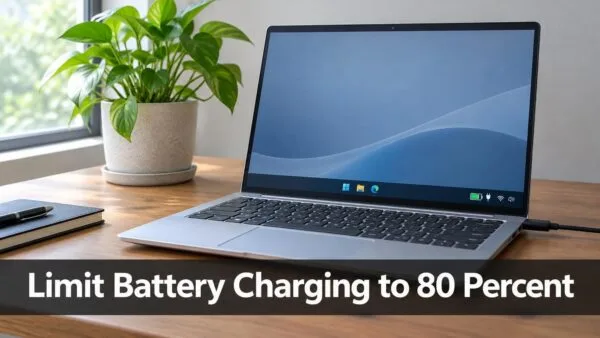 Limit Battery Charging to 80 Percent in Windows 11 Windows 11 has no 80 percent charge setting on most laptops. Here is where ASUS, Dell, Lenovo, HP, Acer and Surface hide the battery limit in their own…
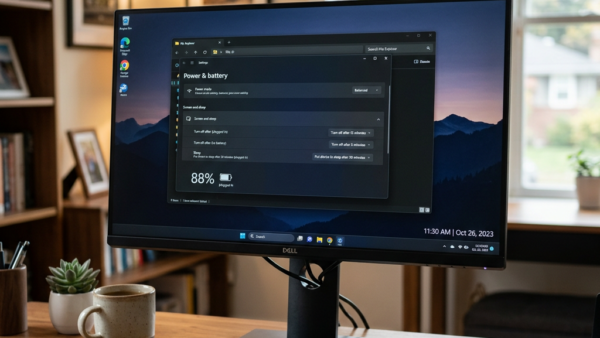 How to Turn “Processor Performance Boost Mode” on or off in Power Options on Windows 11 Control your CPU's speed with Windows 11's "Processor performance boost mode" in Power Options. Optimize for peak performance or power efficiency.
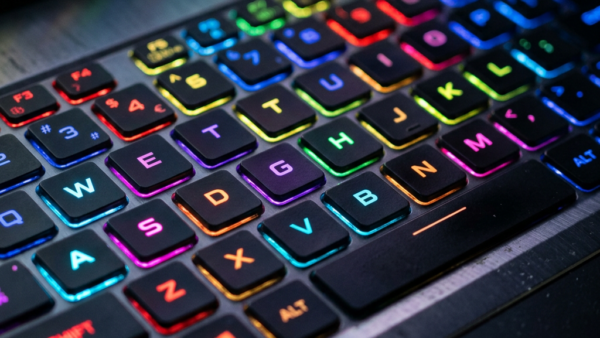 How to Change Windows 11 Keyboard Backlight in Energy Saver Control your Windows 11 keyboard backlight in Energy Saver mode. Adjust brightness from 0-100% via Registry Editor for optimal battery life.
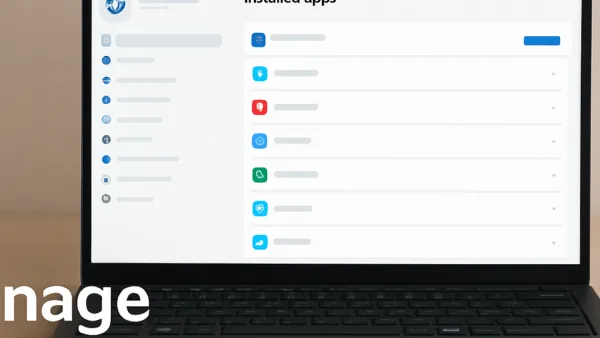 How to Control Whether an App Can Run in the Background in Windows 11 Control windows 11 background apps to make your PC faster and save battery. Adjust permissions in Advanced Options for each app.
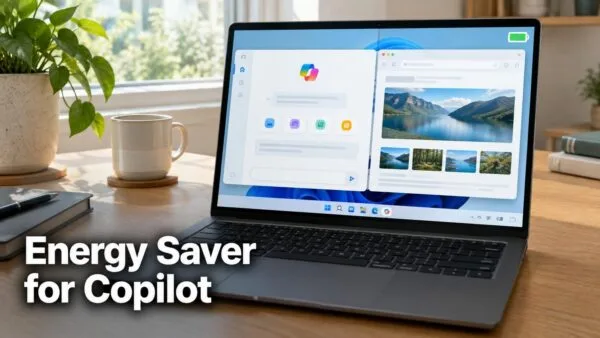 How to Enable or Disable Energy Saver for Copilot Web Browsing in Windows 11 Energy saver for Copilot web browsing cuts the Copilot app's resource use and extends battery life. Turn it on or off, pick Balanced or Maximum savings…
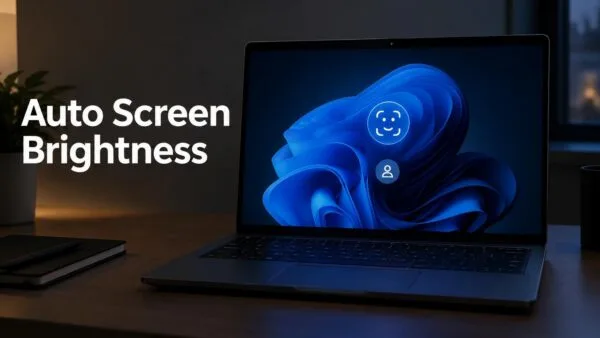 How to Turn On Automatic Screen Brightness for Windows Hello Face Recognition in Windows 11 Turn on automatic screen brightness for Windows Hello face recognition in Settings > Accounts > Sign-in options. Works only on Windows 11 Insider preview…
Check the battery in a wireless device
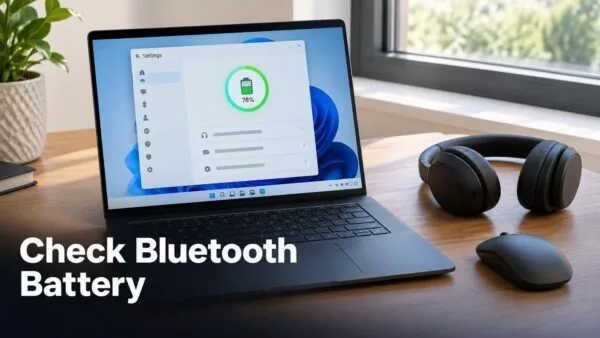
A wireless mouse, keyboard or headset has its own battery, and Windows does not always show it on the taskbar. This guide explains how to check the charge level of a Bluetooth device from Windows 11. It helps you spot a low battery before the device stops working mid-task.
Have a question about this guide?
Answered by AI from this guide. Good questions may be added to this page — please don't include personal details.

About the Author
Richard
Tech Writer, IT Professional
Richard is a writer at Geek Rewind who turns complex IT tasks into clear, step-by-step guides. He draws on years of hands-on experience in system administration and enterprise IT operations, focusing on Windows, Linux and WordPress: the problems people actually run into, and the fixes that work. His server and WordPress guides come from systems he runs himself. Richard builds and maintains the platform behind Geek Rewind, from its Ubuntu servers and Nginx configuration to its custom WordPress plugins. Many new tutorials start with readers' questions, and he's always glad to answer them in the comments.
No comments yet — be the first to share your thoughts!