Install MySQL and MariaDB on Ubuntu: A Step-by-Step Guide


Installing MySQL or MariaDB on Ubuntu 22.04 LTS gives you a reliable SQL database server to store and manage data for your websites and apps. Both are open-source, and both install through APT, Ubuntu’s package manager, which downloads software from trusted sources and keeps it up to date.
MariaDB is a drop-in replacement built from the original MySQL code, so most programs that work with MySQL work the same way with MariaDB. Pick one of the two for a given server. The packages conflict, so you can’t install both side by side with default settings. Either one takes only a few terminal commands, and you do not need to restart the machine afterwards.
To install MariaDB or MySQL on Ubuntu 22.04 LTS, open a terminal and run sudo apt update, then sudo apt install mariadb-server. The apt package manager downloads MariaDB from Ubuntu’s official sources, and the service starts automatically at boot. Check it with sudo systemctl status mariadb. Install only one of the two, since the packages conflict.
How to install MariaDB on Ubuntu Linux
Ubuntu’s own software sources include MariaDB, so you can install it with apt, with no extra downloads. Open a terminal and run sudo apt install mariadb-server. You need an account with sudo rights, and apt will ask for your password.
The apt package manager is Ubuntu’s software installation tool. It downloads MariaDB from the official Ubuntu sources, installs it, and handles the packages MariaDB depends on. The version you get is the one Ubuntu ships for your release. A later section shows how to get a newer one.
Follow these steps to install MariaDB from the Ubuntu repositories:
- Open a terminal window.
- Run the commands below. Type Y and press Enter if apt asks you to confirm the download.
sudo apt update
sudo apt install mariadb-server
When the install finishes, MariaDB starts on its own and is set to start at every boot. Run the commands below to check the service status.
sudo systemctl status mariadb
After you run the command above, you should see output similar to the lines below. Look for active (running) in green. If the output is longer than your screen, press q to return to the prompt.
mariadb.service - MariaDB 10.3.31 database server
     Loaded: loaded (/lib/systemd/system/mariadb.service; enabled; vendor preset: enabled)
     Active: active (running) since Wed 2021-09-15 16:40:20 CDT; 22s ago
       Docs: man:mysqld(8)
             https://mariadb.com/kb/en/library/systemd/
   Main PID: 3007 (mysqld)
     Status: "Taking your SQL requests now..."
      Tasks: 31 (limit: 4651)
     Memory: 65.6M
     CGroup: /system.slice/mariadb.service
             └─3007 /usr/sbin/mysqld

Sep 15 16:40:20 ubuntu2004 /etc/mysql/debian-start[3045]: mysql
Sep 15 16:40:20 ubuntu2004 /etc/mysql/debian-start[3045]: performance_schema
Next, check which version of MariaDB is installed. Run the commands below.
mysql -V
You should see output similar to the lines below. The version number tells you whether the Ubuntu default is new enough for your application. If it is not, use the next section to install a newer one.
mysql Ver 15.1 Distrib 10.3.31-MariaDB, for debian-linux-gnu (x86_64) using readline 5.2
How to install the latest versions and update MariaDB
The version of MariaDB in Ubuntu’s default sources is often older than the latest release. To install a newer version, or to update MariaDB to it, add the official MariaDB repository to your system. The overall process looks like this:
- Visit the MariaDB repository page on the MariaDB website.
- Choose your Ubuntu release and the database version you want.
- Run the setup commands the page gives you in your terminal.
Once the new repository is added, its packages replace the older default ones.
Open the repository page here:
MariaDB – Setting up MariaDB Repositories – MariaDB
On that page, select the version of Ubuntu you are installing for, then select the latest version of MariaDB. As of this writing, the latest version of MariaDB is 10.6. This may be higher when you read this, so use whatever the page shows you.
Run the commands to add the 10.6 version to Ubuntu 20.04. The page generates commands to match the release and version you chose, so if you picked something else, use those instead.
sudo mkdir -p /etc/apt/keyrings
sudo curl -o /etc/apt/keyrings/mariadb-keyring.pgp 'https://mariadb.org/mariadb_release_signing_key.pgp'
sudo add-apt-repository 'deb [arch=amd64,arm64,ppc64el signed-by=/etc/apt/keyrings/mariadb-keyring.pgp] http://sfo1.mirrors.digitalocean.com/mariadb/repo/10.6/ubuntu jammy main'
With the repository added, install MariaDB by running the commands below. Apt now pulls the package from the MariaDB repository instead of the Ubuntu default sources.
sudo apt update
sudo apt install mariadb-server
How to install MySQL on Ubuntu Linux
MySQL is also in the default Ubuntu repositories, and you install it with apt. Follow these steps:
- Open a terminal window.
- Run
sudo apt updateto refresh your package list. - Run
sudo apt install mysql-serverto install MySQL. Confirm the download if apt asks.
If you already installed MariaDB on this machine, remove it first or use a separate server, because the two packages conflict.
sudo apt update
sudo apt install mysql-server
As with MariaDB, the MySQL service starts automatically after installation. Run the commands below to check its status.
sudo systemctl status mysql
You should see output similar to the lines below, with the service shown as active (running). Press q to leave the status view if it does not return to the prompt.
mysql.service - MySQL Community Server
     Loaded: loaded (/lib/systemd/system/mysql.service; enabled; vendor preset: enabled)
     Active: active (running) since Wed 2021-09-15 16:46:30 CDT; 8s ago
   Main PID: 3040 (mysqld)
     Status: "Server is operational"
      Tasks: 38 (limit: 4651)
     Memory: 353.1M
     CGroup: /system.slice/mysql.service
             └─3040 /usr/sbin/mysqld

Sep 15 16:46:29 ubuntu2004 systemd[1]: Starting MySQL Community Server...
Sep 15 16:46:30 ubuntu2004 systemd[1]: Started MySQL Community Server.
How to install the latest version of MySQL on Ubuntu Linux
Ubuntu’s default repositories may carry an older MySQL release. To get the latest version, download and add the official MySQL repository configuration package from the MySQL developer website. After that, apt fetches the newest releases from MySQL directly instead of the older default packages.
The link below takes you to the repository file.
https://dev.mysql.com/downloads
On the download page, look for Ubuntu / Debian (Architecture Independent), DEB Package, then click its Download button to get the repository package. The site may ask you to log in or sign up. You can skip that and use the direct download link instead.

At the time of this writing the version number in them is 0.8.15-1. Replace it with the latest version shown in the file on the download page above, so the file name in the command matches what you downloaded.
cd /tmp
wget https://dev.mysql.com/get/mysql-apt-config_0.8.29-1_all.deb
sudo dpkg -i mysql-apt-config_0.8.29-1_all.deb
When you run the commands above, a configuration prompt appears in the terminal. It lets you choose which MySQL server version and components the repository should offer.
Use the arrow or Tab keys to highlight OK and press Enter, as shown in the image below. This accepts the default selection.
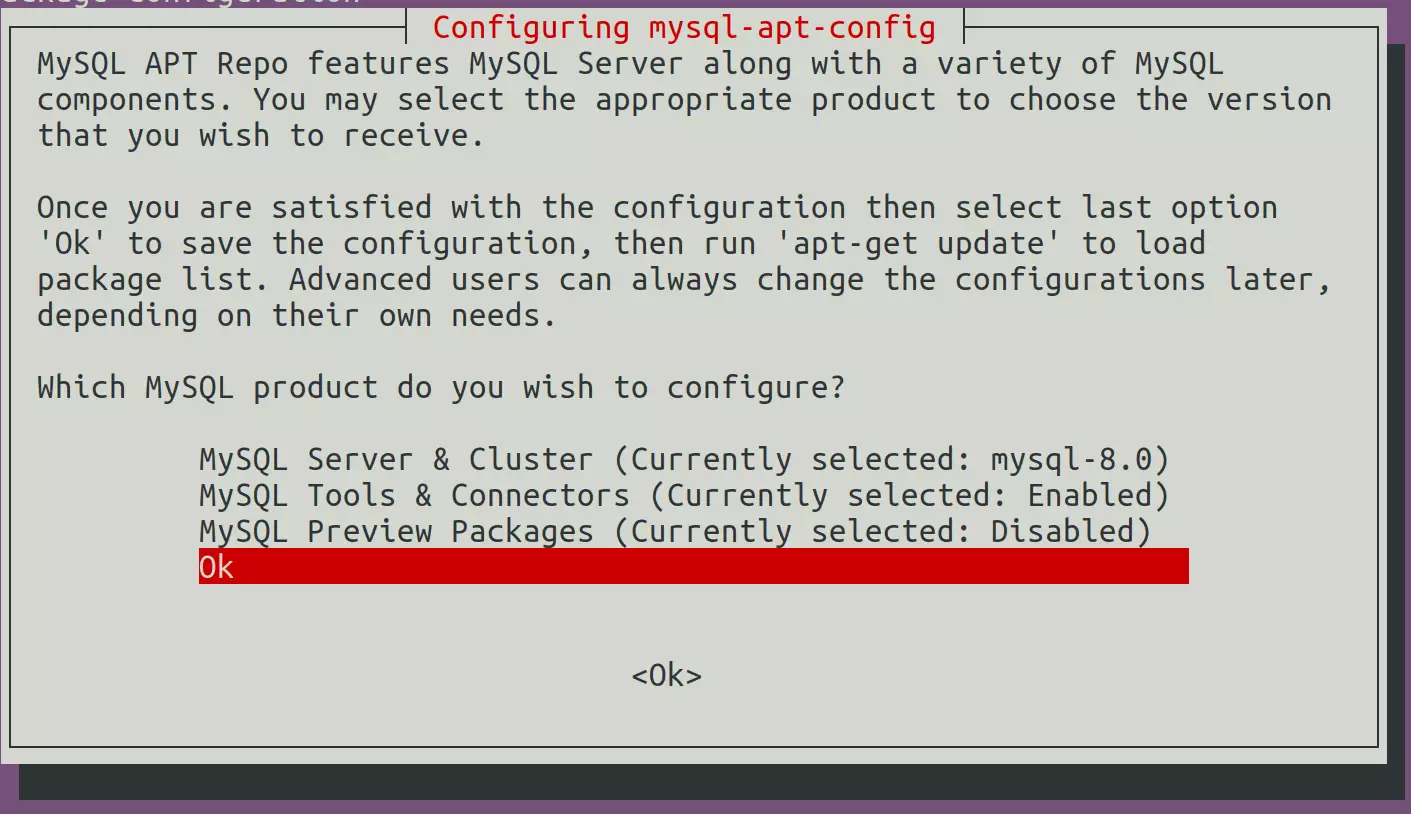
Now that the repository is added, run the commands below to install MySQL from it. When they finish, check the service status again as shown earlier.
sudo apt update
sudo apt upgrade
How to secure MariaDB and MySQL
A fresh database install ships with settings that are fine for testing but not for a live server. Both MariaDB and MySQL include a security script that fixes this. Open your terminal and run sudo mysql_secure_installation. It removes insecure defaults, disables remote root logins, and can set a strong password for the database root user.
Run the commands below to start the script. It asks a series of yes or no questions. Reading each one and answering yes is a safe choice for most servers.
sudo mysql_secure_installation
By default, the root user on MariaDB and MySQL servers uses the auth_socket authentication method.
The auth_socket plugin authenticates users who connect from the local host through the Unix socket file. It checks which Linux account is making the connection, so you can't authenticate as root by providing a password.
Run the command below to log on to the MariaDB or MySQL server as root. You don't need a database password, because it uses the auth_socket method. If the command is refused, check that you ran it with administrator rights through sudo.
sudo mysql
The server console should come up. The prompt changes to show you are now talking to the database server rather than the shell. This confirms the install works.
Welcome to the MySQL monitor.  Commands end with ; or \g.
Your MySQL connection id is 8
Server version: 8.0.26-0ubuntu0.20.04.2 (Ubuntu)

Copyright (c) 2000, 2021, Oracle and/or its affiliates.

Oracle is a registered trademark of Oracle Corporation and/or its
affiliates. Other names may be trademarks of their respective
owners.

Type 'help;' or '\h' for help. Type '\c' to clear the current input statement.

mysql>
That should do it!
Conclusion:
This guide explained how to install MariaDB or MySQL on Ubuntu Linux, check the service and version, move to the latest release through the official repositories, and secure the server. Please use the comment form below if you find any errors in this guide or have something to add.
Have a question about this guide?
Answered by AI from this guide. Good questions may be added to this page — please don't include personal details.
Did this guide fix your problem?

About the Author
Richard
Tech Writer, IT Professional
Richard is a writer at Geek Rewind who turns complex IT tasks into clear, step-by-step guides. He draws on years of hands-on experience in system administration and enterprise IT operations, focusing on Windows, Linux and WordPress: the problems people actually run into, and the fixes that work. His server and WordPress guides come from systems he runs himself. Richard builds and maintains the platform behind Geek Rewind, from its Ubuntu servers and Nginx configuration to its custom WordPress plugins. Many new tutorials start with readers' questions, and he's always glad to answer them in the comments.
When I run sudo mysql after installation of mysql in parrot, there is an error “Can’t connect to local MySQL server through socket ‘/run/mysqld/mysqld.sock’ (2)”.
[…] How to install MariaDB on Ubuntu Linux […]
[…] How to install MariaDB on Ubuntu Linux […]
[…] How to install MariaDB on Ubuntu Linux […]
[…] How to install MariaDB on Ubuntu Linux […]
[…] How to install MariaDB on Ubuntu Linux […]
[…] How to install MariaDB on Ubuntu Linux […]
[…] How to install MariaDB on Ubuntu Linux […]
[…] How to install MariaDB on Ubuntu Linux […]
[…] How to install MariaDB on Ubuntu Linux […]
[…] How to install MariaDB on Ubuntu Linux […]
[…] How to install MariaDB on Ubuntu Linux […]
[…] How to install MariaDB on Ubuntu Linux […]
[…] How to install MariaDB on Ubuntu Linux […]
[…] How to install MariaDB on Ubuntu Linux […]
[…] How to install MariaDB on Ubuntu Linux […]
[…] How to install MariaDB on Ubuntu Linux […]
[…] How to install MariaDB on Ubuntu Linux […]
[…] How to install MariaDB on Ubuntu Linux […]
[…] How to install MariaDB on Ubuntu Linux […]
[…] How to install MariaDB on Ubuntu Linux […]
[…] How to install MariaDB on Ubuntu Linux […]
[…] How to install MariaDB on Ubuntu Linux […]
[…] How to install MariaDB on Ubuntu Linux […]
[…] How to install MariaDB on Ubuntu Linux […]
[…] How to install MariaDB on Ubuntu Linux […]
[…] How to install MariaDB on Ubuntu Linux […]
[…] How to install MariaDB on Ubuntu Linux […]
[…] How to install MariaDB on Ubuntu Linux […]
[…] How to install MariaDB on Ubuntu Linux […]
[…] How to install MariaDB on Ubuntu Linux […]
[…] How to install MariaDB on Ubuntu Linux […]
[…] How to install MariaDB on Ubuntu Linux […]
[…] How to install MariaDB on Ubuntu Linux […]
[…] How to install MariaDB on Ubuntu Linux […]
[…] How to install MariaDB on Ubuntu Linux […]
[…] How to install MariaDB on Ubuntu Linux […]
[…] How to install MariaDB on Ubuntu Linux […]
[…] When prompted during the installation, type and confirm a root password. Leave it blank to enable passwordless login using UNIX socket based authentication. […]
[…] How to install MariaDB on Ubuntu Linux […]
[…] How to install MariaDB on Ubuntu Linux […]
[…] How to install MariaDB on Ubuntu Linux […]
[…] How to install MariaDB on Ubuntu Linux […]
[…] How to install MariaDB on Ubuntu Linux […]
[…] How to install MariaDB on Ubuntu Linux […]
[…] How to install MariaDB on Ubuntu Linux […]
[…] How to install MariaDB on Ubuntu Linux […]
[…] How to install MariaDB on Ubuntu Linux […]
[…] How to install MariaDB on Ubuntu Linux […]
[…] How to install MariaDB on Ubuntu Linux […]
[…] How to install MariaDB on Ubuntu Linux […]
[…] How to install MariaDB on Ubuntu Linux […]
[…] How to install MariaDB on Ubuntu Linux […]
[…] How to install MariaDB on Ubuntu Linux […]
[…] How to install MariaDB on Ubuntu Linux […]
[…] How to install MariaDB on Ubuntu Linux […]
[…] How to install MariaDB on Ubuntu Linux […]
[…] How to install MariaDB on Ubuntu Linux […]
[…] How to install MariaDB on Ubuntu Linux […]
[…] How to install MariaDB on Ubuntu Linux […]
[…] How to install MariaDB on Ubuntu Linux […]
[…] Run the command below to list MySQL self-signed SSL certificate files with MySQL installed. […]
[…] How to install MariaDB on Ubuntu Linux […]
[…] How to install MariaDB on Ubuntu Linux […]
[…] How to install MariaDB on Ubuntu Linux […]
[…] How to install MariaDB database server on Ubuntu Linux […]
[…] How to install MySQL or MariaDB on Ubuntu Linux […]
[…] How to install MariaDB on Ubuntu Linux […]
[…] How to install MariaDB on Ubuntu Linux […]
[…] How to install MariaDB on Ubuntu Linux […]
[…] How to install MariaDB on Ubuntu Linux […]
[…] How to install MariaDB on Ubuntu Linux […]
[…] How to install MariaDB on Ubuntu Linux […]
[…] How to install MariaDB on Ubuntu Linux […]