How to Install PostgreSQL on Ubuntu Linux


PostgreSQL on Ubuntu Linux is a free database system that stores and manages large amounts of data safely. Installing version 16 from the official project source gives you the newest features and security updates that standard Ubuntu software lists often miss.
Ubuntu uses the apt package manager (a tool that downloads and installs software) to handle setup. Adding the official PostgreSQL storage folder to your system ensures you get the correct, up-to-date release instead of an older built-in version.
Install PostgreSQL on Ubuntu by adding its official repository with `wget` and `sh` commands, then update and install packages using `sudo apt update` and `sudo apt-get install postgresql postgresql-contrib`.
How to add PostgreSQL repository on Ubuntu Linux
You can add the official PostgreSQL repository on Ubuntu Linux by downloading the repository key and creating a new source list file in your terminal. This process ensures you get the newest software updates, bug fixes, and features directly from the developers rather than relying on the older versions found in the default Ubuntu package directories.
The commands below will add the repository key and the repository file to Ubuntu Linux.
wget --quiet -O - https://www.postgresql.org/media/keys/ACCC4CF8.asc | sudo apt-key add -
sudo sh -c 'echo "deb http://apt.postgresql.org/pub/repos/apt $(lsb_release -cs)-pgdg main" > /etc/apt/sources.list.d/pgdg.list'
How to install PostgreSQL on Ubuntu Linux
You can install PostgreSQL on Ubuntu by updating your local package list and running the standard Advanced Packaging Tool command to fetch the main database server and the contributed packages. This sets up the core database service on your system so you can start creating and managing relational databases right away from the command line.
To install PostgreSQL 11, run the commands below
sudo apt update
sudo apt-get install postgresql postgresql-contrib
The commands above will also install the PostgreSQL contrib package, which provides several additional features for the database system.
After installing PostgreSQL, the commands below can be used to stop, start and enable.
sudo systemctl stop postgresql.service
sudo systemctl start postgresql.service
sudo systemctl enable postgresql.service
To validate that PostgreSQL is installed and running, run the commands below.
sudo systemctl status postgresql.service
When you run the commands above, it should show something similar to the one below.
● postgresql.service - PostgreSQL RDBMS
   Loaded: loaded (/lib/systemd/system/postgresql.service; enabled; vendor prese
   Active: active (exited) since Wed 2018-10-31 11:58:09 CDT; 12s ago
 Main PID: 7930 (code=exited, status=0/SUCCESS)
    Tasks: 0 (limit: 4663)
   CGroup: /system.slice/postgresql.service

Oct 31 11:58:09 ubuntu1804 systemd[1]: Starting PostgreSQL RDBMS.
Oct 31 11:58:09 ubuntu1804 systemd[1]: Started PostgreSQL RDBMS.
How to access the PostgreSQL shell
You can access the PostgreSQL shell on Ubuntu by switching to the default database user account and launching the interactive command-line interface. Since the setup creates a dedicated system user during installation, you must change your active user context before you can run database commands and manage your tables.
To access PostgreSQL interactive shell and manage the database, you need to switch users and login into the shell as Postgres users.
sudo su - postgres
Then use the psql command to invoke the interactive shell when creating and managing PostgreSQL databases.
psql
Set password for DB administrator (Postgres)
You can set a password for the main database administrator in PostgreSQL by opening the interactive database shell and running an administrative SQL command. Securing the default postgres user account prevents unauthorized local access and ensures your database server is properly protected before you build web apps or connect other services.
To create a change PostgreSQL database administrator password, log in as a Postgres user and invoke the psql command shell using the commands below.
sudo -u postgres psql
On the psql shell, run the below commands to change the database admin password. Either command below should work.
password
OR
password postgres
After that, quit and exit.
q
exit
How to install pgAdmin4 web portal
You can install the pgAdmin4 web portal on Ubuntu by running a terminal command that downloads the graphical management tool along with the necessary web server components. This gives you a convenient browser-based dashboard to view tables, run queries, and manage your database users without relying entirely on the command line.
sudo apt-get install pgadmin4 pgadmin4-apache2
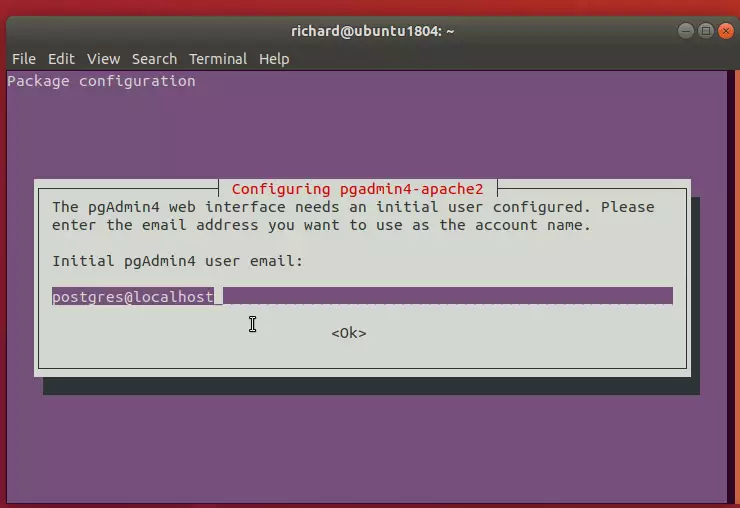
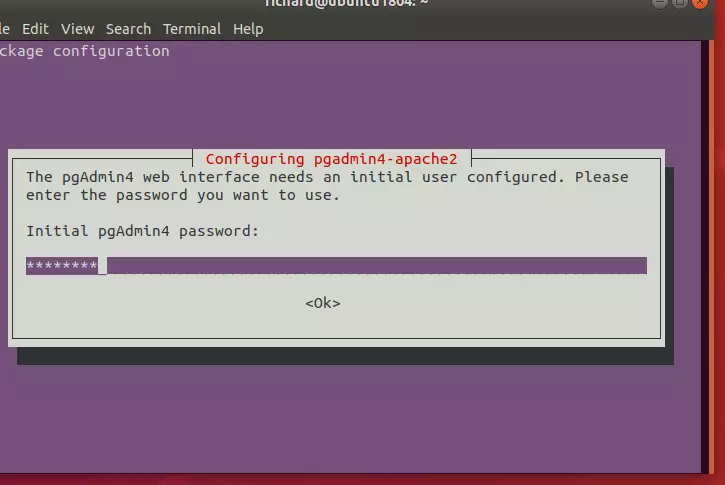
Create a password for the pgAdmin4 web service.
After installing, open your web browser and browse to the server hostname or IP address followed by pgAdmin4 URI
http://example.com/pgadmin4
Enter the web interface's initial user account, as shown in the image above.
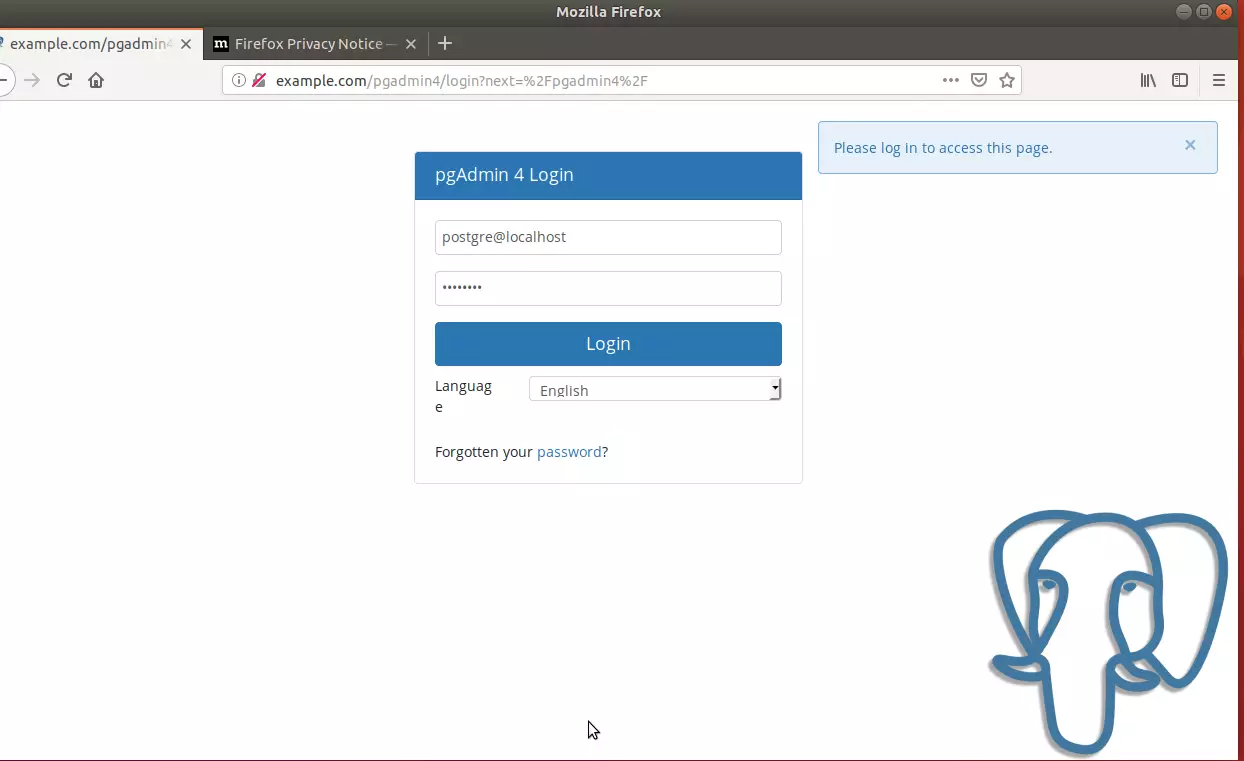
Log in and add a new PostgreSQL server.
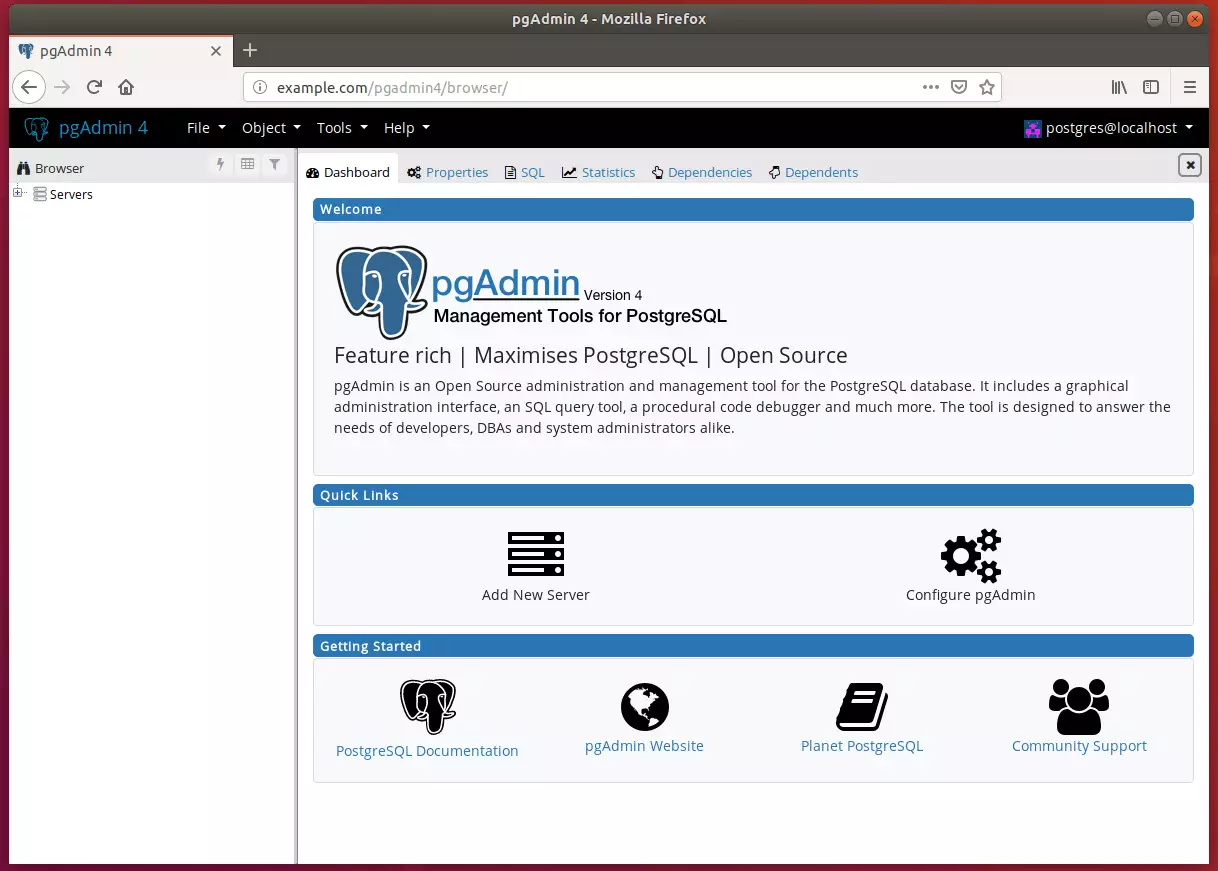
Begin setting up your environment.
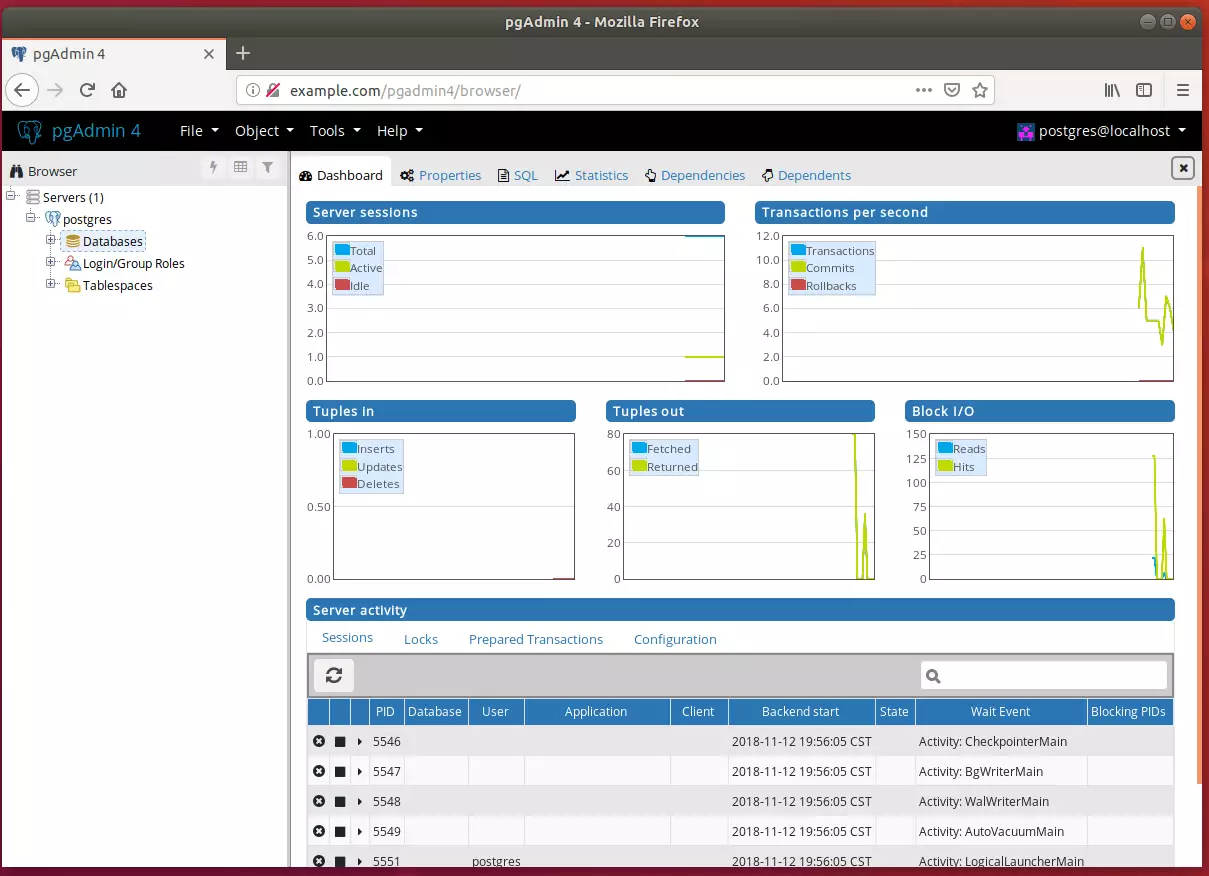
That's it! You may want to restrict access to only local IP addresses.
Conclusion:
- PostgreSQL is a powerful and flexible object-relational database management system that offers advanced features for developers and database administrators.
- By following the outlined steps, users can successfully install PostgreSQL and the pgAdmin4 management tool on Ubuntu, making database management accessible through a web interface.
- The installation process includes adding the PostgreSQL repository, installing the latest packages, and configuring access for the PostgreSQL shell and pgAdmin4.
- Setting a password for the Postgres user is crucial for security, allowing for controlled access to the database.
- With pgAdmin4, users gain a comprehensive platform to create, manage, and monitor PostgreSQL instances efficiently.
- Remember to consider network security by restricting access to only local IP addresses, ensuring your database environment remains secure.
Was this guide helpful?

About the Author
Richard
Tech Writer, IT Professional
Richard is a writer at Geek Rewind who turns complex IT tasks into clear, step-by-step guides. He draws on years of hands-on experience in system administration and enterprise IT operations, focusing on Windows, Linux and WordPress: the problems people actually run into, and the fixes that work. His server and WordPress guides come from systems he runs himself. Richard builds and maintains the platform behind Geek Rewind, from its Ubuntu servers and Nginx configuration to its custom WordPress plugins. Many new tutorials start with readers' questions, and he's always glad to answer them in the comments.




No comments yet — be the first to share your thoughts!