Install Zabbix with Nginx on Ubuntu 24.04


Zabbix with Nginx on Ubuntu 24.04 sets up a monitoring system to track the health of your servers, computers, and network devices. Zabbix is free software that watches network traffic and hardware stats, while Nginx serves as the web server that displays all this data in your browser.
Ubuntu 24.04 LTS (Long Term Support) provides five years of security updates and modern software packages for your server setup. Running these tools together gives you a fast dashboard to spot computer problems before they break your network.
The setup has six parts. You install PostgreSQL, add the Zabbix repository and packages, create the Zabbix database, point Zabbix and Nginx at it, restart the services, and finish in the browser. Before you start, you need an Ubuntu 24.04 server, a user with sudo rights, and an internet connection. A few gigabytes of RAM is comfortable for a small installation. Run every command from a terminal on the server, either directly or over SSH.
Install Zabbix with Nginx on Ubuntu 24.04 by first installing PostgreSQL, then the Zabbix repository and packages using `apt`. Configure Zabbix server with your PostgreSQL details and set up Nginx by editing its configuration file.
Install PostgreSQL server
To install PostgreSQL server on Ubuntu 24.04 for your monitoring setup, update your package list and then run the apt install command in your terminal. PostgreSQL acts as the backend database where Zabbix stores all collected system metrics and performance data.
Zabbix also supports MySQL and MariaDB. This guide uses PostgreSQL throughout, so every package and configuration step below assumes it. Don’t mix the two databases partway through.
PostgreSQL handles high-volume telemetry data from Zabbix. Every item Zabbix collects, such as CPU load, disk space or network traffic, ends up as rows in this database. That is why it is worth installing and checking the database before anything else.
Run the command below to install PostgreSQL. Ubuntu 24.04 ships PostgreSQL in its default repositories, so you don't need to add a separate source for it.
The installer lists the packages it will add and asks you to confirm. Press Y and then Enter. When it finishes, you are back at the shell prompt with no errors.
sudo apt update
sudo apt install postgresql postgresql-contrib
Configure the PostgreSQL service to start automatically on system boot and verify its active state using these commands. Run both. The first makes sure the database comes back after a reboot, and the second shows the current state.
In the status output, look for active in green. If you see failed or inactive instead, fix that before you go on, because the Zabbix schema import later will fail without a running database. Press Q to leave the status view if it stays open.
This guide details installing PostgreSQL, a powerful database system, and using PostgreSQL on Ubuntu 24.04. You will learn the steps to set up PostgreSQL for your Zabbix monitoring system, ensuring your data is stored and managed efficiently.
Install Zabbix packages
To install Zabbix packages on Ubuntu 24.04, download the official Zabbix repository release file using wget and install it with dpkg. This adds the correct software source to your system so you can download the main server and agent components.
Ubuntu's own repositories carry an older Zabbix build. The official Zabbix repository gives you current packages and updates through the normal apt process.
First, download and install the Zabbix repository for Ubuntu by running the command below. It fetches the release package from the Zabbix website, so the server needs outbound internet access.
The download should end with a message that the file was saved. If it fails with a "404 Not Found" error, the release file name has changed. Check the download page on the Zabbix website for the current Ubuntu 24.04 package.
wget https://repo.zabbix.com/zabbix/7.0/ubuntu/pool/main/z/zabbix-release/zabbix-release_latest+ubuntu24.04_all.deb
Run the command below to install the Zabbix repository. This registers the new software source with apt. It does not install Zabbix itself yet.
dpkg should report that it selected and set up the Zabbix release package.
sudo dpkg -i zabbix-release_latest+ubuntu24.04_all.deb
Refresh the local package index to recognize the newly added software source. Skip this and apt won't see the Zabbix packages in the next step.
Near the end of the output you should see lines mentioning repo.zabbix.com, which confirms the new source is being read.
sudo apt update
Execute the installation command below to deploy the required monitoring components. It pulls in a lot of packages, including PHP and Nginx, so it can take a few minutes. Confirm the prompt when apt asks.
When apt returns to the prompt without errors, the packages are in place. Nothing is configured yet, so don't try the web page at this point.
sudo apt install zabbix-server-pgsql zabbix-frontend-php php8.3-pgsql zabbix-nginx-conf zabbix-sql-scripts zabbix-agent
This command installs several key components:
- Zabbix with PostgreSQL database support: the server daemon that collects and processes data
- Zabbix web application or frontend: the PHP pages you use in the browser
- PHP and modules, including the 'pgsql' module for the PostgreSQL driver
- Nginx and configuration for Zabbix: the web server and a ready-made Zabbix site file
- Zabbix SQL scripts: the files that create the tables in your database
- Zabbix agent for monitoring the Zabbix system: it lets the server monitor itself
Configure Zabbix
To configure Zabbix with PostgreSQL, create a dedicated database and user account for the monitoring platform, and then import the initial schema. This gives Zabbix the proper permissions and table structures it needs to save system data.
A separate database user keeps Zabbix away from the rest of PostgreSQL. Zabbix then only has access to its own data.
First, create a new database and account to use with Zabbix.
Run the two commands below to create a new PostgreSQL user and database called 'zabbix'. The first command creates the user, and the second creates the database owned by that user.
When prompted, create a password for the account. Nothing shows on screen as you type, which is normal for password prompts. Use a strong password and write it down, because you need it again in the Zabbix configuration file and in the web installer.
After creating the Zabbix database and user, import the database schema with the command in the next block. It reads the compressed SQL script from the Zabbix SQL scripts package and creates all the tables Zabbix Server needs. The script has to match your database type. PostgreSQL needs the PostgreSQL script, not the MySQL one.
Confirm the password created above. The import takes a minute or two, depending on the server. Let it run until the prompt returns.
zcat /usr/share/zabbix-sql-scripts/postgresql/server.sql.gz | sudo -u zabbix psql zabbix
Console output confirms successful execution upon completion. Don't run the import a second time on the same database. It will throw errors because the tables already exist.
Open the primary server configuration file located at /etc/zabbix/zabbix_server.conf to define connection parameters. You need root rights to edit it, so open it with sudo and a text editor such as nano.
sudo nano /etc/zabbix/zabbix_server.conf
Locate the parameters named 'DBName', 'DBUser', and 'DBPassword', then update them with the PostgreSQL credentials created previously. Lines that start with # are comments and are ignored, so remove the # from any line you edit. The file is long, so search for each name. In nano, press Ctrl+W to search.
Check that there are no spaces around the equals sign and no stray characters in the password. A typo here is the most common reason the Zabbix server fails to connect to its database later.
### Option: DBName
# Database Name
# Mandatory: yes
# Default:
# DBName=

DBName=zabbix

### Option: DBUser
#Database user.
# Mandatory: no
# Default:
# DBUser=

DBUser=zabbix

### Option: DBPassword
#Database password.
# Mandatory: no
# Default:
 DBPassword=Type_DBuser_password
Save the file and exit the editor when finished. In nano, press Ctrl+O, then Enter, then Ctrl+X.
Set up Nginx
To set up Nginx for Zabbix, open the default Nginx configuration file for the monitoring platform and adjust the port and server name directives. This allows the web server to properly serve the Zabbix dashboard pages.
The Zabbix package ships this file with the port and server name lines commented out. Nginx won't serve the Zabbix site until you enable them.
Run the command below to open the Nginx configuration for Zabbix '/etc/zabbix/nginx.conf'. Use sudo so you can save your changes.
sudo nano /etc/zabbix/nginx.conf
Change the highlighted lines to match the ones below. Remove the # in front of the listen and server_name lines, set the port, and enter your own server name or IP address. This guide uses port 8080 and the name zabbix.example.com, so use the same port when you open the page in your browser.
If your server is behind a firewall such as UFW, allow the port you chose, or the page won't load from other computers. Also make sure the server name resolves to the server, either through DNS or through a hosts file entry on your own PC. If you don't have a name yet, the server's IP address works in the browser.
server {
        listen          8080;
        server_name     zabbix.example.com;

        root    /usr/share/zabbix;

        index   index.php;

............................................
When done, save the file and exit the editor.
Restart Zabbix services
To restart Zabbix services and apply your configuration changes, use the systemctl command to restart and enable the Zabbix server, agent, Nginx, and PHP-FPM. Running this ensures all background daemons run correctly with the new settings.
The restart makes the services read the files you just edited. The enable part makes them start on their own after a reboot.
Run the commands below to restart the services. They normally finish without printing anything. An error message here usually points to a typo in one of the two files you edited.
sudo systemctl restart zabbix-server zabbix-agent nginx php8.3-fpm
sudo systemctl enable zabbix-server zabbix-agent nginx php8.3-fpm
Verify that all daemons are running correctly by checking their operational status. Each service should show active (running). If the Zabbix server shows failed, check the database name, user and password in /etc/zabbix/zabbix_server.conf. If Nginx fails, check the changes in /etc/zabbix/nginx.conf, and make sure no other web server is using the same port.
sudo systemctl status zabbix-server zabbix-agent nginx php8.3-fpm
Access Zabbix
To access Zabbix for the first time, open your web browser and go to your server address using port 8080. Log in with the default username Admin and password zabbix to complete the setup and view your monitoring dashboard.
The first visit starts a web installer that walks you through a few screens. It checks that the server meets the requirements and saves the database connection for the web interface.
http://zabbix.example.com:8080
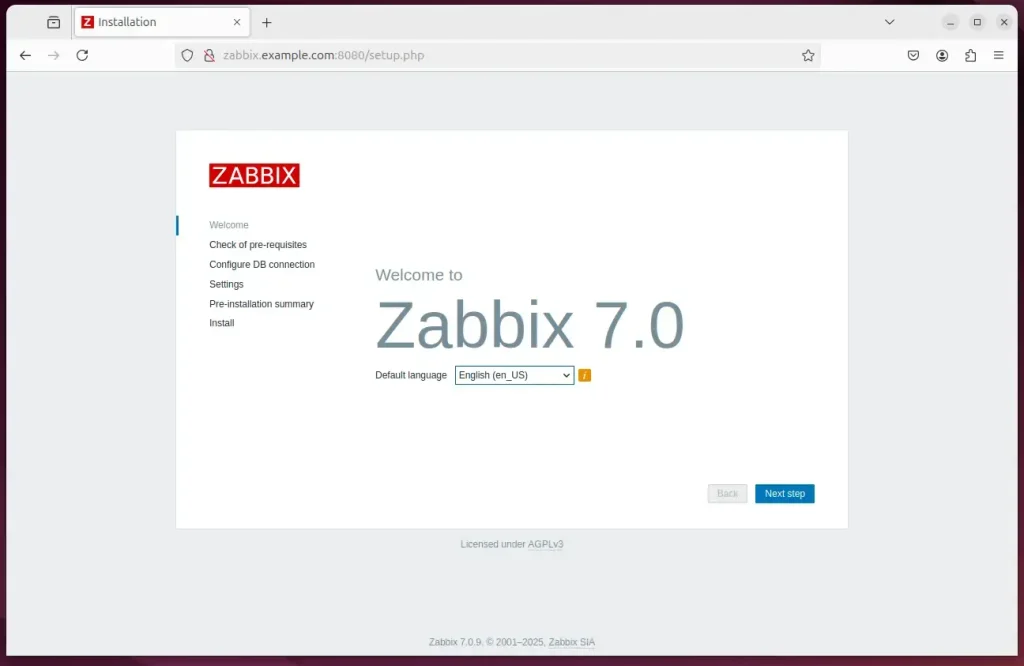
Select the installation language and continue. The Zabbix welcome page should now be on screen. If the page doesn't load, recheck the Nginx file, the firewall and the server name.
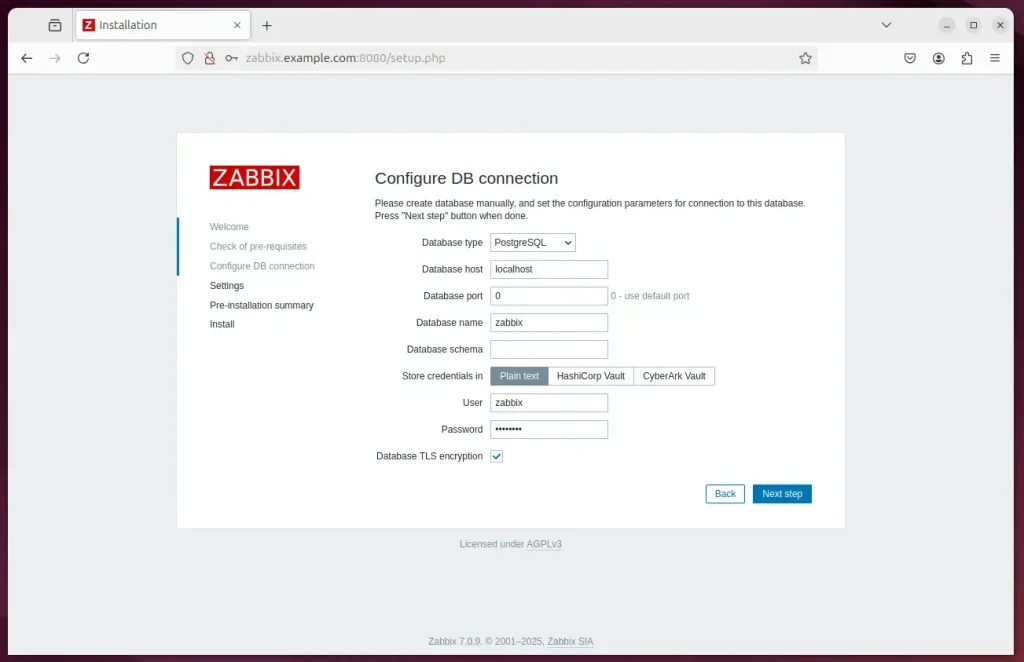
Configure the database. Choose PostgreSQL as the database type, enter the host (localhost for this setup), and set the database name and user to zabbix. Then type the password you created earlier. The installer checks the prerequisites first. If it flags a missing PHP module, install it and reload the page.
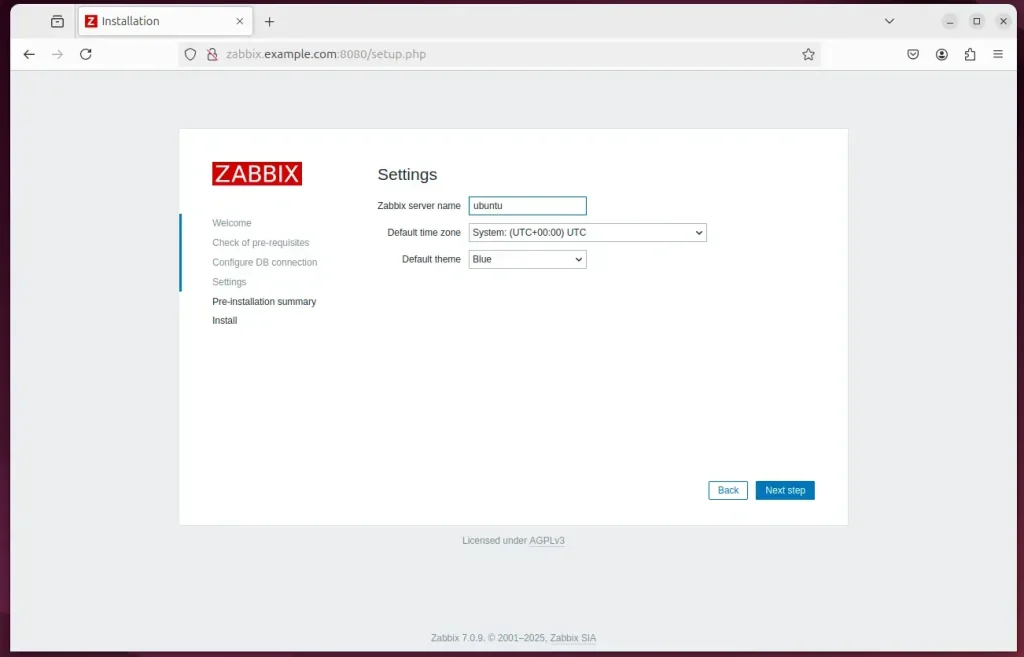
Type in the server name and continue. This is only a label shown in the dashboard, so use something that helps you recognize the server. You can also pick your time zone and theme here. Review the summary screen and continue to start the installation.
Zabbix should be installed and ready to use. The final installer screen confirms that the configuration file was created. Click the button to go to the login page.
Enter the default account below and sign in. You should then land on the Zabbix dashboard.
- Username: Admin
- Password zabbix
These credentials are public knowledge, so change the password right after your first login. In the Zabbix menu, open Users Users, select Admin, and set a new password.
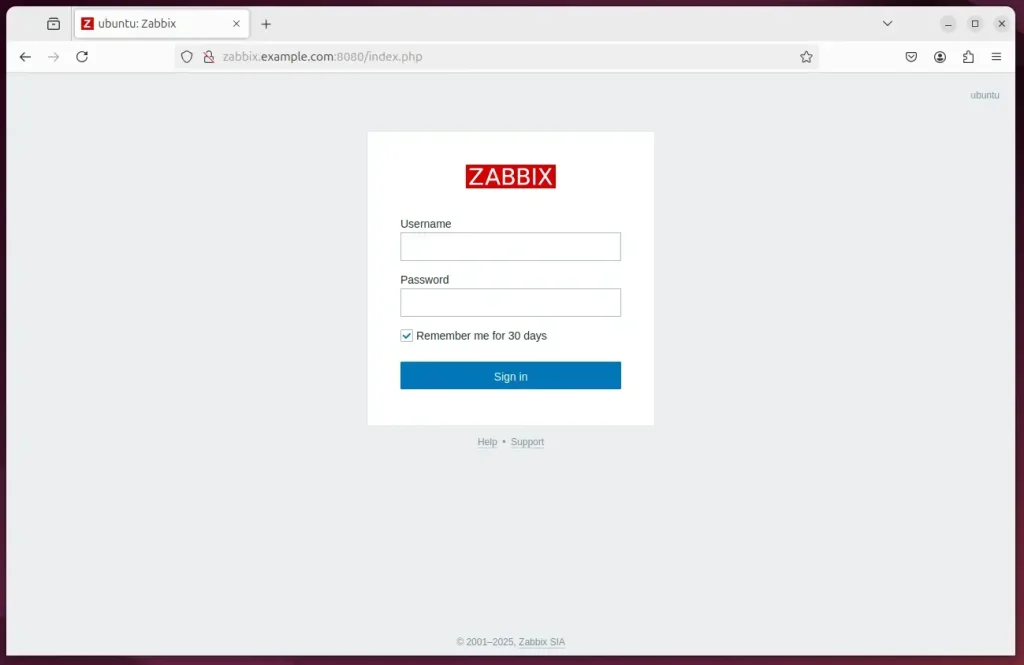
Your monitoring server is now fully operational and ready to track network performance. From here you can add hosts, install the Zabbix agent on the machines you want to watch, and set up alerts.
Conclusion:
Deploying Zabbix with Nginx support on Ubuntu 24.04 establishes a capable platform for tracking enterprise systems. Key takeaways include:
- Comprehensive Monitoring: Zabbix offers robust monitoring for various network services, servers, and hardware.
- Enhanced Performance: Utilizing Nginx allows for high performance and low resource consumption, which is beneficial for handling large traffic volumes.
- Database Flexibility: PostgreSQL is reliable for Zabbix, ensuring efficient data management and storage.
- User-Friendly Interface: The web front of Zabbix makes it accessible and easy to configure.
- Security Improvements: Nginx contributes to better security measures when managing the Zabbix environment.
- Community Support: As an open-source solution, Zabbix has strong community backing, providing abundant resources and documentation.
Following these procedures establishes an enterprise-grade telemetry gathering platform tailored for complex IT workloads. Integrating PostgreSQL and Nginx ensures dependable performance while collecting extensive operational metrics.
Have a question about this guide?
Answered by AI from this guide. Good questions may be added to this page — please don't include personal details.
Did this guide fix your problem?

About the Author
Richard
Tech Writer, IT Professional
Richard is a writer at Geek Rewind who turns complex IT tasks into clear, step-by-step guides. He draws on years of hands-on experience in system administration and enterprise IT operations, focusing on Windows, Linux and WordPress: the problems people actually run into, and the fixes that work. His server and WordPress guides come from systems he runs himself. Richard builds and maintains the platform behind Geek Rewind, from its Ubuntu servers and Nginx configuration to its custom WordPress plugins. Many new tutorials start with readers' questions, and he's always glad to answer them in the comments.
No comments yet — be the first to share your thoughts!