How to Install Zabbix with Apache on Ubuntu 24.04


Zabbix on Ubuntu 24.04 gives you a monitoring system that watches your servers, network devices, and applications for problems. It checks the health of your IT setup and sends alerts. Apache serves the web interface, so you can read all that data in a browser.
Together, the two put your system stats on one central dashboard. To get there, you install the Zabbix server and its agent, set up the database, and connect Apache so the web interface loads. This guide uses PostgreSQL as the database and the Zabbix 7.0 repository. Run every command on the Ubuntu server itself, as a user with sudo rights.
Install Zabbix server, PHP, and Apache packages using `sudo apt install zabbix-server-pgsql zabbix-frontend-php php8.3-pgsql zabbix-apache-conf zabbix-sql-scripts zabbix-agent`. Then, configure the Zabbix server file `/etc/zabbix/zabbix_server.conf` with your database details. Finally, restart services with `sudo systemctl restart zabbix-server zabbix-agent apache2`.
Install PostgreSQL server
Zabbix needs a database to store all its metrics and configuration, and this guide uses PostgreSQL. To install the PostgreSQL server on Ubuntu 24.04, open your terminal and run sudo apt install postgresql postgresql-contrib. The postgresql-contrib package adds extra modules that many tools expect to find. The PostgreSQL service starts automatically once the install finishes, so you can go straight on to the Zabbix packages.
- Open a terminal on the server.
- Run the command below to install PostgreSQL. Type Y if apt asks you to confirm.
When the command returns to the prompt with no errors, the database server is installed and running.
PostgreSQL services start automatically after installation to ensure continuous monitoring. Check the PostgreSQL service status using the command `sudo systemctl status postgresql`.
sudo systemctl is-enabled postgresql
sudo systemctl status postgresql
If you want to go further with PostgreSQL on Ubuntu, such as remote access or tuning, see the resource below.
Install Zabbix packages
Ubuntu's own repositories do not carry the Zabbix 7.0 packages, so you first add the official Zabbix repository. You do this in two steps: download the repository package, then install it. The download command is wget https://repo.zabbix.com/zabbix/7.0/ubuntu/pool/main/z/zabbix-release/zabbix-release_latest+ubuntu24.04_all.deb. The install command is sudo dpkg -i zabbix-release_latest+ubuntu24.04_all.deb. Both are shown in the blocks below.
- Download the Zabbix repository package with the command below. A .deb file is saved in your current folder.
wget https://repo.zabbix.com/zabbix/7.0/ubuntu/pool/main/z/zabbix-release/zabbix-release_latest+ubuntu24.04_all.deb
- Install the downloaded package with the command below. This registers the Zabbix repository with apt.
sudo dpkg -i zabbix-release_latest+ubuntu24.04_all.deb
Apt only learns about new repositories when it refreshes its package list. Run the update command below. In the output, you should see lines that mention repo.zabbix.com.
Execute `sudo apt install zabbix-server-mysql zabbix-frontend-php zabbix-agent` to install the Zabbix server, frontend, and agent packages from the repository.
sudo apt install zabbix-server-pgsql zabbix-frontend-php php8.3-pgsql zabbix-apache-conf zabbix-sql-scripts zabbix-agent
The command above installs everything Zabbix needs in one go. It may take a few minutes, because it also pulls in PHP and Apache if they are not already present. It installs these packages:
- Zabbix server with PostgreSQL database support
- Zabbix web application, also called the frontend
- PHP and its modules, including the 'pgsql' module that provides the PostgreSQL driver
- Apache and its configuration for Zabbix
- Zabbix SQL scripts, used to build the database tables
- Zabbix agent, which monitors the Zabbix server itself
Configure Zabbix
Zabbix needs its own database and its own database user. Do not run it as the PostgreSQL superuser. A dedicated account limits the damage if the Zabbix credentials are ever exposed. You create a new PostgreSQL user and a database, both named zabbix, and protect the user with a strong password. Zabbix uses these credentials to talk to the database.
- Run the two commands in the block below. The first creates the 'zabbix' user. The second creates the 'zabbix' database.
- Enter a password when the terminal asks for one, and confirm it if prompted. Nothing appears on screen while you type, which is normal.
- Write the password down. You need it again for the schema import, the server configuration file, and the web setup wizard.
sudo -u postgres createuser --pwprompt zabbix
sudo -u postgres createdb -O zabbix zabbix
Next, import the Zabbix schema into the new database. The schema creates all the tables Zabbix uses. Run the command below and enter the password you just created when prompted. The import can take a minute or two, and the terminal may look idle while it works. Wait for the prompt to return.
zcat /usr/share/zabbix-sql-scripts/postgresql/server.sql.gz | sudo -u zabbix psql zabbix
If the import completes without errors, you get your prompt back with no error message. If you see a password authentication error, you most likely typed the wrong password. Run the command again.
Now tell the Zabbix server how to reach the database. Open the server configuration file at /etc/zabbix/zabbix_server.conf in a command-line text editor, using sudo because only root can write to it. nano is already installed on Ubuntu and is the easiest choice. This file controls how the server runs, including the database credentials and network port settings.
sudo nano /etc/zabbix/zabbix_server.conf
Find the 'DBName', 'DBUser', and 'DBPassword' settings and set them to match the PostgreSQL database you created. DBName and DBUser should both read zabbix. Set DBPassword to your password. The DBPassword line is usually commented out with a # at the start, so delete the # or the setting is ignored.
### Option: DBName
# Database Name
# Mandatory: yes
# Default:
# DBName=

DBName=zabbix

### Option: DBUser
#Database user.
# Mandatory: no
# Default:
# DBUser=

DBUser=zabbix

### Option: DBPassword
#Database password.
# Mandatory: no
# Default:
 DBPassword=Type_DBuser_password
Save the changes and exit the editor. In nano, press Ctrl+O, then Enter to save, then Ctrl+X to exit.
Restart Zabbix services
The services must be restarted to pick up the new configuration. To restart the Zabbix server, the Zabbix agent, and Apache, run systemctl restart zabbix-server zabbix-agent apache2. Then run systemctl enable zabbix-server zabbix-agent apache2 so all three start on their own whenever the machine boots. Use sudo with both commands if you are not logged in as root.
- Run the restart command in the block below.
- Run the enable command in the same block.
sudo systemctl restart zabbix-server zabbix-agent apache2
sudo systemctl enable zabbix-server zabbix-agent apache2
Now check that the services are running with the command below. Each service should show active (running). If the output opens in a pager, press q to leave it. If zabbix-server shows as failed, the usual cause is a wrong database name, user, or password in /etc/zabbix/zabbix_server.conf. Fix the file and restart the service.
sudo systemctl status zabbix-server zabbix-agent apache2
Access Zabbix
Zabbix is set up through a web wizard. Open a browser on the server and go to the address below. From another computer, replace localhost with the server's IP address. If that does not load, make sure the firewall allows port 80. The wizard asks for your language, your database connection details, and a name for your server.
http://localhost/zabbix
- Choose your preferred installation language on the welcome page, then click Next step.
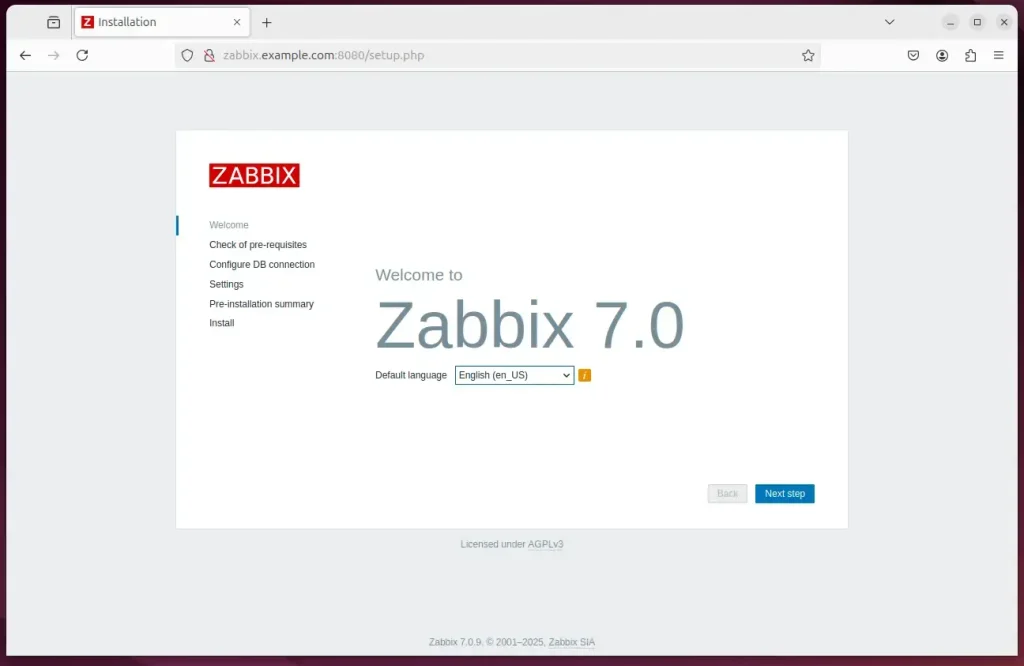
- On the prerequisites page, check that everything is marked OK, then continue.
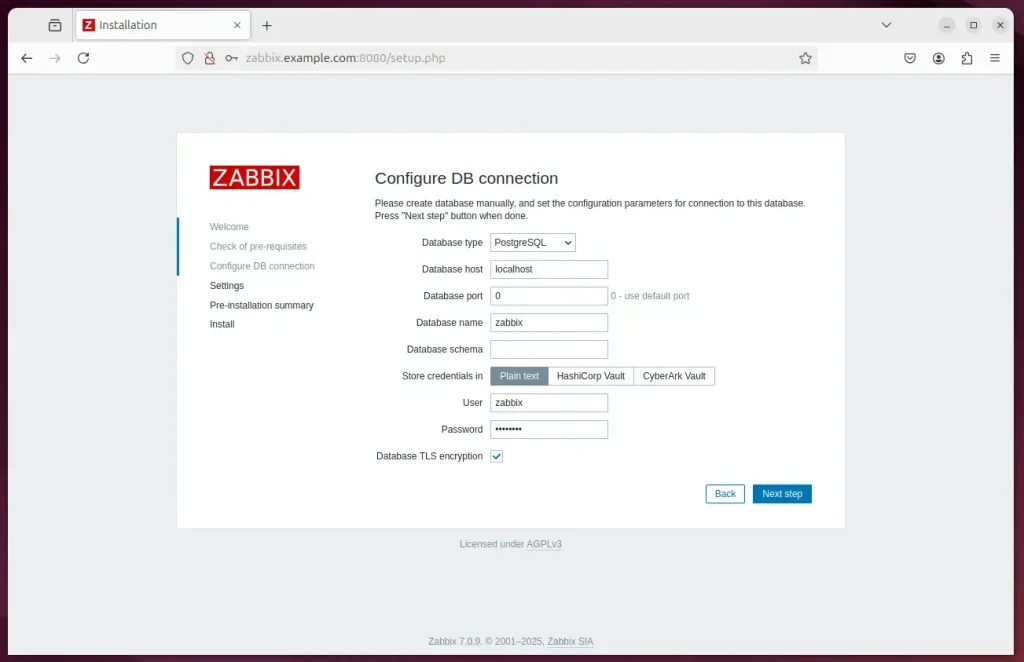
- On the database page, set the database type to PostgreSQL. Enter localhost as the host, zabbix as the database name and user, and the password you created earlier. Then continue.
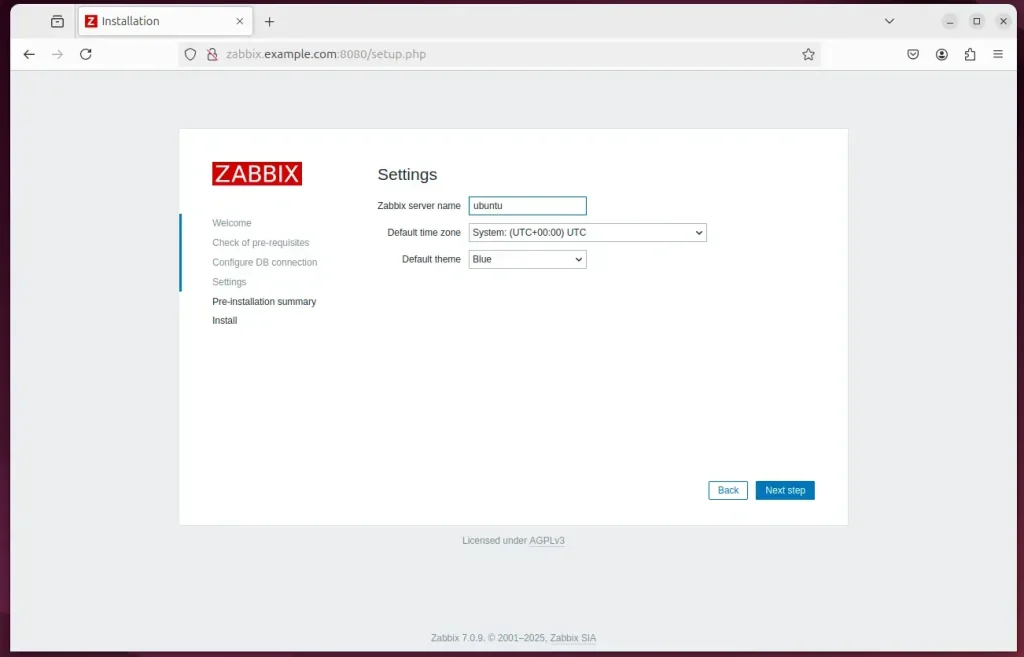
- Enter a name for your Zabbix server. You can also pick your time zone and theme here. Then continue.
- Review the summary and click through to finish the installation.
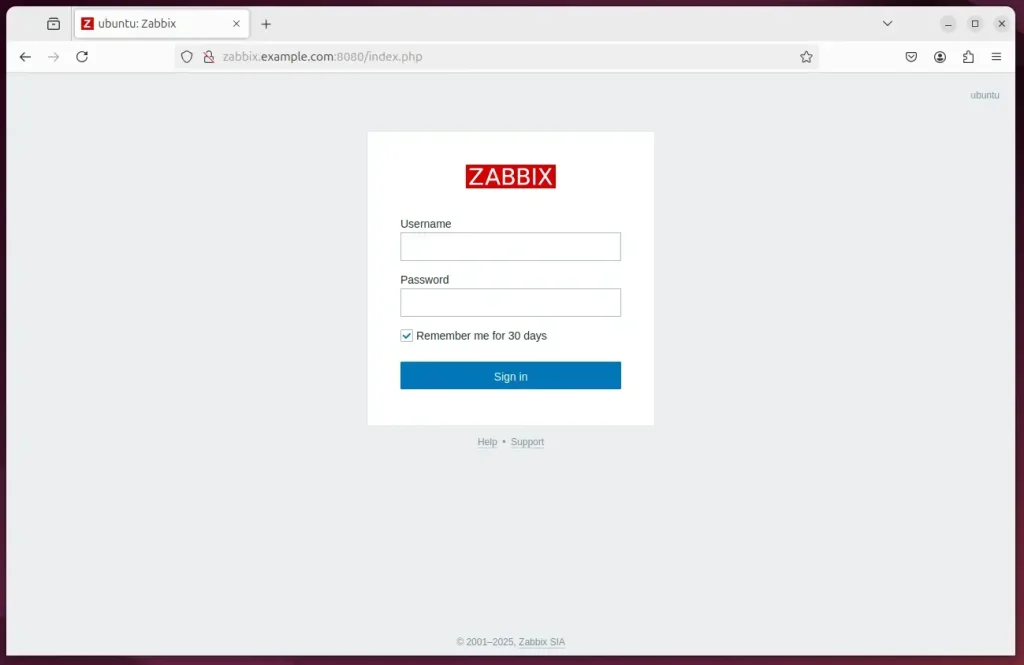
Zabbix is now installed and running. On the login page, sign in with the default credentials below.
- Username: Admin
- Password: zabbix
These defaults are public knowledge, so change the password right after you first sign in. In the Zabbix interface, open the Admin user under Users Users and set a new password there.
The deployment is complete.
Conclusion:
Pairing Zabbix with Apache on Ubuntu 24.04 gives you a capable monitoring stack. Here is what this guide covered:
- Open-source Solution: Zabbix is a robust, open-source tool for monitoring network services, servers, and hardware.
- Compatibility: Installing Zabbix on Ubuntu with Apache ensures compatibility and stability in your server environment.
- Database Support: The installation sets up PostgreSQL as the database backend for Zabbix.
- Package Installation: The essential Zabbix packages and dependencies, such as the Zabbix server, frontend, and agent, install easily from the repository.
- Configuration Simplicity: Configuration is straightforward, including creating a PostgreSQL user and database.
- Access to Monitoring: Once setup is complete, you can open the Zabbix web interface in your browser to monitor and manage your systems.
- Default Credentials: You can log in with the default credentials right after installation. Change the password straight away.
Following this Zabbix installation guide gives you working system monitoring on Ubuntu 24.04. Apache serves the web interface, so you can view performance metrics from any browser that can reach the server.
Have a question about this guide?
Answered by AI from this guide. Good questions may be added to this page — please don't include personal details.
Did this guide fix your problem?

About the Author
Richard
Tech Writer, IT Professional
Richard is a writer at Geek Rewind who turns complex IT tasks into clear, step-by-step guides. He draws on years of hands-on experience in system administration and enterprise IT operations, focusing on Windows, Linux and WordPress: the problems people actually run into, and the fixes that work. His server and WordPress guides come from systems he runs himself. Richard builds and maintains the platform behind Geek Rewind, from its Ubuntu servers and Nginx configuration to its custom WordPress plugins. Many new tutorials start with readers' questions, and he's always glad to answer them in the comments.
No comments yet — be the first to share your thoughts!