How to Install Froxlor with Apache on Ubuntu 24.04

Froxlor on Ubuntu 24.04 gives you a free control panel to manage web hosting tasks like websites, domain names, and email accounts from one dashboard. This setup lets you run multiple sites on a single server without using complex command-line tools.
Pairing Froxlor with the Apache web server on the Ubuntu 24.04 LTS release creates a stable hosting environment. The control panel runs on Bootstrap 5, which keeps the interface clear and simple to use on both desktop screens and mobile phones.
Install Apache with `sudo apt install apache2`, then MariaDB with `sudo apt install mariadb-server`. Create a Froxlor database user, and finally install PHP and its required modules using `sudo apt install php libapache2-mod-php php-intl php-mysql php-curl php-cli php-zip php-xml php-gd php-common php-mbstring php-xmlrpc php-bcmath php-json php-sqlite3 php-soap php-gmp php-gnupg php-zip php-ldap php-imap`.
Install Apache HTTP server on Ubuntu.
Apache is the web server required to host your Froxlor installation on Ubuntu 24.04. You can install the apache2 package directly from the default Ubuntu repositories using the terminal. This sets up the underlying web service that delivers your control panel pages to your browser.
To do that, open the Ubuntu terminal and run the commands below to install the Apache web server.
sudo apt update
sudo apt install apache2
Once Apache is installed, the commands below can start, stop, and enable the Apache web server to start automatically when your server boots up.
sudo systemctl stop apache2
sudo systemctl start apache2
sudo systemctl enable apache2
You can test that the Apache web server is running by opening your web browser and browsing to the server’s localhost or IP address.
http://localhost
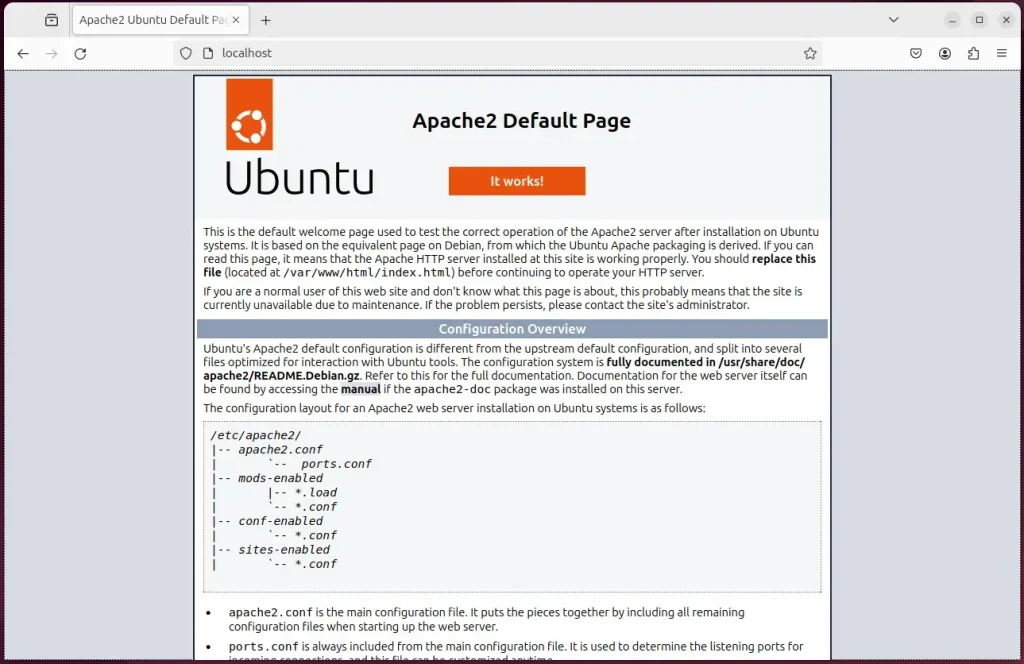
When you see the Apache2 Default Page, it means the Apache HTTP server is successfully installed.
Additional help on installing Apache on Ubuntu is in the link below.
Install the MariaDB database server on Ubuntu
MariaDB is the database server that Froxlor uses to store system configurations and user data. You install the mariadb-server package via the terminal to set up this database backend. The database service runs in the background to handle data requests from your control panel.
To install and use the MariaDB database server, use the instructions below.
Open the Ubuntu terminal and run the commands below to install the MariaDB database server.
sudo apt update
sudo apt install mariadb-server
Once the MariaDB database server is installed, use the commands below to stop, start, and enable the MariaDB server to start automatically when the server boots.
sudo systemctl stop mariadb
sudo systemctl start mariadb
sudo systemctl enable mariadb
Run the following commands to validate and test if the MariaDB database server is installed successfully.
sudo mariadb
Once you run the commands above, it will log you onto the MariaDB console and display a message similar to the one below.
Welcome to the MariaDB monitor.  Commands end with ; or g.
Your MariaDB connection id is 32
Server version: 10.11.2-MariaDB-1 Ubuntu 23.04

Copyright (c) 2000, 2018, Oracle, MariaDB Corporation Ab and others.

Type 'help;' or 'h' for help. Type 'c' to clear the current input statement.

MariaDB [(none)]>
The message tells you that the server is installed successfully.
Additional help on installing MariaDB.
- How to install MariaDB on Ubuntu Linux
- MariaDB without password prompt
Create a Froxlor database user
Creating a dedicated database user gives Froxlor secure access to its MariaDB storage without using the root account. You set up this user by running SQL commands inside the MariaDB command-line interface. This step links your database backend to the control panel safely.
As part of the setup, we will create a user account called froxroot.
But first, log on to the MariaDB database server:
sudo mariadb
Then run the commands below to complete the steps:
CREATE USER 'froxroot'@'localhost' IDENTIFIED BY 'CHANGEM3';
GRANT ALL PRIVILEGES ON *.* TO 'froxroot'@'localhost' WITH GRANT OPTION;
FLUSH PRIVILEGES;
exit
Ensure to replace ‘CHANGEM3‘ with your password.
Install PHP on Ubuntu Linux
PHP is the scripting language that runs the Froxlor control panel interface on your server. You install PHP alongside its required modules using the terminal to make sure the application code executes properly. Froxlor cannot load or function without these specific PHP packages installed.
Then, run the commands below to install the latest PHP version.
sudo apt install php libapache2-mod-php php-intl php-mysql php-curl php-cli php-zip php-xml php-gd php-common php-mbstring php-xmlrpc php-bcmath php-json php-sqlite3 php-soap php-gmp php-gnupg php-zip php-ldap php-imap
Additional help on installing PHP
Download Froxlor files
Downloading the latest Froxlor source files places the control panel application directly onto your web server directory. You grab the archived package from the official source, download it to your server, and extract the contents. This provides the actual web files that Apache serves to your browser.
Get the download link and download the archived package to your computer. Then, extract it.
Next, extract the content into the Froxlor folder in the Apache root directory.
The final step is to change the permissions. This will allow the Apache web server to interact safely with the files, ensuring a secure environment for your Froxlor installation.
Froxlor app functions correctly when Apache root folder permissions are changed. Run the following commands to set these permissions and allow Froxlor to operate properly on your Ubuntu 24.04 system.
cd /tmp
wget https://files.froxlor.org/releases/froxlor-latest.tar.gz
sudo tar xvfz froxlor-latest.tar.gz -C /var/www/
sudo chown -R www-data:www-data /var/www/froxlor/
Once you have completed all the above steps, continue configuring the Apache web server below to serve the Froxlor content.
Run the commands below to create an Apache virtual host file for Froxlor.
sudo nano /etc/apache2/sites-available/froxlor.conf
Then, copy and paste the content block below into the Apache server block.
<VirtualHost *:80>
  ServerName froxlor.example.com
  ServerAdmin admin@example.com
  DocumentRoot /var/www/froxlor

  <Directory /var/www/froxlor/>
       Options FollowSymlinks
       AllowOverride All
       Require all granted
  </Directory>

       ErrorLog ${APACHE_LOG_DIR}/error.log
       CustomLog ${APACHE_LOG_DIR}/access.log combined
</VirtualHost>
Save the file.
The Froxlor virtual host, enabled by running `sudo a2ensite froxlor.conf`, allows Apache to serve Froxlor's website. You must then restart the Apache web server by running `sudo systemctl restart apache2`.
sudo a2ensite froxlor.conf
sudo a2enmod rewrite
sudo systemctl restart apache2
Setup Let’s Encrypt SSL/TLS for Froxlor
Setting up a Let's Encrypt SSL certificate encrypts the traffic between your browser and the Froxlor control panel. You configure this certificate using Apache to force secure HTTPS connections. This protects your login details and system data from being intercepted over the network.
Please read the post below for additional resources on installing and creating Let’s Encrypt SSL certificates for Apache.
How to set up Let’s Encrypt SSL certificate for Apache on Ubuntu Linux
Once you have restarted the Apache web server, open your browser and browse to the server hostname or IP address defined in the Apache server block.
http://froxlor.example.com
The Froxlor installation wizard should appear.
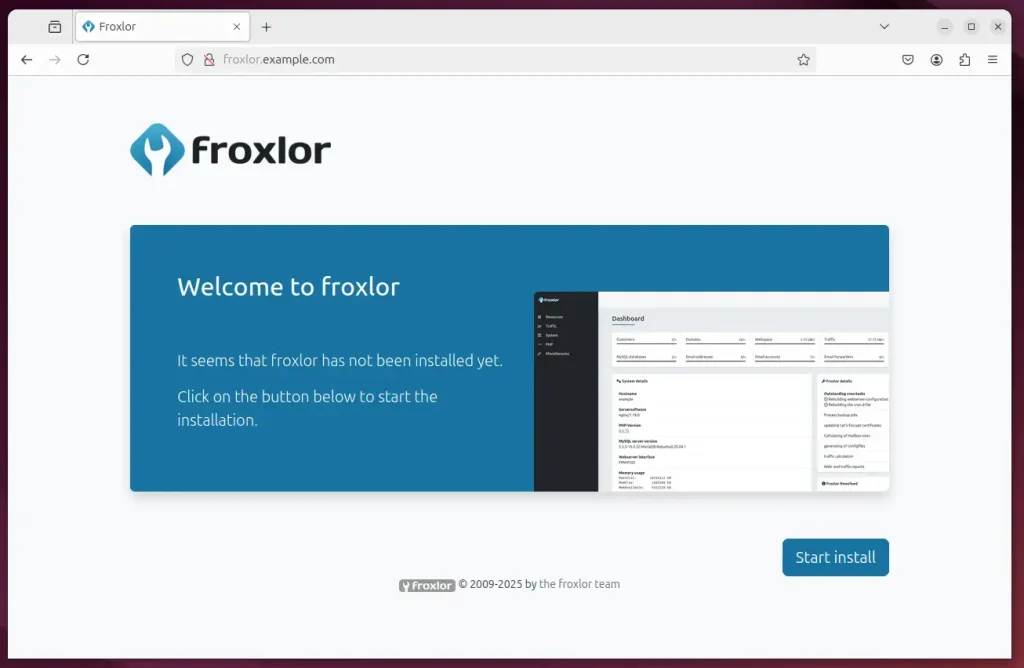
Click Start installation to begin.
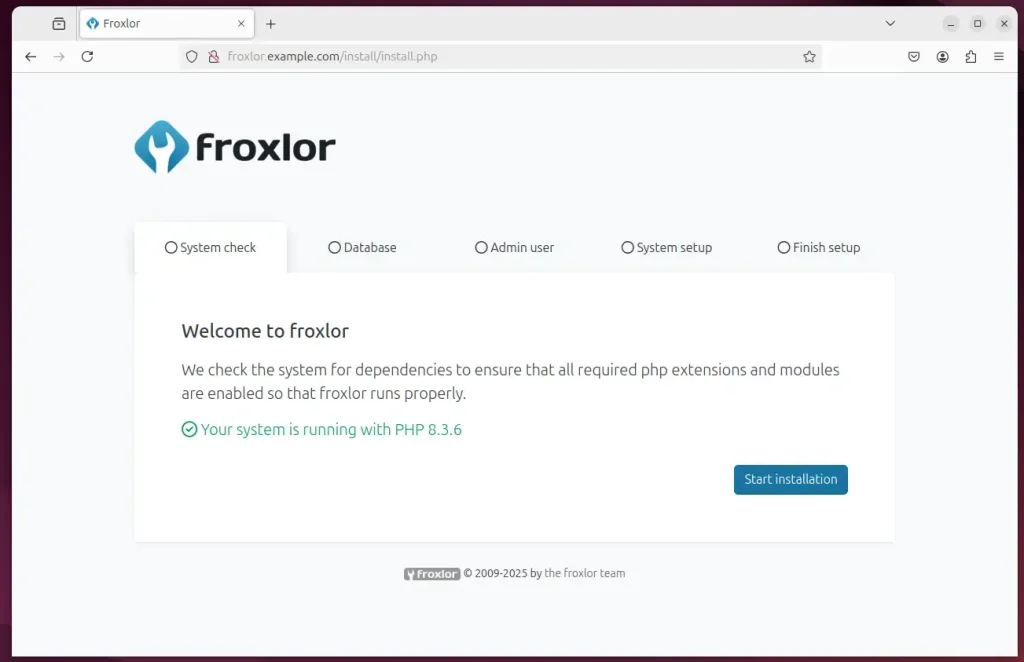
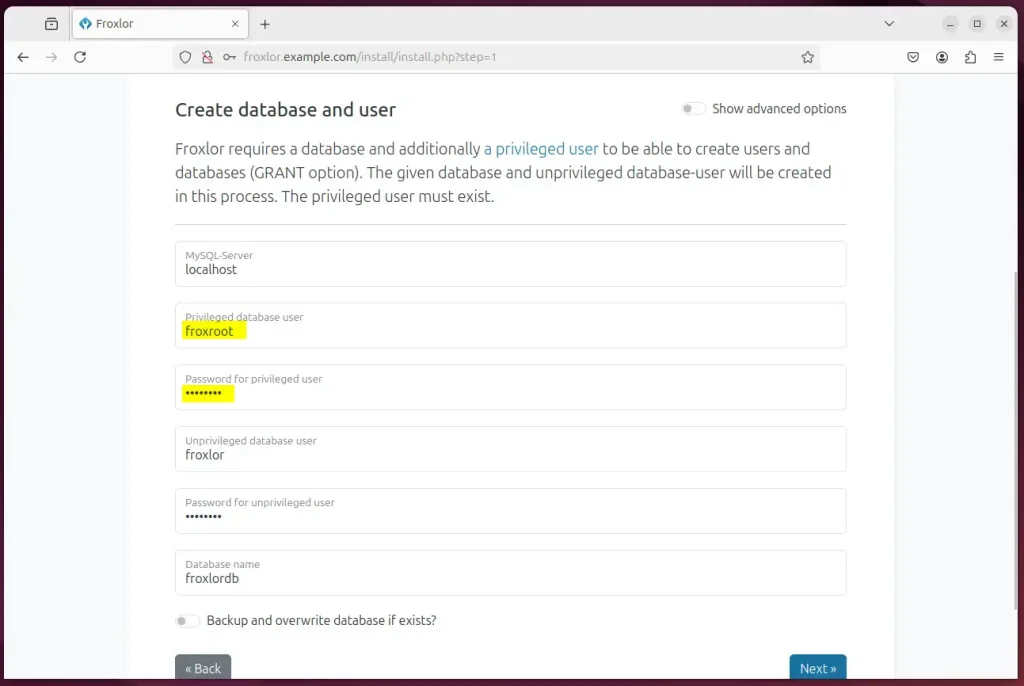
Type in the database name and password, then click Next.
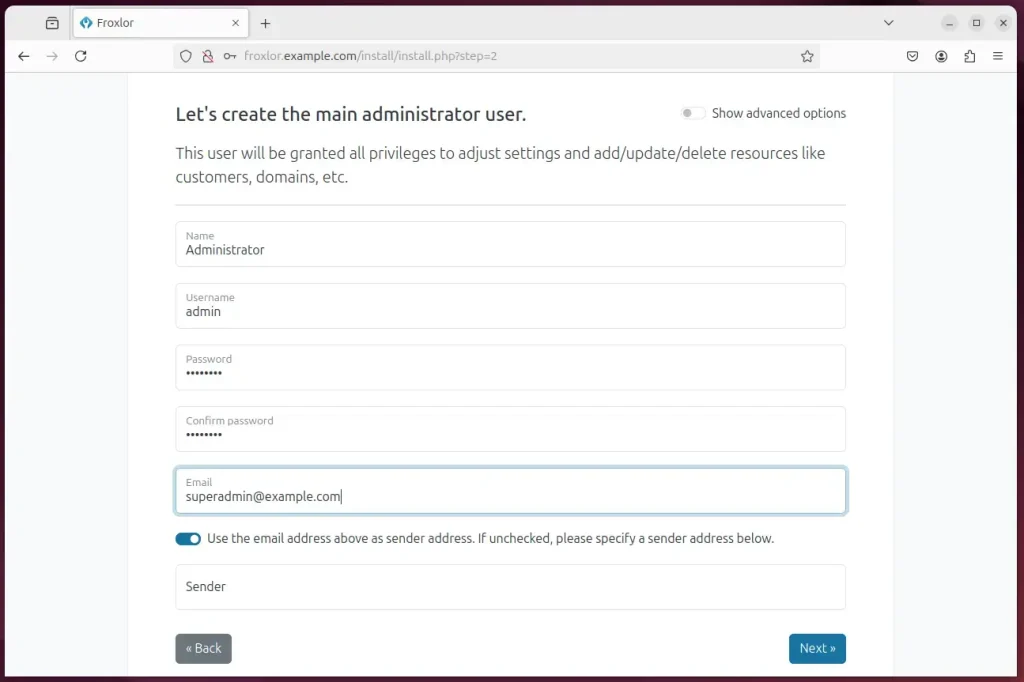
Create an admin account and continue.
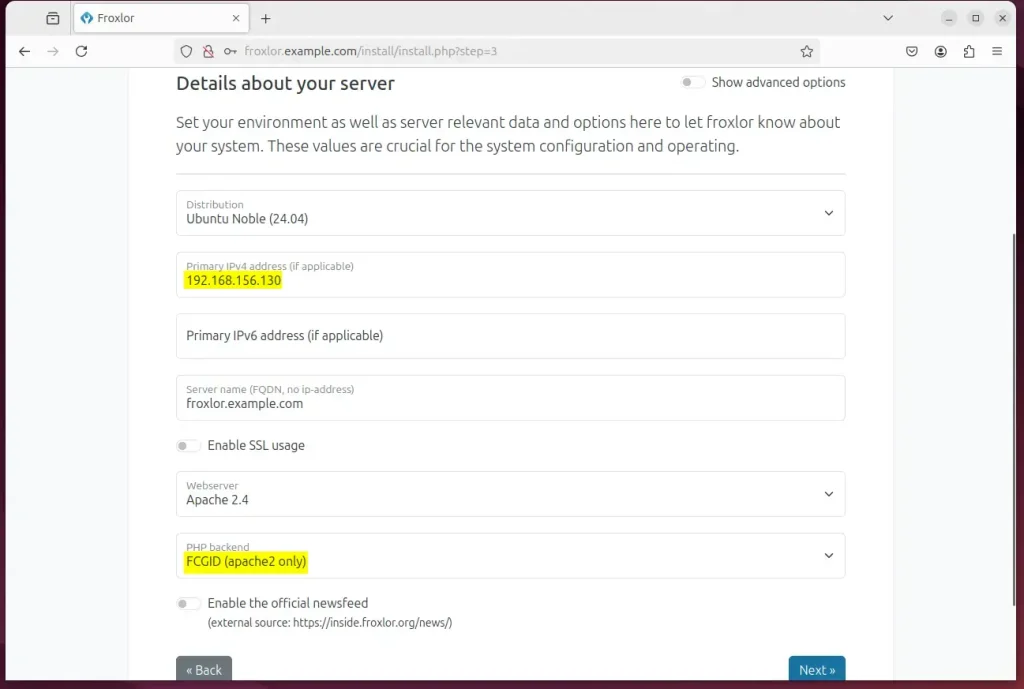
Type in the server primary IP address and choose the webserver and backend for Apache.
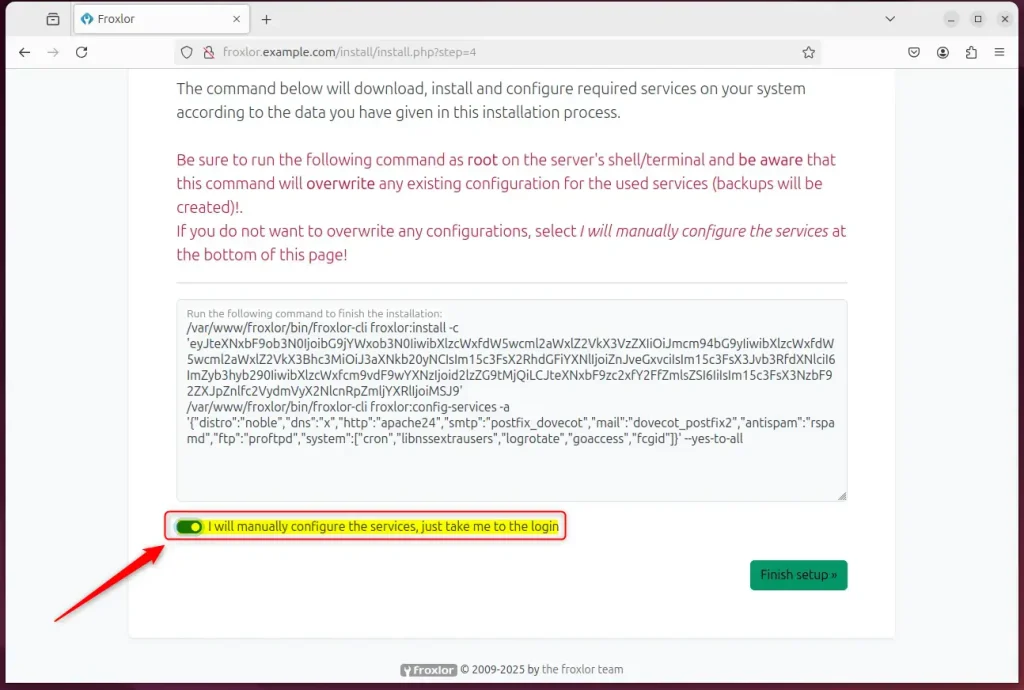
Choose to configure services yourself.
Login and begin configuring your services.
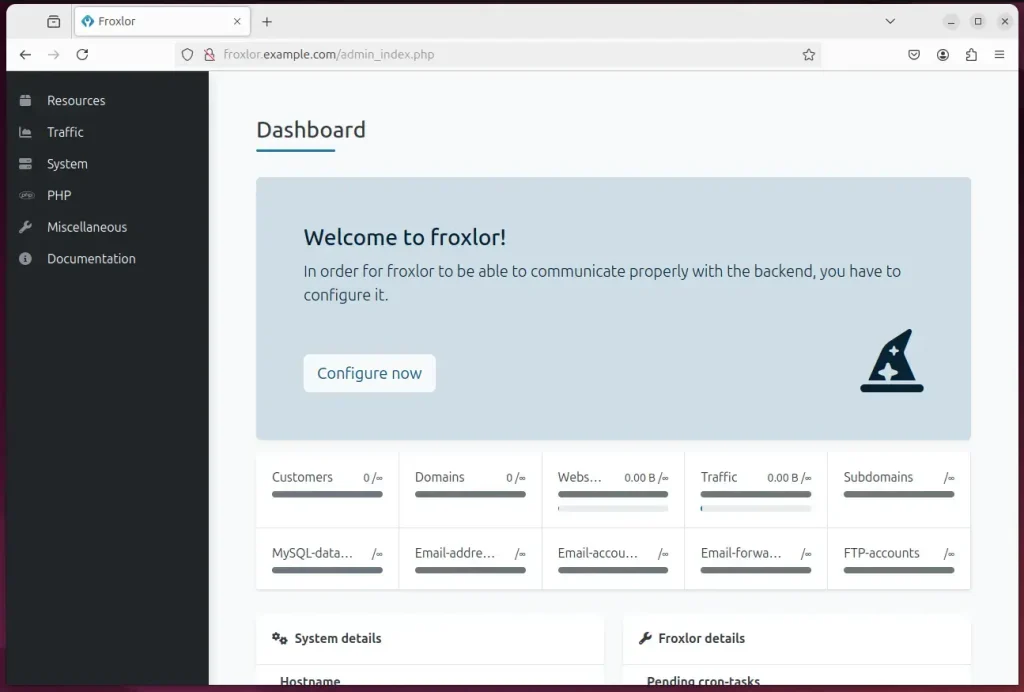
Froxlor should be ready to use.
That should do it!
Conclusion:
In summary, installing Froxlor on Ubuntu 24.04 with Apache is a streamlined process that involves several key components:
- Apache Installation: Set up the Apache HTTP server to host the Froxlor management panel.
- MariaDB Setup: Install and configure MariaDB as the database server for Froxlor.
- User and Database Creation: Create a dedicated database and user for Froxlor to manage its data securely.
- PHP Installation: Install PHP and the necessary modules for the application to function correctly.
- Froxlor Download and Configuration: Download Froxlor, extract its files, and configure Apache to serve the application.
- Virtual Host Configuration: Set up an Apache virtual host for Froxlor, enabling URL access.
- SSL/TLS Security: Implement SSL/TLS through Let’s Encrypt to secure your Froxlor installation.
Following these steps will give you a fully functional Froxlor server management panel that can significantly enhance your web hosting capability.
Was this guide helpful?

About the Author
Richard
Tech Writer, IT Professional
Richard, a writer for Geek Rewind, is a tech enthusiast who loves breaking down complex IT topics into simple, easy-to-understand ideas. With years of hands-on experience in system administration and enterprise IT operations, he’s developed a knack for offering practical tips and solutions. Richard aims to make technology more accessible and actionable. He's deeply committed to the Geek Rewind community, always ready to answer questions and engage in discussions.



No comments yet — be the first to share your thoughts!