How to Install Apache on Ubuntu: A Step-by-Step Guide


The Apache HTTP Server is a free program that lets you host websites on your computer or a web server. Ubuntu includes version 2.4.x in its default software sources, so you can install it in a few minutes from the terminal. You need an Ubuntu machine, a user account with sudo rights, and an internet connection. The steps below also cover starting the service, opening the firewall and setting up a virtual host.
Open a terminal and run sudo apt update, then sudo apt install apache2 to install the Apache HTTP Server on Ubuntu from its default software repositories. Apache starts automatically once installed, and you can confirm it is running with sudo systemctl status apache2 and looking for active (running).
Install Apache
To install Apache on Ubuntu, open your terminal and run the commands sudo apt update and sudo apt install apache2. The first command refreshes the list of available packages. The second downloads Apache and sets it up automatically from the default software repositories. Both commands need sudo, so expect a password prompt.
To install Apache, follow these steps:
- Open a terminal. On Ubuntu Desktop, press Ctrl+Alt+T. On a server, log in over SSH.
- Run the command below, and enter your password when asked. You should see a list of packages to install.
- Type Y and press Enter if the terminal asks you to confirm. The package files download and install, and the prompt returns when it finishes.
sudo apt update
sudo apt install apache2
Once Apache installs, it starts automatically. You do not need to restart the machine. The package also sets Apache to start on its own each time the server boots.
To verify the service runs, use the command below. It prints a status summary for the Apache service.
sudo systemctl status apache2
The command outputs lines similar to the one below. Look for a status of active (running). If the output opens in a pager and the prompt does not come back, press q to leave it. If the status shows failed or inactive, the usual cause is another program already using port 80. The log lines at the bottom of the output normally point to the problem.
● apache2.service - The Apache HTTP Server
     Loaded: loaded (/lib/systemd/system/apache2.service; enabled; vendor prese>
     Active: active (running) since Wed 2024-01-17 17:25:14 CST; 1min 22s ago
       Docs: https://httpd.apache.org/docs/2.4/
   Main PID: 3668 (apache2)
      Tasks: 55 (limit: 2261)
     Memory: 4.9M
        CPU: 51ms
     CGroup: /system.slice/apache2.service
             ├─3668 /usr/sbin/apache2 -k start
             ├─3670 /usr/sbin/apache2 -k start
             └─3671 /usr/sbin/apache2 -k start
...
Allow traffic on HTTP and HTTPS ports
Apache uses port 80 for normal web traffic (HTTP) and port 443 for encrypted traffic (HTTPS). If the machine is in the cloud, also check the provider's own firewall or security group, because it can block these ports even when the server allows them.
Run the command below to open the firewall, assuming UFW is active. UFW is often installed but switched off on a fresh Ubuntu system. If yours is off, nothing is blocked locally and you can skip the rule. On a remote server, make sure SSH is allowed before you turn UFW on, or you can lock yourself out. After the rule is added, enter the server's IP address in a browser. You should see the Apache default page.
sudo ufw allow 'Apache Full'
Setup Virtual Host
Virtual hosts let you run multiple websites on a single Ubuntu machine. Each domain name gets its own configuration file, which keeps its files and settings separate from the others.
Apache comes with one virtual host enabled by default. If domains point to your server's IP address, they match the default virtual host. For a single website, you do not need to create anything new. Upload its content to the default virtual host's directory and edit the host configuration file.
If you host a single website, upload its content in /var/www/html and edit the virtual host configuration found in the /etc/apache2/sites-enabled/000-default.conf file. Edit that file with sudo, because regular users cannot write to it.
To test a virtual host, run the command below to create a website folder called example.com in the /var/www/ directory. Use your own domain name in place of example.com if you have one. You need sudo to create folders in this location.
sudo mkdir -p /var/www/example.com/public_html
Then, create a basic HTML index file in the directory. The command below opens a new file in a text editor. Apache serves the index file when someone opens the site without naming a specific page.
sudo nano /var/www/example.com/public_html/index.html
Copy and paste the content below into the file. It is a minimal page, so you can tell at a glance that Apache serves the right site.
<!DOCTYPE html>
<html>
  <head>
    <title>Welcome to example.com</title>
  </head>
  <body>
    <h1>Success! example.com home page!</h1>
  </body>
</html>
Save the file and exit. In the nano editor, press Ctrl+O, then Enter to save, and Ctrl+X to exit. Other editors have their own save and quit keys.
Change the ownership of web content to the Apache user, named www-data, by running the command sudo chown -R www-data:www-data /var/www/html. This ensures Apache reads and writes files in its web directory. If you serve your site from the example.com folder, run the same command against that folder instead. Without the right ownership, you may get "403 Forbidden" or permission errors when the site loads.
sudo chown -R www-data: /var/www/example.com
Next, create a virtual host file for the website. Apache vhosts files reside in the /etc/apache2/sites-available directory. Give the file a name that matches your domain and end it in .conf. Apache's enable command looks for files with that ending.
sudo nano /etc/apache2/sites-available/example.com.conf
A basic vhost file resembles the one below. Change the ServerName and DocumentRoot values to match your own domain and the folder you created. A typo in either one is the most common reason a new virtual host shows the wrong site.
<VirtualHost *:80>
    ServerName example.com
    ServerAlias www.example.com
    ServerAdmin webmaster@example.com
    DocumentRoot /var/www/example.com/public_html

    <Directory /var/www/example.com/public_html>
        Options -Indexes +FollowSymLinks
        AllowOverride All
    </Directory>

    ErrorLog ${APACHE_LOG_DIR}/example.com-error.log
    CustomLog ${APACHE_LOG_DIR}/example.com-access.log combined
</VirtualHost>
Save the file. Nothing changes on the live site yet, because Apache ignores the file until you enable it.
Next, run the command below to enable the configuration. The command usually prints a reminder that Apache must reload before the change takes effect. Follow that reminder. If you want to undo this later, disable the site the same way and reload Apache again.
sudo a2ensite example.com
Test the config and ensure nothing is wrong. A good result ends with Syntax OK. A warning about the server's fully qualified domain name is common and does not stop Apache from working. If you see an error, the message names the file and line number to fix. Correct it and run the test again before you reload Apache.
sudo apachectl configtest
sudo systemctl restart apache2
When configured correctly, you see a test page when browsing the website. The domain must point to your server's IP address through DNS. For a local test, you can map the name to the machine in your computer's hosts file instead. If you still see the Apache default page, recheck the ServerName and DocumentRoot values, and confirm the site was enabled and Apache reloaded.
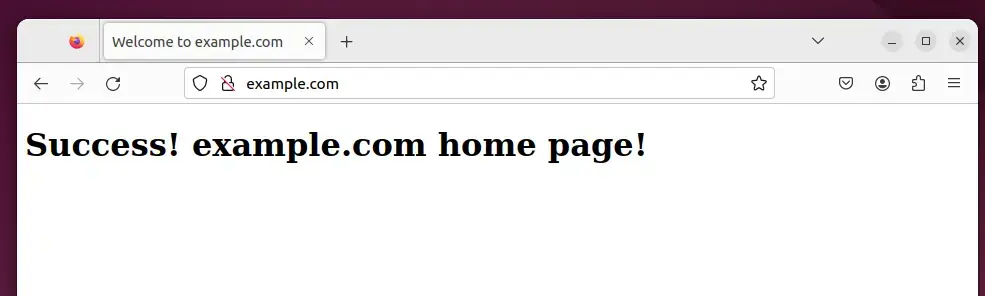
With the service running and your virtual host configured, build out your web projects. To add another website, repeat the folder, index file, vhost file and enable steps with a new domain name.
Conclusion:
- Apache is a versatile and widely used open-source web server providing powerful features for web applications.
- Installing Apache on Ubuntu Linux is straightforward using the package manager, making it a convenient web hosting option.
- Configuring virtual hosts allows running multiple websites on a single server, each with separate content and domain names.
Have a question about this guide?
Answered by AI from this guide. Good questions may be added to this page — please don't include personal details.
Did this guide fix your problem?

About the Author
Richard
Tech Writer, IT Professional
Richard is a writer at Geek Rewind who turns complex IT tasks into clear, step-by-step guides. He draws on years of hands-on experience in system administration and enterprise IT operations, focusing on Windows, Linux and WordPress: the problems people actually run into, and the fixes that work. His server and WordPress guides come from systems he runs himself. Richard builds and maintains the platform behind Geek Rewind, from its Ubuntu servers and Nginx configuration to its custom WordPress plugins. Many new tutorials start with readers' questions, and he's always glad to answer them in the comments.
[…] How to install Apache on Ubuntu […]
[…] management system (CMS), can be installed on a web server to create and manage dynamic websites. Apache, a widely trusted web server software, and Ubuntu, a widespread and reliable Linux distribution, […]
[…] How to install Apache on Ubuntu […]
[…] How to install Apache on Ubuntu […]
[…] How to install Apache on Ubuntu […]
[…] How to install Apache on Ubuntu […]
[…] How to install Apache on Ubuntu […]
[…] How to install Apache on Ubuntu […]
[…] How to install Apache on Ubuntu […]
[…] How to install Apache on Ubuntu […]
[…] How to install Apache on Ubuntu […]
[…] How to install Apache on Ubuntu […]
[…] How to install Apache on Ubuntu […]
[…] How to install Apache on Ubuntu […]
[…] How to install Apache on Ubuntu […]
[…] How to install Apache on Ubuntu […]
[…] How to install Apache on Ubuntu […]
[…] How to install Apache on Ubuntu […]
[…] How to install Apache on Ubuntu […]
[…] How to install Apache on Ubuntu […]
[…] How to install Apache on Ubuntu […]
[…] How to install Apache on Ubuntu […]
[…] How to install Apache on Ubuntu […]
[…] How to install Apache on Ubuntu […]
[…] How to install Apache on Ubuntu […]
[…] How to install Apache on Ubuntu […]
[…] How to install Apache on Ubuntu […]
[…] How to install Apache on Ubuntu […]
[…] How to install Apache on Ubuntu […]
[…] How to install Apache on Ubuntu […]
[…] How to install Apache on Ubuntu […]
[…] How to install Apache on Ubuntu […]
[…] How to install Apache on Ubuntu […]
[…] How to install Apache on Ubuntu […]
[…] How to install Apache on Ubuntu […]
[…] How to install Apache on Ubuntu […]
[…] How to install Apache on Ubuntu […]
[…] How to install Apache on Ubuntu […]
[…] How to install Apache on Ubuntu […]
[…] How to install Apache on Ubuntu […]
[…] How to install Apache on Ubuntu […]
[…] How to install Apache on Ubuntu […]
[…] How to install Apache on Ubuntu […]
[…] How to install Apache on Ubuntu […]
[…] How to install Apache on Ubuntu […]
[…] How to install Apache on Ubuntu […]
[…] How to install Apache on Ubuntu […]
[…] How to install Apache on Ubuntu […]
[…] How to install Apache on Ubuntu […]
[…] How to install Apache on Ubuntu […]
[…] How to install Apache on Ubuntu […]
[…] How to install Apache on Ubuntu […]
[…] How to install Apache on Ubuntu […]
[…] Install Apache HTTP server on Ubuntu […]