How to install phpBB with Apache on Ubuntu 24.04

Installing phpBB with Apache on Ubuntu 24.04 gives you a self-hosted online discussion forum powered by free message board software. phpBB handles user posts and topics, while the Apache web server displays those pages to visitors.
Ubuntu 24.04 LTS (Long Term Support) provides the operating system foundation with official security updates for five years. This setup takes about 20 minutes to complete from start to finish.
Install Apache, MariaDB, and PHP using `apt install apache2 mariadb-server php libapache2-mod-php`. Create a database and user for phpBB in MariaDB. Download phpBB, extract it to your web server’s document root, and follow the on-screen installer.
Install Apache HTTP server on Ubuntu
To install Apache HTTP server on Ubuntu 24.04 for your phpBB forum, open your terminal and run the standard package manager commands. You need to update your local package list and then install the apache2 package so your server can serve web pages.
To do that, open the Ubuntu terminal and run the commands below to install the Apache web server.
sudo apt update
sudo apt install apache2
Once Apache is installed, the commands below can start, stop, and enable the Apache web server to start automatically when your server boots up.
sudo systemctl stop apache2
sudo systemctl start apache2
sudo systemctl enable apache2
You can test that the Apache web server is running by opening your web browser and browsing to the server’s localhost or IP address.
http://localhost
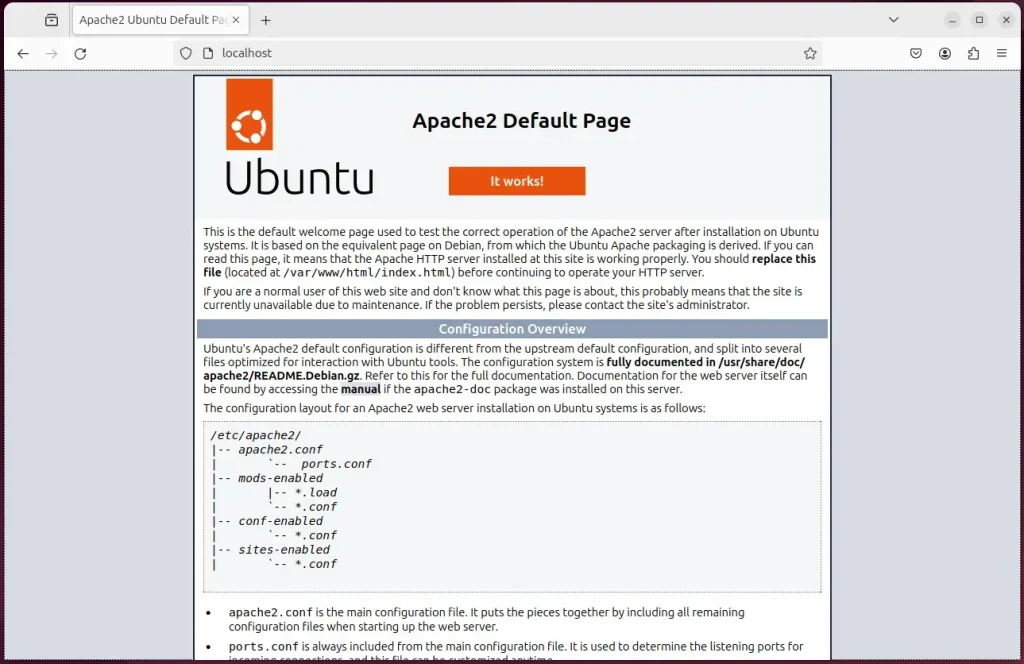
When you see the Apache2 Default Page, it means the Apache HTTP server is successfully installed.
Additional help on installing Apache on Ubuntu is in the link below.
Install the MariaDB database server on Ubuntu
To install the MariaDB database server on Ubuntu 24.04 for your forum data, use the terminal to fetch and install the mariadb-server package. MariaDB stores all your user accounts, posts, and settings securely in the background.
To install and use the MariaDB database server, use the instructions below.
Open the Ubuntu terminal and run the commands below to install the MariaDB database server.
sudo apt update
sudo apt install mariadb-server
Once the MariaDB database server is installed, use the commands below to stop, start, and enable the MariaDB server to start automatically when the server boots.
sudo systemctl stop mariadb
sudo systemctl start mariadb
sudo systemctl enable mariadb
Run the following commands to validate and test if the MariaDB database server is installed successfully.
sudo mariadb
Once you run the commands above, it will log you onto the MariaDB console and display a message similar to the one below.
Welcome to the MariaDB monitor.  Commands end with ; or g.
Your MariaDB connection id is 32
Server version: 10.11.2-MariaDB-1 Ubuntu 23.04

Copyright (c) 2000, 2018, Oracle, MariaDB Corporation Ab and others.

Type 'help;' or 'h' for help. Type 'c' to clear the current input statement.

MariaDB [(none)]>
The message tells you that the server is installed successfully.
Additional help on installing MariaDB.
- How to install MariaDB on Ubuntu Linux
- MariaDB without password prompt
Create a phpBB database
To create a phpBB database, log into the MariaDB command line and run SQL queries to set up a dedicated database and a user account with full permissions. This gives your forum the required access to read and write data safely.
As part of the setup, we will create a phpbbdb database and a user account called phpbbdbuser.
Finally, we'll grant the phpbbdbuser full access to the phpbbdb database.
All the database steps above can be done using the commands below:
But first, log on to the MariaDB database server:
sudo mariadb
Then run the commands below to complete the steps:
CREATE DATABASE phpbbdb CHARACTER SET utf8mb4 COLLATE utf8mb4_general_ci;
CREATE USER phpbbdbuser@localhost IDENTIFIED BY 'type_your_password_here';
GRANT ALL ON phpbbdb.* TO phpbbdbuser@localhost WITH GRANT OPTION;
FLUSH PRIVILEGES;
exit
Install PHP on Ubuntu Linux
To install PHP on Ubuntu 24.04 for your phpBB forum, use the terminal to install PHP along with the required modules like libapache2-mod-php. These packages allow your Apache web server to process the PHP code that runs your forum.
Then, run the commands below to install the latest PHP version.
sudo apt install php libapache2-mod-php php-intl php-mysql php-curl php-cli php-zip php-xml php-gd php-common php-mbstring php-xmlrpc php-bcmath php-json php-sqlite3 php-soap php-zip
Additional help on installing PHP
Download phpBB files
To download phpBB files on Ubuntu 24.04, grab the latest archive from the official site into your temporary directory, unpack it, and move the folder into your web server root. This places the forum software where Apache can load it.
To always install the latest version, check the download page for phpBB. If a new version is available, replace the version number in the link below.
First, navigate to the /tmp/ directory and download phpBB files. After unzipping the file, move the content into the phpBB folder in the Apache root directory.
The final step is to change the permissions. This will allow the Apache web server to interact safely with the files, ensuring a secure environment for your phpBB installation.
cd /tmp/
wget https://download.phpbb.com/pub/release/3.3/3.3.13/phpBB-3.3.13.zip
unzip phpBB-3.3.13.zip
sudo mv phpBB3 /var/www/phpbb
sudo chown -R www-data:www-data /var/www/phpbb
Once you have completed all the above steps, continue configuring the Apache web server below to serve the phpBB content.
Run the commands below to create an Apache virtual host file for phpBB.
sudo nano /etc/apache2/sites-available/phpbb.conf
Then, copy and paste the content block below into the Apache server block.
<VirtualHost *:80>
  ServerName phpbb.example.com
  ServerAlias www.phpbb.example.com
  ServerAdmin admin@example.com
  DocumentRoot /var/www/phpbb

  <Directory /var/www/phpbb/>
       Options FollowSymlinks
       AllowOverride All
       Require all granted
  </Directory>

       ErrorLog ${APACHE_LOG_DIR}/error.log
       CustomLog ${APACHE_LOG_DIR}/access.log combined
</VirtualHost>
Save the file.
The Apache virtual host for phpBB becomes active after running two specific commands. These commands tell Apache to start using the new configuration for your phpBB site and then restart the Apache web server to apply these changes. This ensures your phpBB forum is accessible on your Ubuntu 24.04 system.
sudo a2ensite phpbb.conf
sudo a2enmod rewrite
sudo systemctl restart apache2
Setup Let’s Encrypt SSL/TLS for phpBB
To setup Let's Encrypt SSL/TLS for phpBB on Ubuntu 24.04, install Certbot and configure your Apache web server to force secure HTTPS connections. This encrypts all traffic between your visitors and your forum to protect passwords and data.
Please read the post below for additional resources on installing and creating Let’s Encrypt SSL certificates for Apache.
How to set up Let’s Encrypt SSL certificate for Apache on Ubuntu Linux
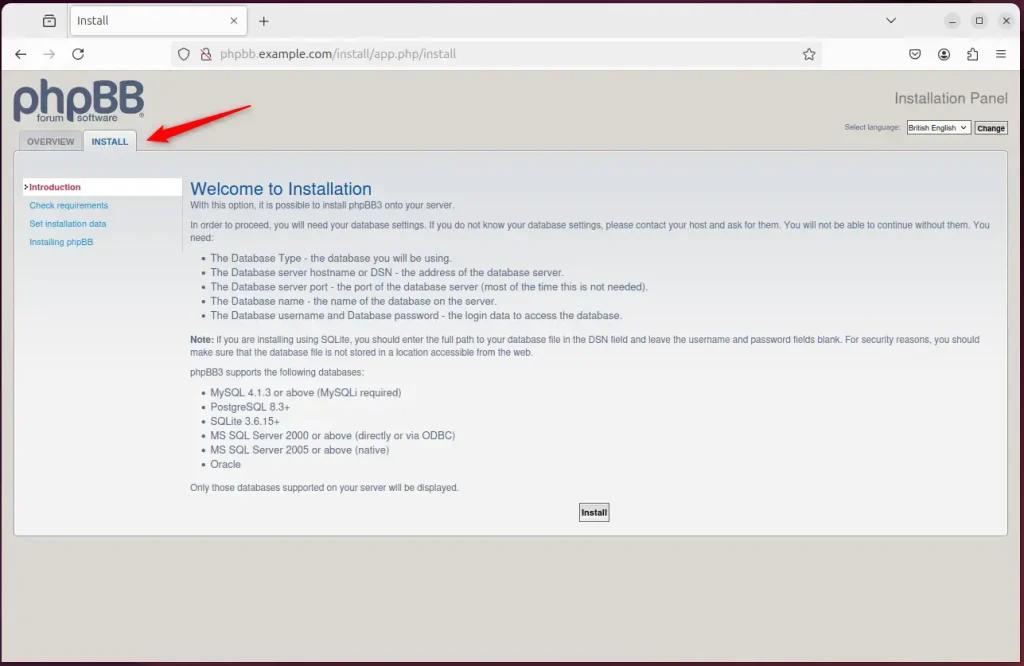
Once you have restarted the Apache web server, open your browser and browse to the server hostname or IP address defined in the Apache server block.
http://phpbb.example.com/install/
A phpBB installation wizard page should appear. Select the "INSTALL" tab and click the Install button to begin.
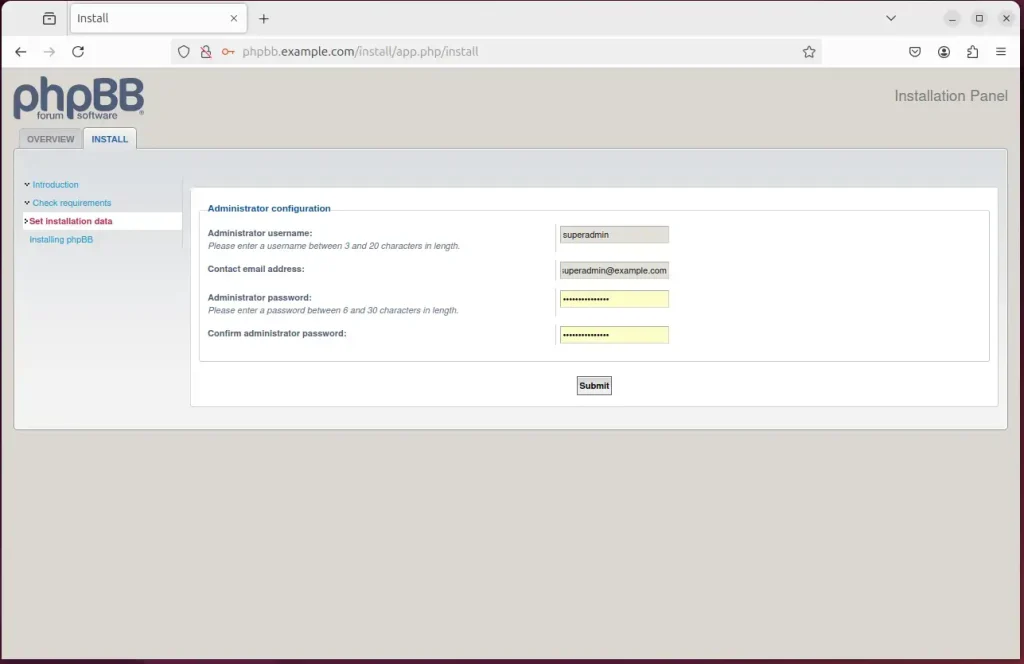
Create an admin account and continue.
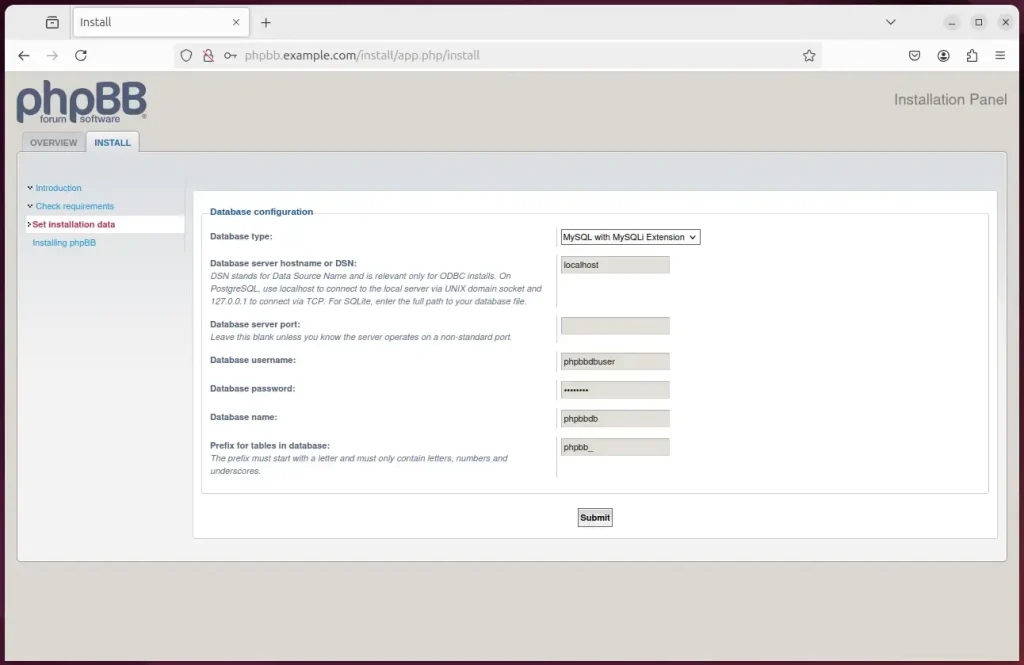
Type in the database name and password created above.
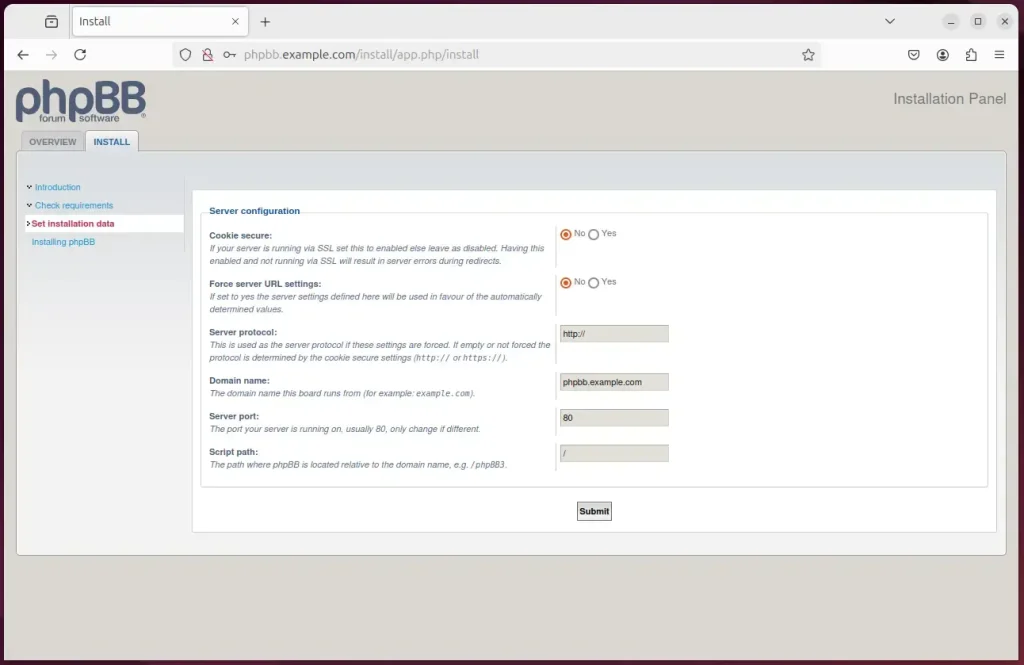
Select the server settings if using SSL.
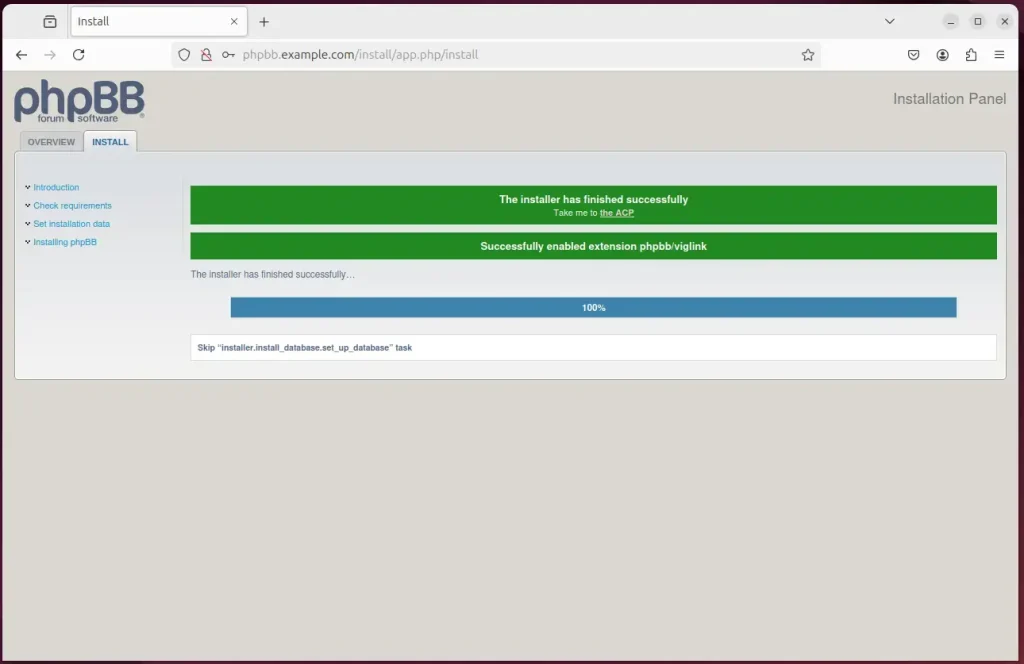
After all the steps above, the installation should be finished.
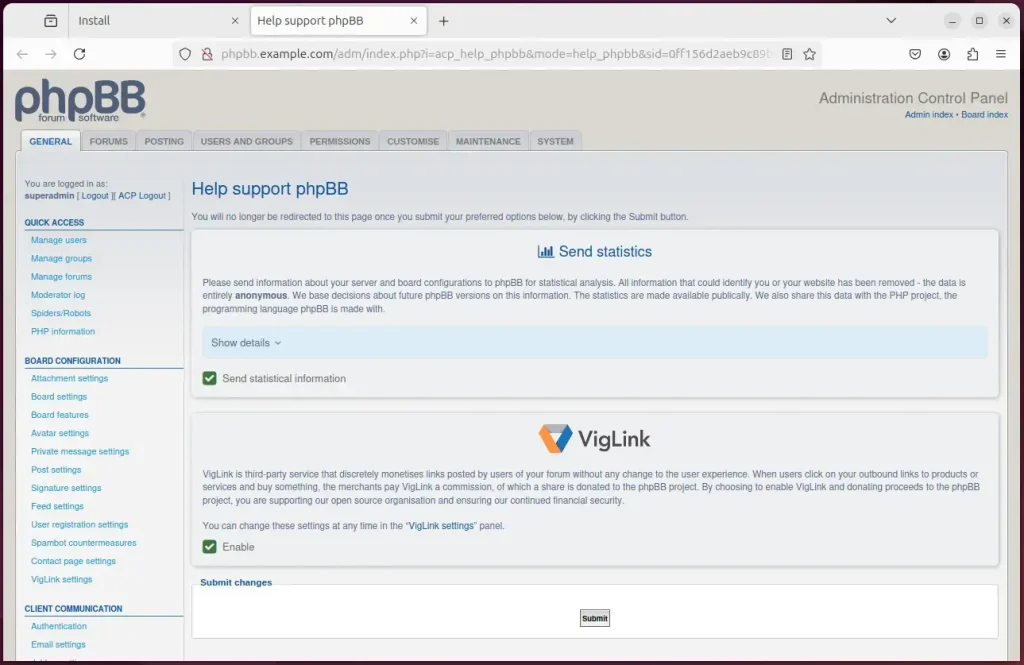
You can now start using your new phpBB forum board.
That should do it!
Conclusion:
Installing phpBB with Apache on Ubuntu can be straightforward if you follow the steps methodically. A well-configured phpBB forum allows you to build a vibrant community. Here are some key takeaways:
- Robust Setup: Combining Apache and phpBB provides a stable and flexible forum solution.
- Database Management: Using MariaDB as your database server ensures efficient data handling and storage.
- Easy Installation: The step-by-step instructions simplify the installation process, even for beginners.
- SSL Security: Securing your phpBB forum with Let’s Encrypt enhances user trust and data protection.
- Community Engagement: A well-functioning forum promotes interaction and knowledge sharing among users.
With your phpBB forum up and running, you can foster an engaging online community!
Was this guide helpful?

About the Author
Richard
Tech Writer, IT Professional
Richard, a writer for Geek Rewind, is a tech enthusiast who loves breaking down complex IT topics into simple, easy-to-understand ideas. With years of hands-on experience in system administration and enterprise IT operations, he’s developed a knack for offering practical tips and solutions. Richard aims to make technology more accessible and actionable. He's deeply committed to the Geek Rewind community, always ready to answer questions and engage in discussions.



No comments yet — be the first to share your thoughts!