How to Install FreePBX 17 on Ubuntu 24.04

FreePBX 17 on Ubuntu 24.04 sets up a complete phone system for your business using a web browser to manage calls, extensions, and voicemail. FreePBX is a free control panel that runs on top of Asterisk, the software that handles phone lines behind the scenes.
Version 17 brings a clean dashboard designed specifically to work with Ubuntu 24.04, a stable server operating system. You get a simple way to build a phone network from scratch without needing any telecom experience.
Install Apache, MariaDB, and PHP via the Ubuntu terminal using `apt install`. Then, download the FreePBX 17 Distro ISO and follow the on-screen installer prompts.
Install Asterisk PBX
Asterisk PBX is the core software engine required to handle phone calls before you install FreePBX on Ubuntu 24.04. You must download and set up Asterisk as the foundational service on your system before proceeding with the rest of the FreePBX components.
The first thing you’ll need to do is install the Asterisk PBX system. The post below shows you how to do that.
How to install Asterisk PBX on Ubuntu Linux
After installing Asterisk, proceed to the following steps to install and configure FreePBX.
Install Apache
Apache acts as the web server that serves the FreePBX management interface to your browser on Ubuntu 24.04. You need to install the Apache web server package using the terminal so the FreePBX dashboard can load correctly.
To do that, open the Ubuntu terminal and run the commands below to install the Apache web server.
sudo apt update
sudo apt install apache2
After installing Apache, you can use the following commands to start, stop, and enable the Apache web server to start when your server boots up automatically.
sudo systemctl stop apache2
sudo systemctl start apache2
sudo systemctl enable apache2
You can verify that the Apache web server is operational by opening your web browser and navigating to the server’s localhost or IP address.

When you see the Apache2 Default Page, it means the Apache HTTP server is successfully installed.
Additional help on installing Apache on Ubuntu is in the link below.
Install the MariaDB database server on Ubuntu
MariaDB provides the relational database management system required to store call logs, user accounts, and configuration data for FreePBX on Ubuntu 24.04. Setting up MariaDB ensures your phone system has a reliable backend database to save all system settings.
To install and use the MariaDB database server, use the instructions below.
Open the Ubuntu terminal and run the commands below to install the MariaDB database server.
sudo apt update
sudo apt install mariadb-server
After installing the MariaDB database server, use the commands below to stop, start, and enable the server to start automatically on boot.
sudo systemctl stop mariadb
sudo systemctl start mariadb
sudo systemctl enable mariadb
Run the following commands to validate and test if the MariaDB database server is installed successfully.
sudo mariadb
After executing the commands, you will be logged into the MariaDB console, displaying a message similar to the one below.
Welcome to the MariaDB monitor.  Commands end with ; or g.
Your MariaDB connection id is 32
Server version: 10.11.2-MariaDB-1 Ubuntu 23.04

Copyright (c) 2000, 2018, Oracle, MariaDB Corporation Ab and others.

Type 'help;' or 'h' for help. Type 'c' to clear the current input statement.

MariaDB [(none)]>
The message tells you that the server is installed successfully.
To allow the root user to use mysql_native_password, use the steps below.
First, log on to the database server.
sudo mariadb
Then, update the root account to use mysql_native_password.
ALTER USER 'root'@'localhost' IDENTIFIED VIA mysql_native_password USING PASSWORD('TypeRootPasswordHere');Finally, save your changes and exit.
FLUSH PRIVILEGES;
exit;
Install PHP and Related Modules
PHP is the programming language that runs the FreePBX application logic and web interface on Ubuntu 24.04. You must install PHP along with the required extension modules to prevent application errors and ensure the software functions properly.
Then, run the commands below to install the latest PHP version.
sudo apt install php libapache2-mod-php php-intl php-mysql php-curl php-cli php-zip php-xml php-gd php-common php-mbstring php-xmlrpc php-bcmath php-json php-sqlite3 php-soap php-zip php-ldap php-imap php-cas
Additional help on installing PHP
Install Nodejs
Node.js runs background JavaScript tasks and real-time components that modern versions of FreePBX rely on for module management. Adding the software repository and installing Node.js on Ubuntu 24.04 enables these critical backend features.
sudo apt install curl dirmngr apt-transport-https lsb-release ca-certificates
curl -sL https://deb.nodesource.com/setup_22.x | sudo bash
Then, run the commands below to install Nodejs.
sudo apt-get install gcc g++ make
sudo apt install nodejs
Install FreePBX
FreePBX is the graphical management interface that lets you configure your Asterisk phone system easily through a web browser. Downloading and extracting the final software package completes the setup process on your Ubuntu 24.04 server.
Run the command below to download and extract FreePBX files.
cd /tmp
wget http://mirror.freepbx.org/modules/packages/freepbx/freepbx-17.0-latest.tgz
tar xfz freepbx-17.0-latest.tgz
Then, please change it to the extracted folder and install FreePBX.
cd freepbx
sudo ./start_asterisk start
sudo ./install -n --dbuser root --dbpass TypeDatabaseRootPasswordHere
If you get an error,
The Asterisk configuration file, `/etc/asterisk/asterisk.conf`, was not found or was missing its "directories" section, preventing the FreePBX 17 installation on Ubuntu 24.04. This error means the system cannot locate necessary directories for Asterisk to run, stopping the installation process.
run the commands below to resolve:
sudo cp /etc/asterisk/asterisk.conf.old /etc/asterisk/asterisk.conf
If you also get an error:
'asterisk' user…bash: line 0: cd: /home/asterisk/: No such file or directory
Run the commands below to resolve:
sudo mkhomedir_helper asterisk
When you have resolved all the errors above, try the installation again.
After installing, you should get a similar message as shown below:
Finished generating default configurations
You have successfully installed FreePBX
Next, change Apache service runner from www-data to Asterisk user. To do that, run the command below to open the [envvars] file.
sudo nano /etc/apache2/envvars
Then, change the highlighted lines and replace the user with Asterisk.
# Since there is no sane way to get the parsed apache2 config in scripts, some
# settings are defined via environment variables and then used in apache2ctl,
# /etc/init.d/apache2, /etc/logrotate.d/apache2, etc.
export APACHE_RUN_USER=asterisk
export APACHE_RUN_GROUP=asterisk
Save the file and exit.
Also, add the www-data user to the asterisk group and restart the Apache service.
sudo a2enmod rewrite
sudo usermod -aG www-data asterisk
sudo systemctl restart apache2
Now, go and access the FreePBX portal. If you get a blank page, restart your computer and try again.
http://localhost/admin
Create your administrator account.
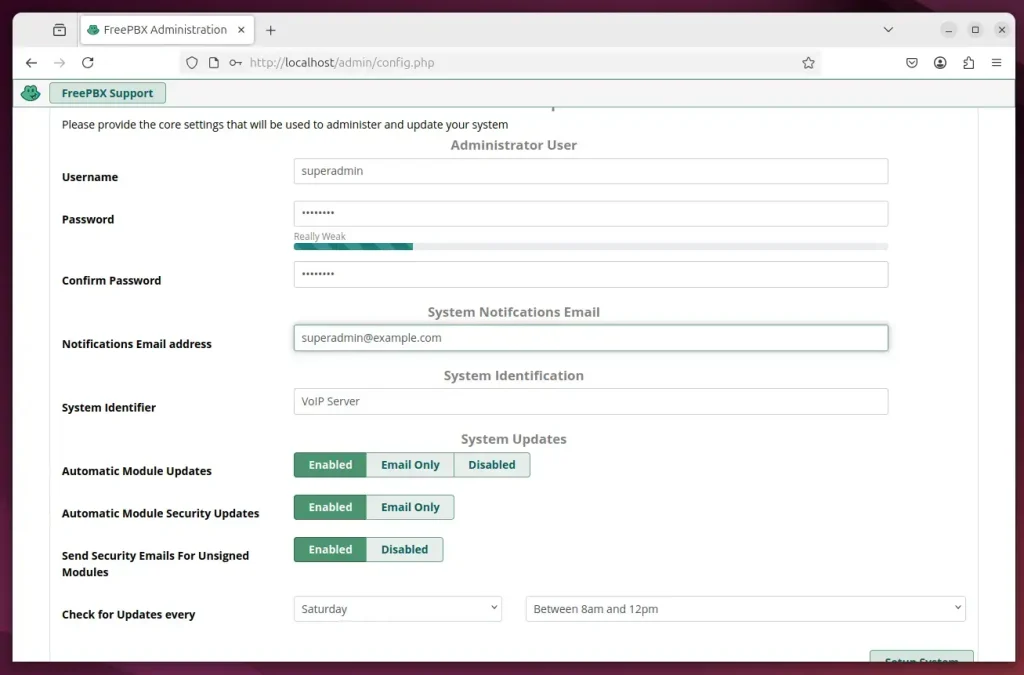
Setup, login, and start building your PBX
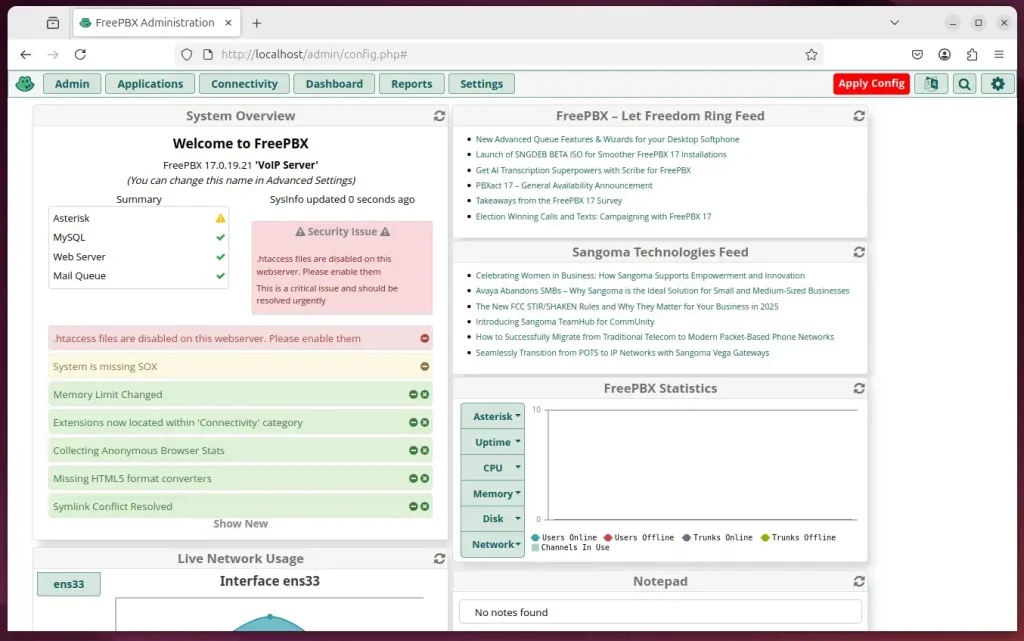
That should do it!
Conclusion:
In summary, installing FreePBX 17 on Ubuntu 24.04 to manage your Asterisk 22 PBX system consists of several key steps:
- Install Asterisk: Set up the Asterisk PBX system before integrating FreePBX.
- Set Up Apache: Install and configure the Apache web server to host the FreePBX interface.
- Install MariaDB: Deploy the MariaDB database server to manage FreePBX data storage.
- Install PHP: Ensure you have the required PHP version and extensions for FreePBX to function correctly.
- Add Node.js: Include Node.js as part of your server environment for web application functionalities.
- Download and Install FreePBX: Retrieve the latest version and complete the installation process.
- Configure Permissions: Adjust Apache settings to run under the Asterisk user for proper access.
- Access FreePBX: Finally, navigate to the FreePBX portal, create your administrator account, and start managing your PBX system.
Installing FreePBX 17 on Ubuntu 24.04 will help you set up a fully functional Asterisk-based phone system. Following these installation steps ensures your phone system uses the Asterisk software, providing core calling features.
Have a question about this guide?
Answered by AI from this guide. Good questions may be added to this page — please don't include personal details.
Did this guide fix your problem?

About the Author
Richard
Tech Writer, IT Professional
Richard is a writer at Geek Rewind who turns complex IT tasks into clear, step-by-step guides. He draws on years of hands-on experience in system administration and enterprise IT operations, focusing on Windows, Linux and WordPress: the problems people actually run into, and the fixes that work. His server and WordPress guides come from systems he runs himself. Richard builds and maintains the platform behind Geek Rewind, from its Ubuntu servers and Nginx configuration to its custom WordPress plugins. Many new tutorials start with readers' questions, and he's always glad to answer them in the comments.
No comments yet — be the first to share your thoughts!