How to Install Asterisk 22 PBX on Ubuntu 24.04


Asterisk 22 PBX (a free software private branch exchange that lets you build your own phone system) turns an Ubuntu 24.04 computer into a complete telephone switchboard for a home office or business. It handles internet phone calls and regular phone lines, so you can run voicemail, conference calls and automated phone menus without buying expensive hardware.
This release brings fresh updates and security patches to help you cut phone bills and manage call queues like a large company. Asterisk 22 is a long-term support (LTS) release, so it keeps getting fixes for years. That makes it a sensible choice for a server you plan to leave running.
Before you start, you need a Ubuntu 24.04 machine with root or sudo access, a working internet connection and basic comfort with the command line. This guide builds Asterisk from source. The compile step takes a while, so allow some time.
To install Asterisk 22 PBX on Ubuntu 24.04, run sudo apt update, then sudo apt install wget build-essential subversion to get the compile tools. Next, download the Asterisk 22 source into /usr/src, extract it, and run sudo./configure from inside that folder before compiling with make. The build takes a while, but you need no extra hardware.
Install Asterisk
First, install the tools you need to download and compile Asterisk. Update your package lists, then run the command `sudo apt install wget build-essential subversion` in your terminal. These compilation tools download and prepare the Asterisk source files, so you can build the software on your server without errors.
When apt finishes, it returns you to the prompt without an error message. If you see “Permission denied” or “Could not get lock”, you are not using sudo, or another package manager is still running. Wait a minute and try again.
sudo apt update
sudo apt install wget build-essential subversion
Source packages are downloaded by hand and kept in the /usr/src directory, where most source files live on Linux systems. Keeping Asterisk there also makes it easy to find the source again when you need to rebuild or upgrade.
Run the command in the block above to move into the /usr/src directory. This prepares the system to download Asterisk. Your prompt should now show that path.
The version numbers in the following commands must match the current release, so change them if a newer one is out.
The current release line is 22 at the time of writing. If you use a different version, change the number in every command that mentions it, including the folder name you move into after extracting the archive.
Next, run the installation script from inside the extracted folder. It automatically pulls down the required dependencies, including MP3 support. Make sure you are in the extracted Asterisk folder before you run it. Otherwise the script will not be found.
The script downloads every package Asterisk 22 PBX needs, which can take a few minutes. A success message appears on screen once the setup finishes. If it stops with an error, read the last few lines. A network problem or a locked apt process is the usual cause. Fix it and run the script again.
Now run the configuration commands. They prepare the build for Asterisk PBX, check that your system has everything it needs and confirm that the setup suits Ubuntu 24.04. Run them in order from the same folder.
sudo ./configure
When the configuration succeeds, you get output resembling this example. A missing-library error here means the previous script did not finish, so go back and run it again.
configure: Menuselect build configuration successfully completed

               .$$$$$$$$$$$$$$$=..
            .$7$7..          .7$$7:.
          .$$:.                 ,$7.7
        .$7.     7$$$$           .$$77
     ..$$.       $$$$$            .$$$7
    ..7$   .?.   $$$$$   .?.       7$$$.
   $.$.   .$$$7. $$$$7 .7$$$.      .$$$.
 .777.   .$$$$$$77$$$77$$$$$7.      $$$,
 $$$~      .7$$$$$$$$$$$$$7.       .$$$.
.$$7          .7$$$$$$$7:          ?$$$.
$$$          ?7$$$$$$$$$$I        .$$$7
$$$       .7$$$$$$$$$$$$$$$$      :$$$.
$$$       $$$$$$7$$$$$$$$$$$$    .$$$.
$$$        $$$   7$$$7  .$$$    .$$$.
$$$$             $$$$7         .$$$.
7$$$7            7$$$$        7$$$
 $$$$$                        $$$
  $$$$7.                       $$  (TM)
   $$$$$$$.           .7$$$$$$  $$
     $$$$$$$$$$$$7$$$$$$$$$.$$$$$$
       $$$$$$$$$$$$$$$$.

configure: Package configured for:
configure: OS type  : linux-gnu
configure: Host CPU : x86_64
configure: build-cpu:vendor:os: x86_64 : pc : linux-gnu :
configure: host-cpu:vendor:os: x86_64 : pc : linux-gnu :
Next, choose which modules to compile from a text menu. Run the commands below to open the menu interface. Use the arrow keys to move around and Enter to switch an item on or off. You need a terminal window that is large enough to show the menu.
To enable MP3 audio support in Asterisk 22 PBX, select the format_mp3 option. This lets Asterisk record and play audio files in the widely supported MP3 format, which keeps storage requirements low. If you do not see the option, the MP3 source was not downloaded earlier, so repeat the installation script step.
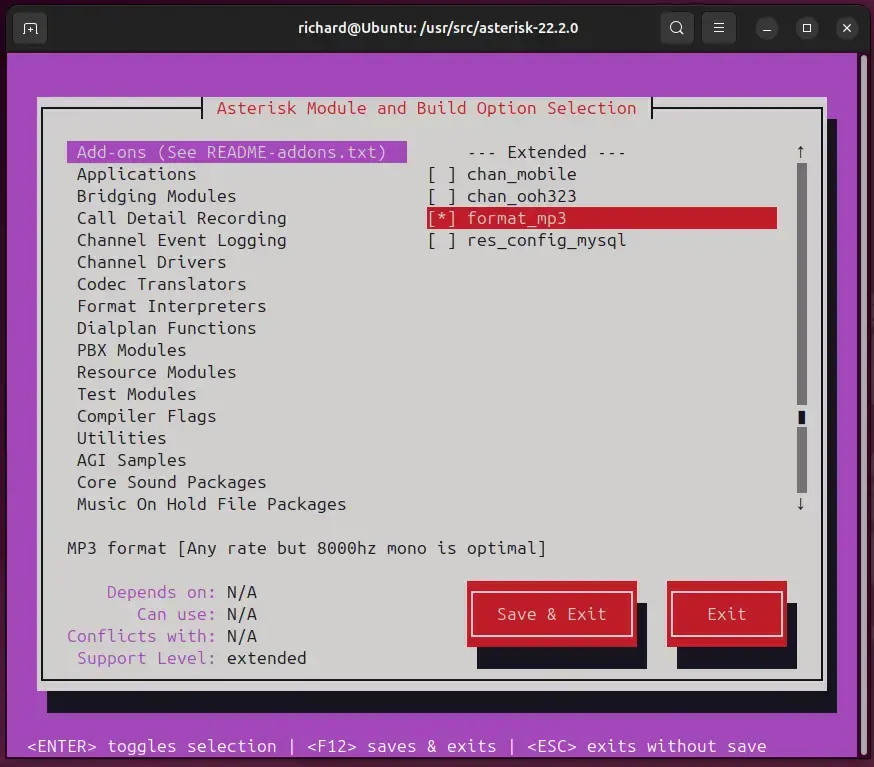
To save your choices, press F12, or select the Save and Exit button and press Enter. The menu closes and you are back at the shell. If you quit without saving, Asterisk is built with the default module selection.
Now run the build commands to compile the software.
sudo make -j2
Build times vary with your hardware. The -j flag takes a number that should match the CPU core count on your server. If your server has more than 2 CPU cores, raise this number to match. The build then finishes faster. Do not interrupt the compile, because a half-finished build has to be started again.
When the compilation of packages and modules finishes, a confirmation message appears. Read it before moving on, and do not continue if you see errors.
To finish the Asterisk 22 PBX setup, run the package manager commands once compilation is done. Executing `sudo apt update` and `sudo apt install asterisk` completes the installation. Run them with sudo, as shown, so they have the rights to write system files.
sudo make install
A successful installation displays output matching this example:
 +---- Asterisk Installation Complete -------+
 +                                           +
 +    YOU MUST READ THE SECURITY DOCUMENT    +
 +                                           +
 + Asterisk has successfully been installed. +
 + If you would like to install the sample   +
 + configuration files (overwriting any      +
 + existing config files), run:              +
 +                                           +
 + For generic reference documentation:      +
 +    make samples                           +
 +                                           +
 + For a sample basic PBX:                   +
 +    make basic-pbx                         +
 +                                           +
 +                                           +
 +-----------------  or ---------------------+
 +                                           +
 + You can go ahead and install the asterisk +
 + program documentation now or later run:   +
 +                                           +
 +               make progdocs               +
 +                                           +
 + **Note** This requires that you have      +
 + doxygen installed on your local system    +
 +-------------------------------------------+
The installation phase is complete. Asterisk is now on the system, but it is not yet configured or running.
System configuration starts now. Sample data gives you working example configuration files, which makes the initial setup much easier than starting from empty files. Generate it by running these commands:
sudo make samples
sudo make basic-pbx
Next, run the remaining configuration commands to finish the setup:
Now create a dedicated 'asterisk' user and group on Ubuntu 24.04. This keeps the service separate from your main user account, which is better for security. A dedicated system account lets Asterisk run safely, with only the access it needs.
The Asterisk user account and group enforce correct file permissions. If the service is ever compromised, the damage stays limited and does not reach the rest of the operating system.
sudo addgroup --quiet --system asterisk
sudo adduser --quiet --system --ingroup asterisk --no-create-home --disabled-password asterisk
The edit tells Asterisk to run as the new user instead of root. Make a backup copy of the file first, so you can restore the original if something goes wrong.
sudo nano /etc/default/asterisk
Apply the highlighted changes and save the file to complete this step. The change takes effect the next time the Asterisk service starts.
# Uncomment the following and set them to the user/groups that you
# want to run Asterisk as. NOTE: this requires substantial work to
# be sure that Asterisk's environment has permission to write the
# files required  for  its  operation, including logs, its comm
# socket, the asterisk database, etc.
AST_USER="asterisk"
AST_GROUP="asterisk"
Next, add the asterisk user to the dialout and audio groups. The dialout group gives access to serial and modem-type devices, and the audio group gives access to sound devices:
sudo usermod -a -G dialout,audio asteriskNow adjust file permissions so the asterisk user owns all Asterisk directories and files. If you skip this step, Asterisk may fail to start with permission errors, because the files were created by root during the build.
Configure systemd so Asterisk on Ubuntu 24.04 starts automatically at boot. Then start the service immediately and check its status to finish the setup. A healthy service is reported as active (running).
sudo systemctl enable asterisk
sudo systemctl start asterisk
Check the service health by running the verification commands:
sudo asterisk -vvvr
The standard Asterisk CLI (Command Line Interface) prompt appears. That confirms Asterisk is running and accepting commands. If you get an error instead, check the service status again and review the permission and user changes above.
Asterisk 22.2.0, Copyright (C) 1999 - 2025, Sangoma Technologies Corporation and others.
Created by Mark Spencer <markster@digium.com>
Asterisk comes with ABSOLUTELY NO WARRANTY; type 'core show warranty' for details.
This is free software, with components licensed under the GNU General Public
License version 2 and other licenses; you are welcome to redistribute it under
certain conditions. Type 'core show license' for details.
=========================================================================
Connected to Asterisk 22.2.0 currently running on Ubuntu (pid = 54532)
Ubuntu*CLI>
If you use an active firewall, open specific ports so phones and providers can reach Asterisk. Ubuntu's built-in firewall is usually switched off until you turn it on. If you never enabled one, you can skip this part. If your server sits behind a router, forward the same ports there as well.
SIP (Session Initiation Protocol, the protocol used to set up voice calls) listens on UDP port 5060 by default. Opening this port allows remote phones to connect.
sudo ufw allow 5060/udp
RTP (Real-Time Protocol, responsible for carrying audio streams) needs a range of ports opened. Asterisk uses UDP ports 10000 to 20000 by default. If the range is blocked, calls connect but you hear no audio, or only one side does:
sudo ufw allow 10000:20000/udp
Configuration is complete. Your Asterisk 22 PBX is installed, running under its own user and ready for you to add extensions and trunks.
Conclusion:
- Asterisk 22 PBX on Ubuntu 24.04 provides a flexible and cost-effective solution for telecommunication needs.
- The installation process, while detailed, allows users to customize their PBX system according to specific requirements.
- Leveraging Asterisk's features such as voicemail, call conferencing, and IVR can enhance communication capabilities significantly.
- Proper configuration and management through a dedicated user ensure security and efficient operation.
- Regular updates and maintenance will help keep your Asterisk system running smoothly and securely.
- Utilize community resources and documentation for troubleshooting and expanding functionalities as needed.
Have a question about this guide?
Answered by AI from this guide. Good questions may be added to this page — please don't include personal details.
Did this guide fix your problem?

About the Author
Richard
Tech Writer, IT Professional
Richard is a writer at Geek Rewind who turns complex IT tasks into clear, step-by-step guides. He draws on years of hands-on experience in system administration and enterprise IT operations, focusing on Windows, Linux and WordPress: the problems people actually run into, and the fixes that work. His server and WordPress guides come from systems he runs himself. Richard builds and maintains the platform behind Geek Rewind, from its Ubuntu servers and Nginx configuration to its custom WordPress plugins. Many new tutorials start with readers' questions, and he's always glad to answer them in the comments.
No comments yet — be the first to share your thoughts!