How to Install Apache on Google Cloud Server


Apache HTTP Server version 2.4 is free web server software that lets you host websites on a Google Cloud server so anyone on the internet can view them. The software handles incoming visitors and serves your web pages straight to anyone who visits your domain.
You need an Ubuntu Linux server on Google Cloud to follow this setup and get your web projects live.
Connect to your Google Cloud server via SSH, then update your package list with sudo apt update. Install Apache using sudo apt install apache2.
How to connect to the Google Cloud server
Connecting to your Google Cloud server before you install Apache Google Cloud is easiest using the built-in SSH terminal in the Google Cloud Console. Open your web browser, go to the Compute Engine page, and click the SSH button next to your virtual machine instance to open a command line window right away without installing any extra software.
SSH from the browser supports the following:
- Web browsers
- The latest version of Google Chrome
- Firefox
- Microsoft Edge
- Microsoft Internet Explorer 11 and later
- Safari 8 and later. Note that Safari is not supported in private browser mode.
- Virtual machine configurations
- All Linux VM images are natively available in Google Cloud.
No additional software or browser extensions are needed. Sign in to the Google Cloud Console and go to Menu ==> Compute Engine ==> VM instances.
In your list of virtual machines, click SSH next to the instance you want to use.

Alternatively, opening an SSH connection to an instance works by clicking its name and SSH from the instance details page.
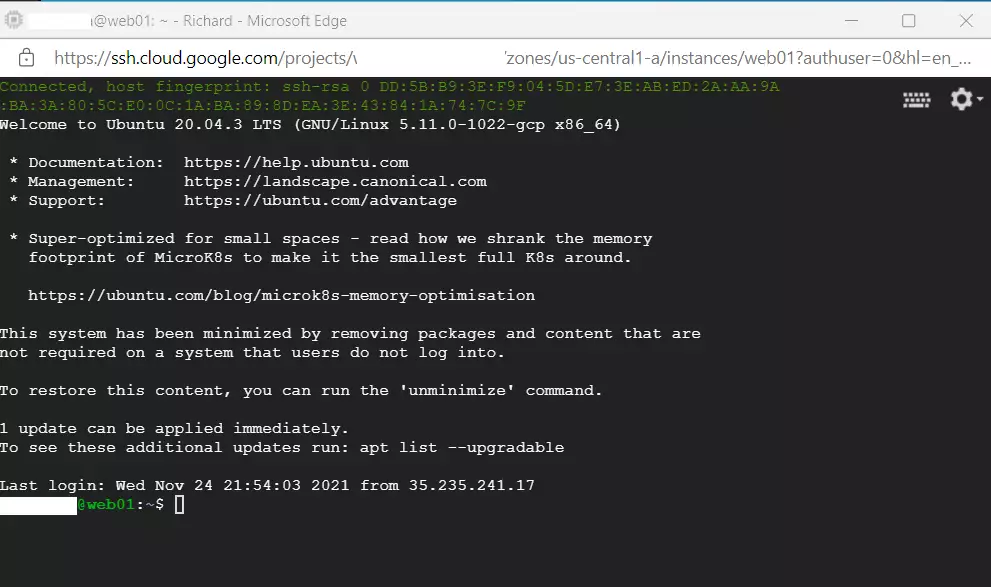
An SSH terminal window with the Ubuntu Linux instance created in the series's second post will open.
Commands run successfully inside the Ubuntu Linux environment created on the Google Cloud server.
How to install Apache on Ubuntu Linux on Google Cloud Server
Setting up Apache on Ubuntu Linux follows the same process whether using Google Cloud or local hardware.
Apache packages are available in Ubuntu's default repositories. Downloading and installing the Apache HTTP server on Ubuntu Linux occurs through the `apt-get` commands.
Installation details for Apache on Ubuntu Linux appear in another post. Clicking the link below provides more information about setting up and managing Apache HTTP servers.
How to install Apache on Ubuntu Linux
With the Apache web server installed, typing the domain name into a browser brings up a default Apache help page.
Entering the domain name into a browser displays an example page matching the one below:
http://example.com

Servers hosted on Google Cloud now resolve domain names and serve content using the Apache HTTP web server.
Additional servers and software will be added later to run a functional website online.
If this didn't work:
Make sure your firewall rules allow HTTP traffic on port 80 so visitors can load the default page.
- Apache is a widely used open-source web server, ideal for hosting websites.
- Following the steps outlined, you can connect to your Google Cloud server via SSH.
- Apache can be installed easily using the apt-get commands from the Ubuntu default repositories.
- Once installed, your domain name will be an Apache default page, confirming the successful setup.
- This post builds on previous topics about creating domain names and setting up Google Cloud servers.
Having Apache installed brings the setup closer to a fully operational website. Future posts will explore additional software and configurations to optimize the web environment.
Was this guide helpful?

About the Author
Richard
Tech Writer, IT Professional
Richard, a writer for Geek Rewind, is a tech enthusiast who loves breaking down complex IT topics into simple, easy-to-understand ideas. With years of hands-on experience in system administration and enterprise IT operations, he’s developed a knack for offering practical tips and solutions. Richard aims to make technology more accessible and actionable. He's deeply committed to the Geek Rewind community, always ready to answer questions and engage in discussions.




No comments yet — be the first to share your thoughts!