How to Install Moodle with Apache on Ubuntu 24.04


Installing Moodle with Apache on Ubuntu 24.04 sets up your own private online learning system and digital classroom. Moodle is free software that lets you build and manage online courses, while Apache serves web pages so students can visit your site.
This setup guide uses Moodle 4.3 on Ubuntu 24.04 LTS (Long Term Support). You get complete control over your teaching space, letting you add classes and track student progress easily.
Install Apache using `sudo apt install apache2`, then install MariaDB with `sudo apt install mariadb-server`. Create a Moodle database and user within MariaDB, and finally install PHP with `sudo apt install php libapache2-mod-php php-mysql php-intl`.
Install Apache HTTP server on Ubuntu Linux
Install the Apache web server on Ubuntu 24.04 to run your Moodle site. Open your terminal and run sudo apt update followed by sudo apt install apache2 to set up the software. Apache starts automatically once the installation finishes, making it ready to host your web pages.
To do that, open the Ubuntu terminal and run the commands below to install the Apache web server.
sudo apt update
sudo apt install apache2
Once Apache is installed, the commands below can start, stop, and enable the Apache web server to start automatically when your server boots up.
sudo systemctl stop apache2
sudo systemctl start apache2
sudo systemctl enable apache2
You test that the Apache web server is running by opening your web browser and browsing to the server’s localhost or IP address.
http://localhost
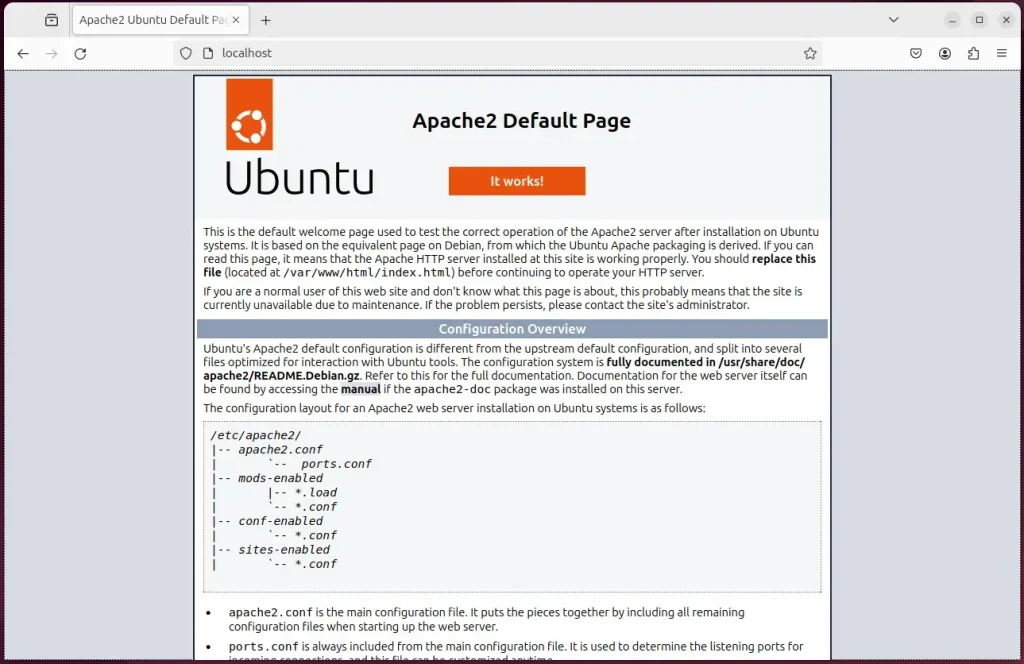
When you see the Apache2 Default Page, it means the Apache HTTP server is successfully installed.
Additional help on installing Apache on Ubuntu is in the link below.
Install MariaDB database server on Ubuntu Linux
Install the MariaDB database server on Ubuntu 24.04 to store all your Moodle site information. Open your terminal and run sudo apt update followed by sudo apt install mariadb-server. This sets up the database system required before you can create your Moodle database.
To install and use the MariaDB database server, use the instructions below.
Open the Ubuntu terminal and run the commands below to install the MariaDB database server.
sudo apt update
sudo apt install mariadb-server
Once the MariaDB database server is installed, use the commands below to stop, start, and enable the MariaDB server to start automatically when the server boots.
sudo systemctl stop mariadb
sudo systemctl start mariadb
sudo systemctl enable mariadb
Run the following commands to validate and test if the MariaDB database server is installed successfully.
sudo mariadb
Once you run the commands above, it will log you onto the MariaDB console and display a message similar to the one below.
Welcome to the MariaDB monitor.  Commands end with ; or g.
Your MariaDB connection id is 32
Server version: 10.11.2-MariaDB-1 Ubuntu 23.04

Copyright (c) 2000, 2018, Oracle, MariaDB Corporation Ab and others.

Type 'help;' or 'h' for help. Type 'c' to clear the current input statement.

MariaDB [(none)]>
The message tells you that the server is installed successfully.
Additional help on installing MariaDB.
- How to install MariaDB on Ubuntu Linux
- MariaDB without password prompt
Create a Moodle database
Create a Moodle database in MariaDB by setting up a dedicated database named moodledb and a user called moodledbuser. Log into your database prompt and run the SQL commands to give this user full permissions over the new database so Moodle can save its data properly.
As part of the setup, we will create a database named 'moodledb 'and a corresponding user account named 'moodledbuser '.
Finally, we’ll grant the moodledbuser full access to the moodledb database.
All the database steps above can be done using the commands below:
But first, log on to the MariaDB database server:
sudo mariadb
Then run the commands below to complete the steps:
CREATE DATABASE moodledb CHARACTER SET utf8mb4 COLLATE utf8mb4_general_ci;
CREATE USER moodledbuser@localhost IDENTIFIED BY 'type_your_password_here';
GRANT ALL ON moodledb.* TO moodledbuser@localhost WITH GRANT OPTION;
FLUSH PRIVILEGES;
exit
Install PHP on Ubuntu Linux
Install PHP on Ubuntu 24.04 along with all the extra modules that Moodle needs to function correctly. Run sudo apt install php libapache2-mod-php php-intl php-mysql php-curl php-cli php-zip php-xml php-gd php-common php-mbstring php-xmlrpc php-json php-sqlite3 php-soap in your terminal to get everything at once.
Run the commands below to install PHP.
sudo apt install php libapache2-mod-php php-intl php-mysql php-curl php-cli php-zip php-xml php-gd php-common php-mbstring php-xmlrpc php-json php-sqlite3 php-soap php-zip
Additional help on installing PHP
Download Moodle files
Download Moodle files directly to your Ubuntu server and place them in the correct Apache directory so visitors can load your site. Use your terminal to fetch the latest archive package, extract the contents, and move the folder into the web root path.
The command block below will download and create a new Moodle folder in the Apache root directory.
First, create a Moodle folder in the Apache root directory.
You can download Moodle files into the `/tmp` directory. After unzipping the Moodle file, move the unzipped content into the `moodle` folder located in your Apache web server's root directory.
Rest assured, the final step is to change the permissions. This will allow the Apache web server to safely interact with the files, ensuring a secure environment for your Moodle installation.
Get it from the official download page and replace the link with the new version to ensure you benefit from the latest features and security updates.
cd /tmp/
wget https://download.moodle.org/download.php/direct/stable404/moodle-4.4.zip
sudo unzip -d /var/www moodle-*.zip
sudo mkdir -p /var/www/moodledata
sudo chown -R www-data:www-data /var/www/moodledata/
sudo chown -R www-data:www-data /var/www/moodle/
Once you have completed all the above steps, continue below to configure the Apache web server to serve the Moodle content.
Run the commands below to create an Apache virtual host file for Moodle.
sudo nano /etc/apache2/sites-available/moodle.conf
Then, copy and paste the content block below into the Apache server block.
<VirtualHost *:80>
  ServerName moodle.example.com
  ServerAlias www.moodle.example.com
  ServerAdmin admin@example.com
  DocumentRoot /var/www/moodle

  <Directory /var/www/moodle/>
       Options FollowSymlinks
       AllowOverride All
       Require all granted
  </Directory>

       ErrorLog ${APACHE_LOG_DIR}/error.log
       CustomLog ${APACHE_LOG_DIR}/access.log combined

</VirtualHost>
Save the file.
You enable the server block for the Moodle website and restart the Apache web server using specific commands. This ensures Apache loads the new website configuration, allowing Moodle to become accessible on your Ubuntu 24.04 server.
sudo a2ensite moodle.conf
sudo systemctl restart apache2
Setup Let’s Encrypt SSL/TLS for Moodle
Setup Let's Encrypt SSL/TLS for Moodle to secure your site with HTTPS and protect user data. Install the Certbot tool on your Ubuntu server and run the Apache plugin command to automatically request, download, and configure your free security certificate.
Please read the post below for additional resources on installing and creating Let’s Encrypt SSL certificates for Apache.
How to set up Let’s Encrypt SSL certificate for Apache on Ubuntu Linux
Once you have restarted the Apache web server, open your browser and browse to the server hostname or IP address defined in the Apache server block.
http://moodle.example.com
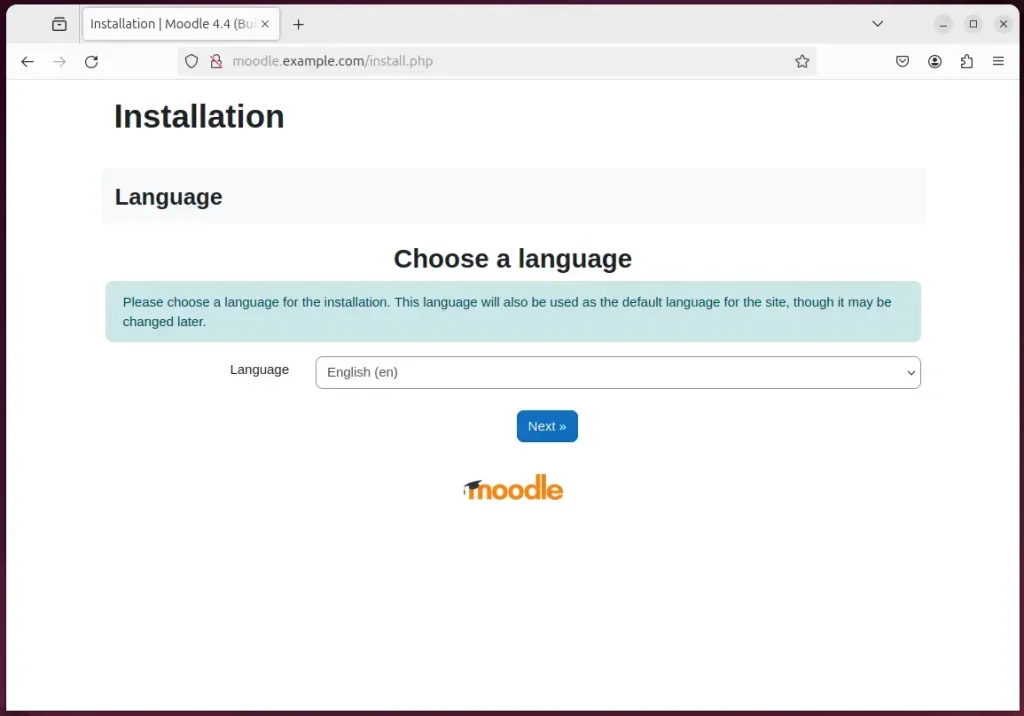
A Moodle installation wizard page should appear. Select the installation language and continue to the next page.
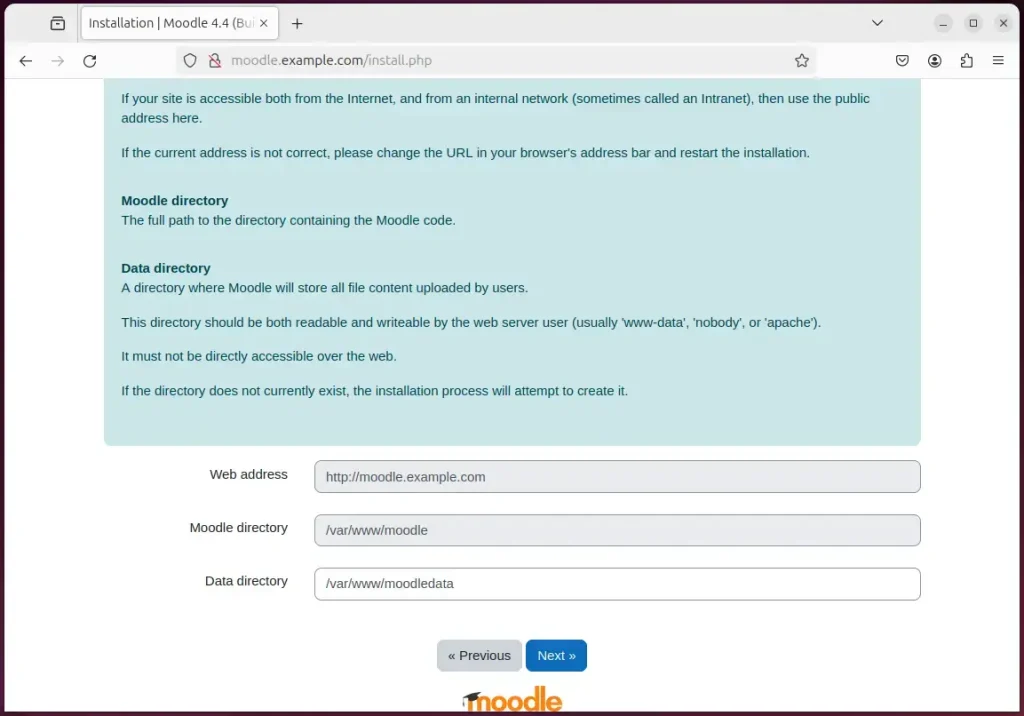
Confirm the installation paths and continue.
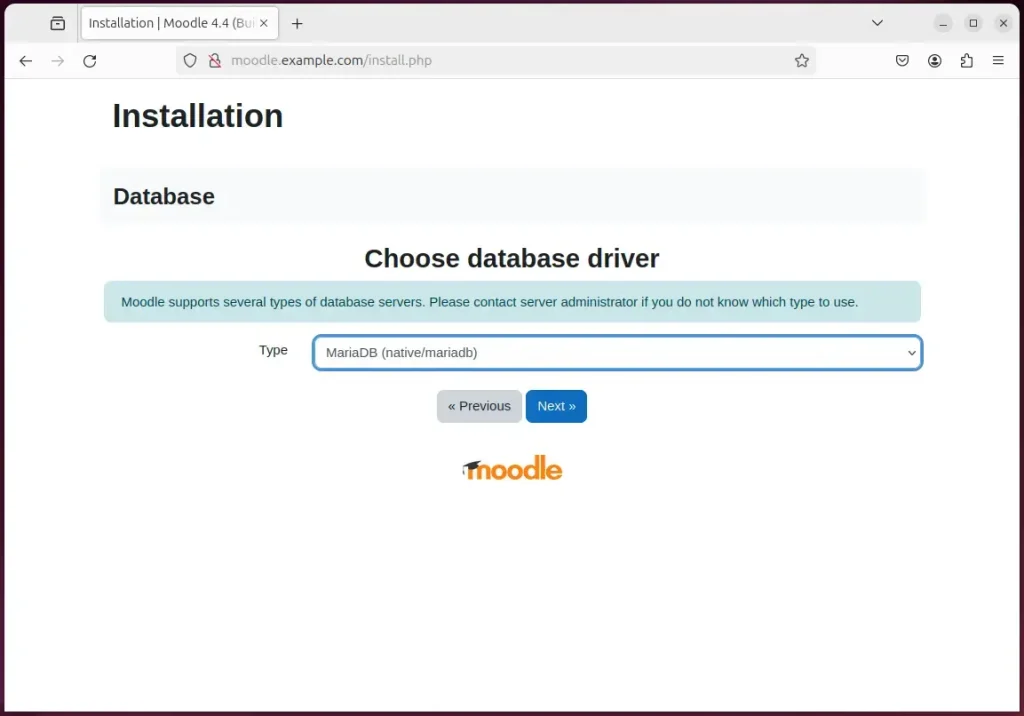
Next, choose a database driver (MariaDB) and continue.
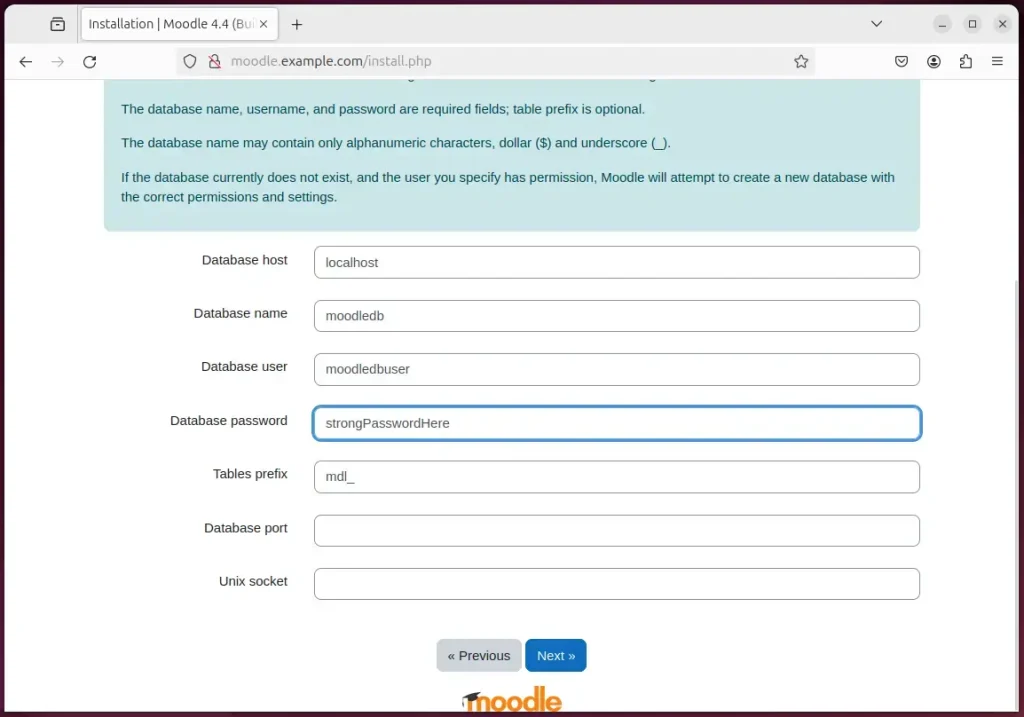
On the next page, type in the database name, username, and password created above and continue.
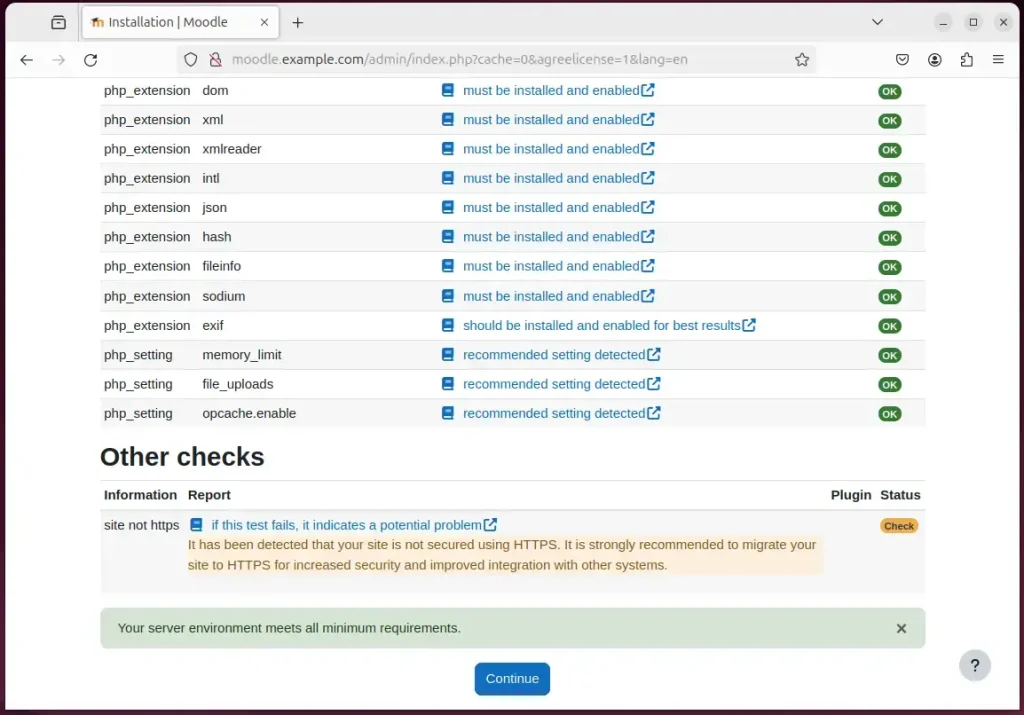
Confirm all requirements are met and continue.
If you get an error message that "max_input_vars" must be at least 5000, run the command below to fix it. Ensure that it is applied to the correct PHP version installed.
sudo sed -i "s/;max_input_vars = .*/max_input_vars = 5000/" /etc/php/8.3/apache2/php.ini
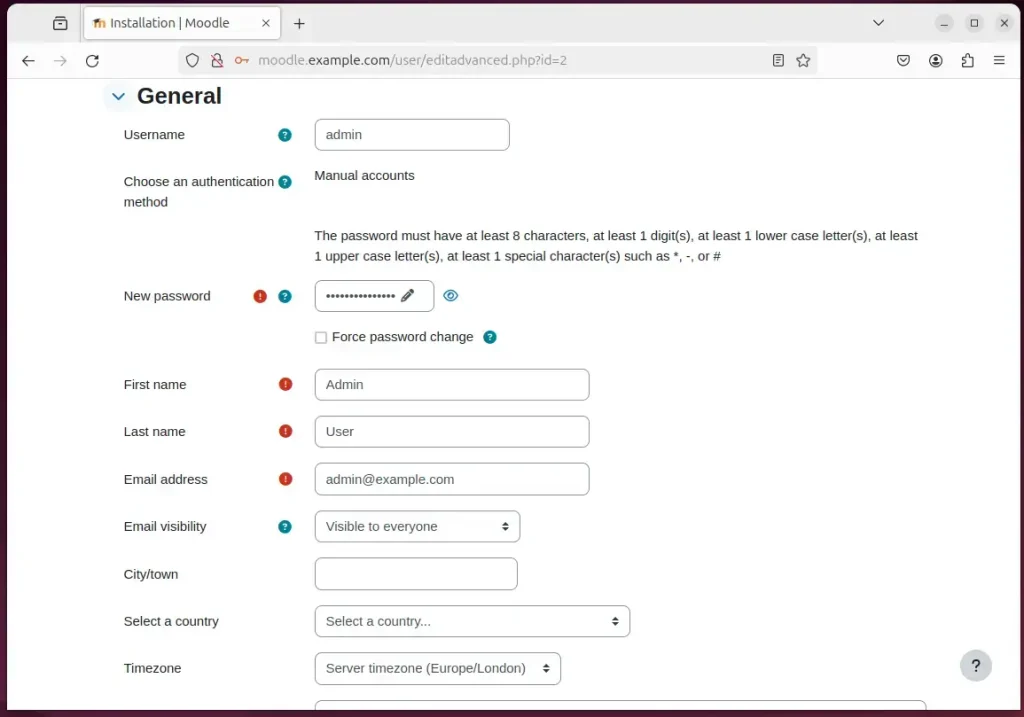
Next, set up your admin account and continue.
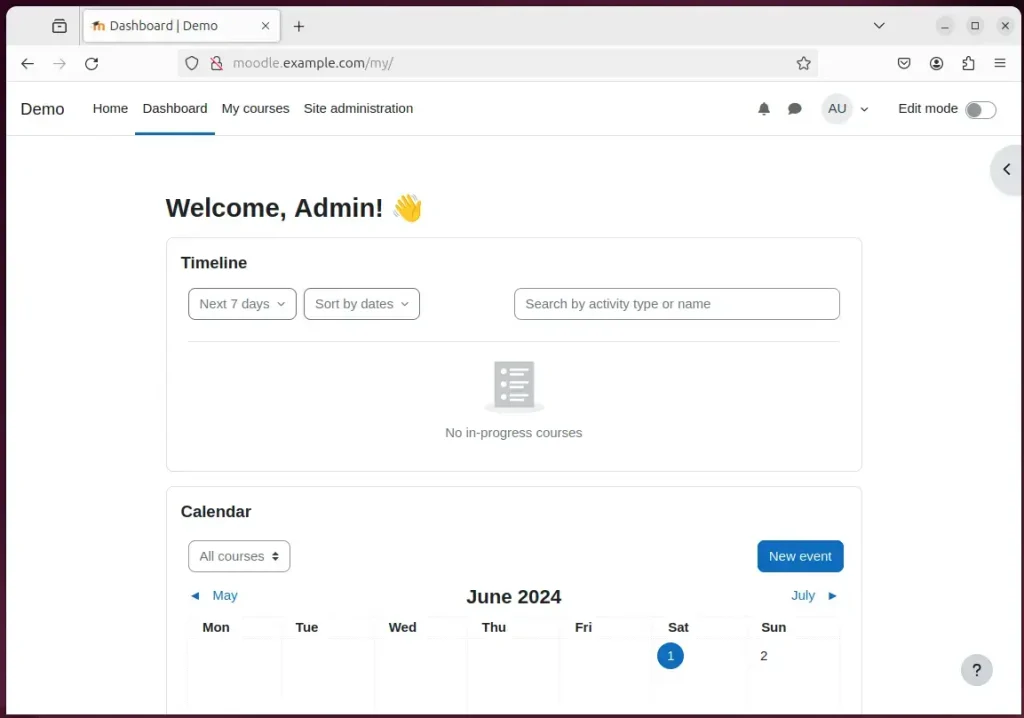
Your Moodle site should be set up and ready to use.
That should do it!
Conclusion:
- This guide provides a comprehensive overview of installing Moodle with Apache support on Ubuntu 24.04. It incorporates essential components like the Apache web server, MariaDB database server, PHP, and Let’s Encrypt SSL/TLS for enhanced security.
- The step-by-step tutorials for each component ensure a thorough understanding of the installation process, enabling users to create a reliable and robust environment for hosting their e-learning content.
- By following these instructions, users can seamlessly set up a Moodle site on Ubuntu, leveraging the capabilities of Apache as the web server, MariaDB as the database server, and PHP for a smooth and versatile web application experience.
- Including additional resources and links for each component further enriches the guide, empowering users to seek further assistance or explore specific aspects of the installation as needed.
- Should readers encounter errors or wish to contribute additional insights, the comments section provides a platform for engaging in meaningful discussions and sharing valuable feedback.
Was this guide helpful?

About the Author
Richard
Tech Writer, IT Professional
Richard is a writer at Geek Rewind who turns complex IT tasks into clear, step-by-step guides. He draws on years of hands-on experience in system administration and enterprise IT operations, focusing on Windows, Linux and WordPress: the problems people actually run into, and the fixes that work. His server and WordPress guides come from systems he runs himself. Richard builds and maintains the platform behind Geek Rewind, from its Ubuntu servers and Nginx configuration to its custom WordPress plugins. Many new tutorials start with readers' questions, and he's always glad to answer them in the comments.




No comments yet — be the first to share your thoughts!