How to Install LAMP on Ubuntu Linux


A LAMP stack on Ubuntu Linux is a bundle of four free programs that let you host websites and run web apps on your PC. LAMP stands for Linux, Apache (the web server), MySQL (the database), and PHP (the programming language). Each part has one job. Apache answers browser requests, PHP runs the code behind each page, and the database stores the content that PHP reads and writes.
Building this setup requires Ubuntu 22.04 LTS or newer, Apache 2.4, MySQL 8.0, and PHP 8.1. You can install all four parts on your machine to start testing and running your own PHP projects locally. In this guide you install MariaDB as the database, which is a drop-in alternative to MySQL. It is explained in its own section below.
To install LAMP on Ubuntu, run sudo apt update, then sudo apt install apache2 for the web server, followed by the PHP and database packages from the same apt command. Apache starts automatically after installation. Open http://localhost in a browser to confirm the Apache welcome page loads.
How to install Ubuntu Linux
Ubuntu Linux installation gives you the operating system foundation needed to set up LAMP. You need a working Ubuntu computer or virtual machine before you can add your web server, database, and programming language. Once your setup finishes, you run a few update commands in your terminal to prepare the system for the next installation steps. You also need an account that can use sudo, because every install in this guide changes system files.
Users new to Ubuntu can follow a linked guide to learn how to install the Ubuntu operating system. A virtual machine works as well as a physical PC, and it is a safe place to practice because you can roll back to a snapshot if something goes wrong.
Once Ubuntu is installed, open a terminal and run the commands below to update it. The first command refreshes the list of available packages. The second installs any newer versions of the software you already have. Doing this first avoids version conflicts when you add Apache, the database and PHP.
sudo apt update
sudo apt dist-upgrade
sudo apt autoremove
There are lots of other settings and configurations that apply to Ubuntu, such as firewall rules, user accounts and time zone. However, this post is only concerned with installing LAMP. If the update installed a new kernel, Ubuntu may ask for a restart. It is a good idea to restart before you go on.
How to install Apache on Ubuntu Linux
Apache is the web server that displays your website files to visitors when you install LAMP on Ubuntu. You add the web server by opening your terminal and running the apt package manager commands to download and set up the software. After the installation completes, you can manage the service to make sure it starts automatically whenever your computer boots up.
sudo apt update
sudo apt install apache2
After installing Apache, the commands below can be used to stop, start and enable the Apache service so it always starts when the server starts.
On Ubuntu, Apache usually starts on its own right after installation. You only need the stop and start commands when you want to control it by hand, for example after a configuration change. The enable command is the one that matters for boot. Run it once and Apache comes back after every restart.
sudo systemctl stop apache2
sudo systemctl start apache2
sudo systemctl enable apache2
To see if Apache is installed, open a web browser and browse to the server hostname or IP address. If you are working on the same machine, you can use the local address shown below. If the server is a remote machine or a VM, use its own IP address instead.
http://localhost
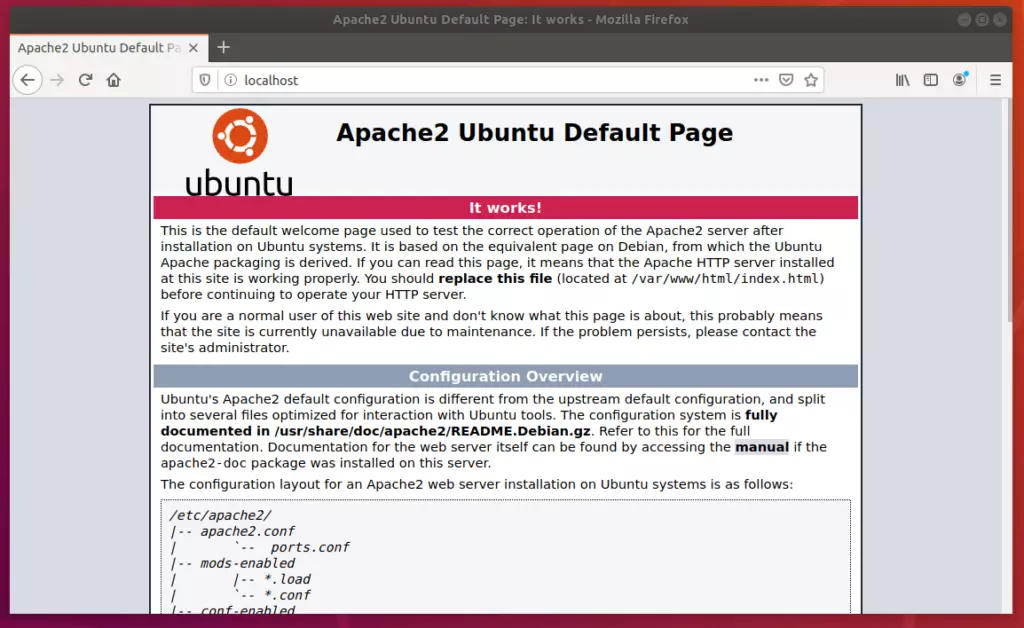
If you see the above Apache welcome page, it means Apache is installed and functioning. Apache listens on port 80 by default. If the page does not load from another computer but works locally, a firewall is the most likely cause, so check that HTTP traffic is allowed. If the page does not load at all, check the service status first.
How to install MariaDB on Ubuntu Linux
MariaDB is the database server that stores all your website information when you install MariaDB on Ubuntu. You use this popular database alternative to MySQL to handle user accounts, posts, and settings for your web applications. Running a few short terminal commands downloads the database software and secures your installation so it is ready for use.
MariaDB started as a fork of MySQL, and most PHP applications work with it the same way. If a project requires MySQL 8.0 specifically, check its documentation before you choose.
To install MariaDB, run the commands below. Read the package list that apt shows and confirm the prompt when it asks.
sudo apt update
sudo apt install mariadb-server
After installing, you can run the commands below to view the MariaDB service status. Like Apache, the database service normally starts automatically after it is installed.
sudo systemctl status mariadb
After running the command above, it should output lines similar to the ones below. Look for the word active (running). If you see inactive or failed, start the service before you go on.
mariadb.service - MariaDB 10.6.12 database server
     Loaded: loaded (/lib/systemd/system/mariadb.service; enabled; vendor preset: enabled)
     Active: active (running) since Wed 2023-09-15 16:40:20 CDT; 22s ago
       Docs: man:mysqld(8)
             https://mariadb.com/kb/en/library/systemd/
   Main PID: 3007 (mysqld)
     Status: "Taking your SQL requests now..."
      Tasks: 31 (limit: 4651)
     Memory: 65.6M
     CGroup: /system.slice/mariadb.service
             └─3007 /usr/sbin/mysqld

Sep 15 16:40:20 ubuntu2204 /etc/mysql/debian-start[3045]: mysql
Sep 15 16:40:20 ubuntu2204 /etc/mysql/debian-start[3045]: performance_schema
MariaDB and MySQL have a script allowing you to perform security operations. A fresh install ships with settings that are fine for a first look but not safe for a server others can reach, so run the script before you use the database for real work.
Run the commands below to invoke the script and perform some recommended tasks to secure the database. The script asks a series of yes or no questions, such as removing anonymous users, disallowing remote root login and removing the test database. Answering yes to these is the usual choice for a normal setup.
sudo mysql_secure_installation
MariaDB and MySQL servers have the root user set to use the auth_socket authentication method by default.
The auth_socket plugin authenticates users that connect from the local host through the Unix socket file. You can’t authenticate as root by providing a password. The database trusts the operating system to confirm who you are, so only a user with sudo rights on the machine can open a root session.
Simply run the command below to log on to MariaDB and MySQL servers as root. You don’t need a password since it’s using the auth_socket method. This is why a PHP application should get its own database user and password instead of using root.
To log on to MariaDB, run the commands below.
sudo mysql
The server console should come up. The prompt changes to show that you are now typing database commands, not shell commands. This confirms the database is installed and working. Type the exit command shown in the console help to return to the normal shell.
Welcome to the MariaDB monitor.  Commands end with ; or \g.
Your MariaDB connection id is 32
Server version: 10.6.12-MariaDB-0ubuntu0.22.04.1 Ubuntu 22.04

Copyright (c) 2000, 2018, Oracle, MariaDB Corporation Ab and others.

Type 'help;' or '\h' for help. Type '\c' to clear the current input statement.

MariaDB [(none)]>
How to install PHP on Ubuntu Linux
PHP is the programming language that makes your website dynamic when you install PHP on Ubuntu. You connect PHP to your web server by installing the language packages along with the required Apache module through your terminal. This setup lets your server process code, run contact forms, and handle login systems for your web visitors.
sudo apt update
sudo apt install php libapache2-mod-php
To install the latest PHP versions unavailable in the Ubuntu repository, run the commands below to install a third-party PPA repository that includes multiple versions of PHP. Ubuntu's own repository carries one PHP version per release, which is PHP 8.1 on Ubuntu 22.04 LTS. If that version is enough for your project, you can skip the PPA. A third-party repository is software from outside Ubuntu, so add it only if you need a different version.
At the time of this writing, the latest version of PHP was 8.0. Newer versions have been released since then, so check which versions the repository offers now and pick one your application supports.
sudo apt install software-properties-common
sudo add-apt-repository ppa:ondrej/php
After adding the repository above, you can then install another PHP version. If Apache is already running when you install PHP and its Apache module, restart Apache so it loads the module. Different PHP versions can sit side by side on the same server, but Apache uses only one at a time.
sudo apt install php8.1 php8.1-common php8.1-cli php8.1-gd php8.1-curl php8.1-mysql
That should do it! Apache, MariaDB and PHP are now installed on Ubuntu, and you can start putting your PHP files on the server to test them.
For more on LAMP, read individual posts on the LAMP components:
- How to install Ubuntu Linux
- How to install Apache
- How to install l MariaDB or MySQL
- How to install PHP
Conclusion:
The LAMP stack installation guide provides instructions for installing the LAMP stack on Ubuntu Linux. It covers updating Ubuntu, installing and checking Apache, installing and securing MariaDB, and adding PHP. You can submit errors or suggested additions to the LAMP stack installation guide using the comment form located below.
Have a question about this guide?
Answered by AI from this guide. Good questions may be added to this page — please don't include personal details.
Did this guide fix your problem?

About the Author
Richard
Tech Writer, IT Professional
Richard is a writer at Geek Rewind who turns complex IT tasks into clear, step-by-step guides. He draws on years of hands-on experience in system administration and enterprise IT operations, focusing on Windows, Linux and WordPress: the problems people actually run into, and the fixes that work. His server and WordPress guides come from systems he runs himself. Richard builds and maintains the platform behind Geek Rewind, from its Ubuntu servers and Nginx configuration to its custom WordPress plugins. Many new tutorials start with readers' questions, and he's always glad to answer them in the comments.
[…] ready to connect to our Google Cloud server and install any CMS based on LAMP or LEMP by tying software and packages installed in our previous […]
[…] How to install LAMP on Ubuntu Linux […]