How to Install Ubuntu Linux


You install Ubuntu Linux by downloading its ISO image and booting from a USB drive or DVD.
Ubuntu is a free, open-source operating system belonging to the Linux family, designed for user-friendliness on desktops and laptops.
For most users, you’ll want to choose the Long Term Support (LTS) version, which guarantees security updates for five years.
Transitioning from Windows to Ubuntu is straightforward; you’ll find your daily computing tasks remain familiar.
Download the Ubuntu ISO, burn it to a bootable USB or DVD, and boot your computer from it. Select “Install Ubuntu” from the boot menu, choose your keyboard layout, and follow the on-screen prompts for installation type and user account setup.
How to download Ubuntu ISO image
The latest versions of Ubuntu Linux come only in 64-bit, so you’ll need a computer that supports that architecture. You’ll also need a computer or laptop that can boot from a CD/DVD or flash drive. This is because you’ll be downloading the ISO image to create a bootable drive.
There might be other ways to get a physical disc or flash drive, though you may need to purchase it.
With your computer ready, download the Ubuntu Linux ISO image from the link below. If you don’t have physical media, burn the image onto a DVD or flash drive.
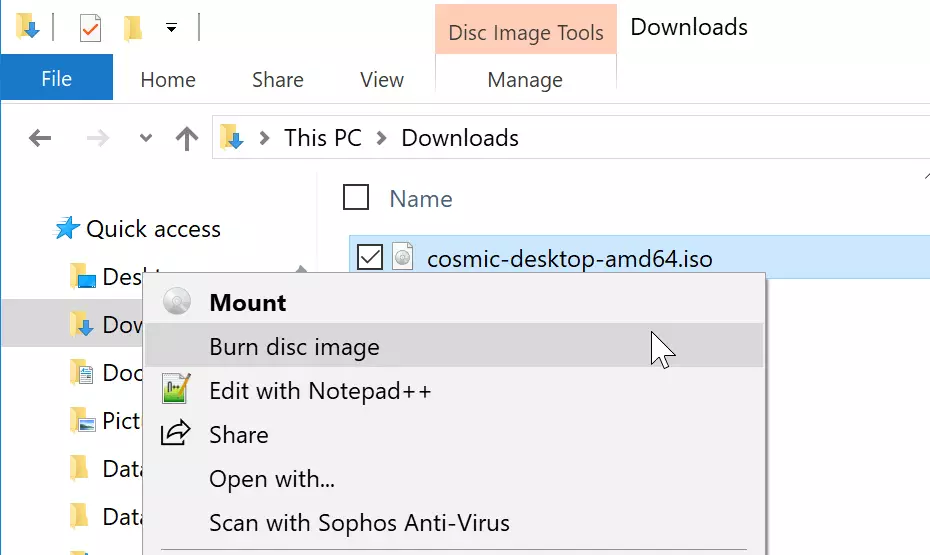
When using a Windows machine, you can right-click the ISO image and select Burn disc image, as shown in the image below.
Then choose the DVD drive with a blank DVD to burn to.
Burning the image to a flash drive might require a different approach. You’ll likely need specific software for this.
After burning the image, transfer the DVD or Flash Drive to the computer you want to install Ubuntu on.
How to boot Ubuntu ISO disc to install
Now that the image is on your DVD or Flash Drive, insert it into the computer you want to install Ubuntu on and boot from it. Different computers have different ways to specify the boot order; find yours. Most likely, you’ll need to press a specific key right after turning your computer on. Common keys include Esc, F2, F9, or F12.
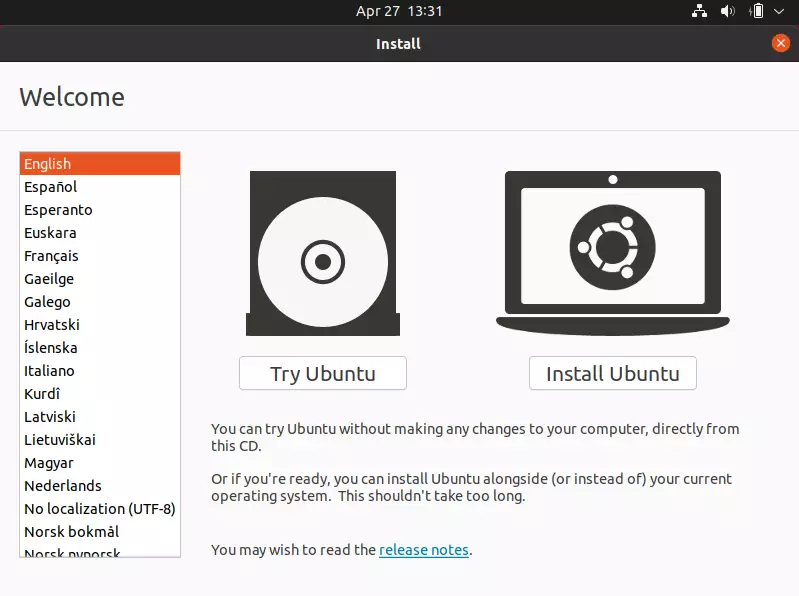
You should see a screen similar to the one below when the computer has booted from the DVD or Flash Drive.
Click the Install Ubuntu button to begin the installation. You could select ‘Try Ubuntu’ without making changes to your computer, but our goal is to install Ubuntu, so click Install Ubuntu to continue.
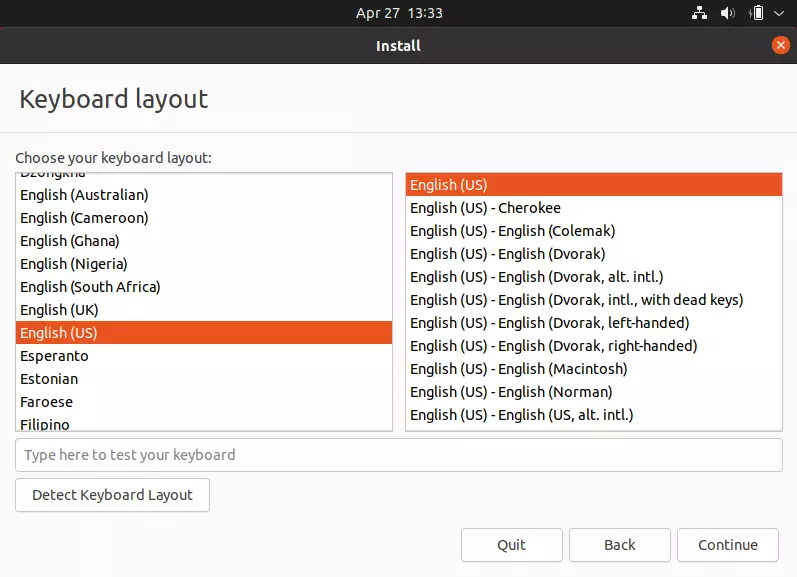
Next, select your Keyboard layout. Ubuntu installation picks the US English Keyboard layout by default. This is a good place to change it if it’s not your default. Click Continue to move on with the installation.
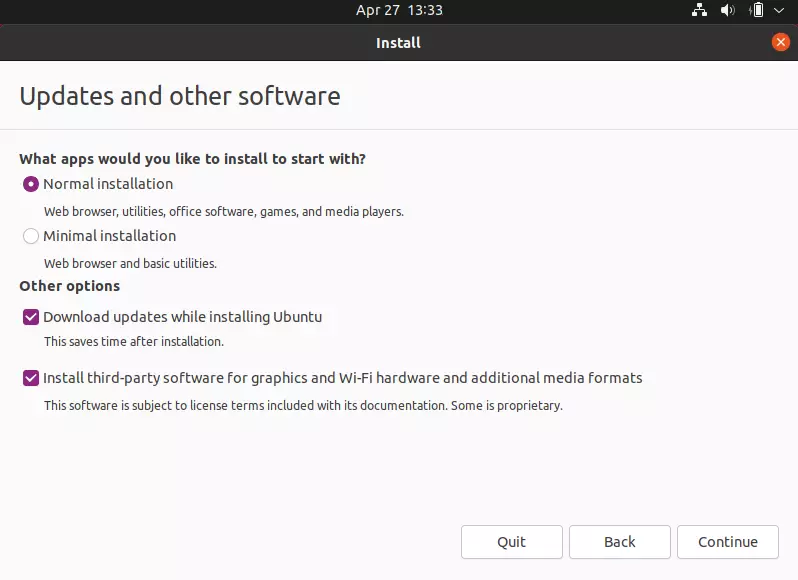
Your system is now preparing to install Ubuntu packages. On the screen below, you can choose to Download updates while installing Ubuntu. This will save you time later. You can also choose to install third-party software for graphics, WiFi devices, and media codecs.
You don’t have to select these boxes. However, if you have a stable and reliable Internet connection, you may want to select these options to download important packages while Ubuntu is installed.
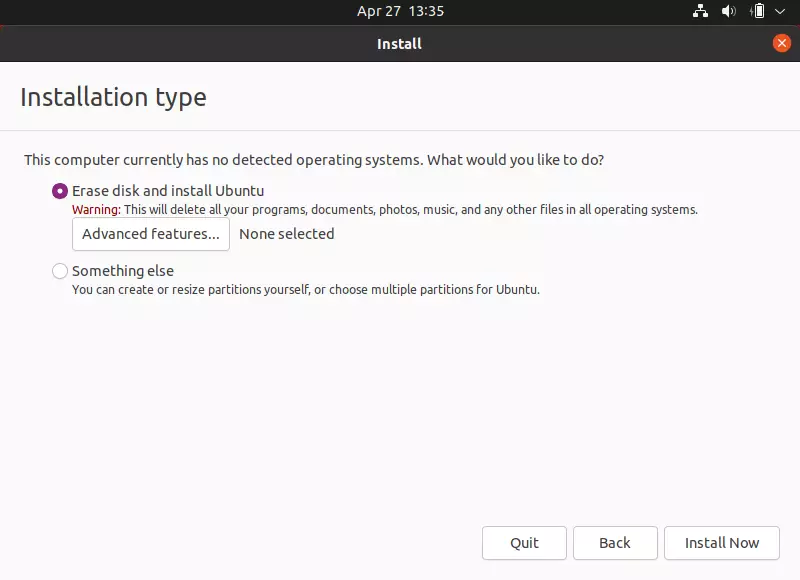
On this screen, you select the installation type. The first option, ‘Erase the disk and install Ubuntu,’ is the simplest. This option deletes everything on the hard drive and installs Ubuntu on it.
Option #2, ‘Something else,’ lets you perform a custom installation for advanced users. You can encrypt Ubuntu and use other advanced settings here. However, if you’re new to Linux, sticking with the first option is recommended. Click [ Erase disk and install Ubuntu ] and continue.
Click Install Now to begin installing Ubuntu.
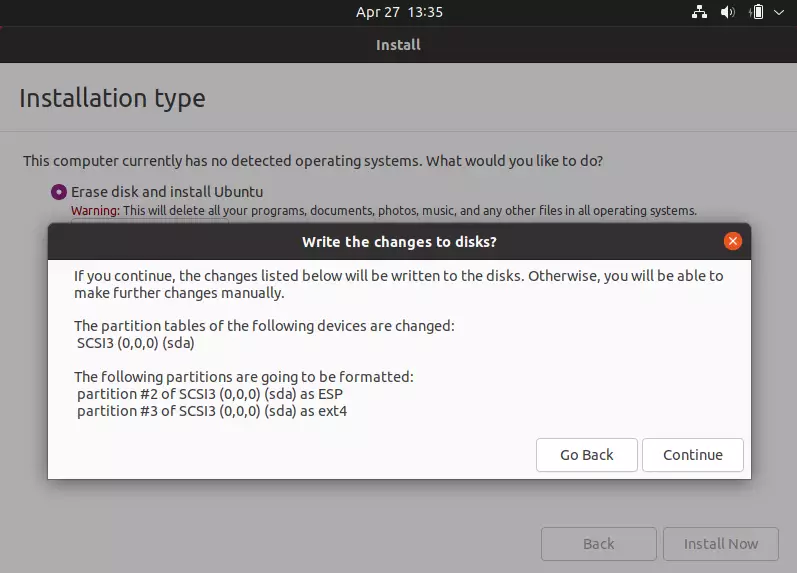
Accept that the installation will erase the hard drive and install Ubuntu. Click Continue to move on.
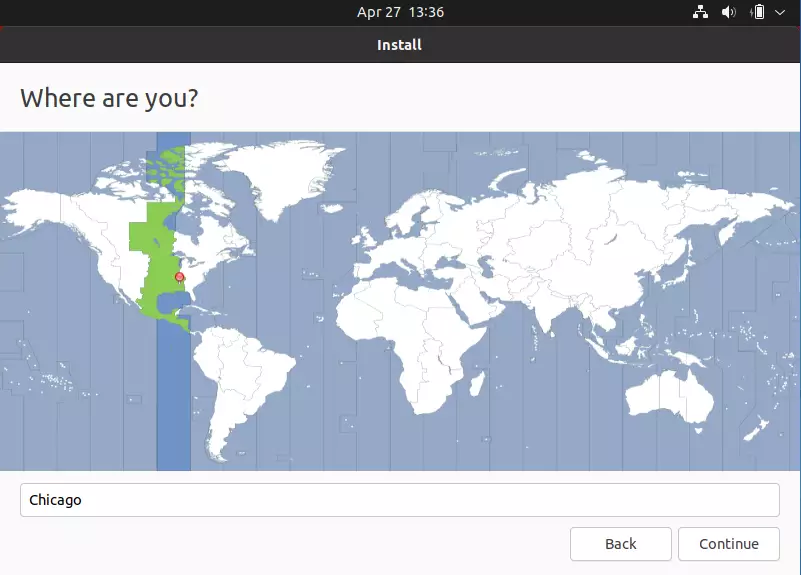
On this screen, you choose your time zone. Type a city name you live in and click Continue.
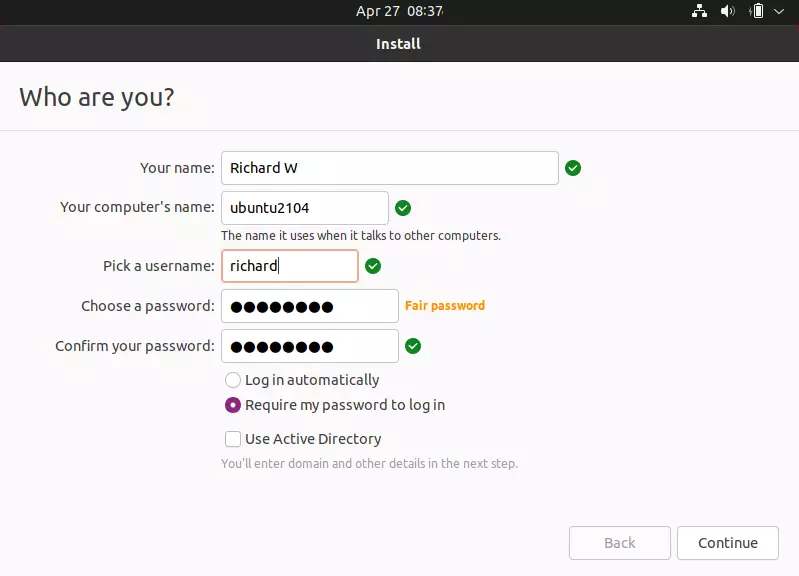
The next screen is where you set up your first user account and create a name for the computer. Type your name, username, and password, and choose whether you always want to type a password to sign in. Once you’ve entered your details, click Continue.
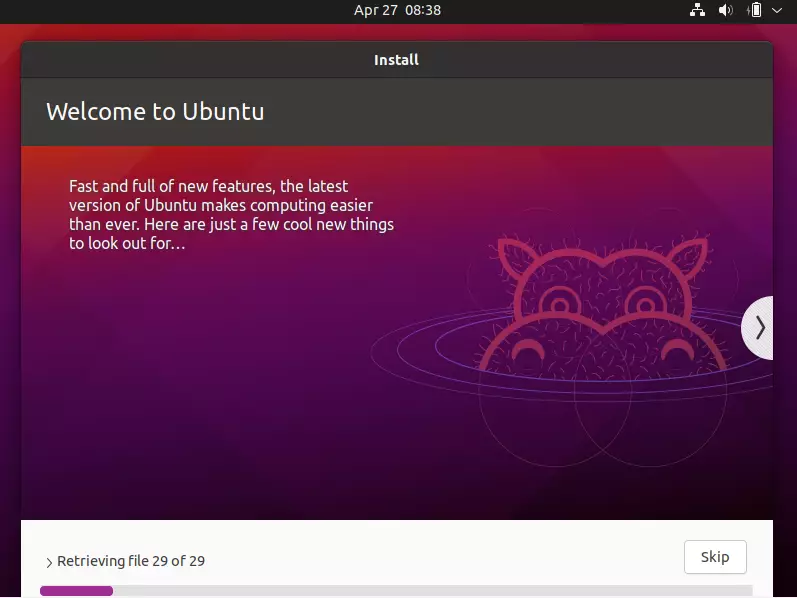
Wait for the installation to complete. This should take about 7 minutes, depending on your computer’s speed. When the installation is done, you’ll be prompted to restart.
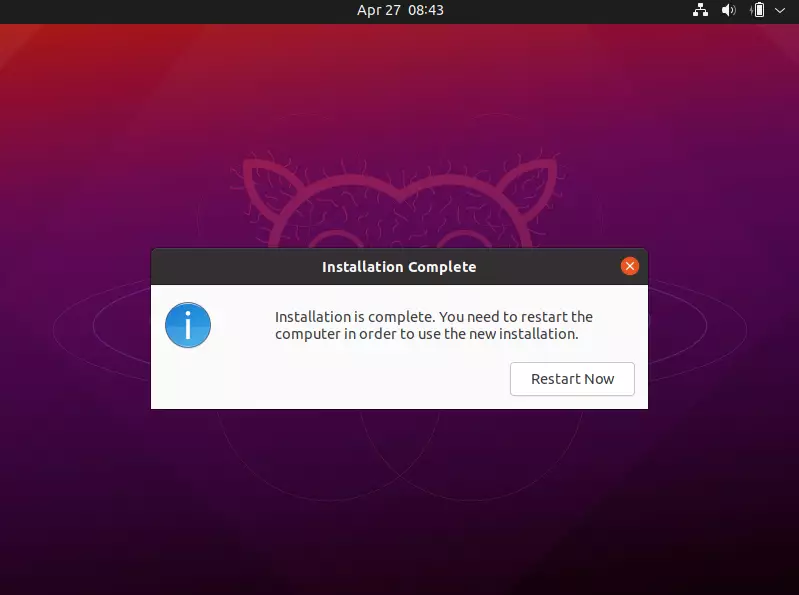
This is the last screen; the installation is complete. You must restart your computer, remove the disc from the drive, and log back in.
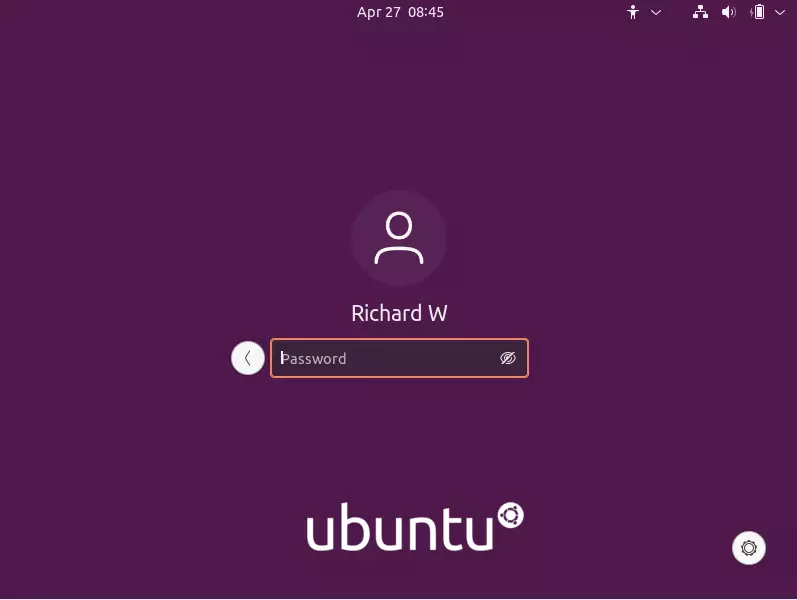
You’ll see the login screen after rebooting—log in with the credentials you created above.
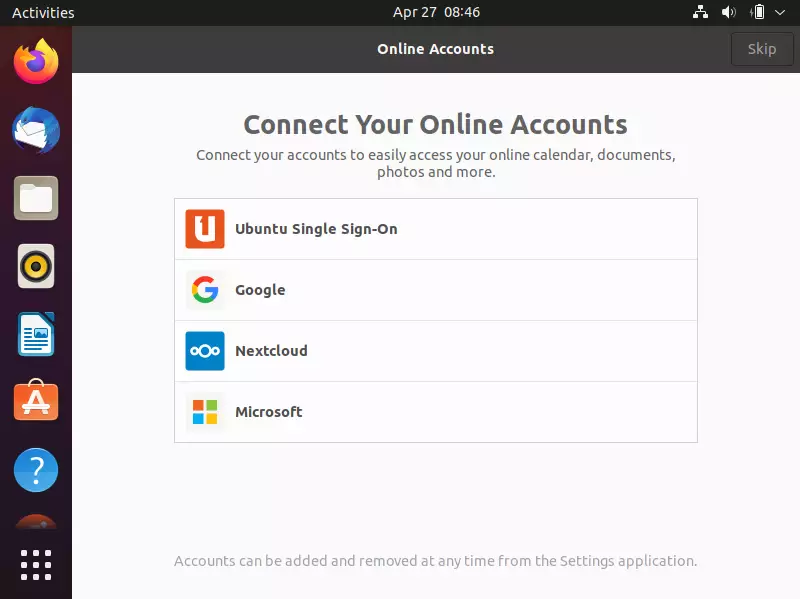
You will have an opportunity to set up online accounts if you have any.
After logging back into Ubuntu, your first task should be to update Ubuntu. You may see a prompt to install available updates after you log in.
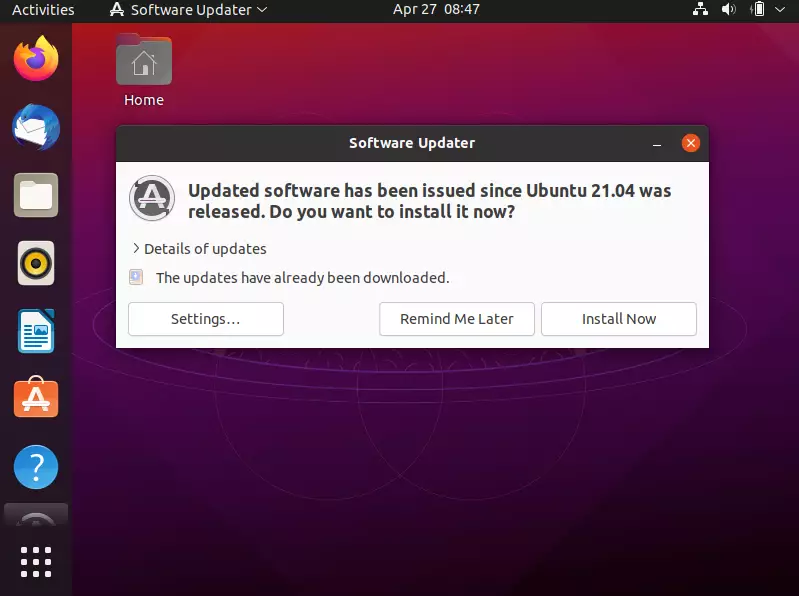
If you see a prompt, continue the update from the command line below.
Press Ctrl - Alt - T on your keyboard to open the terminal. Then run the commands below to update Ubuntu.
sudo apt update && sudo apt dist-upgrade && sudo apt autoremove
Restart once more, and you should be set.
Conclusion:
You’ve now learned how to install Ubuntu Linux. Please use the comment form below if you find any errors above or have something to add.
Was this guide helpful?

About the Author
Richard
Tech Writer, IT Professional
Richard, a writer for Geek Rewind, is a tech enthusiast who loves breaking down complex IT topics into simple, easy-to-understand ideas. With years of hands-on experience in system administration and enterprise IT operations, he’s developed a knack for offering practical tips and solutions. Richard aims to make technology more accessible and actionable. He's deeply committed to the Geek Rewind community, always ready to answer questions and engage in discussions.


No comments yet — be the first to share your thoughts!