How to Install Pimcore with Apache on Ubuntu 24.04


Installing Pimcore with Apache on Ubuntu 24.04 sets up a central system to manage website content, product details, and online shops. Pimcore is a free platform that combines content tools, customer data, and online store features into one place.
Ubuntu 24.04 LTS is a Linux operating system released in April 2024. Pairing it with the Apache web server gives you a reliable base to run your Pimcore site. The full stack in this guide is Apache, MariaDB, PHP, and Pimcore itself, installed through Composer. Run every command from a terminal as a user with sudo rights, and work through the sections in order.
Install Apache on Ubuntu 24.04 by running sudo apt update, then sudo apt install apache2 in a terminal. Apache starts automatically after installation. Confirm it works by opening http://localhost in a browser, where the Apache2 Default Page should appear. Then run sudo systemctl enable apache2 so the server starts at every boot.
Install Apache HTTP server on Ubuntu
Apache is the web server that will deliver Pimcore pages to visitors. You install it with the package manager, then control it with system commands. The two package commands are sudo apt update, which refreshes your package list, and sudo apt install apache2, which installs the software. Once it is installed, you can start, stop, and enable it so it launches at boot.
To install Apache, follow these steps:
- Open the Ubuntu terminal.
- Run the commands below to refresh the package list and install the Apache web server.
- Wait for the install to finish. Apache usually starts on its own right after installation.
sudo apt update
sudo apt install apache2
Once Apache is installed, use the commands below to start, stop, and enable the web server. Enabling it makes Apache start automatically every time the server boots. Run the enable command once. You only need the stop command when you want to take the site offline.
sudo systemctl stop apache2
sudo systemctl start apache2
sudo systemctl enable apache2
Next, check that Apache is serving pages:
- Open a web browser on the server, or on another computer on the same network.
- Type the server's localhost or IP address into the address bar, as shown below, and press Enter.
http://localhost
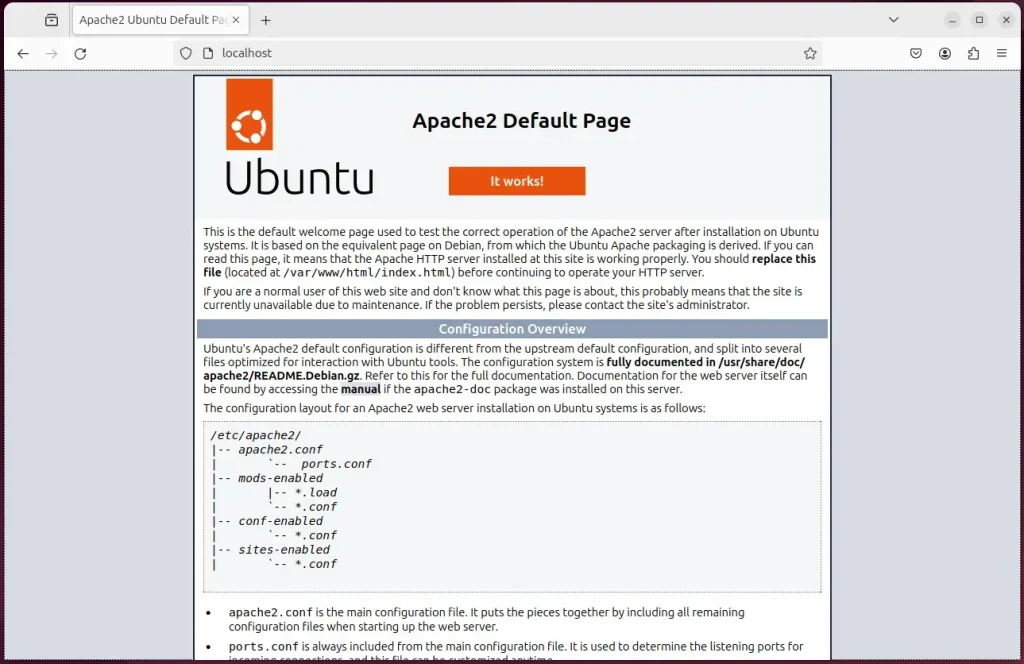
When you see the Apache2 Default Page, the Apache HTTP server is installed and working.
If the page does not load from another computer, the server's firewall may be blocking port 80. Also confirm you are using the correct IP address for the server.
Additional help on installing Apache on Ubuntu is in the link below.
Install the MariaDB database server on Ubuntu
Pimcore stores its data in a database, and this guide uses MariaDB. To install it, run sudo apt update, then sudo apt install mariadb-server. When the install completes, the database service runs in the background. That lets you create the Pimcore database and user account in the next section.
To install and use the MariaDB database server, use the instructions below.
- Open the Ubuntu terminal.
- Run the commands below to install the MariaDB database server.
sudo apt update
sudo apt install mariadb-server
Once MariaDB is installed, use the commands below to stop, start, and enable the MariaDB server. Enabling it makes the database start automatically when the server boots. If the database is not running after a reboot, Pimcore will fail with a connection error, so do not skip the enable step.
sudo systemctl stop mariadb
sudo systemctl start mariadb
sudo systemctl enable mariadb
Run the commands below to confirm that MariaDB is installed and responding.
sudo mariadb
These commands log you onto the MariaDB console. You should see a message similar to the one below.
Welcome to the MariaDB monitor.  Commands end with ; or g.
Your MariaDB connection id is 32
Server version: 10.11.2-MariaDB-1 Ubuntu 23.04

Copyright (c) 2000, 2018, Oracle, MariaDB Corporation Ab and others.

Type 'help;' or 'h' for help. Type 'c' to clear the current input statement.

MariaDB [(none)]>
That message tells you the server is installed and working. On Ubuntu, the MariaDB root account normally signs in through the operating system account rather than a database password. If you are refused access, make sure you are running the command with sudo.
Additional help on installing MariaDB.
- How to install MariaDB on Ubuntu Linux
- MariaDB without password prompt
Create a Pimcore database
Pimcore needs its own database and a dedicated user account, so it does not touch anything else on the server. You create both from the MariaDB command line. You also set a strong password for the user and give that user full access to the new database. Pimcore will use these credentials to connect and save your site data.
You will create a pimcoredb database and a user account called pimcoredbuser.
Finally, you will grant pimcoredbuser full access to the pimcoredb database.
You can do all of the database steps above with the commands below.
- Log on to the MariaDB database server with the command below. You should see the MariaDB prompt.
sudo mariadb
- At the MariaDB prompt, run the commands below to create the database and user and to grant the permissions. Each command should report success before you type the next one.
CREATE DATABASE pimcoredb CHARACTER SET utf8mb4 COLLATE utf8mb4_general_ci;
CREATE USER pimcoredbuser@localhost IDENTIFIED BY 'type_your_password_here';
GRANT ALL ON pimcoredb.* TO pimcoredbuser@localhost WITH GRANT OPTION;
FLUSH PRIVILEGES;
exit
Pick a strong one and keep it somewhere safe. You will need it again when you run the Pimcore installer.
Install PHP on Ubuntu Linux
Pimcore runs on PHP, so you need PHP and its required modules installed. Run the apt install command with the full list of extensions, including libapache2-mod-php, php-intl, php-mysql, and php-xml. The libapache2-mod-php package connects PHP to Apache. If an extension is missing, the Pimcore installer will stop with a dependency error, so install the whole list in one go.
Run the commands below to install the latest PHP version available for Ubuntu 24.04 and the modules Pimcore needs.
sudo apt install php libapache2-mod-php php-intl php-mysql php-curl php-cli php-zip php-xml php-gd php-common php-mbstring php-xmlrpc php-bcmath php-json php-sqlite3 php-soap php-zip
Additional help on installing PHP
Get Pimcore files
You download Pimcore with Composer, the package manager that fetches every software library Pimcore depends on. First install curl and git from your terminal. Then install Composer so it is available system-wide. Composer is the standard way to get the free community version of Pimcore with all its dependencies in place.
There are several ways to install Pimcore. For the free community version, the Composer installer is the right choice.
- Install git, Composer, and the other dependencies with the commands below.
sudo apt install curl git
curl -sS https://getcomposer.org/installer | sudo php -- --install-dir=/usr/local/bin --filename=composer
- Change to the Apache web server directory and clone the Pimcore files with the commands below. The last command sets ownership and permissions so the Apache web server can read and write the files it needs. This keeps your Pimcore installation working without making everything open to all users.
cd /var/www/
sudo COMPOSER_MEMORY_LIMIT=-1 composer create-project pimcore/demo pimcore
sudo chown www-data:www-data -R /var/www/pimcore/
Use either the demo copy above or the skeleton below, not both.
sudo COMPOSER_MEMORY_LIMIT=-1 composer --ignore-platform-req=ext-amqp create-project pimcore/skeleton pimcore
- Run the command below to install Pimcore.
cd /var/www/pimcore
sudo -u www-data ./vendor/bin/pimcore-install
When these steps are done, continue below to configure Apache to serve the Pimcore content.
The installer prompts you to create an admin account. Enter the admin username and password you want to use. Then type the database name, user, and password you created earlier to complete the installation. Remember the admin login, because you need it to sign in to the backend later.
Admin username:
 > superadmin

 Admin password (input will be hidden):
 >

 MySQL username:
 > pimcoredbuser

 MySQL password (input will be hidden):
 >

 MySQL database:
 > pimcoredb

 This will install Pimcore with the given settings. Do you want to continue? (yes/no) [yes]:
 >

Running installation. You can find a detailed install log in var/installer/log/dev.log

Install complete!

 11/11 [============================] 100%

 Trying to install assets as relative symbolic links.

 --- ------------------------------------------ ------------------
      Bundle                                     Method / Error
 --- ------------------------------------------ ------------------
  ✔   FOSJsRoutingBundle                         relative symlink
  ✔   PimcoreAdminBundle                         relative symlink
  ✔   PimcoreCustomReportsBundle                 relative symlink
  ✔   PimcorePersonalizationBundle               relative symlink
  ✔   PimcoreEcommerceFrameworkBundle            relative symlink
  ✔   PimcoreApplicationLoggerBundle             relative symlink
  ✔   PimcoreGoogleMarketingBundle               relative symlink
  ✔   PimcoreCustomerManagementFrameworkBundle   relative symlink
  ✔   PimcoreNewsletterBundle                    relative symlink
  ✔   PimcoreGlossaryBundle                      relative symlink
  ✔   PimcoreSeoBundle                           relative symlink
  ✔   PimcoreSimpleBackendSearchBundle           relative symlink
  ✔   PimcoreDataHubBundle                       relative symlink
  ✔   OutputDataConfigToolkitBundle              relative symlink
  ✔   Web2PrintToolsBundle                       relative symlink
  ✔   ObjectMergerBundle                         relative symlink
  ✔   PimcoreWebToPrintBundle                    relative symlink
  ✔   PimcoreTinymceBundle                       relative symlink
  ✔   PimcoreStaticRoutesBundle                  relative symlink
  ✔   PimcoreWordExportBundle                    relative symlink
  ✔   PimcoreXliffBundle                         relative symlink
  ✔   PimcoreCoreBundle                          relative symlink
 --- ------------------------------------------ ------------------
 [OK] All assets were successfully installed.
 [OK] Pimcore was successfully installed
Next, create a .htaccess file for Apache rewrite. Pimcore relies on URL rewriting, so without this file most pages beyond the home page will return errors.
sudo -u www-data nano /var/www/pimcore/public/.htaccess
Then copy the content from the link below into the file and save it.
With Pimcore installed, continue below to set up Apache to serve its content.
- Run the commands below to create an Apache virtual host file for Pimcore. This opens an empty file in a text editor.
sudo nano /etc/apache2/sites-available/pimcore.conf
- Copy and paste the content block below into the file. Check that the server name and folder paths match your own domain or IP address and the place where you installed Pimcore.
<VirtualHost *:80>
  ServerName pimcore.example.com
  ServerAlias www.pimcore.example.com
  ServerAdmin admin@example.com
  DocumentRoot /var/www/pimcore/public

  <Directory /var/www/pimcore/public/>
       Options FollowSymlinks
       AllowOverride All
       Require all granted
  </Directory>

       ErrorLog ${APACHE_LOG_DIR}/error.log
       CustomLog ${APACHE_LOG_DIR}/access.log combined
</VirtualHost>
- Save the file and close the editor.
Now enable the Pimcore virtual host and restart Apache with the commands below. This makes Pimcore reachable from your web browser. For example, sudo a2ensite pimcore.conf enables the virtual host file. Apache only reads the new configuration after a restart. If Apache fails to restart, recheck the virtual host file for typos.
sudo a2ensite pimcore.conf
sudo a2enmod rewrite
sudo systemctl restart apache2
Setup Let’s Encrypt SSL/TLS for Pimcore
Let's Encrypt gives you free SSL/TLS certificates, so visitors reach Pimcore over HTTPS and their data is encrypted. The usual route is to install Certbot and its Apache plugin. Then run the certificate tool for your domain name. It configures HTTPS in Apache for you. You need a real domain name that points to your server, and ports 80 and 443 must be reachable from the internet. Let's Encrypt cannot issue a certificate for a bare IP address or localhost.
Read the post below for more on installing and creating Let’s Encrypt SSL certificates for Apache.
How to set up Let’s Encrypt SSL certificate for Apache on Ubuntu Linux
After you restart the Apache web server, open your browser and go to the server hostname or IP address defined in the Apache server block. Use the HTTPS address if you set up the certificate.
http://pimcore.example.com/
A Pimcore web portal page should appear. If you still see the Apache default page, the new virtual host is probably not enabled, or the default site is taking priority. If you see a permissions error, recheck the ownership step from the download section.

To log on to the backend admin page, use the URL below and sign in with the admin account you created during the installation.
http://pimcore.example.com/admin
That should do it!
Conclusion:
In summary, installing Pimcore on Ubuntu with Apache involves several key steps:
- Setup Environment: Ensure you have a proper Apache, MariaDB, and PHP environment installed.
- Database Configuration: Create a database specifically for Pimcore and a user account to access it.
- Download Pimcore: Use Composer to download the Pimcore files and set the correct permissions for your Apache server.
- Installation Process: Follow the prompts to install Pimcore, input the database details, and set up an admin account.
- Configure Apache: Create a virtual host configuration and enable the necessary modules for proper URL handling.
- Implement SSL/TLS: Secure your Pimcore installation using an SSL certificate from Let’s Encrypt to enable HTTPS.
- Access Pimcore: Open your browser and navigate to your Pimcore installation to use the platform.
Following these steps, you can set up a robust and secure Pimcore environment to improve your business's data management and eCommerce capabilities.
Have a question about this guide?
Answered by AI from this guide. Good questions may be added to this page — please don't include personal details.
Did this guide fix your problem?

About the Author
Richard
Tech Writer, IT Professional
Richard is a writer at Geek Rewind who turns complex IT tasks into clear, step-by-step guides. He draws on years of hands-on experience in system administration and enterprise IT operations, focusing on Windows, Linux and WordPress: the problems people actually run into, and the fixes that work. His server and WordPress guides come from systems he runs himself. Richard builds and maintains the platform behind Geek Rewind, from its Ubuntu servers and Nginx configuration to its custom WordPress plugins. Many new tutorials start with readers' questions, and he's always glad to answer them in the comments.
No comments yet — be the first to share your thoughts!