How to Install PowerDNS on Ubuntu Linux


PowerDNS is a free DNS (Domain Name System, a service that matches website names to computer numbers) server that translates website names into IP addresses. Version 4.9 of the PowerDNS Authoritative Server runs on Ubuntu LTS (Long Term Support) systems to handle name lookup requests quickly and reliably.
Setting up this software gives you total control over your domain name records without paying a third party. You need a basic Ubuntu server and root access to get started.
Install PowerDNS on Ubuntu by updating system resolvers, then installing the `pdns-server` and `pdns-backend-mysql` packages. Configure PowerDNS to connect to a MariaDB database, and then install the PowerDNS Admin web application.
Why use PowerDNS?
PowerDNS gives administrators complete control over DNS infrastructure. This system offers a scalable solution for managing thousands of records, complete with a modern web interface. Finishing these steps leaves behind a professional DNS management system accessible right from a browser.
Install the MariaDB database server
MariaDB (a relational database management system) stores your DNS records and must be set up before you install PowerDNS Ubuntu. Run sudo apt install mariadb-server in your terminal to get the database software. Once the installation finishes, use sudo mysql to open the database prompt and create the user account.
Once MariaDB finishes installing , open the terminal and connect to the database:
sudo mysql
Run these commands to create the database and user:
CREATE DATABASE pdns;CREATE USER 'pdnsadmin'@'localhost' IDENTIFIED BY 'your_secure_password';GRANT ALL PRIVILEGES ON pdns.* TO 'pdnsadmin'@'localhost';FLUSH PRIVILEGES;EXIT;Install PowerDNS
PowerDNS handles all incoming DNS requests for your domains once you install PowerDNS Ubuntu on your server. Update your system package list and run the apt install command to download the main server software. After the download finishes, you must also update your system DNS resolver settings to point to a reliable public server.
sudo resolvectl dns eth0 8.8.8.8sudo sed -i 's/#DNS=/DNS=8.8.8.8/' /etc/systemd/resolved.confsudo systemctl restart systemd-resolvedConfiguring the system resolver starts the installation. This step ensures Ubuntu correctly identifies and uses PowerDNS for domain name resolution, preventing connectivity issues.
sudo apt update
sudo apt install pdns-server pdns-backend-mysql
Import the database structure:
sudo mysql -u pdnsadmin -p pdns < /usr/share/pdns-backend-mysql/schema/schema.mysql.sql
Configure PowerDNS
The PowerDNS configuration file requires database details for connection. Adding database credentials within this file ensures PowerDNS accesses its data storage properly.
sudo nano /etc/powerdns/pdns.d/pdns.local.gmysql.conf
launch+=gmysql
gmysql-host=127.0.0.1
gmysql-user=pdnsadmin
gmysql-password=your_secure_password
gmysql-dbname=pdns
Install the PowerDNS Admin web application
PowerDNS Admin gives you a web dashboard to manage your DNS settings without using the command line. To install PowerDNS Admin Ubuntu, you first need to install Python tools and the Nginx web server using your terminal. Next, create a dedicated folder for the application and set up a Python virtual environment.
sudo apt install python3-venv python3-pip gunicorn nginx certbot python3-certbot-nginx
Set up the application folder and virtual environment:
sudo git clone https://github.com/ngoduykhanh/PowerDNS-Admin.git /var/www/html/pdns
cd /var/www/html/pdns
python3 -m venv venv
source venv/bin/activate
pip install -r requirements.txt
Run database migrations to prepare the app:
export FLASK_APP=powerdnsadmin/__init__.py
flask db upgrade
Configure PowerDNS and Nginx
Enable the API in /etc/powerdns/pdns.conf by adding:
api=yes
api-key=generate_a_very_long_random_string_here
Restart PowerDNS: sudo systemctl restart pdns
Configure Nginx to serve the site and secure it with HTTPS:
sudo certbot --nginx -d yourdomain.com
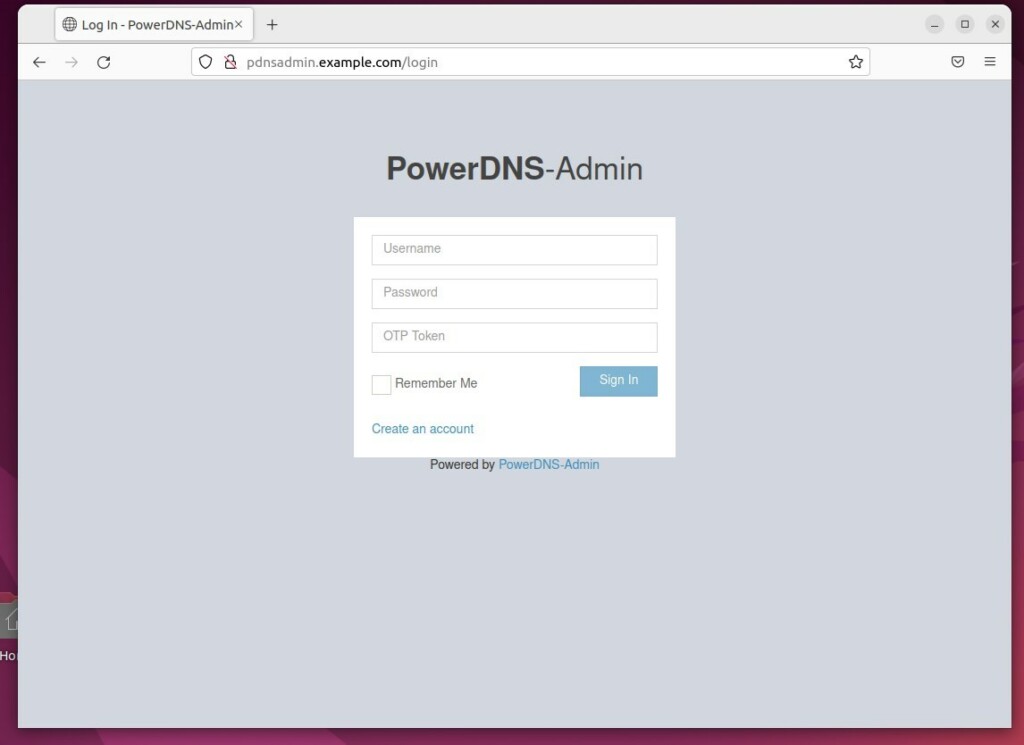
Start the Service
Systemd (a system and service manager) runs the PowerDNS Admin application smoothly in the background as a permanent service. You need to reload the system service manager and enable the application to start automatically when your server boots up. Run the systemctl commands in your terminal to get the web interface up and running.
sudo systemctl daemon-reload
sudo systemctl enable --now pdnsadmin
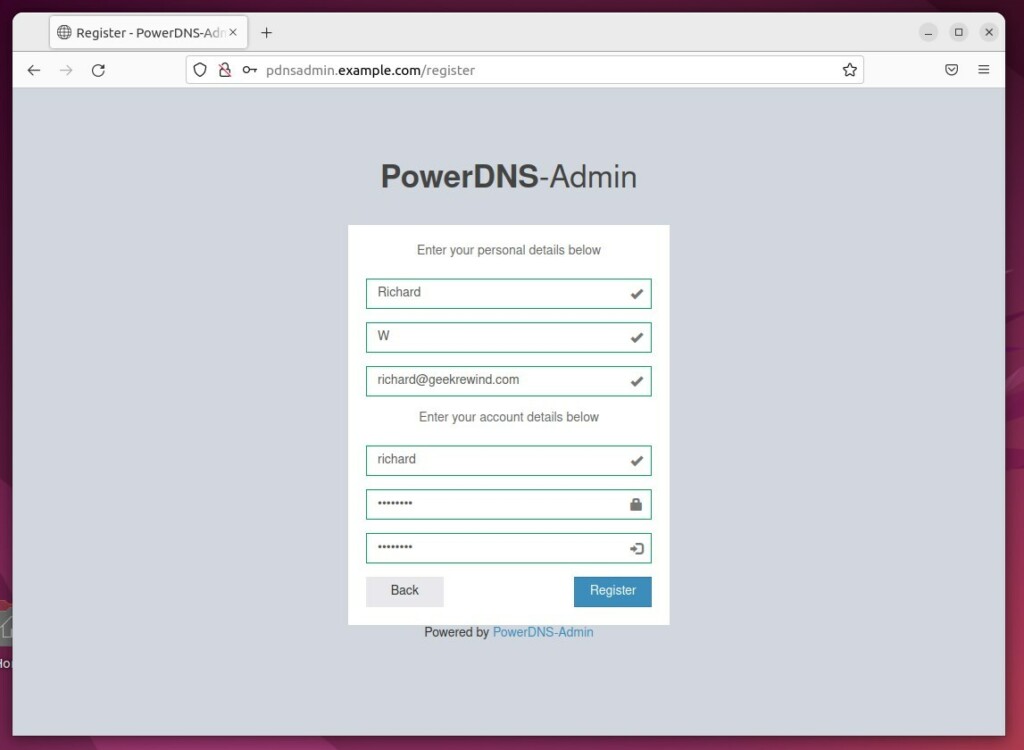
Open a browser to the domain name, log in, and enter the API key generated earlier to finish the setup.
[Unit] [Service] [Install] [Unit] [Socket] [Install] [1] [10066] [2022-10-07 12:55:24 -0500] [10066] [INFO] [10066] [2022-10-07 12:55:24 -0500] [10066] [INFO] [10066] [2022-10-07 12:55:24 -0500] [10066] [INFO] [10067] [2022-10-07 12:55:24 -0500] [10067] [INFO] [1]
Was this guide helpful?

About the Author
Richard
Tech Writer, IT Professional
Richard is a writer at Geek Rewind who turns complex IT tasks into clear, step-by-step guides. He draws on years of hands-on experience in system administration and enterprise IT operations, focusing on Windows, Linux and WordPress: the problems people actually run into, and the fixes that work. His server and WordPress guides come from systems he runs himself. Richard builds and maintains the platform behind Geek Rewind, from its Ubuntu servers and Nginx configuration to its custom WordPress plugins. Many new tutorials start with readers' questions, and he's always glad to answer them in the comments.



No comments yet — be the first to share your thoughts!