How to Install Moodle with Nginx on Ubuntu 24.04


Installing Moodle with Nginx on Ubuntu 24.04 gives you a fast online learning site for a school, a company or a class. Moodle is a free learning management system. Teachers use it to publish courses, set assignments and run quizzes. Nginx is the web server that sits in front of it and delivers the pages to browsers.
Nginx uses little memory and copes well with many simultaneous visitors, so the site stays responsive when a whole class logs in at once. You need a clean Ubuntu 24.04 server, a user with sudo rights, and some time. The stack has four parts: Nginx, MariaDB for the database, PHP-FPM to run Moodle’s code, and Moodle itself. A free Let’s Encrypt certificate adds HTTPS at the end.
To install Moodle with Nginx on Ubuntu 24.04, first install the web server by running sudo apt update, then sudo apt install nginx. Next add MariaDB for the database, PHP-FPM to run Moodle’s code, and Moodle itself. The finished site runs on Nginx and is secured with a free Let’s Encrypt HTTPS certificate.
Install Nginx HTTP server on Ubuntu Linux
Nginx is the first piece to install. It receives every request from your visitors and hands the PHP work to PHP-FPM. Open a terminal on the server and update the package list first, so apt installs the current version from the Ubuntu repositories. Run sudo apt update, then sudo apt install nginx. You will see the exact commands in the block below.
Follow these steps to install the Nginx web server:
- Open the Ubuntu terminal and sign in with a user that has sudo rights.
- Run the commands in the block below to refresh the package list and install Nginx.
- If apt asks you to confirm, type Y and press Enter. When the prompt returns, the install is finished.
sudo apt update
sudo apt install nginx
On Ubuntu, Nginx normally starts as soon as the package is installed. You still need to know how to stop, start and enable it. The commands below control the service. Enabling it makes Nginx start by itself every time the server boots, so your site comes back after a reboot without you doing anything.
sudo systemctl stop nginx
sudo systemctl start nginx
sudo systemctl enable nginx
Now check that Nginx answers web requests:
- Open a web browser on your own computer, or on the server if it has a desktop.
- Type the server's IP address in the address bar. If you are on the server itself, use the localhost address shown below.
- Press Enter.
http://localhost
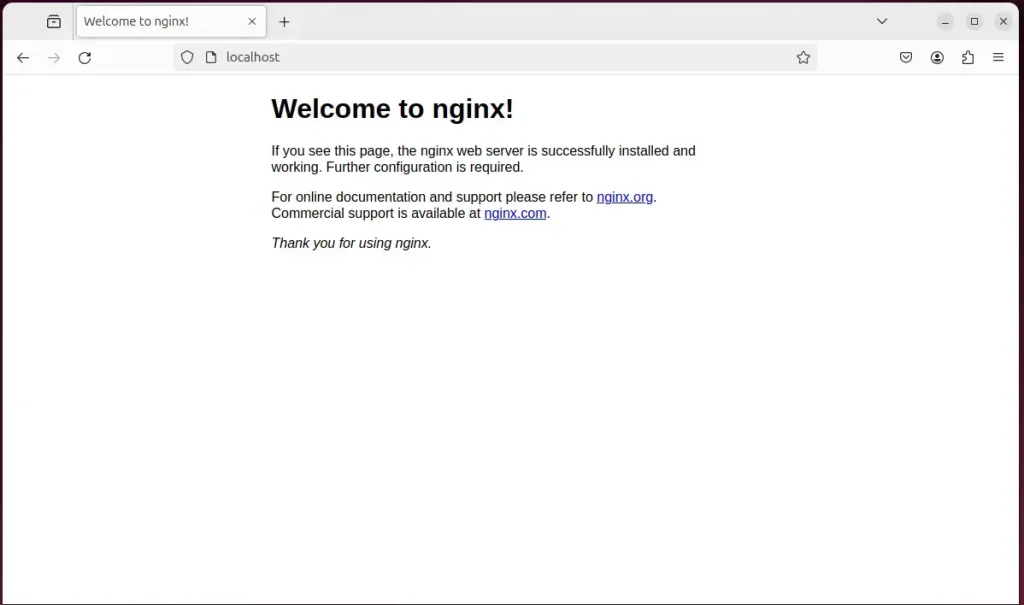
When you see "Welcome to nginx!", the Nginx HTTP server is installed and working. If the page does not load from another computer, check whether a firewall on the server or at your hosting provider blocks port 80. Nginx may be running fine and the traffic simply never reaches it.
The link below has more help on installing Nginx on Ubuntu.
Install MariaDB database server on Ubuntu Linux
Moodle keeps its course content, user accounts, grades and site settings in a database. MariaDB is a good fit: it is free, it is in the Ubuntu repositories, and Moodle supports it. In the terminal, run the package installation command: sudo apt install mariadb-server. This installs the database service.
The steps below install MariaDB, start it, and check that it works.
Open the Ubuntu terminal and run the commands in the block below to install the MariaDB database server. Confirm with Y if apt asks.
sudo apt update
sudo apt install mariadb-server
Once MariaDB is installed, use the commands below to stop, start and enable the service. Enabling it makes MariaDB start automatically whenever the server boots. If the database is down after a reboot, Moodle shows a database connection error, so this step matters.
sudo systemctl stop mariadb
sudo systemctl start mariadb
sudo systemctl enable mariadb
Run the commands below to confirm that MariaDB installed correctly.
sudo mariadb
After you run the commands above, you are logged on to the MariaDB console. You should see a message similar to the one below.
Welcome to the MariaDB monitor.  Commands end with ; or g.
Your MariaDB connection id is 32
Server version: 10.11.2-MariaDB-1 Ubuntu 23.04

Copyright (c) 2000, 2018, Oracle, MariaDB Corporation Ab and others.

Type 'help;' or 'h' for help. Type 'c' to clear the current input statement.

MariaDB [(none)]>
On a fresh Ubuntu install, the root database account can usually log in from the server's own root session without asking for a password, which is why you may not be prompted for one.
More help on installing MariaDB:
- How to install MariaDB on Ubuntu Linux
- MariaDB without password prompt
Create a Moodle database
Moodle needs its own database and its own database user. Do not let it use the root account. If Moodle ever gets compromised, a limited user keeps the damage inside that one database. You will create both from the MariaDB prompt with SQL commands.
First, create a database named moodledb and a matching user account named moodledbuser.
Then grant moodledbuser full access to the moodledb database. The user can read and write only that database and nothing else on the server.
You can do all of this with the commands below. Work through them in order:
- Log on to the MariaDB database server with the command in the first block.
- At the MariaDB prompt, run the SQL commands in the second block.
- Check that each command is accepted. MariaDB normally answers with an OK message after each one.
First, log on to the MariaDB database server:
sudo mariadb
Then run the commands below to complete the steps:
CREATE DATABASE moodledb CHARACTER SET utf8mb4 COLLATE utf8mb4_general_ci;
CREATE USER moodledbuser@localhost IDENTIFIED BY 'type_your_password_here';
GRANT ALL ON moodledb.* TO moodledbuser@localhost WITH GRANT OPTION;
FLUSH PRIVILEGES;
exit
Replace 'type_your_password_here' with a strong password of your own, and keep the quotes around it. Write the password down, because you type it into the Moodle installer later. If a command fails, check for a missing semicolon at the end of the line or a missing quote.
Install PHP-FPM on Ubuntu Linux
Nginx cannot run PHP by itself. It passes PHP requests to PHP-FPM, a separate service that executes the code and returns the result. Moodle also needs several PHP extensions, including intl, mysql and curl. Without them the installer stops at its requirements check. In the terminal, run the apt install command with all the required extensions, as shown in the block below.
Run the commands below to install PHP and the extensions Moodle needs.
sudo apt install php-fpm php-intl php-mysql php-curl php-cli php-zip php-xml php-gd php-common php-mbstring php-xmlrpc php-sqlite3 php-soap php-zip
Before you pick a Moodle version, check the Moodle release notes to see which PHP versions it supports. More help on installing PHP is in the link below.
Download Moodle files
With the server software in place, download the Moodle source code and put it where Nginx can serve it. You fetch the latest archive from the terminal, unpack it, and move it into a folder under the Nginx root directory.
The commands below download Moodle and create a new Moodle folder in the Nginx root directory. They are grouped into three steps.
Step 1. Create a Moodle folder in the Nginx root directory.
Step 2. The Moodle archive downloads to the /tmp directory. Unzip it there, then move its contents into the Moodle folder you just created in the Nginx root directory. The files should sit directly in that folder, not in an extra subfolder, or Nginx will not find them.
Step 3. Change the ownership and permissions. This lets the Nginx web server read the files and, where Moodle needs it, write to them. Skipping this step is a common cause of permission errors in the installer.
Moodle releases new versions regularly. Get the current one from the official download page, and replace the download link in the commands with the new one. That way you start on the latest version, with its newest features and security fixes.
cd /tmp/
wget https://download.moodle.org/download.php/direct/stable404/moodle-4.4.zip
sudo unzip -d /var/www moodle-*.zip
sudo mkdir -p /var/www/moodledata
sudo chown -R www-data:www-data /var/www/moodledata/
sudo chown -R www-data:www-data /var/www/moodle/
With the files in place, configure Nginx to serve them. Nginx needs a virtual host, also called a server block. It tells Nginx which site name to answer to, where the Moodle files are, and how to pass PHP files to PHP-FPM.
Run the command below to create the Nginx virtual host file for Moodle. It opens a new, empty file in a text editor.
sudo nano /etc/nginx/sites-available/moodle.conf
Copy the content block below and paste it into the empty file. Change the server name in it to your own domain name or server IP address.
server {
    listen 80;
    listen [::]:80;
    root /var/www/moodle;
    index  index.php;
    server_name  moodle.example.com www.moodle.example.com;

    location / {
        try_files $uri $uri/ =404;
    }

    location /dataroot/ {
      internal;
      alias /var/www/moodledata/;
    }

    location ~ [^/].php(/|$) {
        include snippets/fastcgi-php.conf;
        fastcgi_pass unix:/run/php/php8.3-fpm.sock;
        fastcgi_param SCRIPT_FILENAME $document_root$fastcgi_script_name;
        include fastcgi_params;
    }
}
Save the file and close the editor.
The server block does nothing until you activate it. Do it in two steps:
- Run `sudo ln -s /etc/nginx/sites-available/moodle /etc/nginx/sites-enabled/`. This creates a link to your file in the sites-enabled folder, which is the folder Nginx reads.
- Run `sudo systemctl restart nginx`. This restarts Nginx and loads the new Moodle configuration.
If Nginx fails to restart, the cause is usually a typo in the file you pasted, such as a missing semicolon or brace. Open the file again and compare it with the block above. To undo the change, remove the link from sites-enabled and restart Nginx. Your original file in sites-available stays untouched.
sudo ln -s /etc/nginx/sites-available/moodle.conf /etc/nginx/sites-enabled/
sudo systemctl restart nginx.service
Setup Let’s Encrypt SSL/TLS for Moodle
A learning site handles logins, so it should run over HTTPS. Install Certbot and use it to get a free Let's Encrypt certificate for your Nginx site. HTTPS encrypts passwords and login data on their way between the browser and your server. Let's Encrypt only issues certificates for a real domain name, so the domain must point to your server, and ports 80 and 443 must be open. You cannot get a certificate for a bare IP address. For a test server with only an IP address, skip this section and use plain HTTP.
The post below has full steps for installing Certbot and creating Let's Encrypt SSL certificates for Nginx.
How to set up Let’s Encrypt SSL certificate for Nginx on Ubuntu Linux
After you restart the Nginx web server, start the Moodle web installer:
- Open your browser.
- Browse to the server hostname or IP address defined in the Nginx server block. If you set up a certificate, use the https address.
http://moodle.example.com
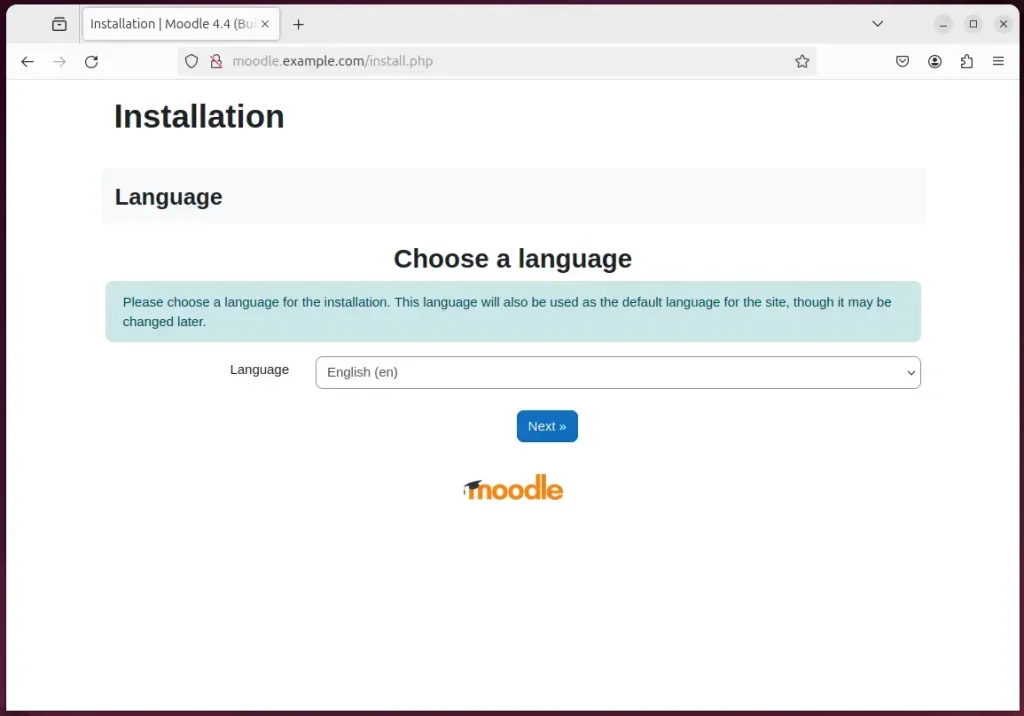
The Moodle installation wizard should appear. If you see the default Nginx page or an error instead, the server block is not active yet, so go back and check the previous section. Choose the installation language and continue to the next page.
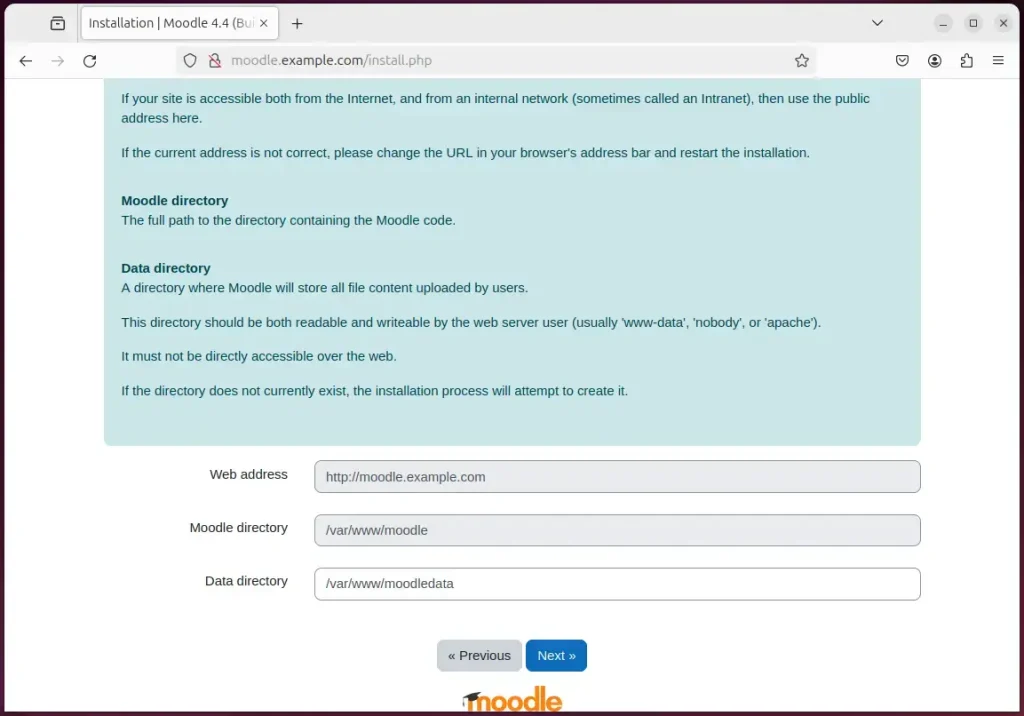
Confirm the installation paths and continue. This page lists the web address, the Moodle directory and the data directory. The web server must be able to write to the data directory. If the installer complains about it, the cause is almost always the permissions step in the download section.
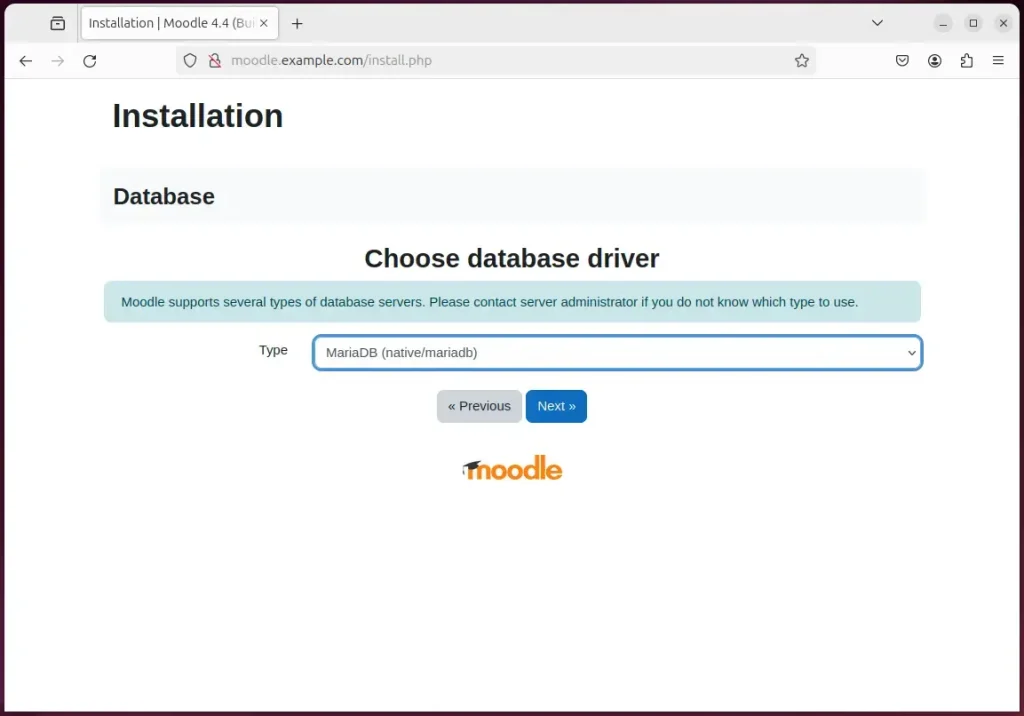
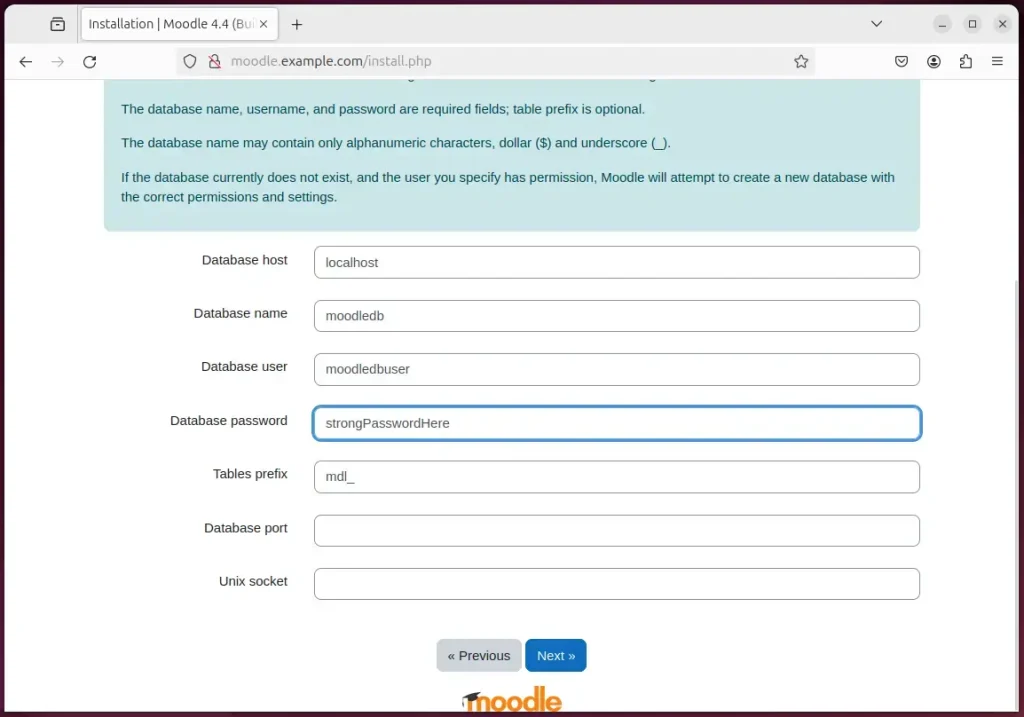
Next, choose the database driver. Select MariaDB and continue.
On the next page, enter the database name, username and password you created earlier, then continue. If the installer cannot connect, check that the name, user and password match what you set in MariaDB exactly. Passwords are case-sensitive.
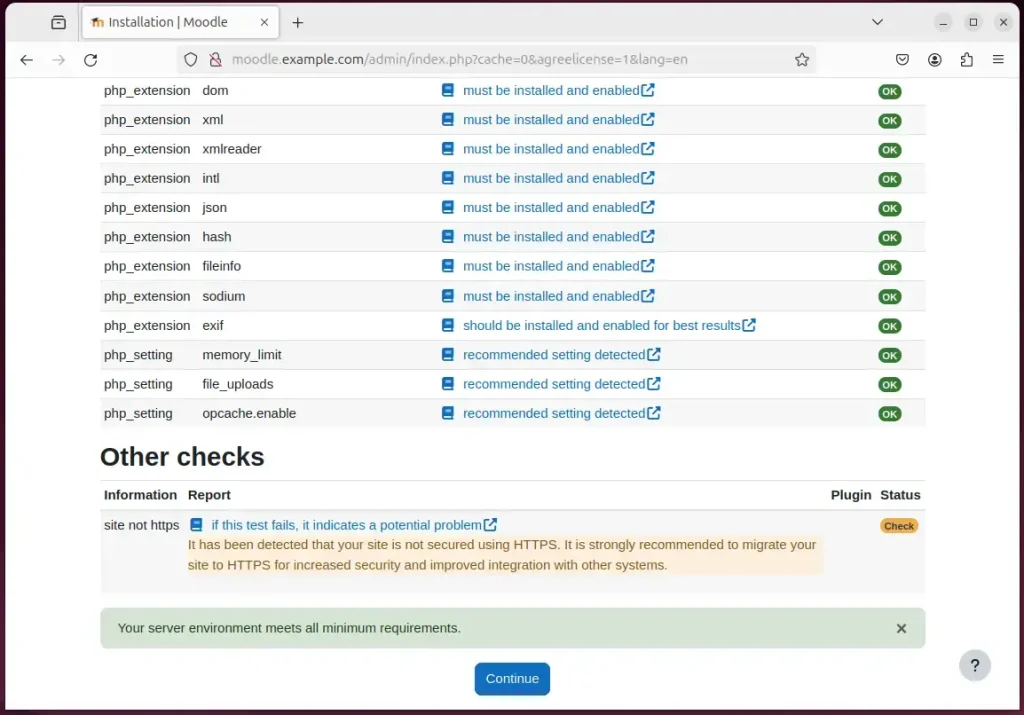
The installer now checks the server requirements. Confirm that all of them pass and continue.
You may get an error that "max_input_vars" must be at least 5000. The PHP default is lower, so this is common on a new install. Run the command below to fix it. Make sure it is applied to the PHP version you installed, because each PHP version has its own configuration. After the change, restart the PHP-FPM service so it takes effect, then reload the installer page. The warning should be gone.
sudo sed -i "s/;max_input_vars = .*/max_input_vars = 5000/" /etc/php/8.3/fpm/php.ini
sudo systemctl reload php8.3-fpm
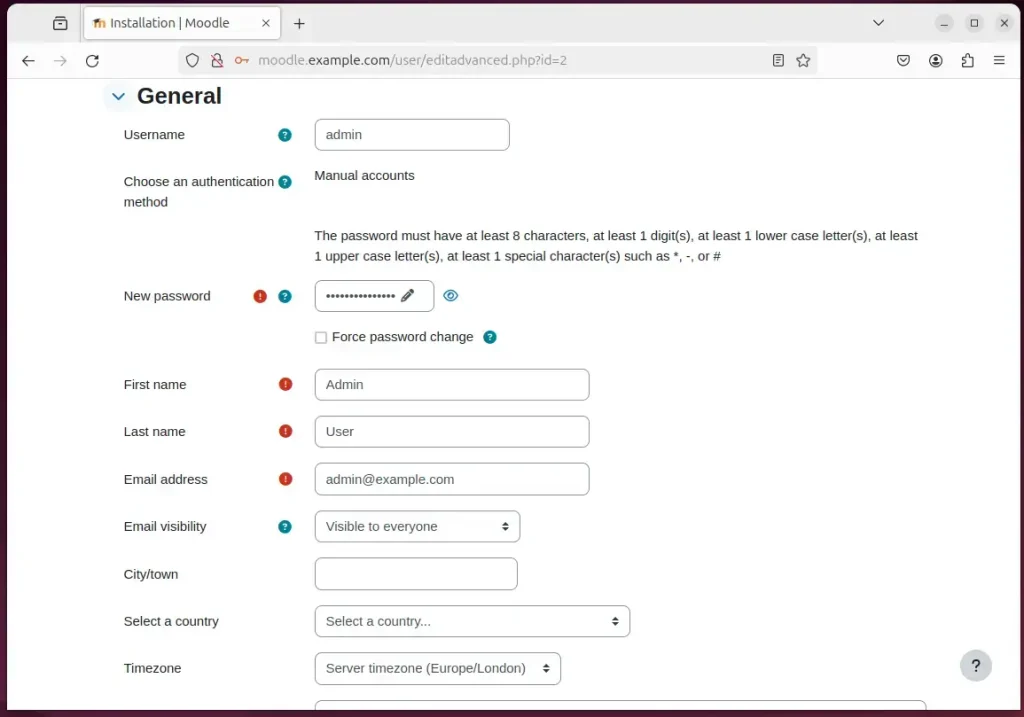
Next, set up your admin account and continue. Use a strong password. This account controls the whole site, including every course and user.
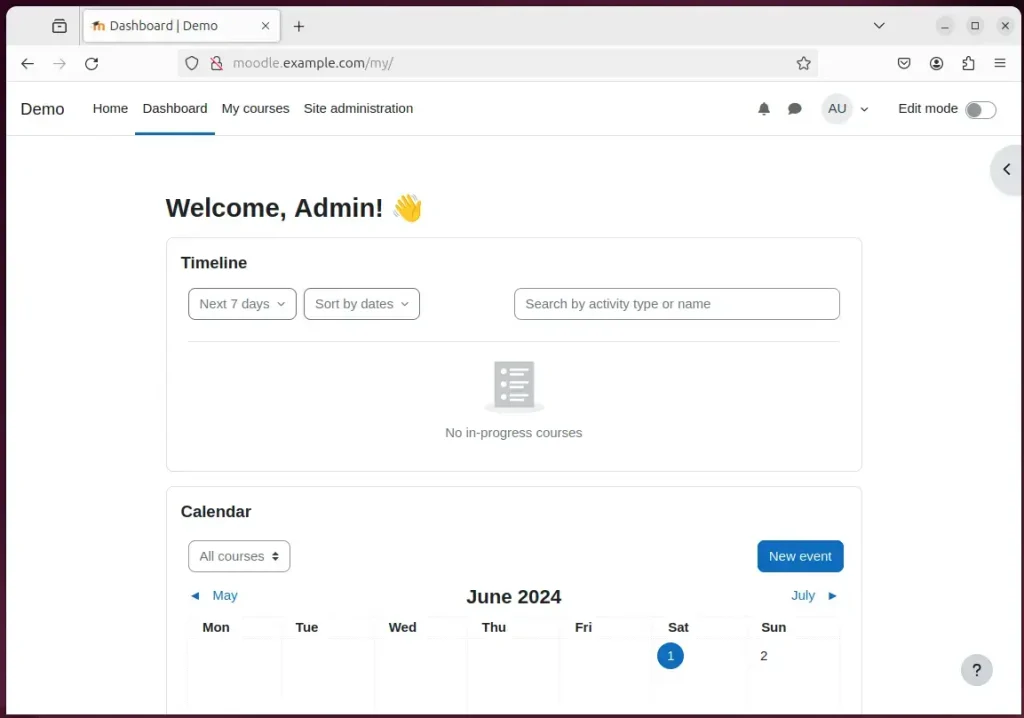
Your Moodle site is set up and ready to use. You can log in with the admin account, add courses and invite users.
That should do it!
Conclusion:
- A Moodle site running on Nginx and Ubuntu 24.04 performs well and scales to larger numbers of users, which suits schools and other educational institutions.
- Nginx uses little memory and handles many connections at once. Combined with MariaDB and PHP-FPM, it keeps Moodle responsive.
- This guide covered installing Nginx, MariaDB and PHP-FPM, then downloading Moodle and configuring Nginx to serve it.
- A Let's Encrypt SSL/TLS certificate adds HTTPS, which protects logins and other data, and leaves you with a working Moodle site.
- The Moodle community keeps releasing updates, so check regularly for new versions with the latest features and security fixes.
Have a question about this guide?
Answered by AI from this guide. Good questions may be added to this page — please don't include personal details.
Did this guide fix your problem?

About the Author
Richard
Tech Writer, IT Professional
Richard is a writer at Geek Rewind who turns complex IT tasks into clear, step-by-step guides. He draws on years of hands-on experience in system administration and enterprise IT operations, focusing on Windows, Linux and WordPress: the problems people actually run into, and the fixes that work. His server and WordPress guides come from systems he runs himself. Richard builds and maintains the platform behind Geek Rewind, from its Ubuntu servers and Nginx configuration to its custom WordPress plugins. Many new tutorials start with readers' questions, and he's always glad to answer them in the comments.
No comments yet — be the first to share your thoughts!