How to Install FossBilling with Nginx on Ubuntu Linux


FossBilling is an open-source client management and billing application. It lets you run your online business and handle customer invoices in one place. This tutorial installs it on Ubuntu 22.04 LTS with three supporting pieces: the Nginx web server, PHP-FPM, and a MariaDB database that stores your records.
Nginx hands PHP requests to PHP-FPM, and PHP talks to MariaDB. Before you start, you need root or sudo access to your Ubuntu server and a domain name pointed at the server’s IP address. If the server runs a firewall, allow web traffic (HTTP, and HTTPS if you plan to add SSL) before you test in a browser.
Install Nginx and PHP-FPM using `sudo apt install nginx php-fpm php-mysql`. Then, download FOSSBilling, configure Nginx with a site file, and run the web-based setup wizard. Finally, set up the cron job with `sudo crontab -u www-data -e`.
Install Nginx on Ubuntu Linux
Nginx is the fast web server that will serve your FOSSBilling panel. You install it with the apt package manager. Update the local package index first, so apt sees the newest package versions. Then install the web server package. The commands are sudo apt update followed by sudo apt install nginx, and the steps below show them in order. On Ubuntu, Nginx starts automatically after installation.
sudo apt updatesudo apt install nginx- Open your terminal and update your software list:
sudo apt update - Install Nginx:
sudo apt install nginx - Wait for apt to finish. If it asks you to confirm, type Y and press Enter.
You can manage the Nginx service with the commands below. You will need them later when you change the configuration or troubleshoot a problem.
- Stop:
sudo systemctl stop nginx - Start:
sudo systemctl start nginx - Enable at startup:
sudo systemctl enable nginx
Check that Nginx works by entering your server’s IP address in a web browser.
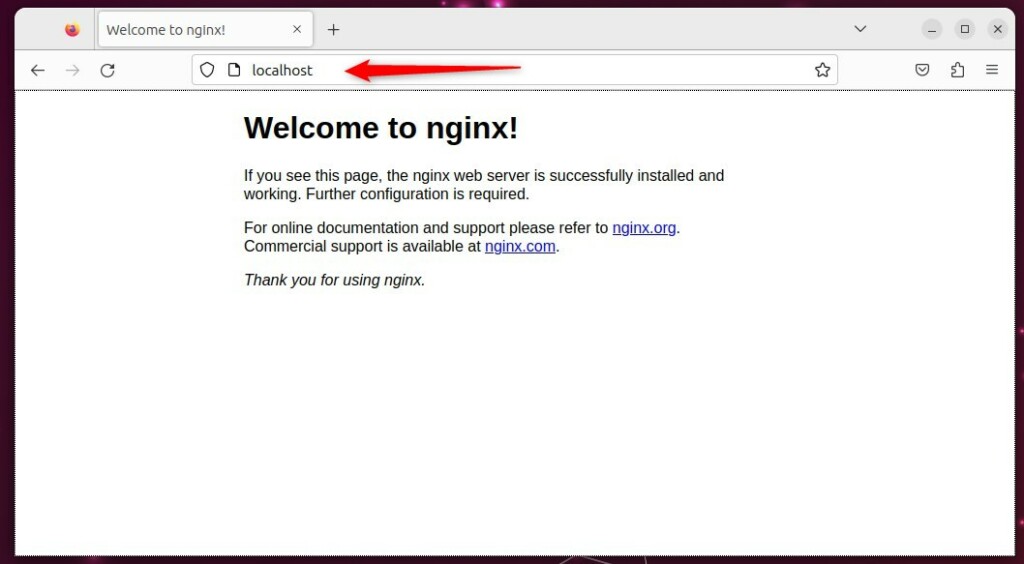
The Nginx welcome page should appear. If the page does not load, confirm the service is running and that your firewall allows HTTP traffic. For more detailed guidance, check out the How to install Nginx on Ubuntu guide.
Install MariaDB on Ubuntu Linux
MariaDB is the relational database that stores your customer and billing details. Here you install it from the official MariaDB repository. First you install a helper package, then you add the repository, and then you install the server itself.
- Install the repository helper:
sudo apt install software-properties-common curl - Add the MariaDB repo:
curl -LsS https://downloads.mariadb.com/MariaDB/mariadb_repo_setup | sudo bash - Install the server:
sudo apt install mariadb-server
Once the install finishes, start the service and enable it so it comes back after a reboot: sudo systemctl enable --now mariadb. For more help, visit How to install MariaDB on Ubuntu Linux.
Create FOSSBilling database
FOSSBilling needs its own database and its own database user. Do not use the MariaDB root account for the application. First secure the database server. Then log in to the MariaDB command prompt and run SQL commands that create the database and a dedicated user with full permissions on that database only.
Start with the security script:
sudo mysql_secure_installation
Follow the on-screen prompts. They cover the root password and the removal of default test settings. Answer them with care, and keep any password you set somewhere safe. Then create the database with these steps:
- Log in to MariaDB:
sudo mariadb. The prompt should change to the MariaDB prompt. - Run these commands one at a time. Use your own database name, username and a strong password where the commands call for them:
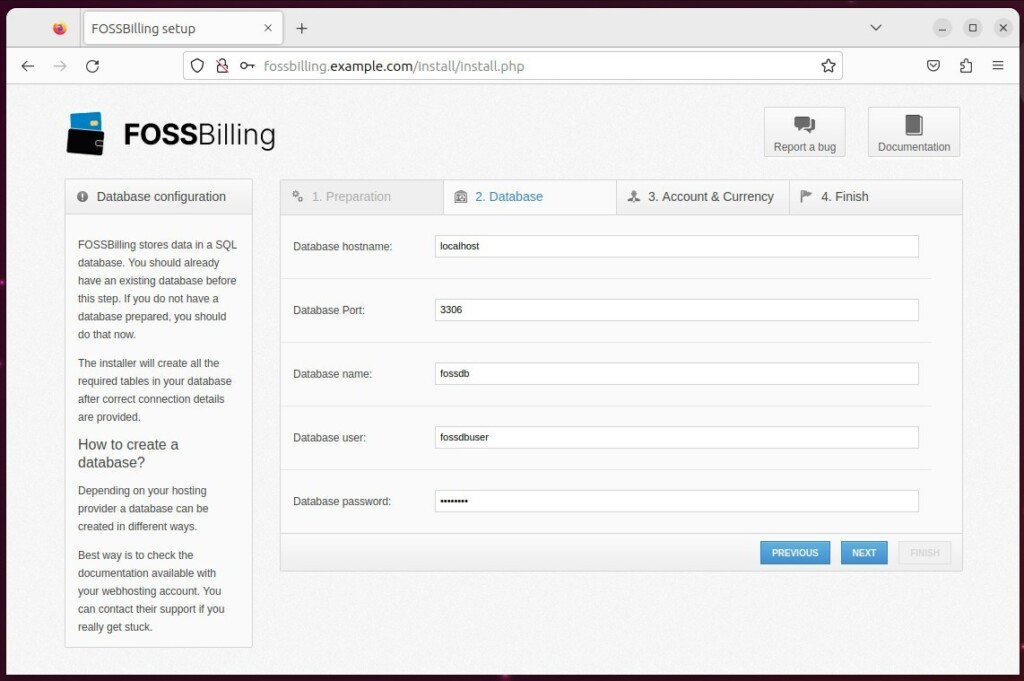
CREATE DATABASE fossdb;CREATE USER fossdbuser@localhost IDENTIFIED BY 'your_password';GRANT ALL ON fossdb.* TO fossdbuser@localhost WITH GRANT OPTION;FLUSH PRIVILEGES;exit - Note the database name, username and password. You will enter them in the FOSSBilling setup wizard later.
Install PHP-FPM on Ubuntu Linux
PHP-FPM (FastCGI Process Manager) runs the PHP scripts that Nginx passes to it. You install it together with the PHP modules FOSSBilling relies on, including MySQL, curl and mbstring. Without these modules the installer or the application itself will fail with errors.
sudo apt install php-fpm php-mysql php-intl php-curl php-cli php-zip php-common php-mbstring php-xmlThis installs all the components FOSSBilling needs to run with PHP.
Next, enable PHP-FPM so it starts automatically at boot: sudo systemctl enable --now php8.3-fpm
Check the installed version by running php -v. Ubuntu 22.04 ships PHP 8.1 by default.
General: Configure Nginx
Nginx needs a site configuration that points at the FOSSBilling files and passes PHP requests to PHP-FPM. You do this in three parts. Create a web directory, give your web server user ownership of it, and write a server block file for your domain.
Create the directory and set its ownership:
sudo mkdir -p /var/www/fossbilling
sudo chown -R www-data:www-data /var/www/fossbilling
Now create the configuration file:
sudo nano /etc/nginx/sites-available/fossbilling.conf
- Paste the server settings into the new file.
- Make sure the domain name and the PHP-FPM socket version in the file match your own setup.
- Save the file and close the editor.
- Enable the new Nginx configuration for FossBilling and reload Nginx with the commands below.
sudo ln -s /etc/nginx/sites-available/fossbilling.conf /etc/nginx/sites-enabled/
sudo systemctl restart nginx
If Nginx reports a configuration error, recheck the file for typos. Fix them before you continue.
Download and Setup
The last stage is to get the application files and run the web-based installer. You pull the latest stable archive from the official project source with curl, extract it into your web directory, and then open your browser to complete the setup wizard.
Run these commands to download and extract FOSSBilling:
cd /tmp
curl https://fossbilling.org/downloads/stable -L --output FOSSBilling.zip
sudo unzip FOSSBilling.zip -d /var/www/fossbilling
Visit your domain in a browser. The FOSSBilling installer should load.
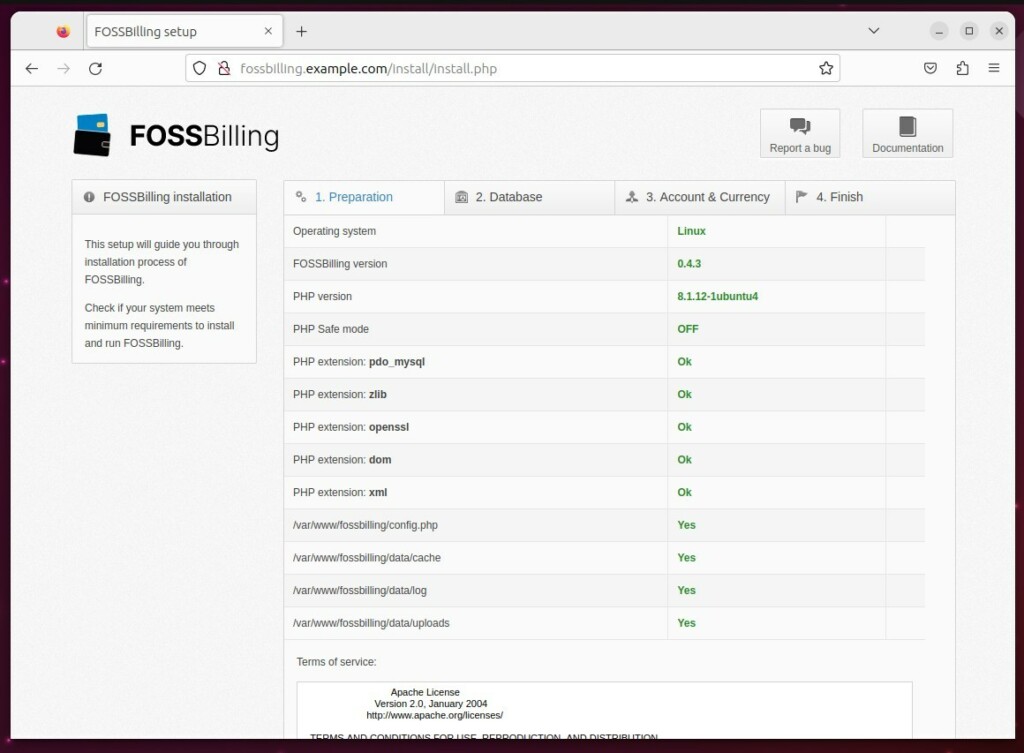
Follow the setup wizard to connect the database. Use the database name, username and password you created earlier.
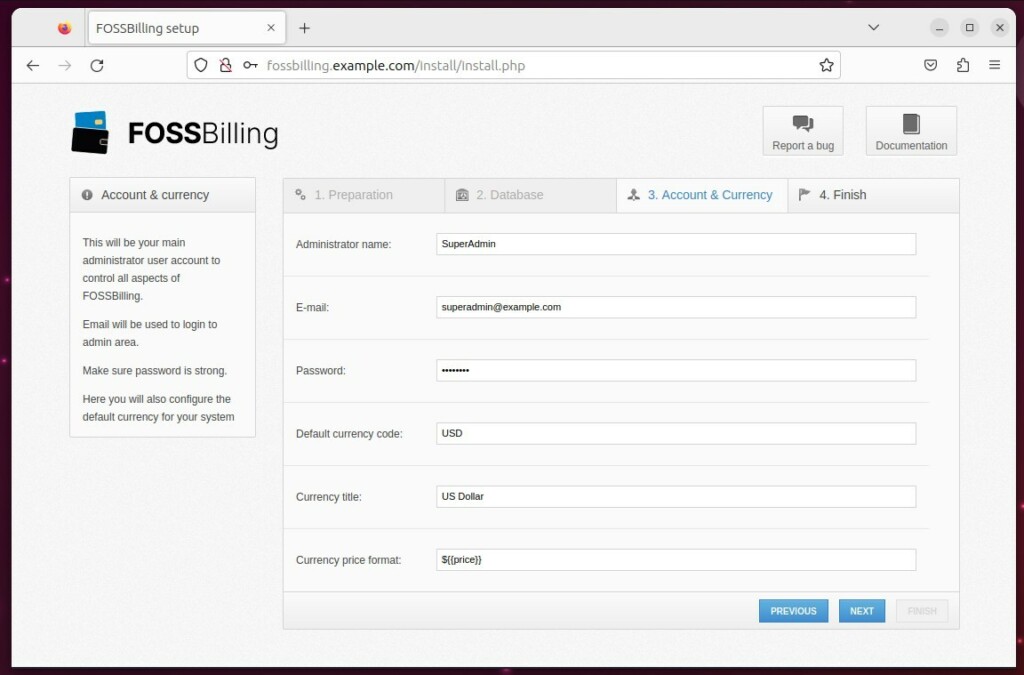
Then create your admin account.
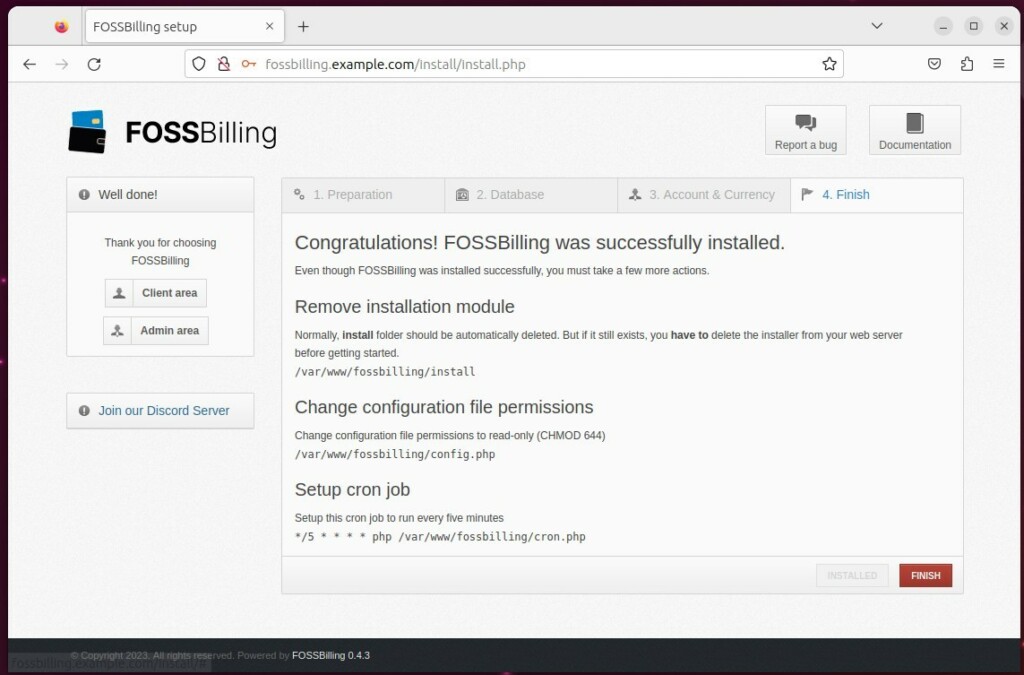
When the wizard finishes, remove the installation folder for security. Leaving it in place is a risk:
sudo rm -rf /var/www/fossbilling/install
Next, set up the background task (cron job). FOSSBilling uses it for scheduled work such as invoicing and reminders. Open the crontab for editing:
sudo crontab -u www-data -e
Add this line at the end of the file, then save and close it: */5 * * * * php /var/www/fossbilling/cron.php
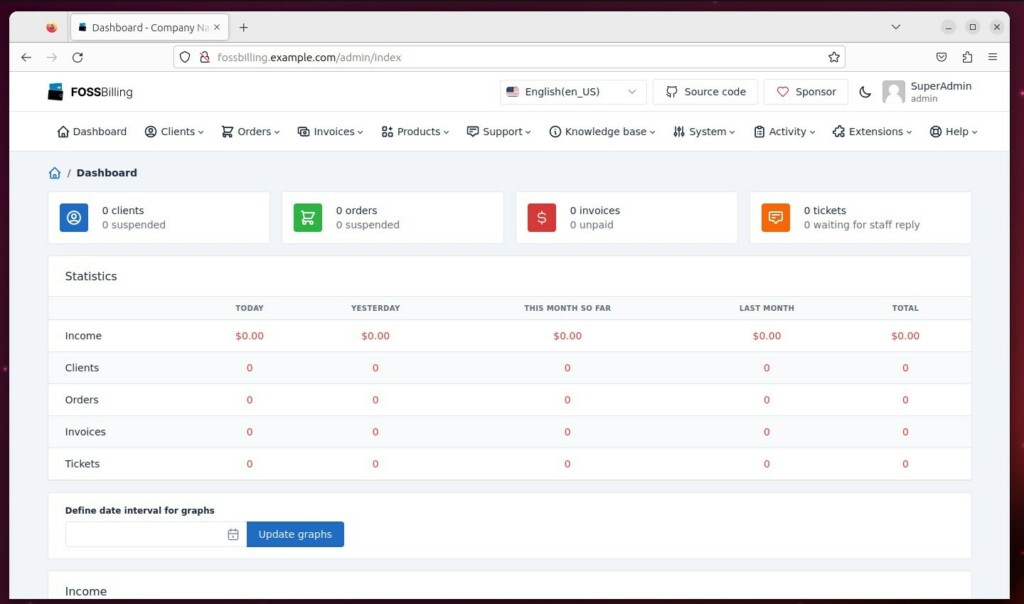
Log in to the admin dashboard with the account you created in the wizard.
Your site is still served over plain HTTP at this point. For SSL setup, see How to setup Let's Encrypt with Nginx web server.
Have a question about this guide?
Answered by AI from this guide. Good questions may be added to this page — please don't include personal details.
Did this guide fix your problem?

About the Author
Richard
Tech Writer, IT Professional
Richard is a writer at Geek Rewind who turns complex IT tasks into clear, step-by-step guides. He draws on years of hands-on experience in system administration and enterprise IT operations, focusing on Windows, Linux and WordPress: the problems people actually run into, and the fixes that work. His server and WordPress guides come from systems he runs himself. Richard builds and maintains the platform behind Geek Rewind, from its Ubuntu servers and Nginx configuration to its custom WordPress plugins. Many new tutorials start with readers' questions, and he's always glad to answer them in the comments.
No comments yet — be the first to share your thoughts!