How to Use Gmail in Outlook on Windows 11


You can use Gmail in the new Outlook for Windows 11 by configuring it as an IMAP account.
The new Outlook app, which replaced the Mail and Calendar apps in late 2023, centralizes your email accounts, including Gmail, into one unified interface.
This connection lets you manage your Gmail inbox, send emails, and access contacts directly from your Windows 11 PC, eliminating the need to switch browser tabs for your email.
Once set up, your Gmail account syncs seamlessly, allowing you to read, compose, and archive messages without leaving Outlook.
Add your Gmail account as an IMAP account in the new Outlook app. Click the gear icon for Settings, then select “Add account” and enter your Gmail address. Follow the prompts to allow Outlook access to your Google account.
How to Add Your Gmail Account
Adding your Gmail account to Outlook on Windows 11 is straightforward and lets you manage your emails in one place.
- Open the Outlook app on your Windows 11 computer. You can find it by clicking the Start menu and typing “Outlook” in the search box.
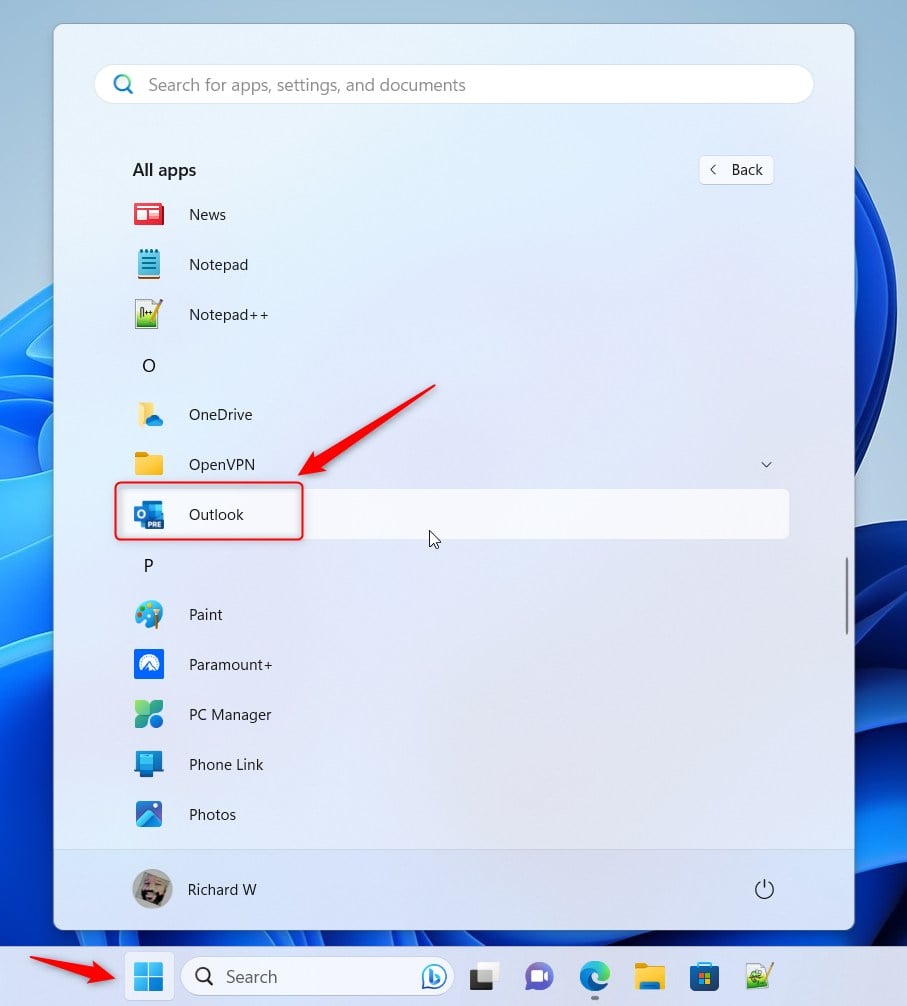
Open the new Outlook app in Windows 11 - Click the Settings button, which looks like a gear icon in the top right corner of the app.
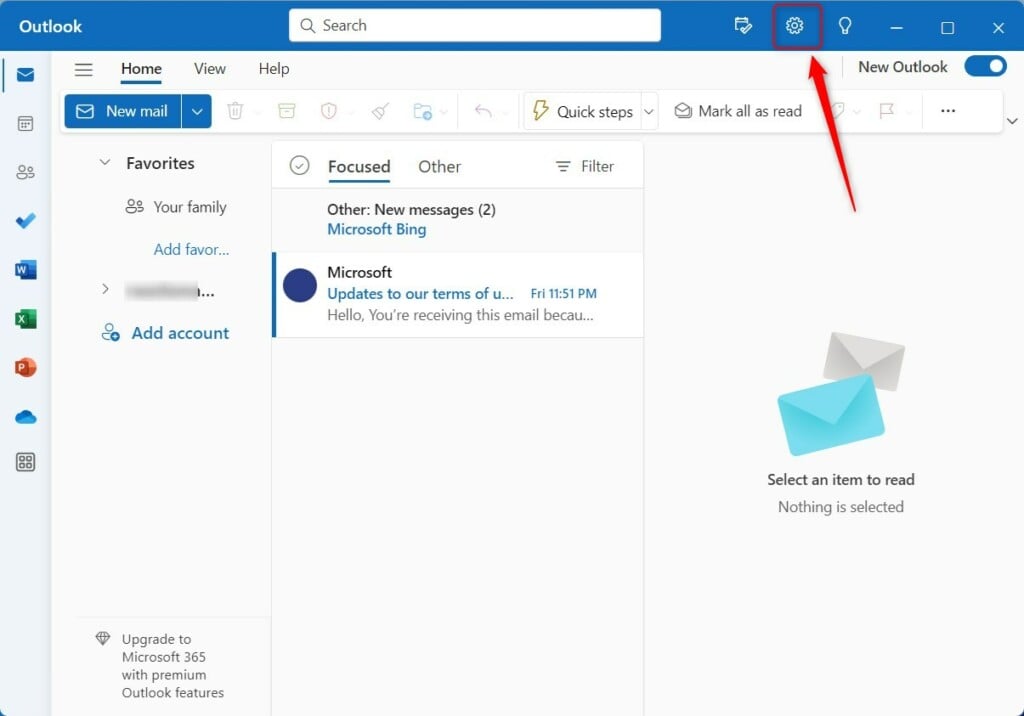
Add Gmail to Outlook app in Windows 11 - On the Settings page, look for the “Email accounts” section and click the Add account button.
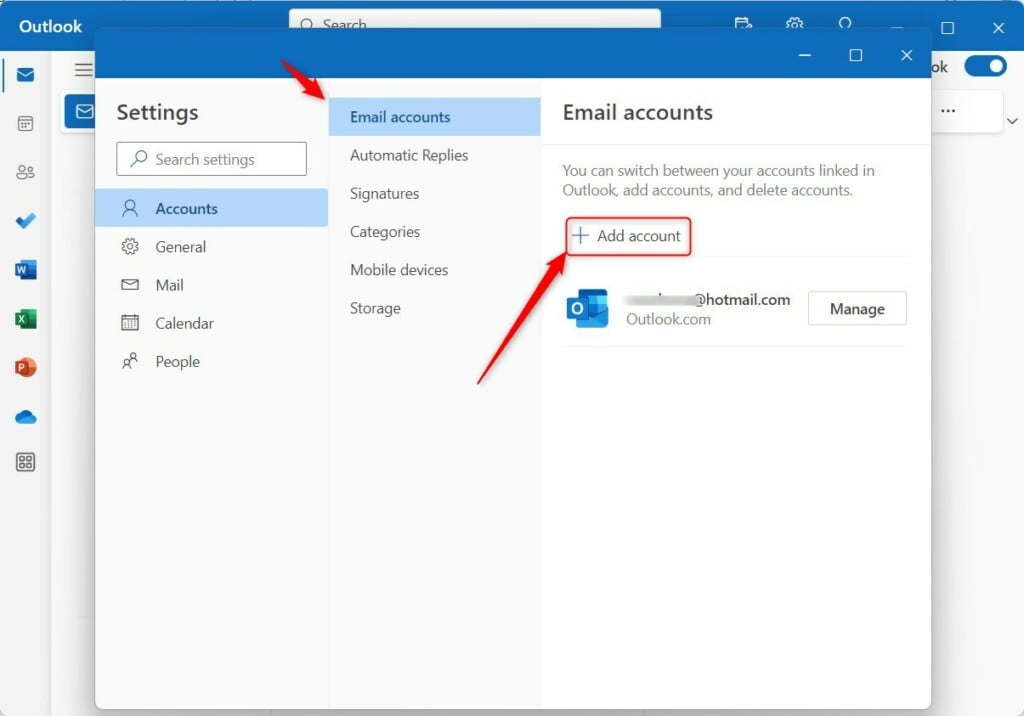
Open the new Outlook app in Windows 11 - A window will pop up. Type in your full Gmail address and click Continue.
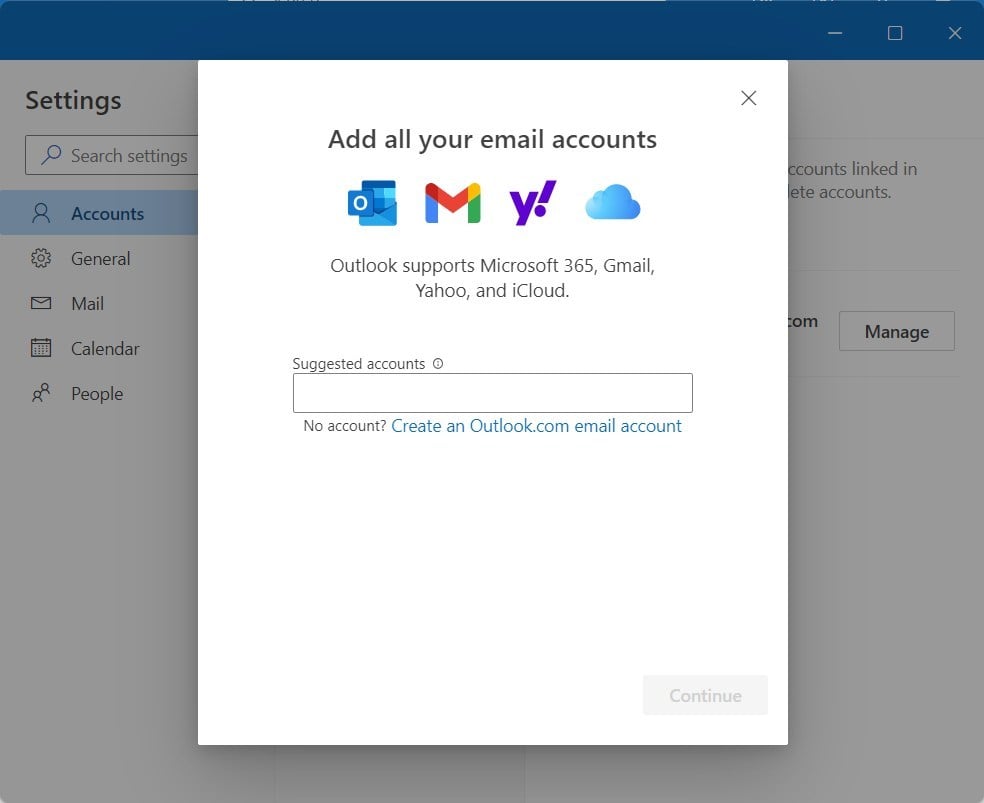
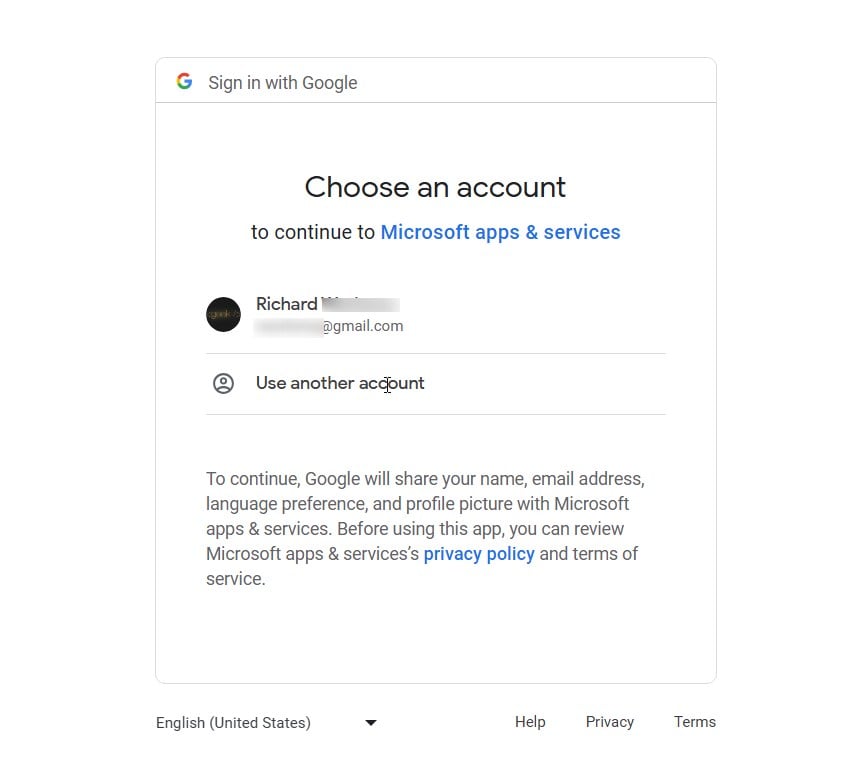
Add Gmail to Outlook app in Windows 11 - A web page will open automatically. Choose your Google account from the list.
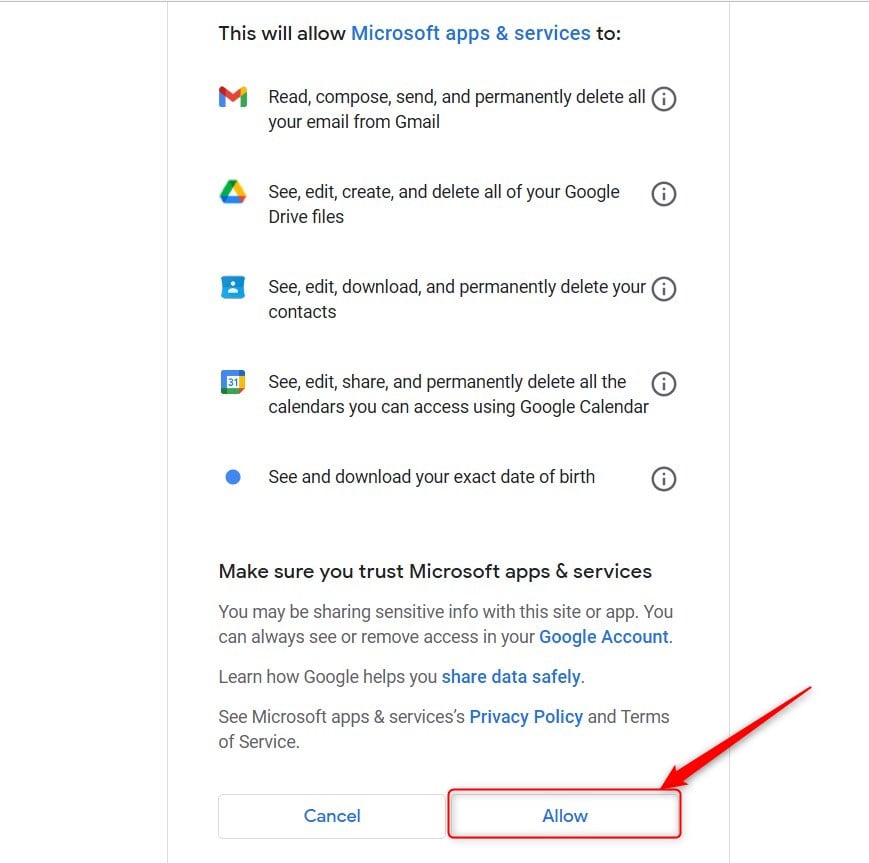
Outlook app window showing Gmail account sync and confirmation settings - Click Allow to give Outlook permission to sync your Gmail messages, calendar events, and contacts.
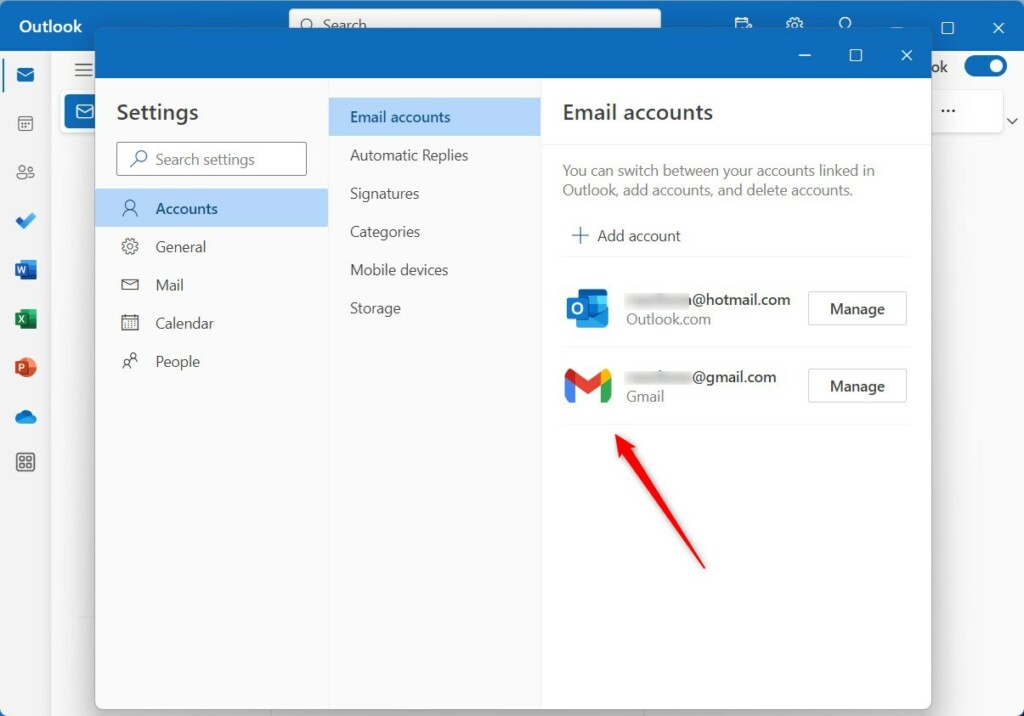
Add Gmail to Outlook app in Windows 11 - Your Gmail account is now linked. You can see your inbox, calendar, and contacts right inside the app.
Add Gmail to Outlook app in Windows 11 -
For more information, visit the official support page at Microsoft Outlook.
Summary
Connecting your Gmail account to the new Outlook app on Windows 11 brings your emails, contacts, and calendar into one easy-to-use program.
Was this guide helpful?

About the Author
Richard
Tech Writer, IT Professional
Richard, a writer for Geek Rewind, is a tech enthusiast who loves breaking down complex IT topics into simple, easy-to-understand ideas. With years of hands-on experience in system administration and enterprise IT operations, he’s developed a knack for offering practical tips and solutions. Richard aims to make technology more accessible and actionable. He's deeply committed to the Geek Rewind community, always ready to answer questions and engage in discussions.



[…] new Outlook for Windows brings the latest features and a modern and simplified design with support for Exchange-backed […]
[…] new Outlook for Windows brings the latest features and a modern and simplified design with support for Exchange-backed […]
[…] new Outlook for Windows brings the latest features and a modern and simplified design with support for Exchange-backed […]
[…] new Outlook for Windows brings the latest features and a modern and simplified design with support for Exchange-backed […]
[…] new Outlook for Windows brings the latest features and a modern and simplified design with support for Exchange-backed […]
[…] new Outlook for Windows brings the latest features and a modern and simplified design with support for Exchange-backed […]
[…] new Outlook for Windows brings the latest features and a modern and simplified design with support for Exchange-backed […]
[…] new Outlook for Windows brings the latest features and a modern and simplified design with support for Exchange-backed […]
[…] new Outlook for Windows brings the latest features and a modern and simplified design with support for Exchange-backed […]
[…] new Outlook for Windows brings the latest features and a modern and simplified design with support for Exchange-backed […]
[…] new Outlook for Windows brings the latest features and a modern and simplified design with support for Exchange-backed […]
[…] new Outlook for Windows brings the latest features and a modern and simplified design with support for Exchange-backed […]
[…] new Outlook for Windows offers a modern design that supports many email accounts, including Outlook.com, Gmail, and work or […]
[…] new Outlook for Windows has a modern look. It works with Microsoft 365, Outlook.com, Hotmail, and Gmail […]
[…] new Outlook for Windows brings modern features and a clean design. It works with Microsoft 365 work or school accounts, […]
[…] new Outlook for Windows brings a clean, modern design to your email. It works with Microsoft 365, Outlook.com, Hotmail, and […]
[…] new Outlook for Windows makes managing your email easier. It works with Microsoft 365, Outlook.com, Hotmail, and Gmail […]
[…] new Outlook for Windows offers a clean, modern design for your Microsoft 365, Outlook.com, Hotmail, and Gmail accounts. The […]
[…] new Outlook for Windows app has a clean, modern design. It supports Microsoft 365 work or school accounts, Outlook.com, […]
[…] new Outlook for Windows brings a modern design and simple features. It supports Microsoft 365 work or school accounts, […]
[…] new Outlook for Windows app makes it easy to manage your emails, including accounts like Outlook.com, Hotmail, and Gmail. […]
[…] new Outlook for Windows brings a clean, modern look to your email. It works with Microsoft 365, Outlook.com, Hotmail, and […]
[…] your calendar in the new Outlook for Windows app makes it simple to coordinate plans with friends or coworkers. It also works with Gmail […]
[…] new Outlook for Windows offers a modern, clean look. It works with Microsoft 365, Outlook.com, Hotmail, and Gmail accounts. […]