Wi-Fi and Bluetooth in Windows 11: Settings Explained

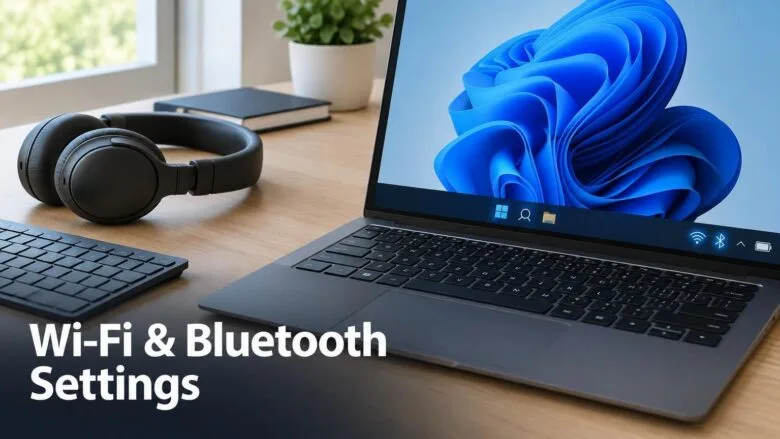
Wi-Fi and Bluetooth in Windows 11 control how your PC connects to networks, headphones, keyboards, pens and other nearby devices. Both sit under Settings Network & internet and Settings Bluetooth & devices, and their switches are easy to confuse. Most connection problems come from a radio that is turned off, a network set to the wrong profile, or a device that needs pairing again. This page groups the guides by what you are trying to do, so you can go straight to the right one.
Turn Wi-Fi and Bluetooth on or off
Use these guides when a radio is missing, greyed out, or needs to be switched off to save battery or stop a connection. The Wi-Fi and Bluetooth switches are separate, so check both before you assume a fault. Airplane mode turns both off at once.
 How to Enable or Disable Bluetooth in Windows 11 Disable Bluetooth in Windows 11 using simple registry commands. Enable or turn off Bluetooth for all users with admin privileges. Step-by-step guide…
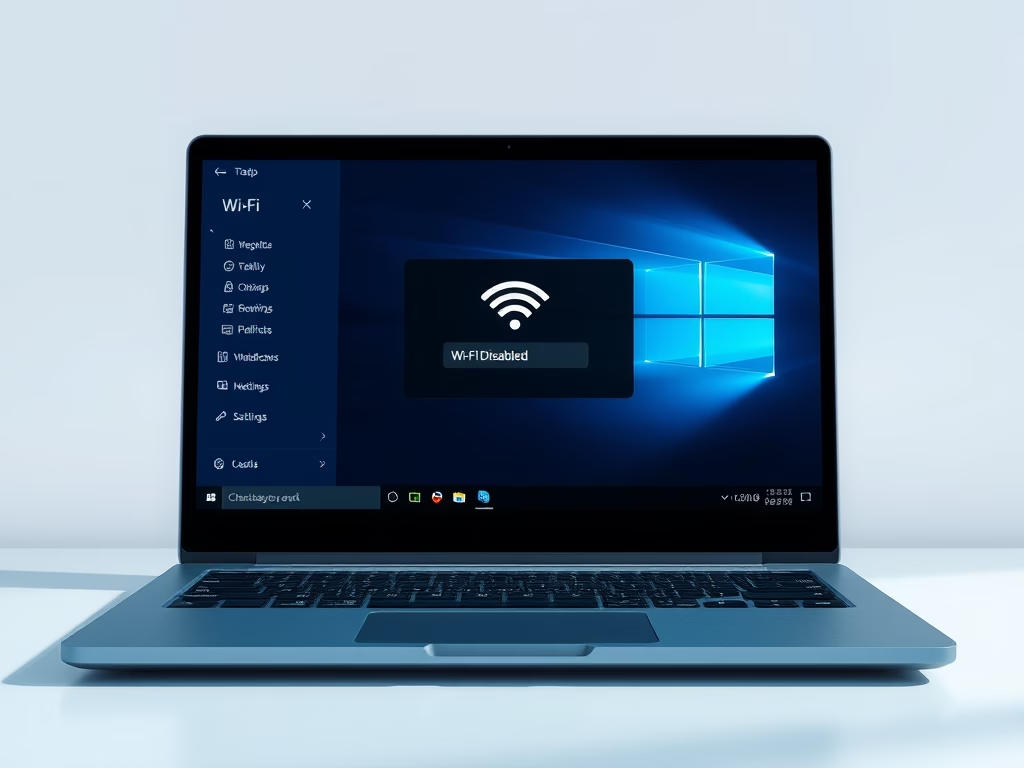 How to Enable or Disable Wi-Fi in Windows 11 Disable WiFi Windows 11 with admin privileges using registry commands. Enable or turn off wireless connectivity on Windows 11 and 10.
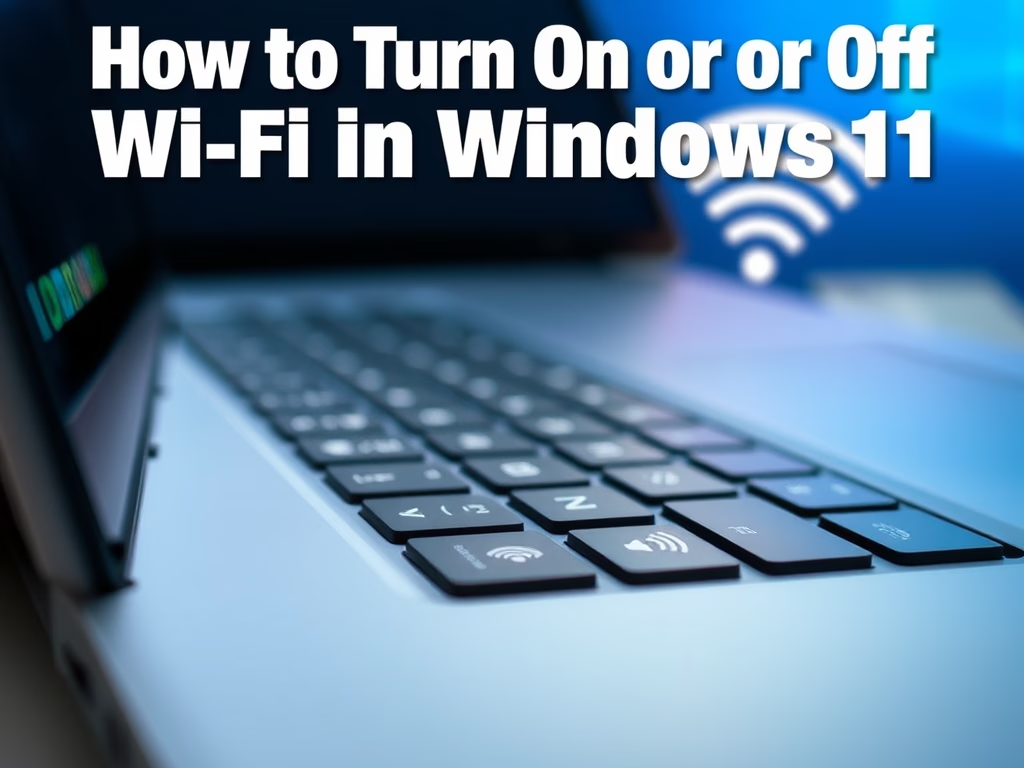 How to Turn On or off Wi-Fi in Windows 11 Toggle your Windows 11 WiFi on or off using Quick Settings, Settings app, keyboard shortcuts, or Airplane Mode. Save battery and boost security.
Pair and share with nearby devices
These guides cover connecting a pen, sending files or links to a nearby PC, and sharing an internet connection over Bluetooth. Nearby sharing needs both PCs to have it turned on and to be close together. Bluetooth PAN (personal area network, a way to share a connection with another device over Bluetooth) is the least common option here.
 How to Share Pictures Between Nearby PCs in Windows 11 Share pictures between nearby Windows 11 PCs using the built-in Nearby sharing feature. Discover how to enable and use this quick wireless trans...
 How to Share a Link to a Website Using Nearby Sharing in Windows 11 Share website links between Windows PCs using Nearby Share. Discover how to enable and use this quick, wireless transfer feature in Windows 11.
 How to Pair Your Pen with Windows 11 Pair pen Windows 11 with our step-by-step Bluetooth guide. Enable Bluetooth, enter pairing mode, and connect your digital pen in minutes.
 How to Set Up Bluetooth PAN on Windows 11 Set up Bluetooth PAN on Windows 11 to share internet between devices without Wi-Fi. Step-by-step guide for secure, wireless connectivity.
Set up your network and find devices on it
Use these guides when you want to see other computers or a network printer, or when a network should be shared or kept private. The network profile you choose decides whether your PC can be seen by other devices. Finding a printer’s IP address (the number that identifies it on your network) lets you add it by address.
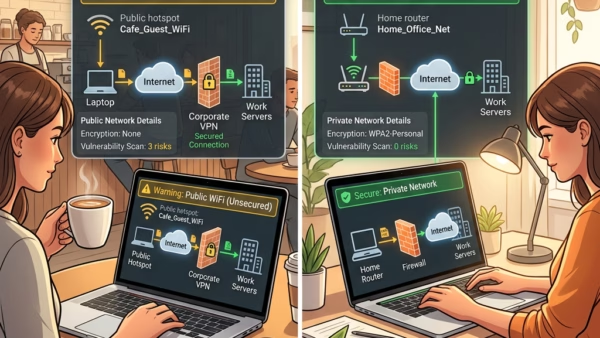 How to Make Your Network Public or Private in Windows 11 Switch your Windows 11 network between Public and Private to control device visibility and enhance security. Learn when to use each setting for optima...
 How to Find Other Computers on Your Windows 11 Network Discover how to find other computers on your Windows 11 network. Follow our step-by-step guide to enable network discovery and access devices in File…
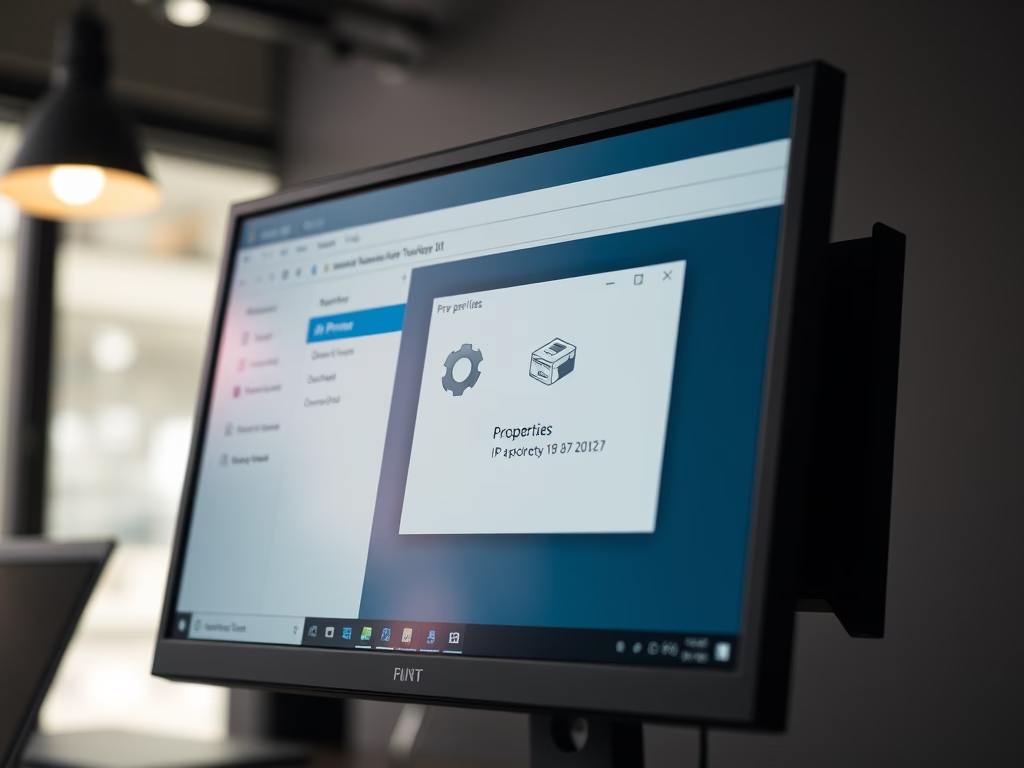 How to Find a Printer IP Address in Windows 11 Find your printer IP address in Windows 11 using File Explorer or Settings. Follow our simple steps to locate your printer's network address for setup and…
Check Wi-Fi signal and connection speed
Use these guides when a connection feels slow or drops in one room but not another. Signal strength and link speed show different things, so check both before you move the router or change settings. These checks take a few minutes and do not change any settings.
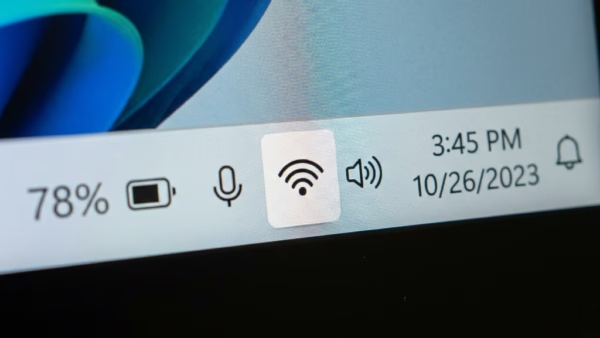 How to Check Wi-Fi Network Signal Strength in Windows 11 Struggling with slow internet? Discover six easy ways to check Wi-Fi strength on Windows 11 and optimize your connection for faster, more reliable speeds.
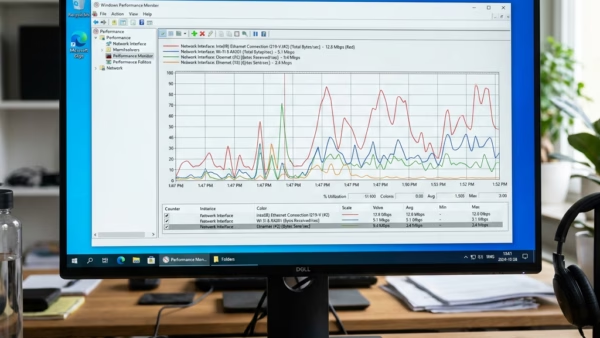 How to Check Network Adapter Connection Speed In Windows 11 Need to check network speed in Windows 11? Follow our guide to view your adapter's link speed via Task Manager, Settings, PowerShell, or Control Panel.
Change Wi-Fi, adapter and Bluetooth settings
These guides cover the settings that control how your wireless hardware behaves. Power saving and Bluetooth discovery settings often cause dropped connections or devices that do not appear in lists. Change one setting at a time, so you know which change made the difference.
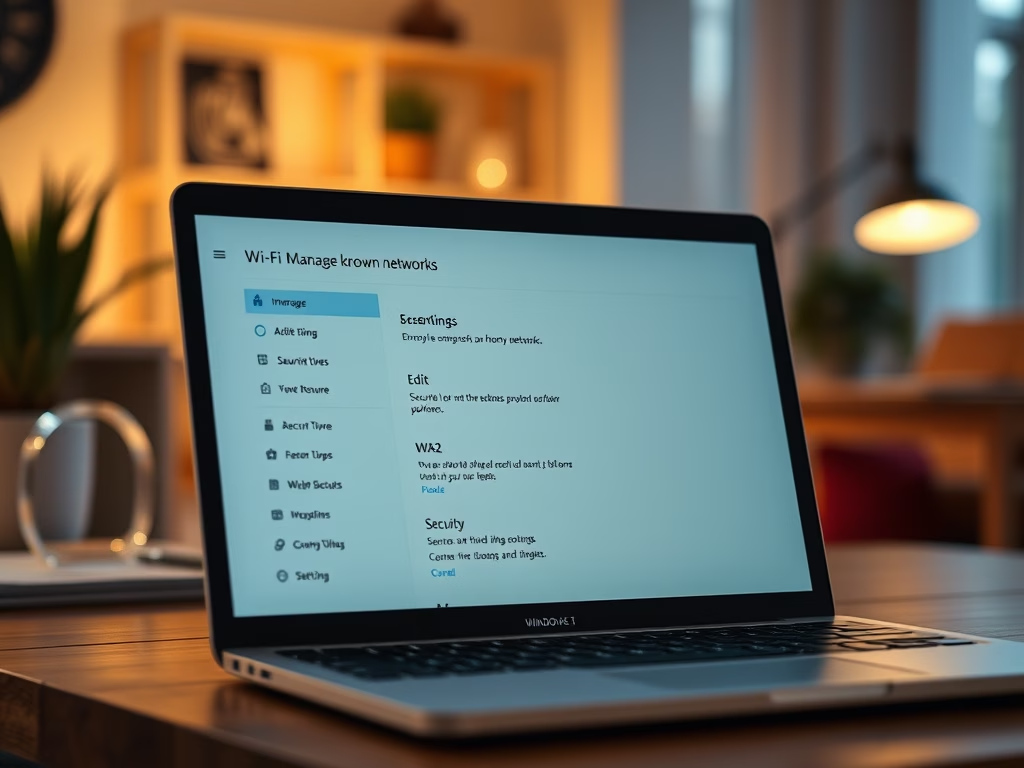 How to Change Your Wi-Fi Settings in Windows 11 Update your Windows 11 Wi-Fi settings without deleting the network. Change passwords, security types, and connection preferences in just a few steps.
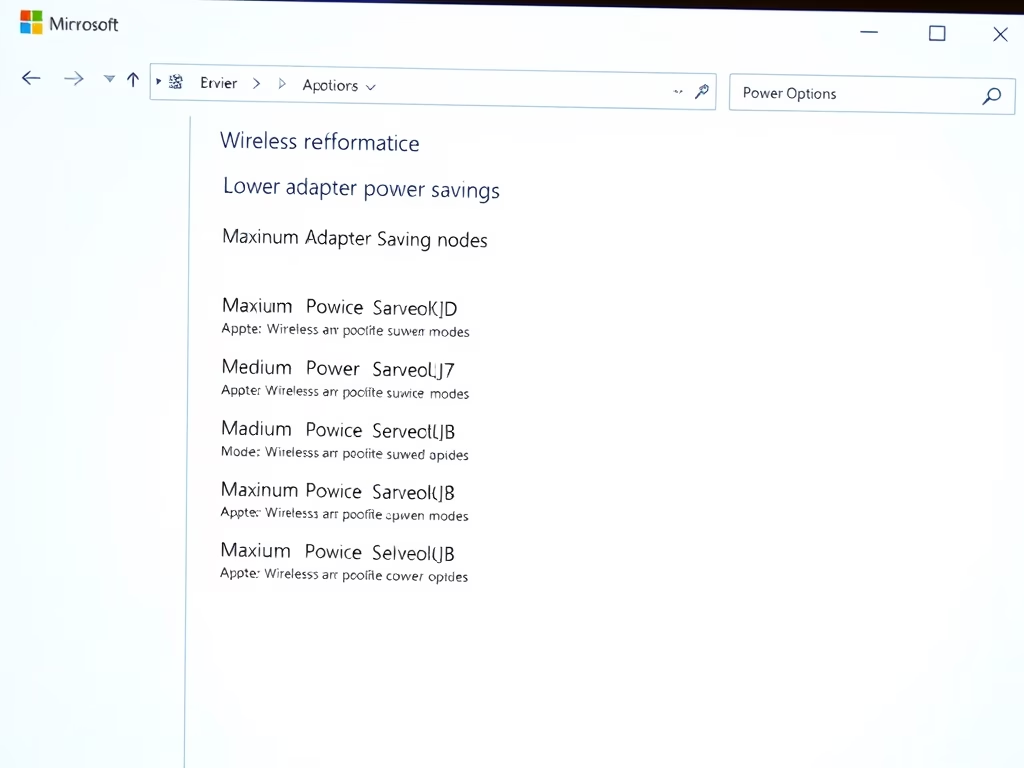 How to Change Power Saving Mode of Wireless Adapters in Windows 11 Optimize your connection or battery life by adjusting wireless adapter power settings in Windows 11. Follow our guide to boost speed or efficiency.
 How to Enable or Disable Bluetooth Absolute Volume in Windows 11 Enable or disable Bluetooth Absolute Volume in Windows 11 with simple registry commands. Fix volume control issues with wireless speakers and headphones.
 How to Enable or Disable Advanced Bluetooth Discovery in Windows 11 Enable advanced Bluetooth discovery in Windows 11 to find and connect to more device types. Follow our step-by-step guide using Settings or Registry Editor.
Have a question about this guide?
Answered by AI from this guide. Good questions may be added to this page — please don't include personal details.

About the Author
Richard
Tech Writer, IT Professional
Richard is a writer at Geek Rewind who turns complex IT tasks into clear, step-by-step guides. He draws on years of hands-on experience in system administration and enterprise IT operations, focusing on Windows, Linux and WordPress: the problems people actually run into, and the fixes that work. His server and WordPress guides come from systems he runs himself. Richard builds and maintains the platform behind Geek Rewind, from its Ubuntu servers and Nginx configuration to its custom WordPress plugins. Many new tutorials start with readers' questions, and he's always glad to answer them in the comments.
No comments yet — be the first to share your thoughts!