How to Change Wireless Adapter Power Saving Mode in Windows 11

- 10 steps
- Needs administrator rights
Wireless adapter power saving mode in Windows 11 controls how much power your PC lets the Wi-Fi card use. Depending on your power plan, Windows can switch the adapter to a power-saving setting. That can slow your internet speed or drop the connection, especially after the PC wakes from sleep.
The usual fix is to set the mode to Maximum Performance. Some guides send you to Device Manager for this. This guide uses Power Options in Control Panel and Windows Terminal instead, because they change the power plan setting directly. Full power uses slightly more battery, but the connection is usually faster and steadier.
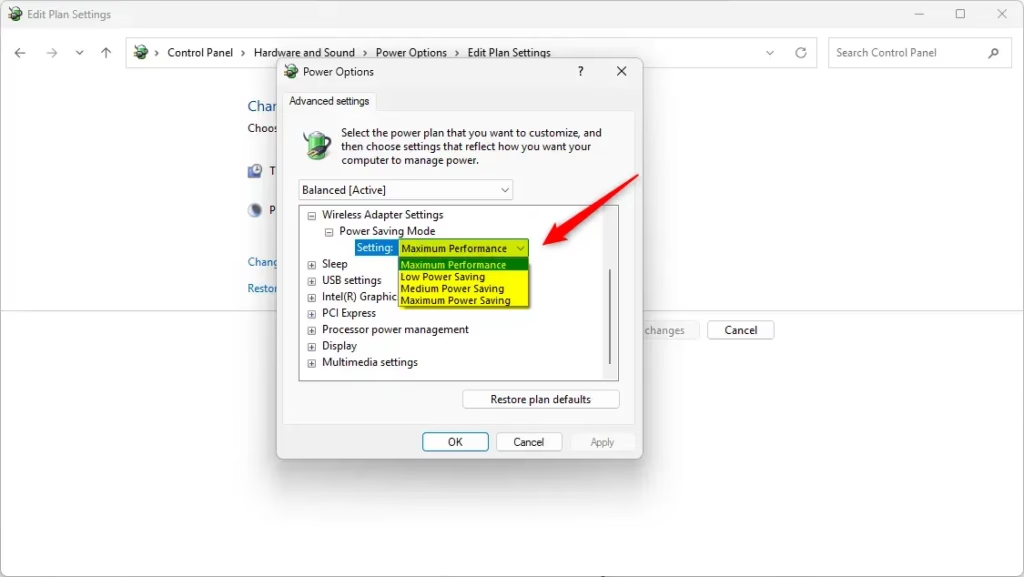
Open Control Panel, select Power Options, then Change plan settings and Change advanced power settings. Expand Wireless Adapter Settings, then Power Saving Mode, and set both On battery and Plugged in to Maximum Performance. Click OK. The change applies immediately, with no restart needed.
What Is Wireless Adapter Power Saving Mode?
Wireless adapter power saving mode lets you choose how much energy the Wi-Fi connection uses, trading battery life against network speed. There are four levels. Maximum Performance uses the most power and gives the best speed. Low Power Saving, Medium Power Saving and Maximum Power Saving save progressively more power and give up progressively more performance.
On a laptop, you can set one level for battery and a different one for when it is plugged in. A common choice is Maximum Performance when plugged in and a saving mode on battery. Desktop PCs often show only one option.
Power Saving Options
| Mode | What It Does |
|---|---|
| Maximum Performance | Best Wi-Fi speed, uses more power. (Default when plugged in) |
| Low Power Saving | Good balance between speed and saving power |
| Medium Power Saving | More power saving but may reduce speed. (Default on battery) |
| Maximum Power Saving | Saves the most power but Wi-Fi may slow down |
How to Change Power Saving Mode via Control Panel
The Control Panel route needs no commands, and it works the same on Windows 11 Home and Pro. You open Power Options, edit your active power plan, and change the advanced settings for your wireless adapter. No restart is needed. The change applies as soon as you click OK.
These steps set the wireless adapter power saving mode to Maximum Performance, so Windows no longer trades Wi-Fi speed for battery life.
- Open Control Panel. Press Win+R on your keyboard, type
controland press Enter. Control Panel opens in a new window. - Click Power Options. If you do not see it, set View by in the top-right corner to Small icons or Large icons. You should now see your power plans listed.
- Click Change plan settings next to your active plan. The active plan has the filled-in radio button, for example “Balanced”. The Edit Plan Settings window opens with the display and sleep options.
- Click Change advanced power settings. A small Power Options dialog opens with a list of settings you can expand.
- Expand Wireless Adapter Settings. Scroll down and click the plus sign next to Wireless Adapter Settings. If the entry is missing, the PC has no Wi-Fi adapter installed or enabled, or the manufacturer’s driver hides the option.
- Expand Power Saving Mode. Click the plus sign next to it. You should see the On battery and Plugged in entries.
- Select Maximum Performance for each entry. Use the dropdown menus for On battery and Plugged in. This gives the best Wi-Fi speed. Pick a saving mode instead if battery life matters more to you.
- Click OK to save your changes. The new mode applies at once. To undo it, come back to the same place and select your previous mode.
How to Change Power Saving Mode Using Commands
Commands in Windows Terminal can also change the wireless adapter power saving mode. This is quicker than clicking through menus, and it helps if you need to change the setting on several PCs. Open the terminal with administrator rights, or the commands fail with an access error.
The commands use the powercfg tool, which edits the same setting you see in Power Options. The change applies to your active power plan. If the new value does not seem to take effect, open Power Options and check the setting there.
These steps run a powercfg command that sets the wireless adapter power saving mode from the terminal.
- Open Windows Terminal as administrator. ⚠️ Admin privileges required. Right-click the Start button and select Windows Terminal (Admin). Or search for “Windows Terminal”, right-click the result and choose Run as administrator. Click Yes if the User Account Control prompt appears. A terminal window opens, and its tab or title bar should show that it is running as administrator.
- Paste one command into the terminal. Choose a command below based on the power saving mode you want and on whether you are setting it for battery or plugged-in use. Press Ctrl+V to paste it, then press Enter. If no error message appears, the command worked. The commands cover the three saving levels. To go back to full speed, use Maximum Performance in Power Options as described earlier.
For Laptop on Battery:
Use these commands for when your laptop runs on battery. They let you choose between longer battery life and faster Wi-Fi. Each command sets the On battery value for the wireless adapter, the same one you would change in Power Options.
Pick only one command. Running a second one replaces the first.
powercfg /SETDCVALUEINDEX SCHEME_CURRENT 19cbb8fa-5279-450e-9fac-8a3d5fedd0c1 12bbebe6-58d6-4636-95bb-3217ef867c1a 0Low Power Saving: a small saving with little effect on speed.
powercfg /SETDCVALUEINDEX SCHEME_CURRENT 19cbb8fa-5279-450e-9fac-8a3d5fedd0c1 12bbebe6-58d6-4636-95bb-3217ef867c1a 1Medium Power Saving: a middle ground between battery life and speed.
powercfg /SETDCVALUEINDEX SCHEME_CURRENT 19cbb8fa-5279-450e-9fac-8a3d5fedd0c1 12bbebe6-58d6-4636-95bb-3217ef867c1a 2Maximum Power Saving: the longest battery life, with the biggest drop in Wi-Fi performance. Expect slower speeds and possible drops if your signal is weak.
powercfg /SETDCVALUEINDEX SCHEME_CURRENT 19cbb8fa-5279-450e-9fac-8a3d5fedd0c1 12bbebe6-58d6-4636-95bb-3217ef867c1a 3For Desktop or When Plugged In:
Use these commands for when the PC is plugged into AC power, or for a desktop. When power is not a concern, stable network performance usually matters more than energy savings. Each command sets the Plugged in value for the wireless adapter through powercfg.
As before, pick only one command. If you want full speed while plugged in, Maximum Performance in Power Options is the better choice, because every saving level below reduces performance to some degree.
powercfg /SETACVALUEINDEX SCHEME_CURRENT 19cbb8fa-5279-450e-9fac-8a3d5fedd0c1 12bbebe6-58d6-4636-95bb-3217ef867c1a 0Low Power Saving: a small saving with little effect on speed.
powercfg /SETACVALUEINDEX SCHEME_CURRENT 19cbb8fa-5279-450e-9fac-8a3d5fedd0c1 12bbebe6-58d6-4636-95bb-3217ef867c1a 1Medium Power Saving: a middle ground between power use and speed.
powercfg /SETACVALUEINDEX SCHEME_CURRENT 19cbb8fa-5279-450e-9fac-8a3d5fedd0c1 12bbebe6-58d6-4636-95bb-3217ef867c1a 2Maximum Power Saving: the lowest power use and the biggest drop in Wi-Fi performance.
powercfg /SETACVALUEINDEX SCHEME_CURRENT 19cbb8fa-5279-450e-9fac-8a3d5fedd0c1 12bbebe6-58d6-4636-95bb-3217ef867c1a 3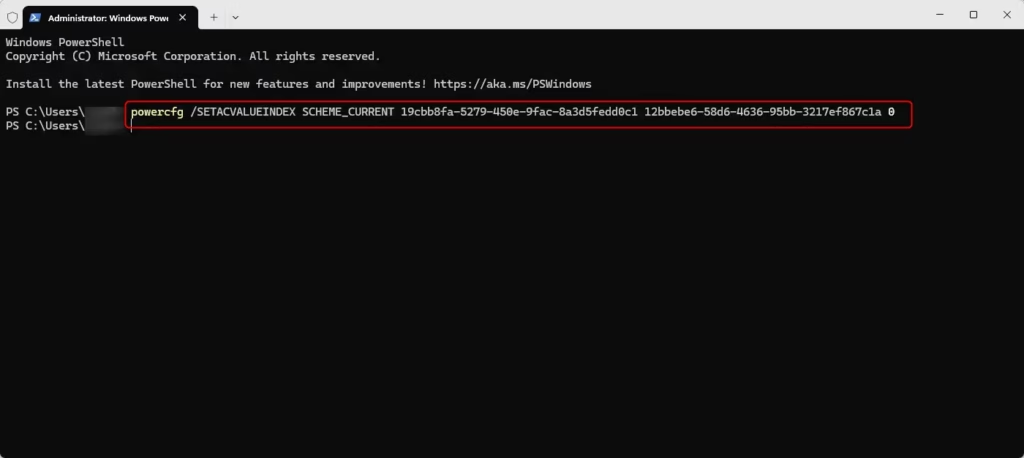
Summary
- Balance speed and battery lifeChoose a power saving mode that fits what you need. Do you want faster Wi-Fi or longer battery life? If your connection drops or slows down after sleep, start with Maximum Performance.
- Two ways to change itUse Control Panel or Windows Terminal. Control Panel needs no commands, while the terminal needs administrator rights.
- Know what each mode meansMore power saving means less Wi-Fi performance. The effect is most noticeable on a weak signal.
- For laptopsYou can set different modes for battery and plugged-in use. Desktops may show only one option.
- Learn moreCheck Intel’s official guide on wireless power management.
Setting your wireless adapter power saving mode correctly gives you the right balance between fast internet speeds and good battery life. You can adjust it from Control Panel or Windows Terminal, whichever you prefer. If you change your mind, repeat the same steps and pick a different mode.
Have a question about this guide?
Answered by AI from this guide. Good questions may be added to this page — please don't include personal details.
Did this guide fix your problem?

About the Author
Richard
Tech Writer, IT Professional
Richard is a writer at Geek Rewind who turns complex IT tasks into clear, step-by-step guides. He draws on years of hands-on experience in system administration and enterprise IT operations, focusing on Windows, Linux and WordPress: the problems people actually run into, and the fixes that work. His server and WordPress guides come from systems he runs himself. Richard builds and maintains the platform behind Geek Rewind, from its Ubuntu servers and Nginx configuration to its custom WordPress plugins. Many new tutorials start with readers' questions, and he's always glad to answer them in the comments.
No comments yet — be the first to share your thoughts!