How to Set Up Bluetooth PAN on Windows 11

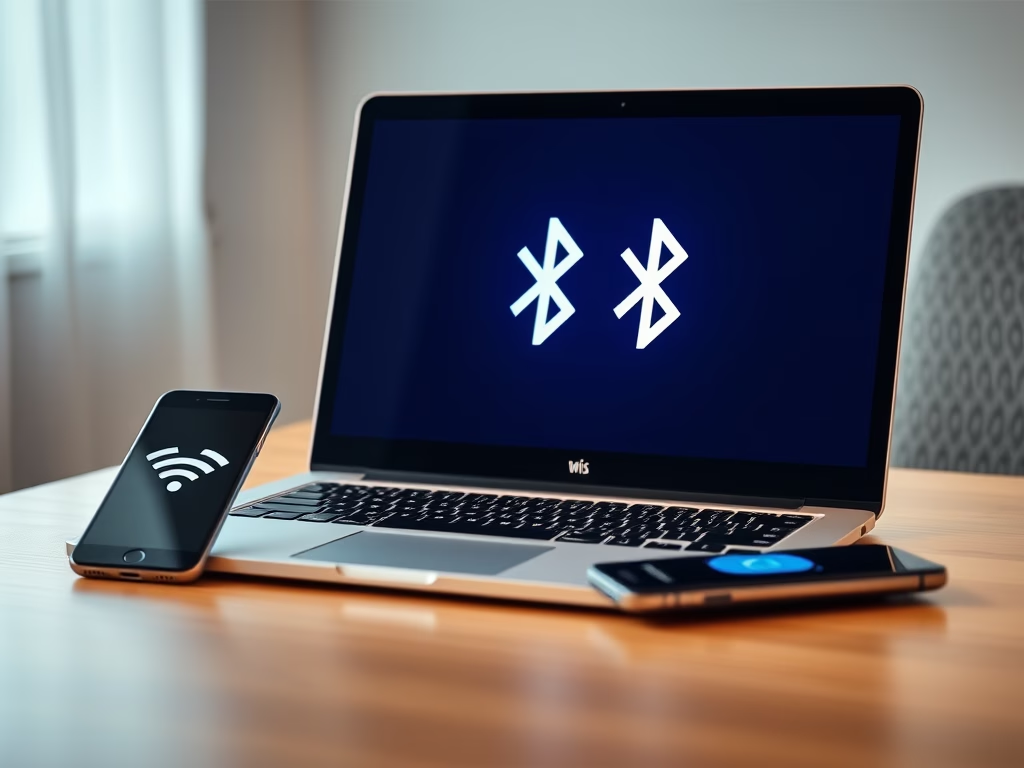
Bluetooth PAN on Windows 11 lets you share an internet connection between devices over Bluetooth instead of Wi-Fi. A Personal Area Network (PAN) is a direct link between your PC and a phone or another computer. It lets you borrow mobile data when normal wireless networks aren’t available.
Pairing the devices takes under 2 minutes in the standard Windows settings. You need a Bluetooth-enabled PC and a source device that already has a working internet connection. Bluetooth is slower than Wi-Fi, so expect enough speed for browsing, email and messaging, not for large downloads or video calls.
Pair your phone or other device with Windows 11 first. Then open Settings Bluetooth & devices, click the three dots next to the paired device, and select Join Personal Area Network (PAN). Choose Access Point to use the other device’s internet, then click Connect. The connection status appears on the Devices page.
Why Use Bluetooth PAN?
Bluetooth PAN is useful in these situations:
- You don’t have Wi-Fi but want to get online. Your phone’s mobile data becomes the connection for your PC.
- You want a safer connection than public Wi-Fi. Bluetooth is a private, paired link between two devices. You aren’t joining a network that strangers can also use.
- You want to share your computer’s internet with other devices over Bluetooth. Windows 11 can do this through its Mobile hotspot feature, if your PC has an internet connection to share.
What You Need
Check these before you start:
- A Windows 11 PC with Bluetooth. Most laptops have it built in. On a desktop you may need a USB Bluetooth adapter. If Bluetooth is missing from Settings, check that the adapter is installed and its driver is working.
- Another Bluetooth device, such as a phone, that can share internet through a hotspot. Its mobile data must be on and working. Some carrier plans restrict tethering, so confirm yours allows it.
- Both devices paired over Bluetooth. Turn Bluetooth on for both, make the phone discoverable, and confirm the pairing code on each screen when asked. Once paired, the phone should appear in your list of Bluetooth devices in Windows.
How to Connect to a Bluetooth PAN
Connecting to a Bluetooth PAN (a personal area network that shares internet over Bluetooth) on Windows 11 starts by pairing both devices through the Bluetooth settings menu. Once your computer and phone or tablet are paired, you can open Control Panel to join the network and share your internet connection without needing a Wi-Fi router.- Turn on Bluetooth on both your computer and the other device. How to pair Bluetooth devices on Windows 11
- Open the Windows Settings app:
- Click the Start menu and choose Settings, or
- Press Win+I on your keyboard.
- In Settings, click Bluetooth & devices on the left side.
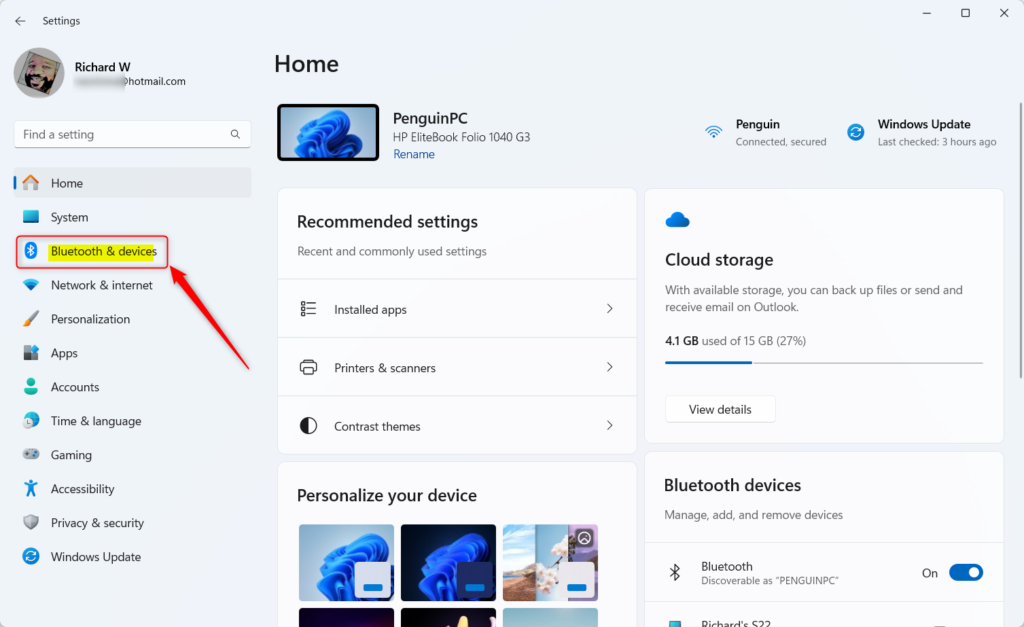
Windows Bluetooth and internet in Settings - Find the device you paired with and click on the Devices tile to open it.
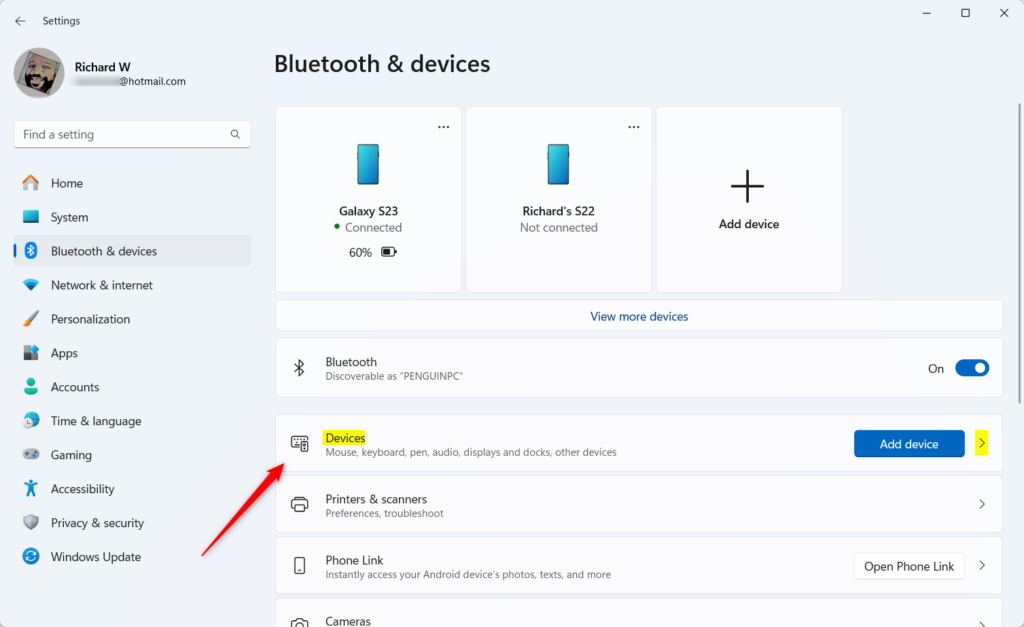
Bluetooth devices tile in Windows Settings - Click the More settings icon (the three dots) next to the paired device.
- Select Join Personal Area Network (PAN).
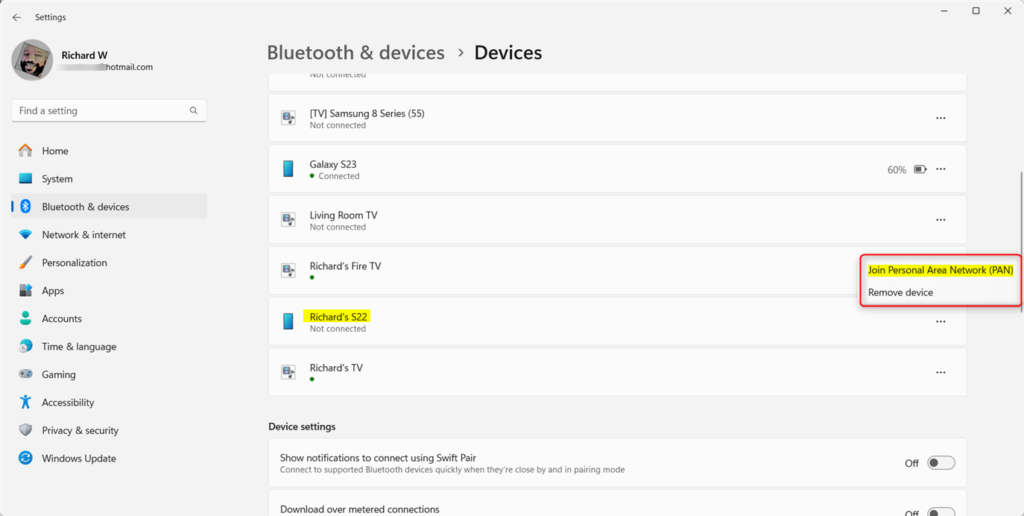
Bluetooth devices join Bluetooth pan - If asked, choose the connection type:
- Access Point (connect through the other device’s internet)
- Direct connection (connect directly between devices)
- Click Connect.
- You should see the connection status on the Devices page once connected.
How to Disconnect
To disconnect, go back to Bluetooth Devices. Select your device and click the three dots again. Then choose Disconnect PAN.
Need More Help?
For official information, see Microsoft’s guide: Connect to a Bluetooth network in Windows
Summary
- Bluetooth PAN lets you share internet wirelessly without Wi-Fi.
- It’s safer than public Wi-Fi because it connects devices directly.
- You can use it to share your Windows 11 PC’s internet with other devices via Bluetooth.
- If you have problems, check the Microsoft link above or ask for help.
To undo the setup, turn off Bluetooth tethering or the hotspot on the phone, or remove the paired device from the Bluetooth device list in Windows. Neither step affects your Wi-Fi settings or other saved networks.
Have a question about this guide?
Answered by AI from this guide. Good questions may be added to this page — please don't include personal details.
Did this guide fix your problem?

About the Author
Richard
Tech Writer, IT Professional
Richard is a writer at Geek Rewind who turns complex IT tasks into clear, step-by-step guides. He draws on years of hands-on experience in system administration and enterprise IT operations, focusing on Windows, Linux and WordPress: the problems people actually run into, and the fixes that work. His server and WordPress guides come from systems he runs himself. Richard builds and maintains the platform behind Geek Rewind, from its Ubuntu servers and Nginx configuration to its custom WordPress plugins. Many new tutorials start with readers' questions, and he's always glad to answer them in the comments.
No comments yet — be the first to share your thoughts!