How to Enable or Disable Notifications for New Bluetooth Devices in Windows 11

Windows 11 can show a pop-up when a new Bluetooth accessory tries to connect to your PC. You can turn that pop-up on or off. This tutorial covers two ways to do it: the Settings app and the Registry Editor.
Open Settings , go to Bluetooth & devices Devices More Bluetooth settings, click the Options tab, and check or uncheck Alert me when a new Bluetooth device wants to connect. Click OK to apply the change immediately.
What is Bluetooth?
Bluetooth is a wireless technology that links your PC to accessories like headphones, speakers, mice, and keyboards without cables.
Windows 11 laptops and desktops that have a Bluetooth adapter work with many wireless devices, including smartphones, fitness bands, and audio gear. If you need help pairing one, Microsoft has an official guide here: How to pair a Bluetooth device in Windows 11.
By default, Windows 11 shows an “Add a device” notification when a new Bluetooth device tries to connect. From that banner you can approve or deny the connection right away.
If you turn these alerts off, Windows stops showing a pop-up each time a nearby accessory asks to connect. This helps if a device keeps retrying and the same prompt keeps coming back. The setting works the same on Windows 11 Home and Pro, and you don’t need to restart.
Option 1Turn On or Off Notifications Using Settings
You need a working Bluetooth adapter for this to work.
- Press Win+I to open Settings .
- Click Bluetooth & devices in the left menu. If you don’t see this entry, your PC has no Bluetooth adapter, or the driver isn’t installed or the adapter is disabled in Device Manager.
- Click Devices on the right side. You should now see your paired devices.
- As a shortcut, you can open this page directly with this link: Open Bluetooth & devices settings.
- Scroll down to the Related settings section and click More Bluetooth settings. A separate Bluetooth Settings window opens.
- In that window, click the Options tab.
- To turn notifications ON, check the box Alert me when a new Bluetooth device wants to connect.
- To turn notifications OFF, uncheck the same box.
- Click OK to save your choice. The window closes and the change applies straight away.
- Close the Settings window.
To undo the change, repeat the steps and set the box back the way it was.
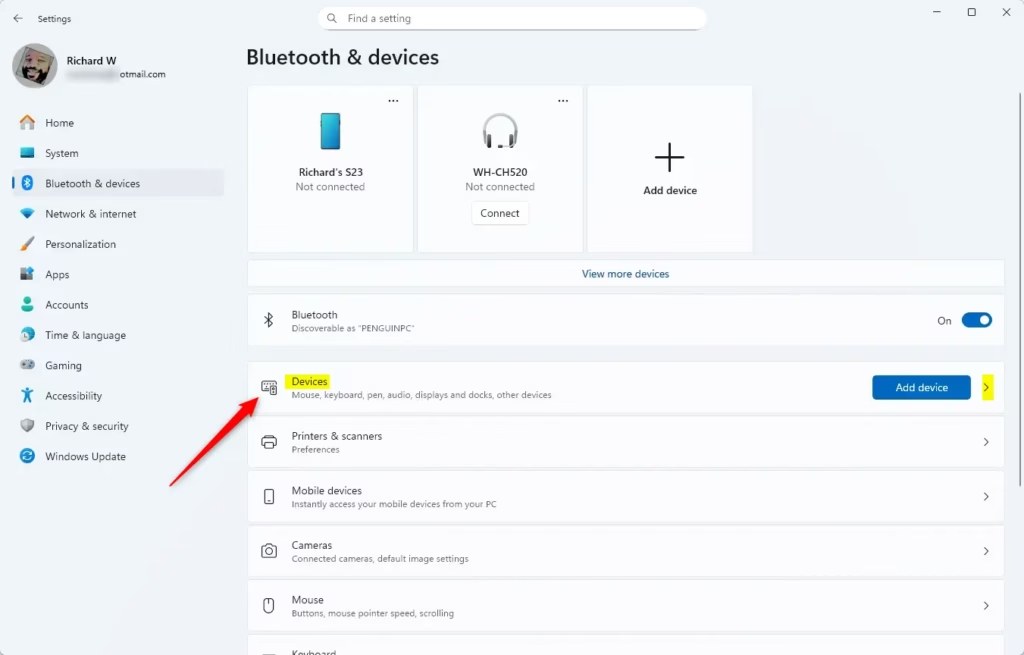
The Settings app takes a few clicks, but it is the fastest method for everyday use, and it needs no registry editing.
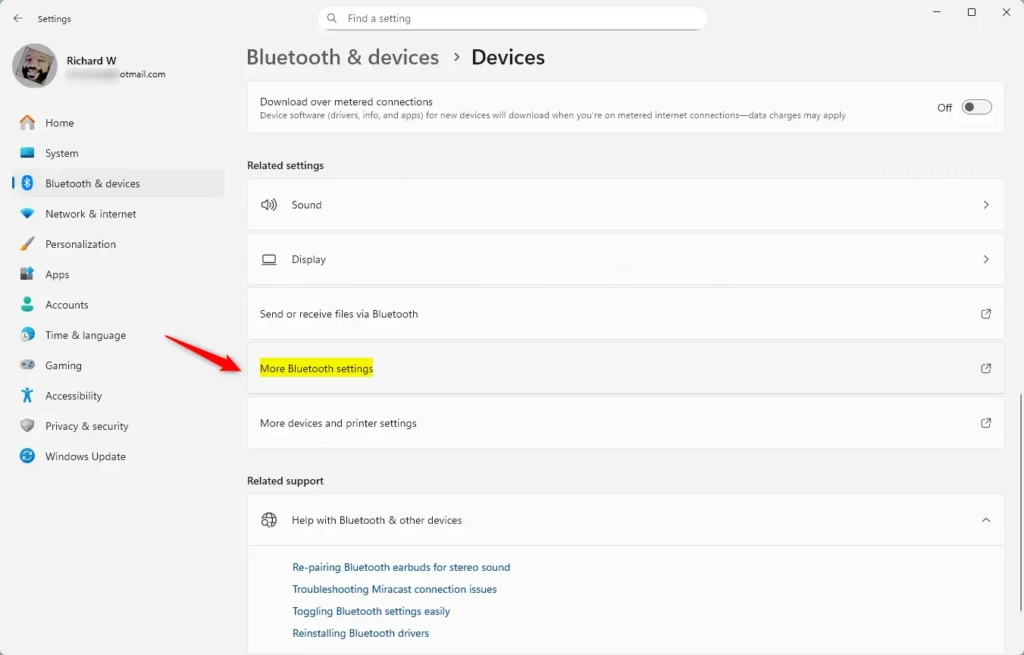
The checkbox you found controls whether a connection banner appears on the desktop when a device tries to pair. If it is checked, you get the banner. If it is unchecked, Windows stays quiet.
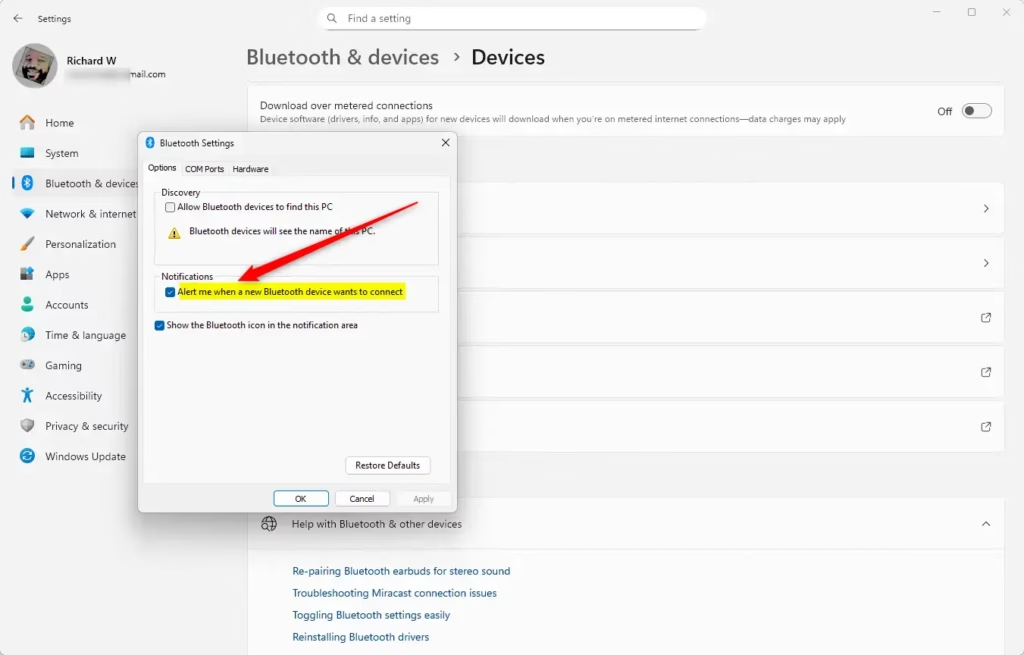
With the box unchecked, future pairing prompts will no longer interrupt fullscreen apps such as games or presentations.
Option 2Turn On or Off Notifications Using the Registry (Advanced)
You can also control these alerts through the Registry Editor. This method changes a registry value that sets whether connection alerts are shown. It works on both Home and Pro, but you need an administrator account.
If the change doesn’t take effect right away, sign out and back in, or restart the PC.
To turn ON notifications (default setting):
reg add "HKEY_CURRENT_USER\Software\Microsoft\BluetoothAuthenticationAgent" /v AcceptIncomingRequests /t REG_DWORD /d 1 /fTo turn OFF notifications:
reg add "HKEY_CURRENT_USER\Software\Microsoft\BluetoothAuthenticationAgent" /v AcceptIncomingRequests /t REG_DWORD /d 0 /fSummary
Windows 11 keeps connection alerts on by default so you can see which hardware is trying to reach your PC. If you turn them off, you get fewer distractions. The trade-off is that you will have to pair new devices manually through the Settings menus.
Administrators often turn these banners off on shared workstations to cut down on clutter. Decide for yourself whether a quiet desktop or visibility of connection attempts matters more for the way you work.
Whichever method you use, you can reverse the change at any time by setting the option back.
Frequently asked questions
How to turn off notifications coming through Bluetooth speaker 🪟 Windows 11 PC?
Open Settings, select Bluetooth & devices, then open Devices. Turn off the toggle for "Show notifications to connect using Bluetooth." Windows stops showing pop-ups when nearby accessories try to connect. Your paired speakers and headphones keep working, and the change takes effect right away without a restart.
Why is my settings telling me in notifactions to connect my work or school devices?
This message usually means Windows found a work or school account on your PC and wants you to connect it. To stop it, open Settings, select Accounts, then select Access work or school. Remove the account if you no longer need it. To keep the account but hide the prompt, turn off its notifications under System, then Notifications.
How to turn off add a device notification when there is no option for add a device in notification setting?
If Add a device is missing from your notification settings, the pop-up is controlled from Bluetooth settings instead. Open Settings, select Bluetooth & devices, and check Devices for a toggle that turns off connection notifications. If you can't find it, use the Registry Editor method covered in this tutorial.
Still have a question?
Answered by AI from this guide. Good questions may be added to this page — please don't include personal details.
Did this guide fix your problem?

About the Author
Richard
Tech Writer, IT Professional
Richard is a writer at Geek Rewind who turns complex IT tasks into clear, step-by-step guides. He draws on years of hands-on experience in system administration and enterprise IT operations, focusing on Windows, Linux and WordPress: the problems people actually run into, and the fixes that work. His server and WordPress guides come from systems he runs himself. Richard builds and maintains the platform behind Geek Rewind, from its Ubuntu servers and Nginx configuration to its custom WordPress plugins. Many new tutorials start with readers' questions, and he's always glad to answer them in the comments.
No comments yet — be the first to share your thoughts!