Change Where Game Captures Are Saved in Windows 11

Game captures in Windows 11 save to the Captures folder inside your Videos folder by default, at 📁C:\
This guide uses that method first because it needs no extra software and works on Windows 11 Home and Pro. A second method covers people who want to move only the game clips, not every video on the PC. Neither method needs administrator rights.
Game captures in Windows 11 save to 📁C:\
Where 🪟 Windows 11 saves game captures by default
Game Bar, the Win+Alt+R recording shortcut, and the Win+Alt+PrtSc screenshot shortcut all save to the same folder. That folder is Captures, inside Videos, in your user profile. Screenshots and recordings share it, so one change covers both.
Windows treats Videos as a known folder (a folder Windows finds by its purpose, not by a fixed path). That is why the Location tab can redirect it, and why Captures follows along as a subfolder. Where Are My Documents Saved in Windows 11 explains the same idea for the Documents folder.
Check your current capture location before you change anything. The first steps in the list below show it in Settings.
Before you change the capture folder
Every file in the Videos folder goes to the new location, not only game clips. Moving it back is possible (see the undo section), but it copies everything a second time, so choose the destination carefully.
- Free space: The destination drive needs room for everything currently in Videos plus your future clips. Clips from long sessions grow quickly.
- Drive type: Use an internal drive or a partition (a separate section of a drive that has its own letter). An external USB drive works only while it is plugged in. If it is missing when you record, Game Bar may fail to save the clip.
- Close Game Bar and games: Windows cannot move files that are open. Quit any game and close the Game Bar overlay first.
- OneDrive: If OneDrive backs up your Videos folder, the path starts with OneDrive instead of 📁C:\
Users . See the troubleshooting section before you continue.
Change where game captures are saved
These steps change where game captures are saved in Windows 11 by moving the Videos folder, which contains the Captures folder. Replace 📁D:\
- Press Win+I to open Settings . The Settings window opens on the System page.

- Select Gaming in the left menu. The Gaming page lists Xbox Game Bar, Captures and Game Mode.
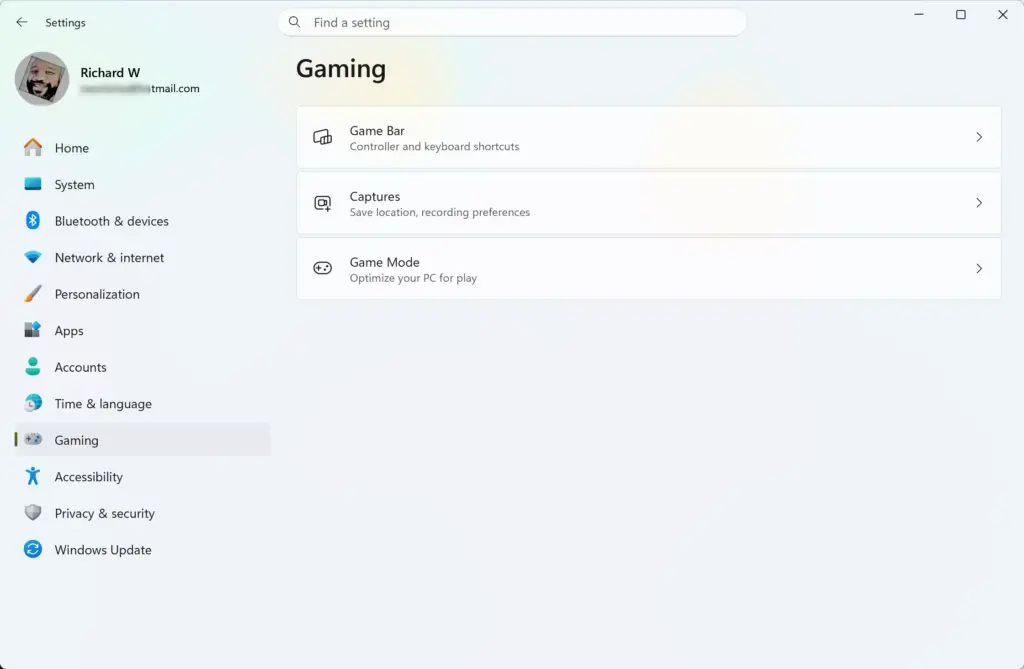
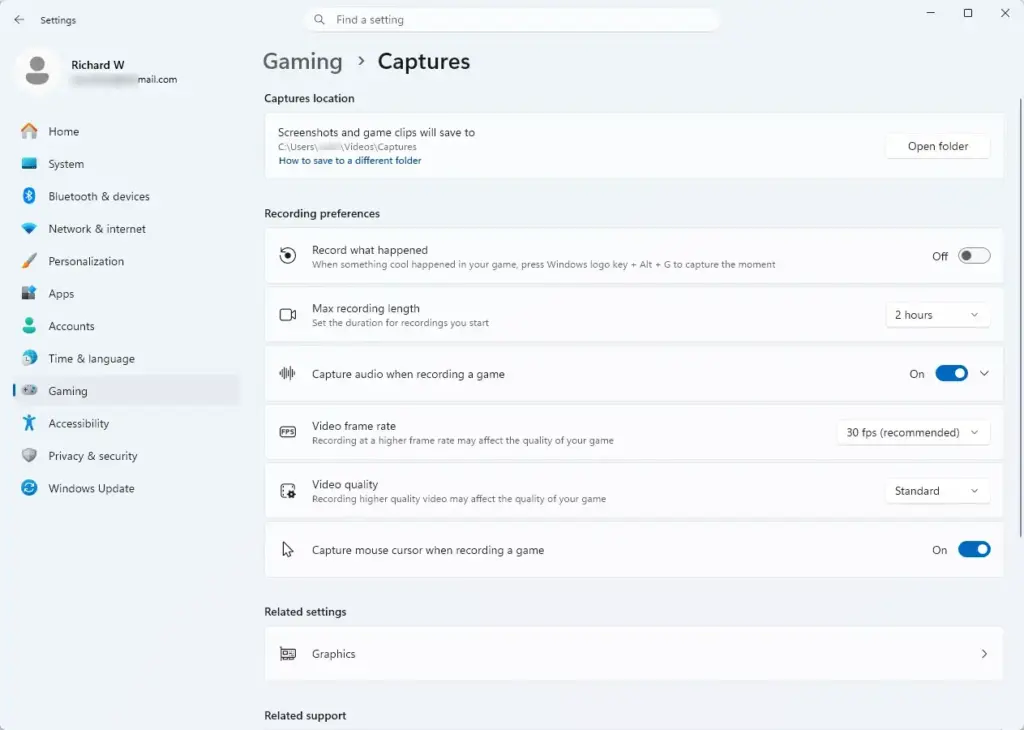
Settings › Gaming - Select Captures. The path is Settings Gaming Captures. Note the path under Capture location. It normally ends with Videos\Captures.
Settings › Gaming › Captures - Close Settings. Quit any game and close the Game Bar overlay if it is open.
- Press Win+E to open File Explorer . A window opens with Home and the navigation pane (the list of folders on the left).
- Open the drive you want to use, such as Data (D:). Skip this step if the drive is already open in the right pane.
- Right-click an empty space and choose New > Folder. Name it Videos, or any name you prefer. This folder is the destination. Windows can also create it for you in step 13, but making it now avoids mistakes.
- Return to the navigation pane and right-click Videos. If you do not see it, expand This PC and look under the folder list.
- Select Properties. The Videos Properties window opens with tabs such as General, Sharing and Location.
- Select the Location tab. The box shows the current path, usually 📁C:\
Users\ . If the Location tab is missing, go to the troubleshooting section.USERNAME\ Videos - Select Move. A folder picker opens.
- Browse to the folder you created, such as 📁D:\
Videos . Select it once to highlight it. - Select Select Folder. The picker closes and the Location box shows the new path.
- Select Apply. A prompt asks whether to move all files from the old location to the new location.
- Select Yes to move your existing clips and videos. A progress window appears while Windows copies them. Large libraries can take several minutes. Do not unplug a drive or shut down during this step.
- Select OK to close the Properties window. Windows 11 now uses the new Videos folder.
- Open Settings Gaming Captures again. Capture location should now show the new path, ending with Captures, such as 📁D:\
Videos\ . If it still shows the old path, close Settings, reopen it and look again.Captures - Open any game or app window and press Win+Alt+PrtSc. Game Bar saves a screenshot and shows a short notification in the corner of the screen.
- Select Open folder next to Capture location in Settings. The new Captures folder opens, and the test screenshot is inside it.
If the Captures folder does not yet exist at the new location, Game Bar creates it the first time it saves a clip. An empty or missing folder right after the move is normal.
Check that the Change folder button is not available
Some Windows 11 builds may show a button beside Open folder that lets you pick another folder directly. This may not appear on every build. If your Captures page has such a button, it is a shorter route. If it only shows Open folder, which is the common case, use the File Explorer method above.
Move only game captures, not the whole Videos folder
A junction (a link that makes one folder appear inside another, here pointing to a folder on a different drive) redirects only the Captures folder. Game Bar still saves to 📁C:\
Move your clips out first, then delete the folder.
- Quit any game and close the Game Bar overlay. Windows cannot move or delete files that are in use.
- Open File Explorer and create a folder on the target drive, such as 📁D:\
Game Clips . - Open 📁C:\
Users\ . Press Ctrl+A to select every file.USERNAME\ Videos\ Captures - Drag the files into 📁D:\
Game Clips , or press Ctrl+X and then Ctrl+V in the new folder. The Captures folder is now empty. - Go up one level to the Videos folder. Right-click Captures and select Delete. The junction cannot be created while a folder with that name exists.
- Click Start, type cmd and select Command Prompt. A black window opens. Administrator rights are not needed for a junction.
- Type the following command and press Enter. Replace USERNAME with your account name and adjust the second path if your folder differs.
mklink /J "C:\Users\USERNAME\Videos\Captures" "D:\Game Clips"
- Read the reply. Command Prompt prints a line starting with Junction created for, which means it worked. If you see “Cannot create a file when that file already exists,” the Captures folder still exists. Delete it and run the command again.
- Press Win+Alt+PrtSc in any game or app window to take a test screenshot.
- Open 📁D:\
Game Clips . The screenshot appears there even though Settings still lists the C: path.
Settings Gaming Captures keeps showing the original 📁C:\
If the Location tab is missing or the move fails
Most problems come from a redirected Videos folder or a drive Windows cannot write to. Check these cases in order.
- The Location tab is missing: You probably right-clicked a subfolder such as Captures, or a different folder with the same name. Right-click the main Videos folder in the left-hand pane (the navigation pane).
- The path starts with OneDrive: OneDrive folder backup is redirecting Videos. Moving it from the Location tab can conflict with that backup. Pause or turn off Videos backup in OneDrive settings first. Alternatively, use the junction method, which leaves the Videos folder untouched.
- Windows says it cannot move the folder: Close games, Game Bar and any video player that has a file in Videos open. Try again.
- The new location shows an access error: Choose a folder on a drive that your account can write to. Create the folder inside your own area on the drive, not in a protected location such as 📁C:\
Windows . - Clips stop saving after a restart: The destination drive may not be connected. Reconnect an external drive, or switch to an internal drive.
- Settings still shows the old path: Close and reopen Settings. If the old path stays, check that the move finished. Then confirm the Location tab shows the new folder.
If a recording is missing, make sure capture itself is on. How to Enable Game Capture on Windows 11 covers the switches in Settings and Game Bar.
Undo the change and restore the default capture folder
To undo a Videos move, use the same Location tab. It moves your files back to 📁C:\
- Open File Explorer and right-click Videos in the navigation pane.
- Select Properties, then select the Location tab.
- Select Restore Default. The path box returns to 📁C:\
Users\ .USERNAME\ Videos - Select Apply, then select Yes when Windows asks to move the files back.
- Select OK. The Videos folder, with Captures inside it, is back in your user profile.
To undo the junction method, open Command Prompt (the Windows text window for typing commands) and run rmdir "C:\Users\USERNAME\Videos\Captures". It removes only the link, and your clips stay in D:\Game Clips. Move them back into a new Captures folder if you want them in the default place.
Plan storage for the new location
A new drive helps only if it has room for your clips. Recording settings control file size more than anything else. A higher frame rate and quality produce much larger files. How to Adjust Video Quality for Game Clips in Windows 11 shows how to balance quality against size.
The maximum recording length also decides how large a single file can get. Set Max Recording Length in Windows 11 Gameplay Captures explains how to cap it.
What to do next
Record a short clip and confirm it lands in the new folder before your next long gaming session. If you move to a bigger drive later, repeat the Location steps with the new destination. To keep clips from filling the drive again, review the quality and recording length settings linked above.
Have a question about this guide?
Answered by AI from this guide. Good questions may be added to this page — please don't include personal details.
Did this guide fix your problem?

About the Author
Richard
Tech Writer, IT Professional
Richard is a writer at Geek Rewind who turns complex IT tasks into clear, step-by-step guides. He draws on years of hands-on experience in system administration and enterprise IT operations, focusing on Windows, Linux and WordPress: the problems people actually run into, and the fixes that work. His server and WordPress guides come from systems he runs himself. Richard builds and maintains the platform behind Geek Rewind, from its Ubuntu servers and Nginx configuration to its custom WordPress plugins. Many new tutorials start with readers' questions, and he's always glad to answer them in the comments.
No comments yet — be the first to share your thoughts!